
Video trend

Nervous Speech Meme: Captions and Posting

A caption can explain why your speaker is nervous without repeating the entire speech. These original caption ideas focus on the pressure of speaking in public. They are suggestions for your edit, not words added by the generator.

Final video
18 seconds
Your input
1 photo
Quality
720p
THE ORIGINAL18 SEC / 4 / 3
Sorry I'm NervousYour photo. This scene.

Give the apology room to land

01

Use the caption to set up the moment

Try “Me after volunteering to present” or “The notes made sense five minutes ago.” Put the setup near the beginning, then leave the apology audible. A caption that explains both the problem and the punchline before the speaker hesitates can make the pause feel unnecessary.
02

Build around a recognisable situation

For a work joke, try “When the meeting suddenly becomes your meeting.” For a personal post, try “Practised it perfectly in the kitchen.” These captions give the lectern a new everyday context without pretending the footage records a real event.

03

Let the reaction do some work

A second caption can arrive after the apology: “Back to the notes” or “That sounded different in rehearsal.” Use one short response rather than several competing lines. Keep enough of the reaction tail for viewers to see the speaker recover.

04

Keep the speech understandable

The generated export retains the reference speech. If you add music in an editor, keep it quiet enough that the count, hesitation and apology remain clear. Automatic captions can mishear the hesitant phrase; review them manually rather than publishing a guessed transcript.

05

Describe the synthetic scene plainly

Use a visible label such as “AI-made parody” and post with a caption that makes the joke’s fictional setup clear. The preview is already an AI scene, and replacing the speaker does not turn its words into an authentic statement by the person in your photo. Use photos only of yourself or someone who agreed to appear.

06

Check your final version before posting

Watch with sound, check the face and hands, and read every added caption at phone size. Confirm the AI label remains visible after the platform crops its preview. The template changes the speaker’s appearance; it does not remove or rewrite the original spoken references to nationalities. Listen to the full audio and choose a caption that suits what the clip actually says.

Explore the Sorry I'm Nervous trend

How to make it

Add a photo for each role shown below. All roles need a photo.

The roles in the Sorry I'm Nervous original reference
Speaker in the Sorry I'm Nervous source video
Speaker
  1. 01

    Choose the speaker

    Upload one sharp photo with the face and hair visible. A front-facing head-and-shoulders photo with an unobstructed mouth gives the template a clear identity reference.

  2. 02

    Review the preview and quote

    Turn on the preview sound to hear the fixed speech. Choose 720p or 1080p and review the quote for the complete 18-second clip.

  3. 03

    Check the speech and reactions

    Review the face, counting fingers and mouth timing through the hesitation and apology. Download the MP4 with the speech soundtrack and label your post as AI-made parody.

01

One speaker to replace

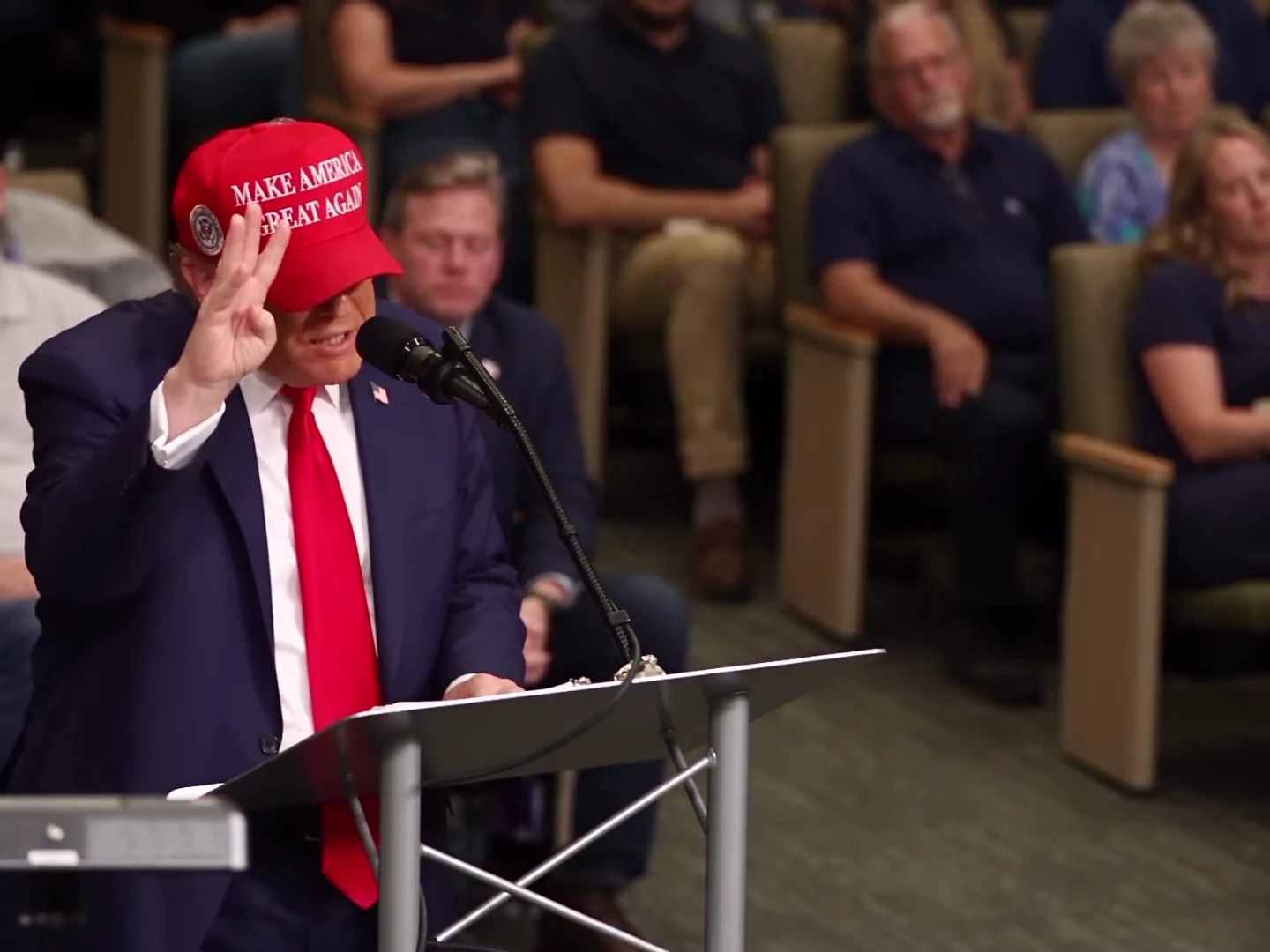
One photo supplies the speaker's face, hair and outfit. The lectern, microphone and seated audience remain part of the scene.

02

Speech included

The download keeps the reference speech, including the hesitation and the line ‘I'm sorry, I'm nervous’. Uploading a photo changes appearance, not the words or voice.

03

Keep the room in view

The 4:3 frame leaves space for both the speaker and the audience reactions. The full sequence runs for 18 seconds.

04

An AI parody reference

The preview is an AI parody, not an authentic recording of the depicted person saying these words. It is the reference the template follows, not an Oakgen-generated example.

Photo tips

  • One clearly visible face per photo
  • Keep the mouth and hair unobstructed
  • Your photo supplies the outfit
  • Hear the full speech before generating
  • Review hands and mouth timing before sharing
  • Use agreed photos and label the result as AI-made parody

Questions & answers

What is the Sorry I'm Nervous AI trend?

It is a lectern speech parody named after the spoken line ‘I'm sorry, I'm nervous’. The speaker counts on their fingers, hesitates and apologises while a seated audience reacts. Oakgen's template replaces that speaker with the character in your photo.

Does the video include the speech?

Yes. The original reference soundtrack is kept in the download, including the spoken lines, hesitation and background sound. It is not a silent template, and your photo does not change the voice.

Can I write my own speech or clone my voice?

This template uses the fixed speech from the preview. It does not accept a replacement script, voice recording or custom dialogue.

Does my photo need the red cap and suit?

No. The template replaces the source speaker's cap, suit, tie, hair and face with your own appearance. A cap is requested only when your photo includes one; lettering and logos are not requested.

Is the preview made with Oakgen?

No. It is an AI parody reference, not an Oakgen-generated result or an authentic speech recording. Label your version as AI-made parody too.

How long is it, and is it vertical?

The video is 18 seconds in a 4:3 frame, with 720p and 1080p options. It keeps the wide room composition rather than cropping away the audience.

Is lip sync guaranteed?

No. The template gives the model the reference performance and timed dialogue cues, then restores the reference speech. Check the generated mouth movements, pauses and apology before sharing.

Can I use a pet photo?

The template instructs the model to retain the animal's species and markings and adapt the gesture to a paw. Pet mouth timing and anatomy need careful review; no pet result is shown here as a verified example.

How much does it cost?

956 credits per 720p video. The quote covers the complete 18-second clip. Review it before generating.

Ideas for your next video

Plan a story, keep your character recognizable, and make the finished clip your own.

Explore the video trend playbook →

Make your Sorry I'm Nervous video

Upload 1 photo. Everything else is set.

Make this video