 ChatGPT
 Claude
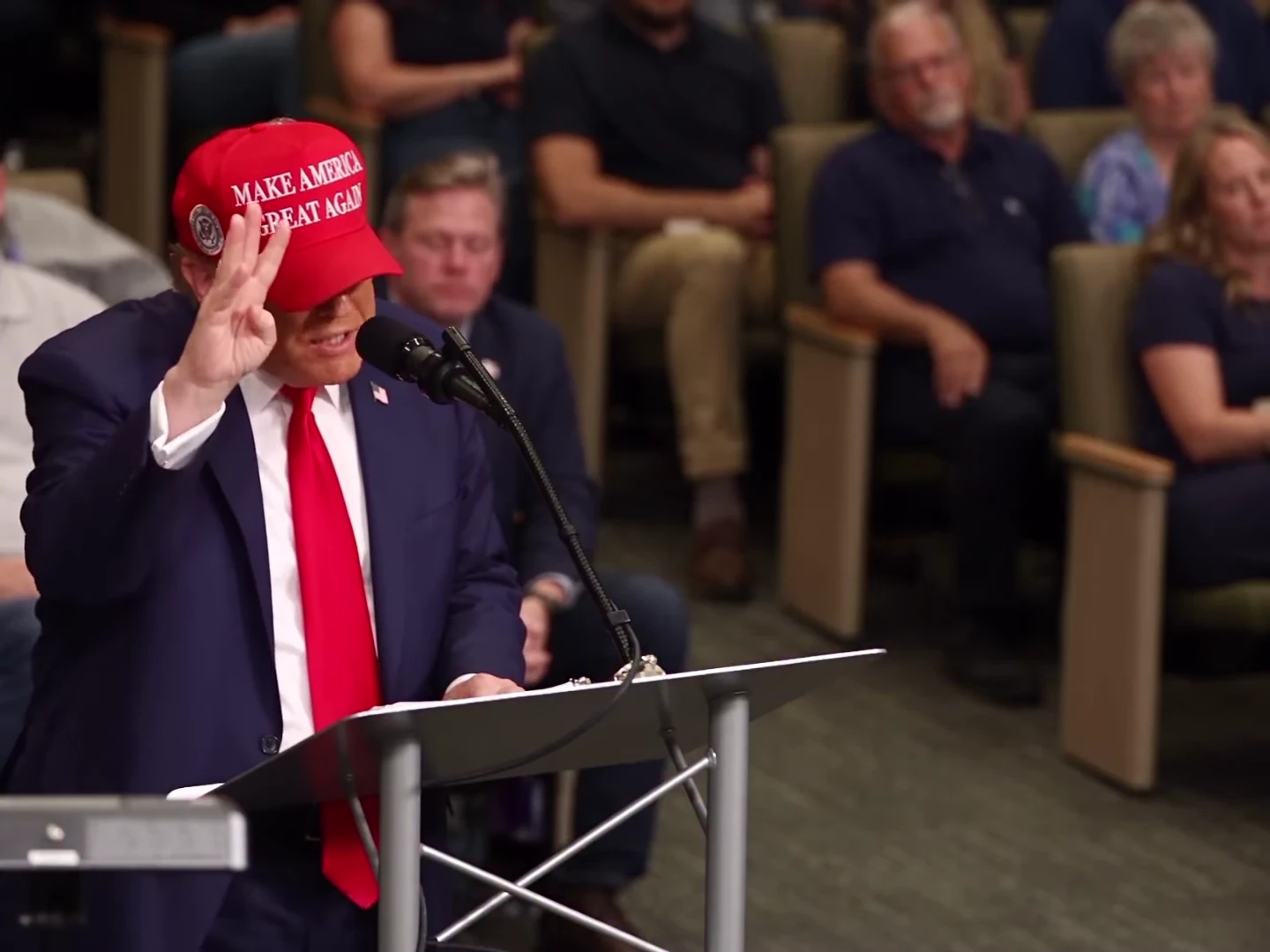
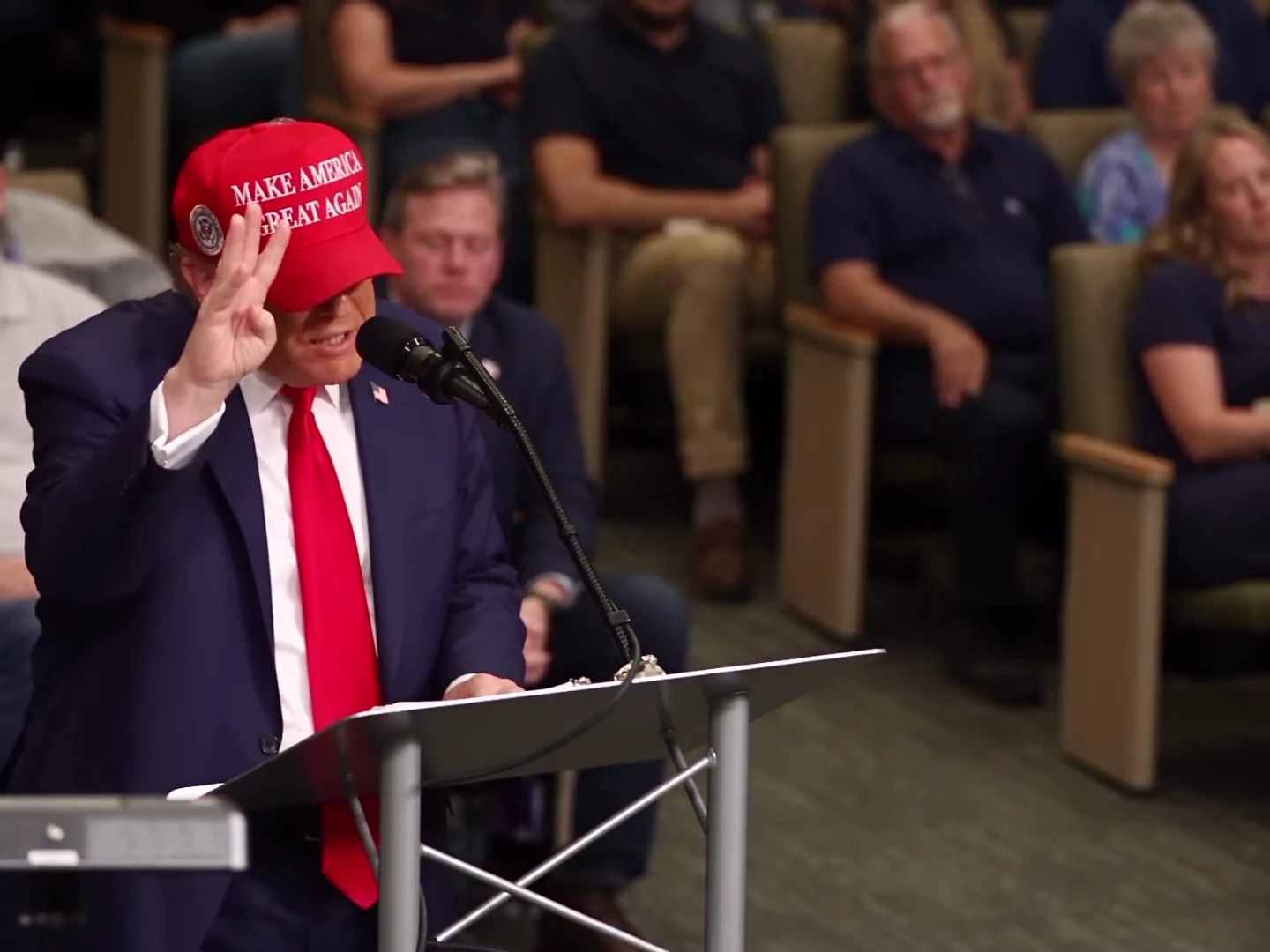
Sorry I'm Nervous puts the person from one photo at a lectern for an awkward speech. The speaker counts on their fingers, hesitates and says, “I'm sorry, I'm nervous.” The scene continues after the apology, leaving time for the speaker and seated audience to react.
Oakgen's template changes the foreground speaker's appearance and keeps the reference speech audio. It is an AI parody, not a recording of the uploaded person making a real statement. This guide covers the setup and the checks to make before you share it.
Cast the nervous speaker
Choose one photo and make the 18-second lectern parody with the original speech intact.
First, check that this is the version you want
Listen to the preview before selecting a photo. The clip starts during a statement about permanent jobs, moves through a count and a hesitation, then reaches the nervous apology at roughly 8.4–10.3 seconds. The wording includes references to nationalities. The template keeps that audio; it is not a blank speech scene into which you type a new script.
The visual is a 4:3 room scene with the speaker toward the left, a lectern and microphone in front, and audience chairs behind. The sound and scene guide explains how this AI version relates to the catchphrase. Other videos using the same sound may show completely different scenes.
Choose the photo for a moving face
Use a sharp photo of one person, preferably showing the head and shoulders with the mouth and hair unobstructed. A relaxed, roughly forward-facing photo gives a clear view of the identity you want in the scene. Avoid a phone across the lower face, a hand covering the lips or a face that occupies only a tiny part of the image.
The model is instructed to use the hair and outfit from that photo. You do not need a dark suit, tie or red cap. The cap seen in the reference is not a required costume, and it should not appear unless your uploaded photo includes headwear. If you wear glasses, keep them in the photo when you want them in the video, then pay attention to their shape when the counting hand passes close to the face.
The speaker photo guide compares these choices in more detail. Use your own photo or one of someone who agreed to appear in this parody.
Open the template and review the quote
Open Sorry I'm Nervous, fill the single speaker photo slot and choose 720p or 1080p. Review the current credit quote before generating. The configured output is 18 seconds in 4:3, including the reaction after the spoken line.
The photo does not replace the audience, change the camera angle or rewrite the speech. If your intended joke requires different words, this fixed template is not a script editor. If it requires a vertical layout, make the 4:3 version first and adapt the downloaded result in your editor.
Review the result in three passes
First, watch at normal speed with sound. The count should lead into the hesitation and then the apology, with room for the reaction afterward. Listen to the downloaded file as well as the preview so you know which version you are checking.
Next, compare the replacement identity at the beginning, around the apology and near the end. Check hair, glasses and clothing for changes. The raised hand is a useful stress point: look for merged fingers, an accessory becoming part of the hand, or the face changing as the hand passes it.
Finally, focus on the mouth during the spoken line. Preserving the source soundtrack does not by itself prove that every generated mouth movement aligns with it. The speech timing checklist gives approximate reference landmarks, but no paid result is presented here as a lip-sync benchmark. A visible timing mismatch is a reason to review the result, not to claim the speaker said something else.
Prepare the post without hiding the joke
Keep the face, counting hand and microphone visible. For a vertical post, fitting the whole 4:3 scene inside a taller canvas preserves more of the audience than a tight crop. The 4:3 framing guide covers where captions can go without hiding gestures.
A short setup such as “Me after volunteering to present” can sit above the frame. Let the spoken apology deliver the punchline, and label the video as AI-made parody. For specific shorter-cut options and caption placement, continue to the Sorry I'm Nervous editing guide.
Frequently asked questions
Does Sorry I'm Nervous keep the speech?
Yes. The export uses the reference soundtrack, including the speech, hesitation and apology. It does not create a new voice from your photo.
How many photos do I need?
One clear photo casts the foreground speaker. The seated audience is not replaced.
Do I need a red cap or a suit?
No. The speaker uses the hair and clothing from your photo. The reference cap and outfit are replaced unless your photo shows them.
What shape and length is the result?
The template is configured for 18 seconds in 4:3, at 720p or 1080p. It is not a native 9:16 video.
Is the preview a generated Oakgen example?
No. It is the AI parody reference that the template follows. No paid output is presented as proof of lip-sync quality in this guide.