
Video trend

Nervous Speech AI: Choosing the Speaker Photo

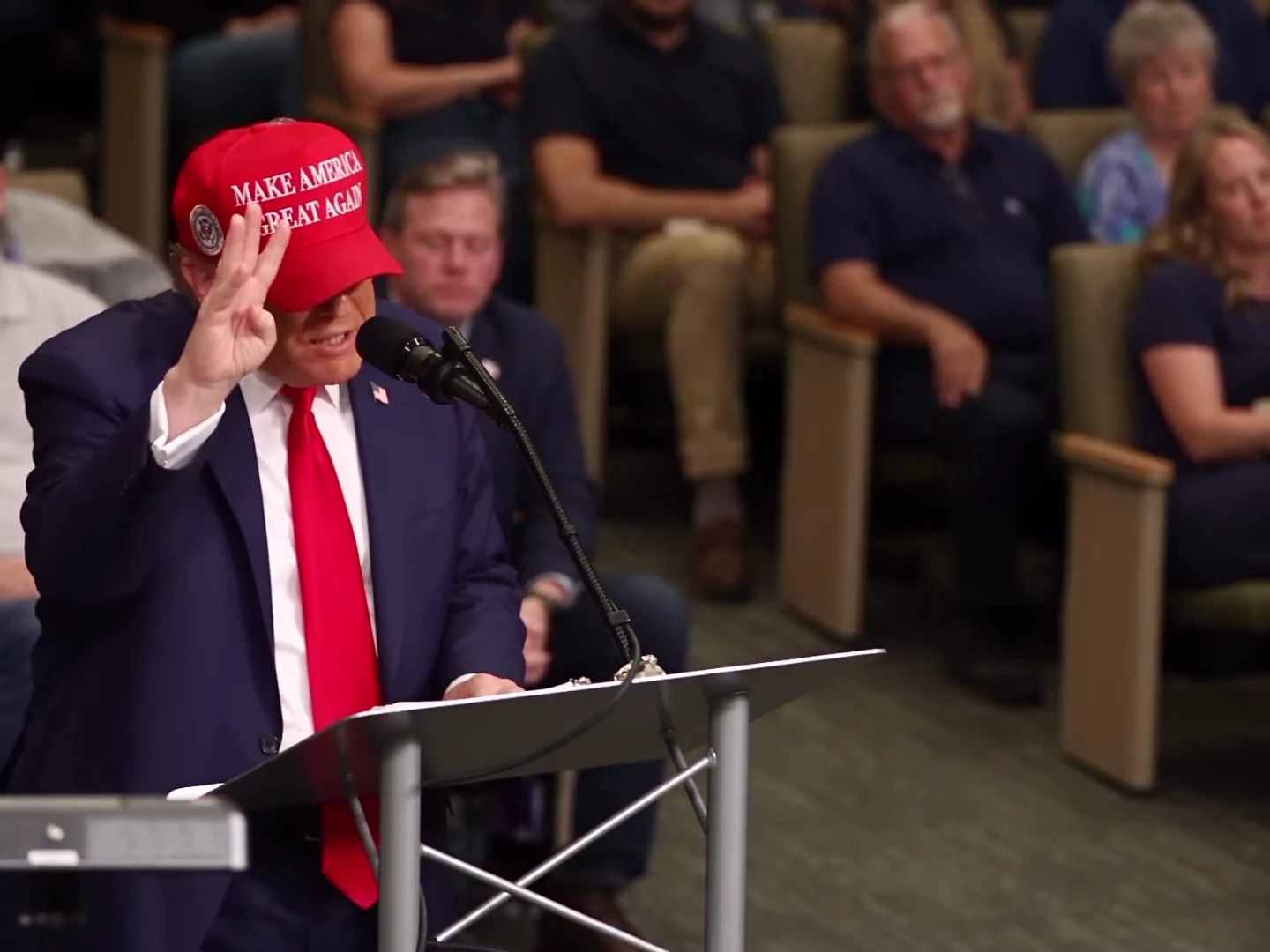
The lectern covers part of the speaker’s body, while a raised hand repeatedly moves near the face. A useful photo gives the model an unobstructed view of the face and the clothing you want carried into the scene. This guide explains those choices for Sorry I’m Nervous.

Final video
18 seconds
Your input
1 photo
Quality
720p
THE ORIGINAL18 SEC / 4 / 3
Sorry I'm NervousYour photo. This scene.

Choose the face before the outfit

01

Use a single clear subject

Choose a sharp head-and-shoulders photo of one person, with the face looking roughly toward the camera. A group photo leaves the intended speaker ambiguous. A tiny face in a full-body landscape photo supplies less facial detail than a closer crop of the same person.
02

Keep the mouth visible

Avoid a hand over the lips, a microphone directly across the mouth or a phone hiding the lower face. This scene contains speech, so the mouth is an important review area. A relaxed expression is a practical starting point; a single photo cannot guarantee every moving expression will match.

03

Show the hair you want to keep

The speaker should use the hair from your photo, including hairline, colour and facial hair. The source’s red cap is not an automatic addition. An uncovered head makes your hair easier to read. If you intentionally upload headwear, check that it stays consistent when the speaker lowers their head.

04

Choose clothing that reads behind the lectern

The source suit and tie are replaced by the uploaded outfit. A plain shirt, jacket or sweater gives you a clear visual detail to compare from the first frame to the apology. Small printed designs may not remain readable, and the template instructs the output to avoid garment lettering and logos.

05

Check glasses and the moving hand together

If your photo includes glasses, review their shape while the counting hand crosses near the face. Watch for a frame becoming part of a finger, a disappearing temple or a different lens shape later. An accessory-free photo gives you fewer small details to check, but glasses need not be removed if they are part of your intended look.

06

Know what a new photo will not change

A new photo changes the foreground speaker, not the seated audience, camera angle, fixed speech or 18-second timeline. The one required photo is not an audience-replacement control. After generating, compare identity at the raised-hand opening, the hesitation and the later reaction before downloading or posting.

Explore the Sorry I'm Nervous trend

How to make it

Add a photo for each role shown below. All roles need a photo.

The roles in the Sorry I'm Nervous original reference
Speaker in the Sorry I'm Nervous source video
Speaker
  1. 01

    Choose the speaker

    Upload one sharp photo with the face and hair visible. A front-facing head-and-shoulders photo with an unobstructed mouth gives the template a clear identity reference.

  2. 02

    Review the preview and quote

    Turn on the preview sound to hear the fixed speech. Choose 720p or 1080p and review the quote for the complete 18-second clip.

  3. 03

    Check the speech and reactions

    Review the face, counting fingers and mouth timing through the hesitation and apology. Download the MP4 with the speech soundtrack and label your post as AI-made parody.

01

One speaker to replace

One photo supplies the speaker's face, hair and outfit. The lectern, microphone and seated audience remain part of the scene.

02

Speech included

The download keeps the reference speech, including the hesitation and the line ‘I'm sorry, I'm nervous’. Uploading a photo changes appearance, not the words or voice.

03

Keep the room in view

The 4:3 frame leaves space for both the speaker and the audience reactions. The full sequence runs for 18 seconds.

04

An AI parody reference

The preview is an AI parody, not an authentic recording of the depicted person saying these words. It is the reference the template follows, not an Oakgen-generated example.

Photo tips

  • One clearly visible face per photo
  • Keep the mouth and hair unobstructed
  • Your photo supplies the outfit
  • Hear the full speech before generating
  • Review hands and mouth timing before sharing
  • Use agreed photos and label the result as AI-made parody

Questions & answers

What is the Sorry I'm Nervous AI trend?

It is a lectern speech parody named after the spoken line ‘I'm sorry, I'm nervous’. The speaker counts on their fingers, hesitates and apologises while a seated audience reacts. Oakgen's template replaces that speaker with the character in your photo.

Does the video include the speech?

Yes. The original reference soundtrack is kept in the download, including the spoken lines, hesitation and background sound. It is not a silent template, and your photo does not change the voice.

Can I write my own speech or clone my voice?

This template uses the fixed speech from the preview. It does not accept a replacement script, voice recording or custom dialogue.

Does my photo need the red cap and suit?

No. The template replaces the source speaker's cap, suit, tie, hair and face with your own appearance. A cap is requested only when your photo includes one; lettering and logos are not requested.

Is the preview made with Oakgen?

No. It is an AI parody reference, not an Oakgen-generated result or an authentic speech recording. Label your version as AI-made parody too.

How long is it, and is it vertical?

The video is 18 seconds in a 4:3 frame, with 720p and 1080p options. It keeps the wide room composition rather than cropping away the audience.

Is lip sync guaranteed?

No. The template gives the model the reference performance and timed dialogue cues, then restores the reference speech. Check the generated mouth movements, pauses and apology before sharing.

Can I use a pet photo?

The template instructs the model to retain the animal's species and markings and adapt the gesture to a paw. Pet mouth timing and anatomy need careful review; no pet result is shown here as a verified example.

How much does it cost?

956 credits per 720p video. The quote covers the complete 18-second clip. Review it before generating.

Ideas for your next video

Plan a story, keep your character recognizable, and make the finished clip your own.

Explore the video trend playbook →

Make your Sorry I'm Nervous video

Upload 1 photo. Everything else is set.

Make this video