
Video trend

Drake POPSTAR AI video: choose the right photo

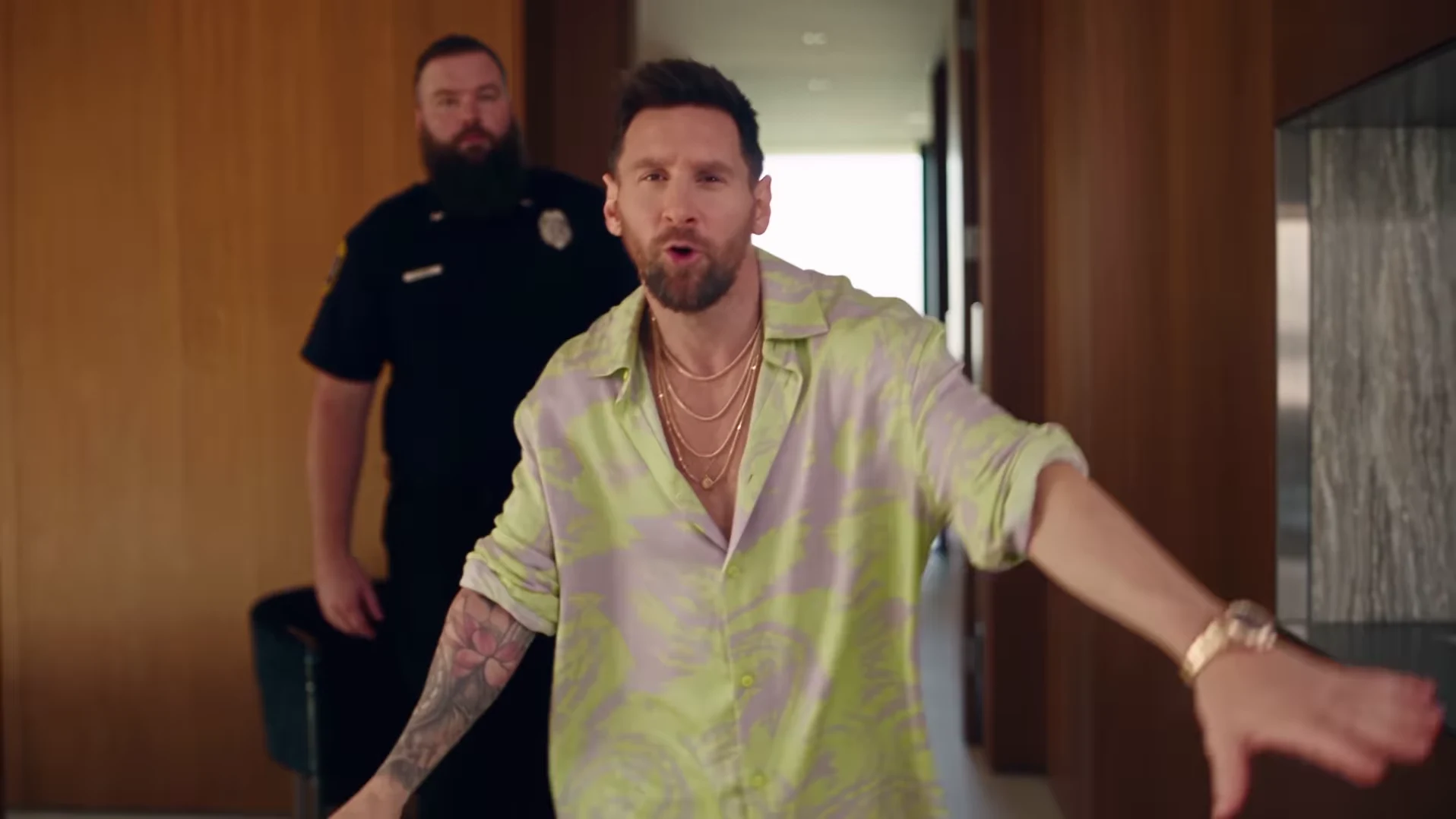
The POPSTAR mansion walk uses one photo for the lead. The default 30s full walkthrough adds a wider staircase descent, four wall portraits and a poolside finish. The 15s opening cut keeps the bottle entrance, following guard, landing and start of the stairs, ending before the portraits, bottle handoff and poolside finish. Both follow @nicolesgrid's landscape reference at the same speed with its corresponding soundtrack; 15s uses the matching first 15 seconds of sound. The song is POPSTAR by DJ Khaled featuring Drake; Justin Bieber stars in the official video.

Final video
30.04 or 15 seconds
Your input
1 photo
Quality
720p
THE ORIGINAL30.04 SEC / 16 / 9
Video length
Make the 30.04s version
POPSTARSource: @nicolesgrid

Choose for the moving face and the portraits

01

Compare two photos before spending credits

Put your possible photos side by side. In the first, can you see both eyes, the jaw and the hairline without zooming into a tiny face? In the second, is the face partly hidden by sunglasses, a hand or a heavy shadow? Prefer the clearer view even if the other photo has a more dramatic background. The template supplies the mansion; your photo needs to describe the person.

02

Keep the whole head in the frame

The lead approaches the camera, gestures and turns toward a glass-railed landing. A crop that cuts off the hair or chin leaves less information for those views. Use a sharp photo with a little space around the head and natural lighting. A heavily filtered selfie can also make it harder to judge whether the generated person still resembles the original.

03

Choose the outfit as part of the character

Choose visible clothing that suits your post while allowing for generated variation. The reference presenter wears a pale green patterned outfit; that does not promise your version will copy it. A full-body photo with a tiny face trades away useful facial detail. A clear upper-body image can show both face and clothing, although unseen details and movement still need to be generated.

04

Upload one person, not a group

Both durations have one required presenter role. A group photo makes the intended person less clear and does not add cast members; guards and party guests remain background characters. In the 30s version, the same input is used for the intended likeness in all four wall portraits; there is no separate portrait upload. Use your own photo or one you have permission to use, and keep the original handy for the final comparison.

05

Review three different views of the result

First compare the opening face with your photo. Then watch the turn toward the stairs at normal speed. For 30s, add a third check at the portrait wall during the descent; the 15s cut ends before that wall. A convincing opening alone is not enough: hair, facial proportions and clothing can shift as distance and angle change. Check the downloaded result, not just the source preview, which shows the credited reference rather than a verified Oakgen output.

06

Use the comparison to decide what to change

If the input has a hidden eye or cropped hairline, try a clearer photo before another generation. If the input is clear but a face changes only during a turn, record where the problem appears so you can compare a later result fairly. A different photo or higher quality does not guarantee a perfect identity match. Changing duration or quality updates the displayed credit total, including preparation of your one photo. Check that total before choosing to generate again.

Explore the POPSTAR trend

How to make it

Upload a clear photo for the performer you want to replace. The scene and its choreography are already set.

The roles in the POPSTAR original referenceTour presenter
  1. 01

    Add one photo

    Upload a clear photo showing one face for the lead role.

  2. 02

    Choose a length and quality

    Select 15 or 30 seconds and a quality. The displayed credit price updates for your selection and includes preparing your photo.

  3. 03

    Review and download

    Check the presenter, scene transitions and sound, plus the wall portraits in the full version, then download your video.

01

Choose 15 or 30 seconds

The 15-second opening covers the bottle-carrying entrance, following guard and start of the stairs. Choose the full 30-second version for the wall portraits, bottle handoff and poolside finish. Preview either cut before choosing.

02

Your face and wall portraits

One photo guides the lead in both versions and their likeness in the four wall portraits in the 30-second version. The guards are background characters. Review the generated likeness through the turns and staircase shots.

03

Reference soundtrack included

The downloaded video keeps the audio from the credited reference, with its original timing. Unmute the preview to hear it. Captions or a different soundtrack can be added after download.

Photo tips

  • Show one face clearly in each photo
  • Use even lighting and an unobstructed face
  • Use photos you have permission to use
  • Review the full AI result before sharing

Questions & answers

What is the POPSTAR AI trend?

It recreates the mansion-walk scene associated with POPSTAR by DJ Khaled featuring Drake. Justin Bieber stars in the official music video. Oakgen uses the credited @nicolesgrid reference to put your photo in the lead role, including the wall portraits, and keeps that reference's soundtrack.

Is this the Drake or Justin Bieber POPSTAR trend?

Those names refer to the same song and music-video connection: DJ Khaled featuring Drake is the recording credit, and Justin Bieber stars in the official video. Oakgen is independent of these artists and does not provide a celebrity photo preset.

How do I make the POPSTAR AI trend?

Add one clear photo for the presenter, choose 15 or 30 seconds and a quality, and check the displayed price before generating. Review the face, guard, staircase and sound, plus the four wall portraits in the full version. Add captions or change the soundtrack in a separate editor if you want.

Is this the template previously called Mansion Tour?

Yes. POPSTAR is the updated public name for the same one-photo template. Your existing Mansion Tour link still opens this trend.

Is the preview an Oakgen result?

No. The preview is the original Instagram reference, credited above. It shows the scene to recreate, not a verified Oakgen output. Oakgen is independent of the original creator.

Does this use the whole reference?

The default 30-second version covers the full 30.04-second reference. The 15-second option uses its opening at the same speed, ending during the start of the staircase descent. Choose 30 seconds for the four wall portraits, bottle handoff and poolside finish. AI-generated details and motion can differ from the reference.

Can I choose 15 or 30 seconds?

Yes. Both lengths use one presenter photo and include the matching reference soundtrack. Switch between their previews, then choose a quality and check the updated credit price before generating.

How many photos do I need?

One clear photo for the lead role. Background characters do not need photos.

Does the finished video have sound?

Yes. New videos keep the soundtrack from the credited @nicolesgrid reference. Unmute the preview to hear it and check your downloaded video with sound enabled. Older downloads made from the previous silent reference are unchanged. You can replace the soundtrack after download if needed.

How much does it cost?

1,912 credits for 15 seconds or 3,874 credits for the full 30-second version at 720p. Both include preparing your photo. The selected price updates with length and quality before you generate.
Ideas for your next video

Plan a story, keep your character recognizable, and make the finished clip your own.

Explore the video trend playbook →

Make your POPSTAR video

Upload 1 photo. Everything else is set.

Make this video