To make the POPSTAR AI trend on Oakgen, open the POPSTAR template, upload one clear presenter photo, choose a duration and quality, check the displayed cost and generate. Both durations include the reference soundtrack automatically. Review the complete video before downloading; different sound, captions and a vertical crop are optional changes in a separate editor afterward.
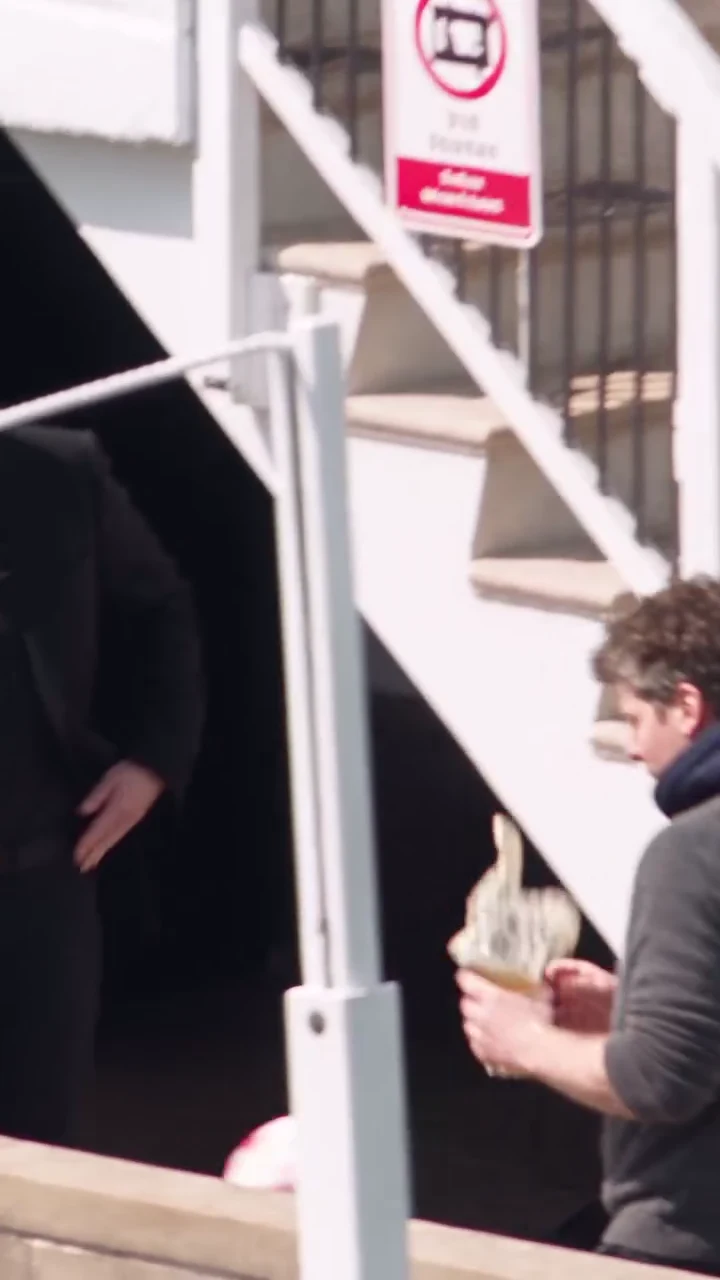
The default 30s full walkthrough uses the entire reference, which runs just over 30 seconds (about 30.04 seconds). The 15s opening cut keeps the bottle entrance, following guard, landing and start of the stairs at the same speed, with the matching first 15 seconds of sound. It ends before the four wall portraits, bottle handoff and poolside finish. Choose 30s if your idea needs those later moments.
1. Watch the reference and choose your premise
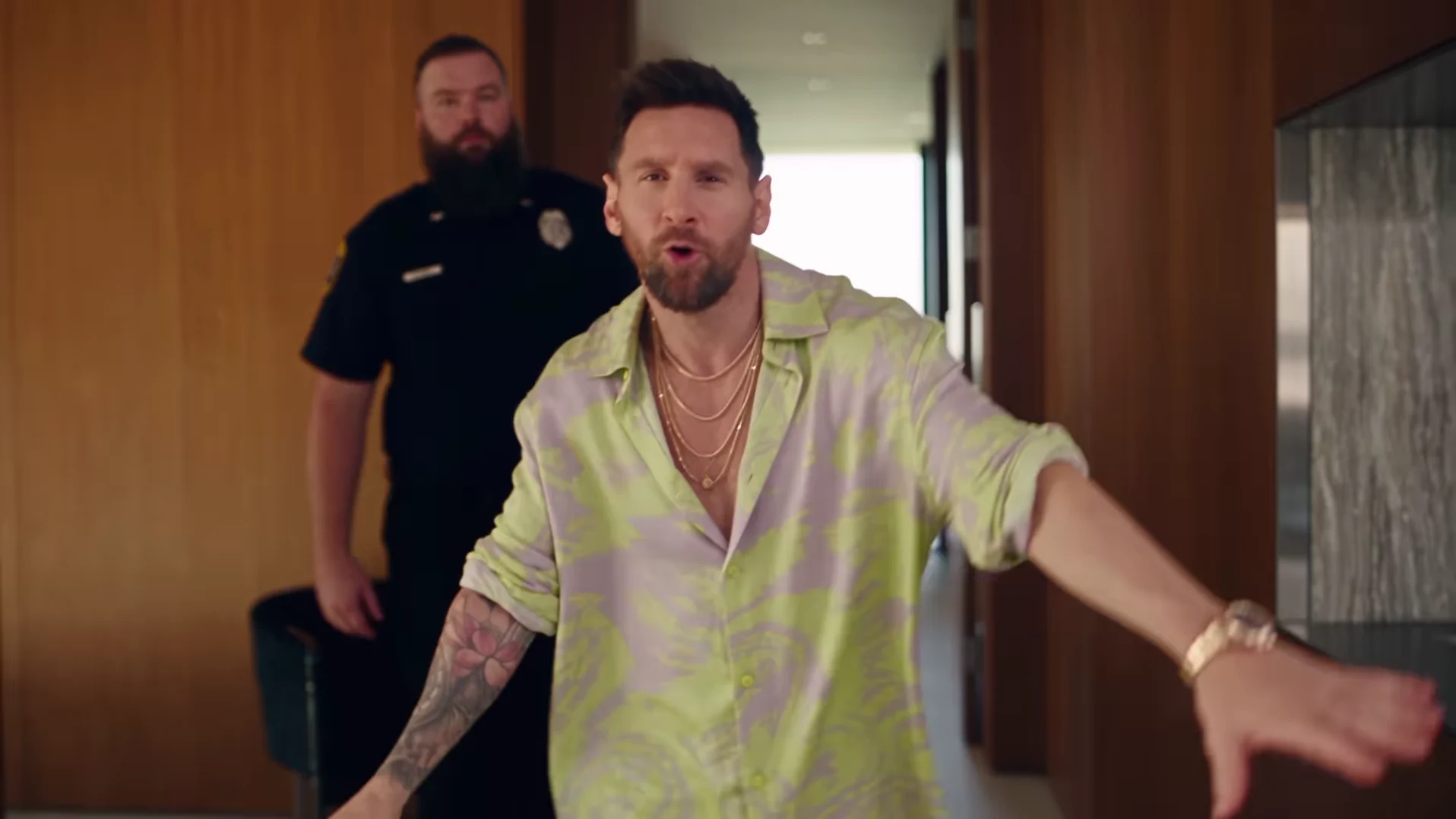
Watch the preview all the way through, unmuting the player to hear the reference soundtrack. Oakgen credits @nicolesgrid for this scene reference, whose caption credits Higgsfield Genjutsu. It shows the intended sequence, not a verified Oakgen result or a guarantee of your output's likeness.
Decide what the post should communicate. A personal star entrance needs a recognizable presenter. A comedy post also needs a specific setup, such as “Me after fixing the office printer.” Writing that idea now helps you decide which details must remain visible when you edit.
POPSTAR is by DJ Khaled featuring Drake, and the official video stars Justin Bieber. The POPSTAR trend explainer separates those credits from the AI scene reference.
2. Choose a photo that remains readable in motion
Use a photo you have permission to use, with one clearly visible face. Prefer even light, a complete head and distinct features. Check the eyes, hairline and jaw instead of judging only whether the photo looks attractive.
Compare two candidates. A sharp image with a slightly angled face may be more useful than a frontal selfie with a strong filter or deep shadows. Avoid group photos and images where a hand or accessory covers much of the face. The POPSTAR photo guide offers a detailed comparison.
Consider visible clothing, too. Pick an image whose overall appearance fits your post, while allowing for generated variation. The reference presenter's pale green patterned outfit is not a promise of what your version will wear. You do not need another photo for the guards or party guests, or separate uploads for the portraits.
3. Upload the presenter and choose duration and quality
Add your chosen image to the presenter slot. Confirm that you selected the intended person and a usable version of the photo.
Choose 15s or 30s and one of the qualities currently displayed. The credit total updates when you change duration or quality and includes preparing your one photo. Read that total before deciding whether to generate. A higher output quality is a resolution choice, not a guarantee that a face, hand or wall portrait will be more accurate.
Both options use the same mansion scene and include the corresponding reference soundtrack automatically. There is no custom-prompt or room-selection control. Plan any optional caption, sound or framing changes for your separate editor.
4. Generate, then review the whole walkthrough
Start generation once your photo, duration, quality and displayed cost are correct. When the result is available, watch it without pausing. Look for unexpected identity changes or movement that interrupts the tour.
Then make a closer pass:
- Opening approach: compare the face with your photo as the presenter moves toward the camera.
- Bottle gestures: inspect the hand, fingers and green bottle, especially where they overlap the body.
- Landing and start of the stairs: check the face in profile, the rail and the separation between presenter and guard. This is where the 15s cut ends.
- Four portraits — 30s version: inspect each face individually and compare it with the moving lead.
- Bottle handoff and poolside doors — 30s version: check the hands, final turn and exit for distracting changes in the person or surroundings.
The staircase portrait checklist helps with the later staircase section in the 30s version. Matching portraits are the intended result, not something you can assume from a successful opening frame.
If a small section is unusable, decide whether a later trim preserves your idea. If identity is inconsistent throughout, captions will not fix it. Reassess the photo and any further generation cost before trying again.
5. Download a clean copy with the reference soundtrack
Keep the original download before adding text or making cuts. It gives you a clean starting point for another version.
New POPSTAR downloads include the reference's soundtrack: the matching first 15 seconds for the opening cut, or the full reference audio for 30s. Instagram labels the reel Original audio, so distinguish that included sound from DJ Khaled featuring Drake's official POPSTAR audio. The label does not verify the commercial master or grant permission to reuse it. Listen to your untouched download with the player unmuted before making changes.
If you are comparing against an older silent download, that saved file has not changed. For a new file that seems silent, check player and device volume and try another player before regenerating. The POPSTAR sound guide walks through those checks.
Keep audio and video together when trimming. If you choose to replace the sound with personal narration or another track you can use, adjust it against your actual edit. Included audio does not guarantee perfect lip sync, and a different excerpt may not match the gestures. Rewatch the opening, stairs and finish after any sound change.
6. Add captions, choose framing and check the final export
For comedy, start with one readable setup and one payoff. The POPSTAR caption projects provide complete examples. Use 15s for an entrance-and-guard joke; choose 30s for a portrait reveal or poolside payoff. Keep words away from the face and any portraits, and leave enough time to read each line on a phone.
For Reels or TikTok, compare the full landscape frame inside a vertical canvas with a deliberate vertical crop in your editor. Review the entire selected cut afterward: centering the opening face can still cut off the guard or, in the 30s version, the portraits later.
Watch the final exported file with sound on and off. Confirm the joke reads, the person stays visible and the ending is intentional. Describe the post as an AI recreation. Save your edit notes, then use the video trend creative playbook to plan the next project.
Start your one-photo POPSTAR walkthrough
Choose your presenter, review the quality and displayed cost, then inspect the full result before making your final edit.
Frequently asked questions
How many photos do I need for the POPSTAR AI trend?
One clear presenter photo is required for either duration. It guides the lead and, in the 30s version, the intended likeness in four wall portraits. Background guards and party guests do not have separate photo slots.
Can I choose a shorter duration or change the rooms?
Choose the default 30s full walkthrough or a 15s opening cut at the same speed. The 15s version includes the bottle entrance, following guard, landing and start of the stairs, ending before the four wall portraits, bottle handoff and poolside finish. Both use the existing rooms; there is no custom-room or prompt control.
Do I need to add sound, captions or a vertical crop separately?
Both durations include the reference soundtrack automatically; the 15s cut uses its matching first 15 seconds. Use a separate editor for optional sound changes, captions or a vertical crop. Older silent downloads do not update automatically.