The signs
Contrast drops rather than rises, a soft haze sits over the frame, and highlights stay warm while shadows turn cool and muted, with fine grain. The tonal shift is gradual, without hard bands or blocks of colour.
Image trend
Color Gradient is one fixed atmospheric grade applied to a photo you already took. If a picture looks hazy and quiet rather than punchy, with warm light sliding into muted blue-grey shadows, it may be this look. Other edits sold as cinematic are compared in the guide below.
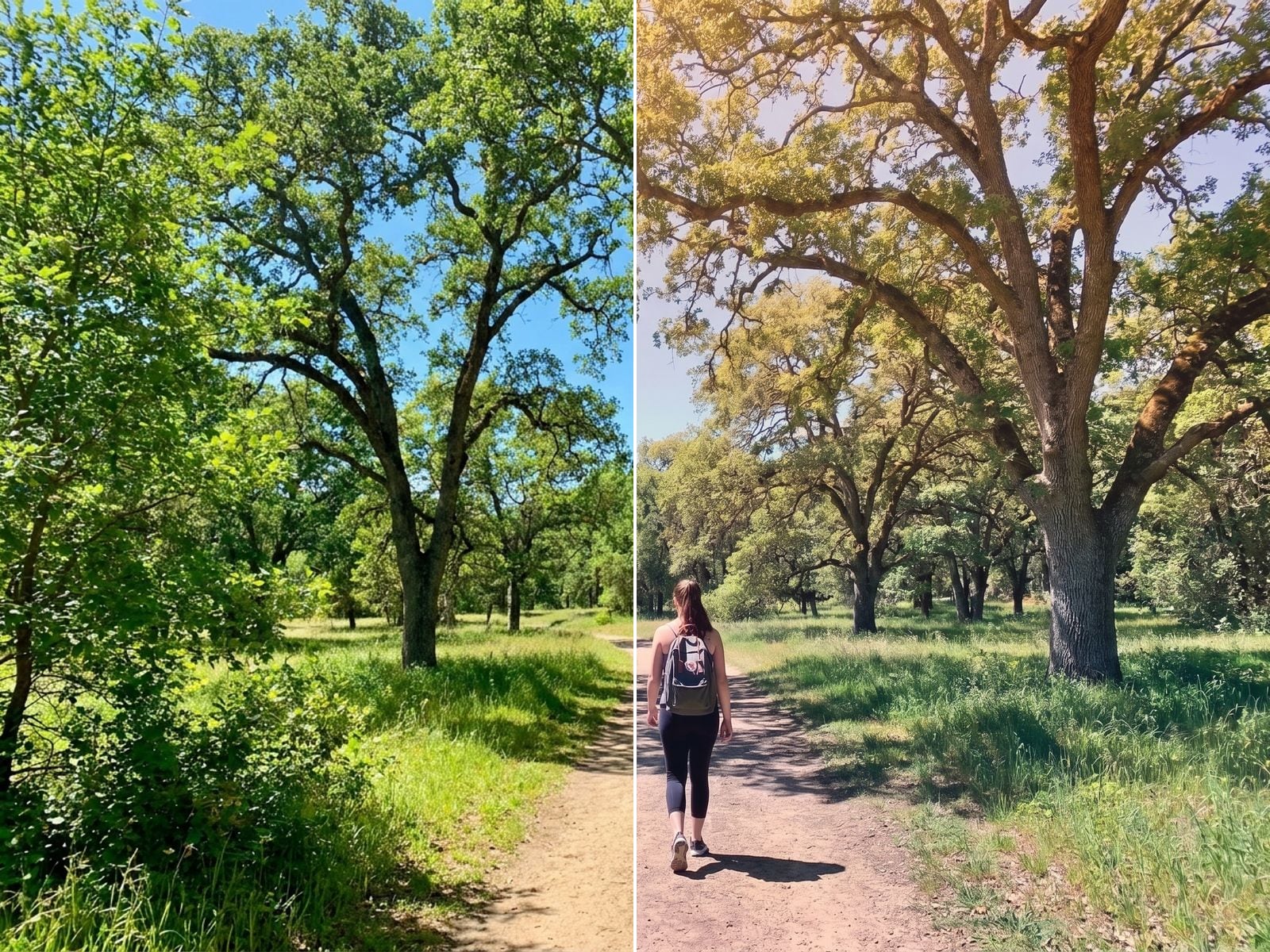
Contrast drops rather than rises, a soft haze sits over the frame, and highlights stay warm while shadows turn cool and muted, with fine grain. The tonal shift is gradual, without hard bands or blocks of colour.
The template aims to keep your photo's framing, people and faces as they were, changing only light, colour and atmosphere. Nothing is meant to be added or removed, and you do not pick colours.
Color Gradient is the name Oakgen gives this template, and we found no public trend under that title. It is unrelated to Picsart's long-running effect of the same name, which lays a two-colour wash you choose over the picture.
A smooth, hazy colour gradient across your own photo. Add one clear photo; the look is already set.
Any photo: a landscape, a street, a portrait.
Pick any photo you want to re-grade.
Soft haze and a smooth colour gradient are applied in about a minute.
Save the image in the same shape as your original.
Composition, people and faces are kept as they were. Only the light and colour change.
Warm highlights fade into cool, muted shadows, with low contrast and fine film grain.
Landscapes, city streets and portraits all take the grade well.
One: any photo you want to re-grade.
Your photos are used to make your image. Only upload photos of yourself, or of people who have agreed to it.
Check your plan's terms for what you can do with generated images. They apply to your result.
About a minute. You can leave the page; the finished Color Gradient image is saved to your assets.
No. The aim is to keep your composition, subjects and faces as they are and only change the light, colour and atmosphere.
Pick a premise, choose the right photo, and turn one finished image into a post worth sharing.
Color gradient photo ideas: which shots to re-grade, how to build a before-and-after carousel or a matching photo set, and what to check in the hazy result.
Cinematic color grading AI looks compared: the hazy Color Gradient grade, teal-and-orange movie prompts, grainy anti-AI film edits and gradient overlay filters.
One photo, about a minute. The same moment, in softer, graded colour.