Search for a cinematic AI photo edit and you will find at least three different looks sold under the same word. They change a picture in different ways, and a photo that suits one can look wrong in another. This guide compares them and shows where Color Gradient sits.
First, the name. Color Gradient is Oakgen's name for this template; we did not find a public trend with that title. The search phrase people use for the category is "cinematic color grading", and the older idea of a colour gradient filter means something else again, as covered below.
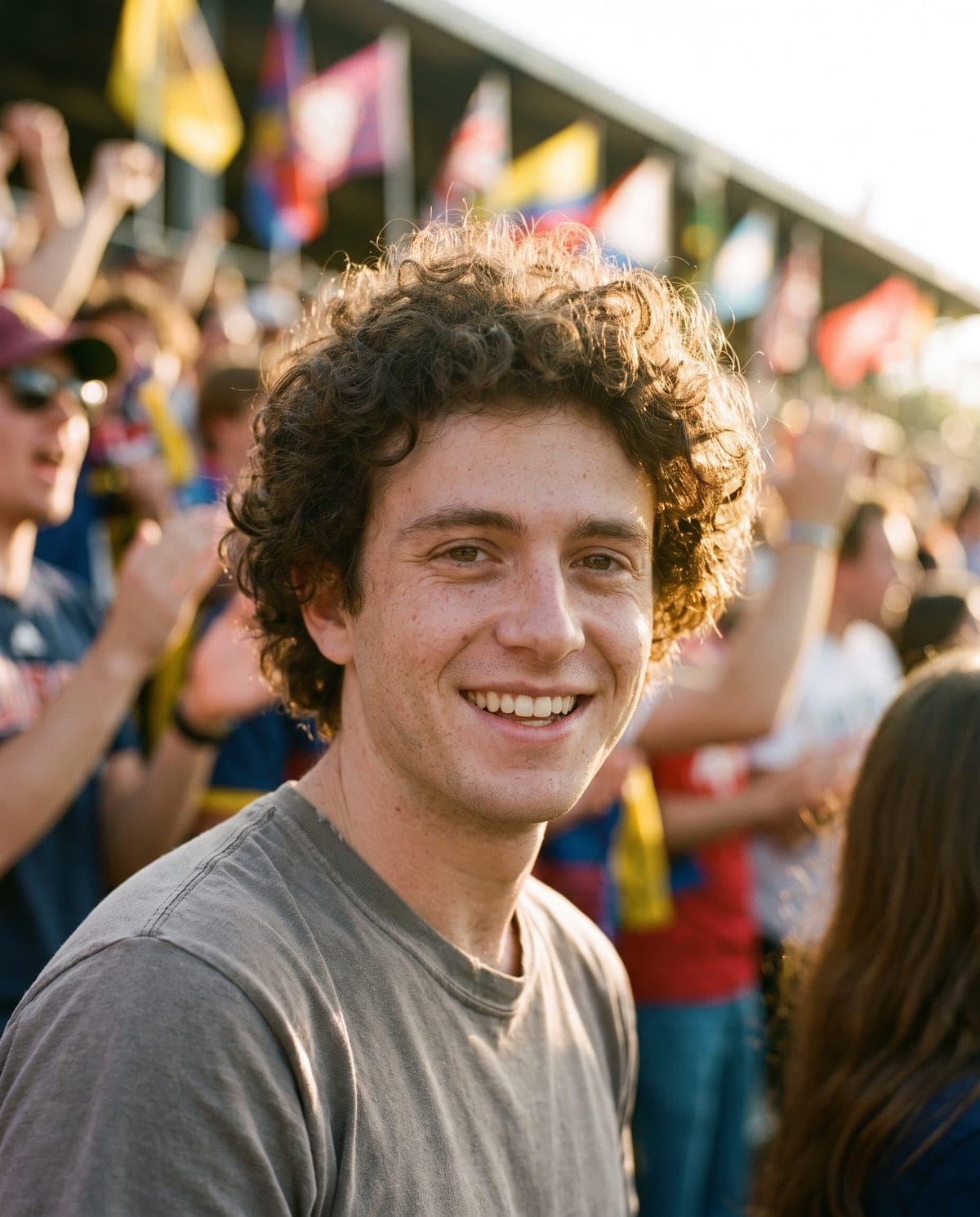
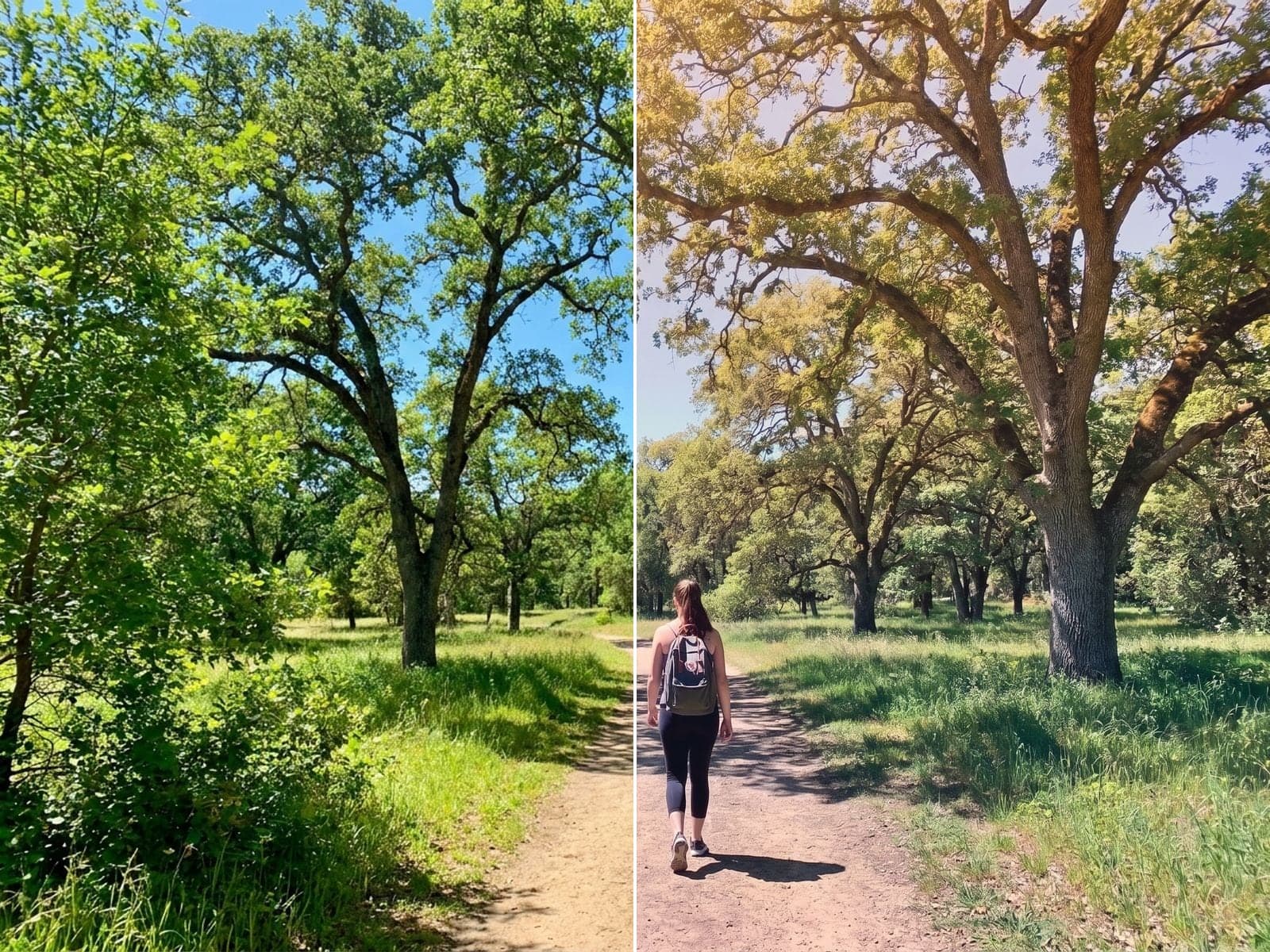
Try the hazy grade on one photo
Upload any photo. Composition and faces stay put; light and colour change in about a minute.
The three cinematic looks at a glance
| Look | Contrast | Colour | Texture | Changes content? |
|---|---|---|---|---|
| Color Gradient | Lowered, hazy | Warm highlights fading to cool, muted shadows | Subtle fine grain | No |
| Teal-and-orange prompt | Usually raised | Teal shadows, warm highlights and skin | Light grain, if asked | Depends on the prompt |
| "Imperfect" film edit | Varies, often faded | Warm vintage casts | Heavy grain, light leaks, soft focus, scratches | Adds artefacts on purpose |
Teal-and-orange: the movie-poster grade
This is the grade most "cinematic" prompts reach for. Skylum's guide to Gemini editing prompts from December 2025 says cinematic grading "relies on a cool-to-warm contrast that adds depth," and its sample prompt asks for teal shadows and warm highlights with light film grain. Tools such as Evoto offer film-stock presets and AI-matched cinematic grades in the same vein.
The result tends to be punchy, with clean separation between skin and background. Color Gradient goes the other way: it softens contrast and adds haze, so the frame feels quieter and more atmospheric than dramatic.
"Imperfect by Design": the grainy anti-AI film edit
In August 2026, Miraflow described a trend it calls "Imperfect by Design", or the anti-AI aesthetic, built on "deliberately adding film grain, light leaks, soft focus, and warm vintage color casts." The aim is to make an image look like a real, slightly flawed 35mm print.
Color Gradient shares the fine grain and nothing else. It adds no light leaks, scratches or blur, and it is designed not to add, remove or move anything in your photo. If you want a deliberately damaged film look, this template is too clean for that.
The gradient overlay filter
Picsart has offered a Color Gradient effect since 2014 that "covers your photo with a gradient from one color tone to another," with colours you pick and a fade slider. That is a colour wash laid over the image. Oakgen's template re-grades the light and atmosphere of the photo itself, with no colour choice and no slider.
What Color Gradient changes, and what it keeps
- Changes: highlights turn warm, shadows turn cool and muted, contrast drops, soft haze appears and fine grain is added. The tones are meant to blend gradually, with no hard bands or colour blocks.
- Keeps: composition, framing, every subject and every face, including poses, expressions, hair and clothing.
- Shape: the result keeps your photo's own proportions, so a wide landscape stays wide.
The cinematic color grading page sums up the same distinctions, and the film look how-to covers the single upload.
Which photo suits which look?
Choose by the photo you already have:
- A wide daylight scene with sky, hills or water. The hazy warm-to-cool fade has room to travel. This is where Color Gradient tends to suit the photo best; the photo choice guide explains why.
- A portrait where you want punch and drama. A teal-and-orange grade fits that brief better than a low-contrast haze.
- A casual snapshot you want to look like an old print. The grainy, light-leaked edit is the closer match.
- A dark night street. None of the three is a rescue, but a low-contrast grade is the weakest choice, because dark areas tend to turn flat grey.
Posting and checking the result
Because only light and colour change, a before-and-after pair lines up almost exactly, which makes it the natural way to post. The before-and-after caption guide has caption lines that say the grade is AI-made, and the banding and grain check lists what to inspect at full size. For carousel and trip-set ideas, see Color Gradient photo ideas. The AI photo trend playbook compares this grade with the portrait trends.
Frequently asked questions
Is Color Gradient the same as a teal-and-orange grade?
No. Teal-and-orange prompts usually push contrast up with teal shadows and warm highlights. Color Gradient lowers contrast and adds haze, fading warm highlights into cool, muted shadows.
Can I choose the colours?
No. The grade is fixed. Apps with a colour gradient overlay let you pick two colours; this template applies one atmospheric grade.
Does it add light leaks or scratches?
No. It adds only subtle, fine grain. It does not add light leaks, scratches, blur or new objects, and it keeps faces and framing as they were.