Features and proportions
Put both images at the same size and compare eye shape, nose, mouth and jawline. Nothing should look slimmed, smoothed or enlarged. Skin texture such as freckles should still be visible.
Image trend
Reports about AI school photos often mention faces that came back slightly different. This template is meant to keep your face exactly as photographed, so the review is a direct comparison with your original, followed by a quick look at the setting.
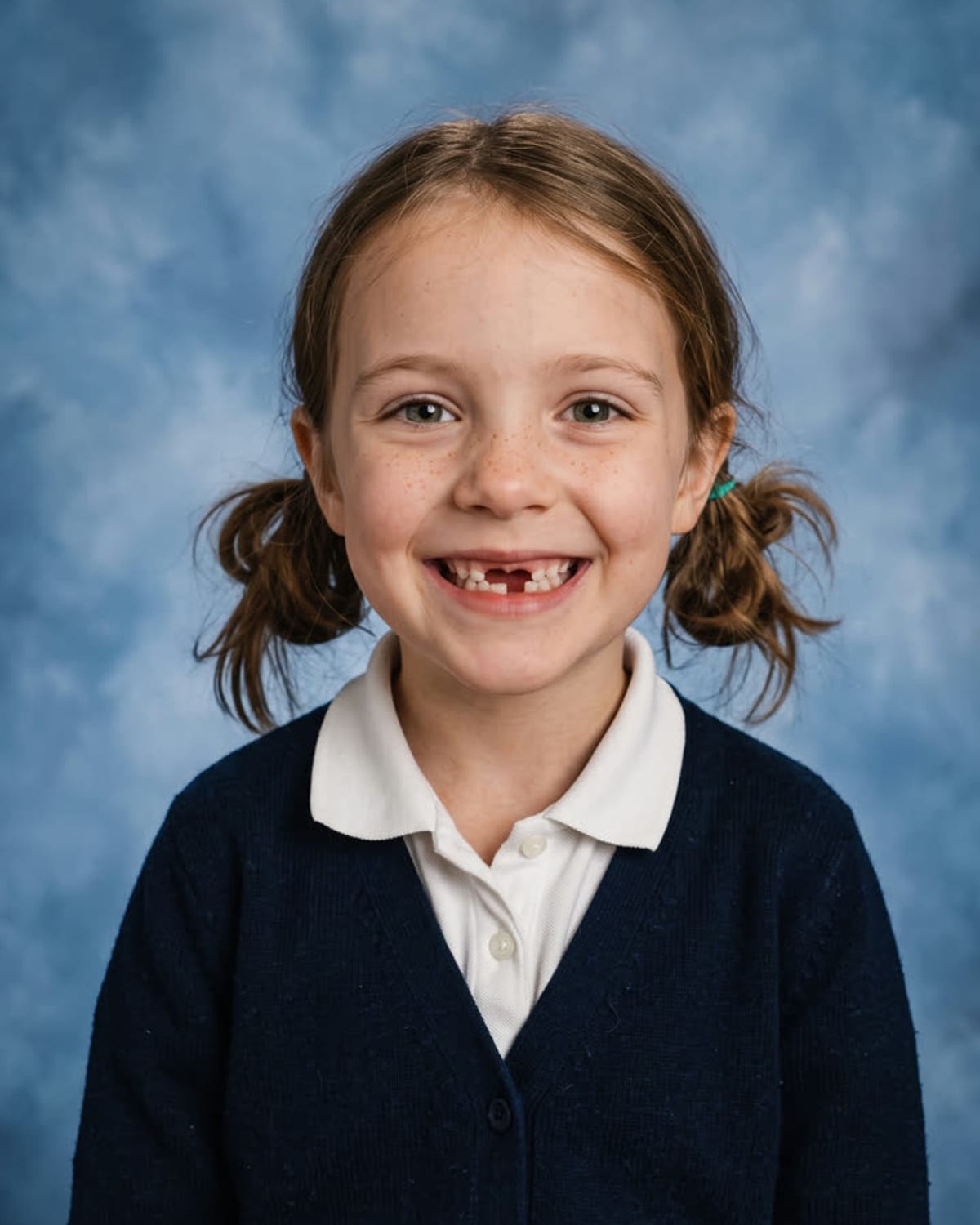
Put both images at the same size and compare eye shape, nose, mouth and jawline. Nothing should look slimmed, smoothed or enlarged. Skin texture such as freckles should still be visible.
The expression should still read as your smile. Hairlines and glasses frames are where small changes show first, so check the outline of each against your photo.
Behind you there should be a mottled blue canvas with soft, cloudy patches, not stripes or a flat colour. The crop should include your shoulders and a little of your clothing. If the face drifted, a sharper, front-facing photo in even light is the first thing to try.
A classic picture-day portrait on a mottled blue backdrop. Add one clear photo; the look is already set.
A clear, front-facing photo of your face in good light.
Pick a clear, front-facing photo of your face.
Backdrop, light and framing take about a minute.
Save the image and share it anywhere.
No smoothing or reshaping. The face in the portrait is the face in your photo.
Mottled blue canvas, soft studio light and a slight school-photographer glow.
Head and shoulders, a slight angle and a straight-to-camera look.
This template makes a classic picture-day portrait with a mottled blue backdrop and soft studio lighting. It has no decade selector and is not an age-transformation tool. Use a current photo for the reference; the intended change is the school-portrait setting and framing, rather than a younger version of you.
One: a clear photo of your face.
Your photos are used to make your image. Only upload photos of yourself, or of people who have agreed to it.
Check your plan's terms for what you can do with generated images. They apply to your result.
About a minute. You can leave the page; the finished School Photo image is saved to your assets.
No. The backdrop, light and framing change; your features stay exactly as they are in your photo.
Pick a premise, choose the right photo, and turn one finished image into a post worth sharing.
AI school photo ideas for adults: picture-day concepts for friends, teams and reunions, what to wear, which selfie to use and how to caption it honestly.
Where the AI yearbook trend came from in 2023, what parents' AI school photos are in 2026, and how a single picture-day portrait of your current face differs.
One photo, about a minute. The mottled backdrop, the studio light, the picture-day smile.