
 ChatGPT
 Claude
Here is how to use Kling 4.0 for vertical video. Pick the mode that matches what you already have, set the frame to 9:16, write the prompt as timed beats, and give the model the same character references in every clip. Kling 4.0 makes clips of 3 to 30 seconds in one pass. Kuaishou says it launched on October 15, 2026. A 30-second clip is long enough for a full micro drama beat or a complete Short, which is why it suits episodic work.
The catch is that "Kling 4.0" is not one feature set. Kling's own app offers up to 10 keyframes, 15 reference assets, stereo audio and 4K. Oakgen runs the same model with a smaller set of controls and silent output. This guide covers both and says which is which. Oakgen is our product, so we have a stake where we recommend it, and we say where Kling's own app is the better choice.
Make a 9:16 clip with Kling 4.0
Text, image, reference and edit modes, 3 to 30 seconds, 720p or 1080p, priced per second.
Kling 4.0 at a glance, in Kling's app and on Oakgen
Read this table before you plan a series. The right column is what changes your workflow on a vertical episode.
| Spec | Kling's own app (Kling user guide) | Oakgen (Kling 4.0 model page) | What it means for a 9:16 episode |
|---|---|---|---|
| Length | 3 to 30 s, 1 s steps, default 10 s | 3 to 30 s, 1 s steps | One clip can hold a whole beat |
| Resolution | 720p, 1080p, 4K listed. 10-bit HDR marked coming soon | 720p or 1080p | 1080p is enough for Shorts and Reels |
| Aspect ratios | 21:9, 16:9, 1:1, 9:16, Auto | 16:9, 9:16, 1:1, 21:9 in text and reference modes, Auto in reference mode | Set 9:16 every time, or build a 9:16 start image |
| Keyframes | Up to 10, first, middle and last | Start frame plus optional end frame | On Oakgen, chain clips to hit more beats |
| References | Up to 15 in total: 10 images, 5 videos, 7 elements, 3 voice profiles | Up to 10 images, 5 clips and 7 elements, 30 s of clips in total | Enough for a cast of several plus a location |
| Audio | Two-channel stereo, voice references | Silent output | Add voice and music after |
| Multi-shot | On by default (Smart Storyboard) | Not offered | Plan cuts yourself on Oakgen |
| Video edit | Yes | Yes, a 3 to 30 s clip from a text instruction | Fix one detail without a full regenerate |
Two limits in Kling's app are easy to miss. The Keyframes entry and the Omni Reference entry "cannot be combined within a single generation task", so you choose between frame control and reference control per clip. And Kling 4.0 Flash, the faster mode, tops out at 20 seconds and 720p with no start and last frames, according to the same guide.
Who this guide is for
This is for creators and small teams who post vertical video on a schedule:
- A creator running a YouTube Shorts series who needs the same lead in episode 1 and episode 12.
- A micro drama writer who has a script and wants each beat as a clip instead of a pile of 5-second fragments.
- An agency editor who has been asked to "try Kling 4.0" for a client's Reels and needs settings that work on the first day.
If you need talking dialogue with lip sync from the model itself, read the section on when another tool fits better first. That changes which app you should use.
How we checked this
We read Kling's Kling 4.0 user guide, its multiple keyframes guide, the Kling 4.0 image-to-video API page and Kuaishou's launch release on November 4, 2026. We read Oakgen's Kling 4.0 model page and the code that defines it on the same day. Credit prices come from that page as of November 2026 and can change.
We did not generate clips for this article and we did not measure quality, consistency or speed. The worked example below is illustrative. It shows how to plan an episode, not a result we observed.
Which Kling 4.0 mode should you pick?
Pick by what you already have. Oakgen splits Kling 4.0 into four modes:
- Text to video. You have only an idea. Good for B-roll, establishing shots and testing a look.
- Image to video. You have a frame you like, and optionally the frame where the shot should land. Good for a cold open that must match a thumbnail.
- Reference to video. You have a cast, a product or a location to keep. This is the mode for a series.
- Video edit. You have a clip that is 90 percent right. Change the one thing that is wrong with a text instruction, plus reference images and elements if you need them.
Kling's own app groups the same ideas into two entry points. Omni Reference is the default and covers text to video and references. Keyframes covers first frame, first and last frames, and middle frames. If you move between the two apps, map Oakgen's reference mode to Omni Reference and Oakgen's image mode to Kling's Keyframes entry with only the first and last frames.
Our default for a micro drama is reference mode for every scene with a person in it, image mode for the cold open and the closing frame, and video edit for fixes. Text mode is for anything with no recurring character.
Kling 4.0 vertical video settings for Shorts
Get these right before you write a word of prompt. A wrong frame wastes the whole generation.
- Frame. Choose 9:16 in text or reference mode. In image mode on Oakgen there is no frame choice, so the start image decides the shape. Make or crop the start image to 9:16 first. Kling's own Keyframes entry works the same way, since "the aspect ratio follows the first keyframe".
- Length. Match the clip to the beat, not to the maximum. A 6-second reaction does not need 30 seconds of runway. Longer clips give the model more time to wander off the script.
- Resolution. On Oakgen the per-second price is the same at 720p and 1080p, so generate at 1080p. Drafting at 720p saves nothing there. Draft short instead.
- Safe zones. Keep faces and props in the middle of the frame. Shorts and Reels put buttons and captions on the right side and the bottom. Write it into the prompt: "the character stays in the center third of the frame".
- Text on screen. Kling's guide says the model may add subtitles by default. Add "no subtitles" and put your own captions on in the edit.
If your source is horizontal footage, convert it before it goes in as a reference or start frame. Our guide to turning landscape video into vertical covers crop and expand.
How to write Kling 4.0 prompts that hold a scene together
Kling's user guide gives a four-part structure for reference prompts. It is the most useful thing in the guide, and it maps well onto a script.
- Asset roles. Say what each file controls. "@Image1 defines the scene. Preserve its spatial layout, furnishings, and lighting." The guide warns that if you give only asset IDs without roles, "the model will infer their intended use".
- Overall settings. Scene and texture, visual style, camera tone.
- Sequence of events. Time ranges with what happens in each: 0 to X seconds, X to Y seconds, Y to the end.
- Audio. Dialogue, ambience, music and effects. On Oakgen's silent output, leave this block out and plan sound in the edit.
Two writing rules from the same guide matter more than prompt length. First, use concrete visuals instead of abstract words. The guide's own swap is "Premium look" for "Side backlighting outlines the object's edges, the background is blurred, and fine matte grain is visible on the surface." Second, avoid negatives. The guide says "Negative prompts can increase the likelihood of errors" and names only two worth keeping, no subtitles and no background music. Instead of "don't show her face", write "she is shown in profile".
On Oakgen, the names differ slightly by input type. Reference images are @Image1, @Image2, clips are @Video1, and characters or objects you set up as elements are @Element1, @Element2. Oakgen's model page gives this example prompt:
@Element1 walks into the cafe from @Image1, sits by the window and opens a laptop. Slow push-in, warm morning light.
Here is a fuller template for one 9:16 micro drama beat. Copy it and fill the blanks.
@Element1 is Mara. Preserve her face, hair and grey wool coat exactly.
@Element2 is Daniel. Preserve his face, beard and navy suit exactly.
@Image1 defines the location, a narrow hospital corridor at night. Preserve the layout and the green-white strip lighting.

Vertical 9:16, realistic live action, handheld camera at chest height. Both characters stay in the center third of the frame. No subtitles.

0-5 s: Mara walks toward camera, reading a folded letter. Her jaw tightens.
5-11 s: Daniel steps out of a doorway behind her. She stops without turning.
11-18 s: Slow push-in on Mara's face as she folds the letter into her pocket.
18-24 s: She turns. Medium two-shot. Daniel holds out his hand, palm up.
24-30 s: Close-up on her hand hovering over his. Hold on the gap between them.
The time ranges do the job that keyframes do in Kling's app. They tell the model when each event should land, so a 30-second clip does not rush everything into the first ten seconds. For more prompt patterns from the previous generation, our Kling 3 prompting guide still applies to camera language.
Paste the beat template into Kling 4.0
Use reference mode, add your cast as elements and set 9:16 before you generate.
How Kling 4.0 keyframes work, and what to do on Oakgen
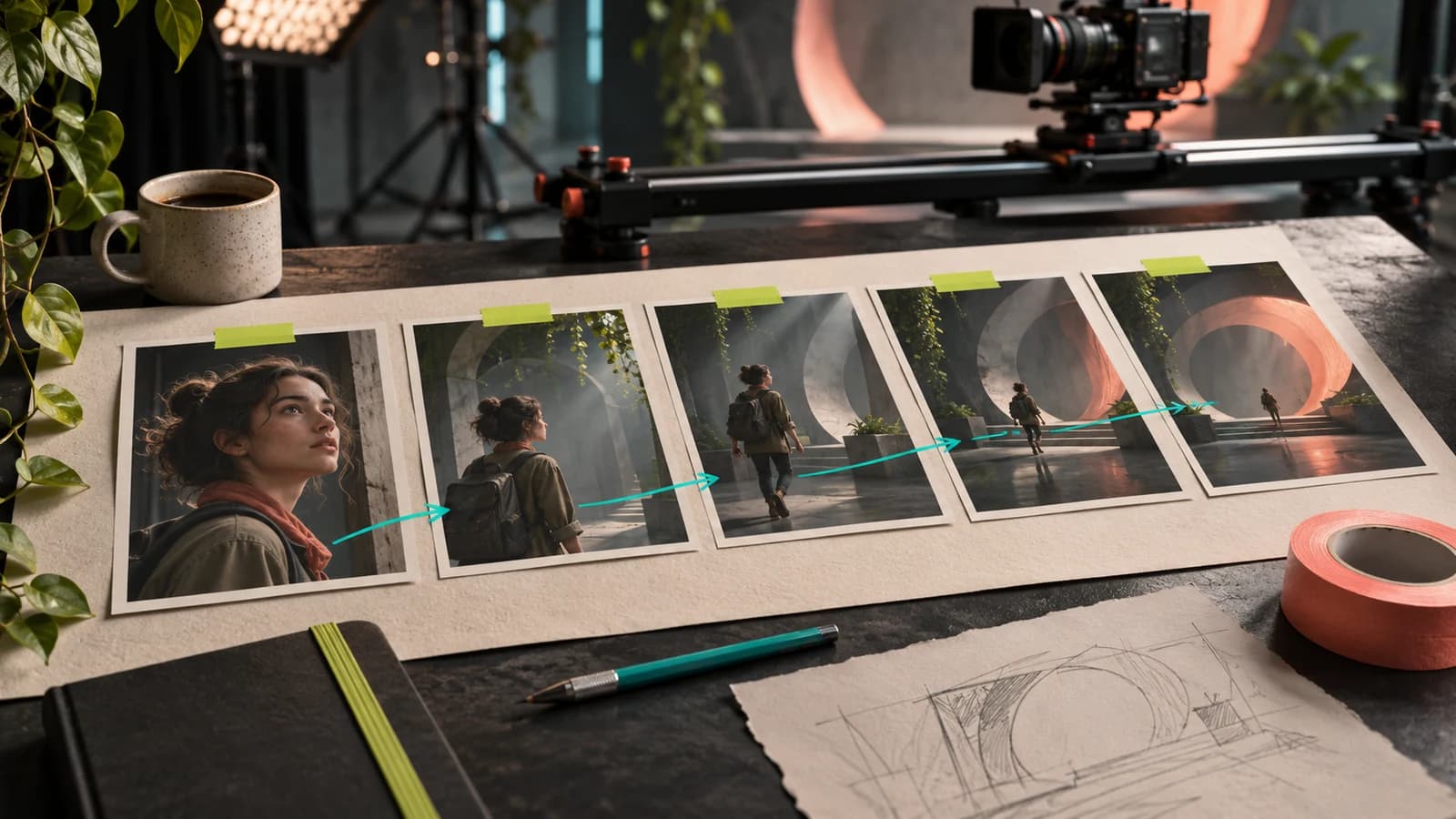
In Kling's own app, Kling 4.0 keyframes are images that pin what the frame looks like at set points. The app supports "first frames, last frames, start-and-last frames, and middle frames at any position in the timeline", up to 10 images per generation. Kling's API page lists the same input types, first_frame, middle_frame and last_frame, with up to 10 images per request. For middle frames, the guide's prompt format is one line per keyframe with a time range, for example "5-11 sec | Keyframe 2: Daniel steps out of the doorway".
Kling's keyframes guide also gives good advice on how many to use. "You do not need to use all 10 keyframes every time." Each one should answer "What must the viewer see at this point in the video?" If nothing important changes, skip it.
On Oakgen, image mode takes a start frame and an optional end frame. That covers the two keyframes that matter most in a vertical episode: the opening frame that matches your thumbnail, and the cliffhanger frame the episode ends on. For a beat that needs more fixed points, chain clips:
- Make the key frames as stills first, in an image tool such as Oakgen's image generator or image editor. Make every still 9:16.
- Generate clip A with still 1 as the start and still 2 as the end.
- Generate clip B with still 2 as the start and still 3 as the end.
- Cut A and B together on the shared frame.
You lose the model's own transition through the middle frame, and you pay for two clips. You gain the ability to regenerate one segment without redoing the whole 30 seconds, which costs less when only one beat fails.
If ten fixed frames in one generation is the core of your workflow, Kling's own app is the better tool for that clip. Note the trade-off there too, since its Keyframes entry "does not support uploading reference assets".
How to keep a fixed cast across micro drama episodes
Consistency comes from sending the same references every time, not from describing the face well. Oakgen's reference mode takes up to 7 elements, characters or objects, with up to 3 of them built from clips. Set up each recurring character once and reuse the exact same element images in every episode.
A cast sheet that works for a series:
- One element per recurring character. A clear front-facing image as the main image, plus other angles of the same face and outfit.
- One reference image per recurring location. The bedroom, the office, the car. Give it the role "defines the location, preserve the layout and lighting".
- A fixed costume per arc. If Mara changes coats in episode 7, make a new reference for her in the new coat. Do not describe the new coat in text and hope the face survives.
- A naming rule. Keep @Element1 as the lead in every episode. If the lead is @Element1 in one prompt and @Element2 in the next, it is easy to swap roles by mistake.
If you already built a character in Oakgen's AI Influencers studio, its reference set is a ready-made source of front and side images for an element. The full method for drama casts is in our guide to keeping the same characters across AI drama episodes, and the element setup from the previous model is in the Kling Elements reference guide.
Voice is the part Oakgen's Kling 4.0 does not carry, because the output is silent. Pick one voice for each character and keep it for the whole run. Our sibling post on giving an AI character one consistent voice covers designing versus cloning a voice and consent.
Worked example: one 30-second episode, planned beat by beat
This plan is illustrative. We did not generate it. It shows how to split a micro drama episode into Kling 4.0 clips, choose a mode for each, and see the credit cost before you start. Prices are Oakgen's list prices for Kling 4.0 as of November 2026.
| Beat | Seconds | Mode on Oakgen | Inputs | Why this mode | List price |
|---|---|---|---|---|---|
| Cold open, matches thumbnail | 5 | Image to video | 9:16 start frame, end frame | The first frame must match the thumbnail exactly | 266 credits |
| Corridor confrontation | 15 | Reference to video | @Element1, @Element2, corridor @Image1 | Two recurring faces plus a fixed location | 796 credits |
| Reaction close-up | 5 | Reference to video | @Element1 | Face only, short clip, low risk | 266 credits |
| Cliffhanger frame | 5 | Image to video | Start frame from the last clip, cliffhanger end frame | The final frame becomes episode 2's thumbnail | 266 credits |
| Total | 30 | 1,594 credits |
A single 30-second reference clip lists at 1,592 credits, so the split plan costs about the same. The difference is control. If the reaction close-up fails, you regenerate 5 seconds for 266 credits, not 30 seconds for 1,592.
The rate is the same per second in every mode and at both resolutions, so the only cost lever on Oakgen is length. Draft each beat at 3 to 5 seconds to check the cast and the frame, then generate the final length. For a full budget across a season, see our breakdown of what an AI micro drama costs per episode.
Plan your next episode in clips
Generate each beat at the length it needs and pay per second of output.
What Kling 4.0 costs on Oakgen
As of November 2026, Oakgen's Kling 4.0 model page lists these prices. They are per generation and include every mode.
| Length | 3 s | 5 s | 10 s | 15 s | 20 s | 30 s |
|---|---|---|---|---|---|---|
| Credits | 160 | 266 | 531 | 796 | 1,062 | 1,592 |
Commercial use is "Permitted on paid Oakgen plans subject to model provider terms", per the same page. For what a plan includes, check the live pricing page. The figures above can change, and the generator shows the price for your settings before you press generate.
Common mistakes with Kling 4.0
These are the errors that waste the most credits on vertical episodes.
- Forgetting the frame. Generating at the default frame and cropping later throws away most of the image. Set 9:16, or make the start image 9:16.
- Asset IDs with no roles. "@Image1 @Image2 a woman in a corridor" leaves the model to guess which image is the face and which is the room. Give each file one job.
- Abstract style words. "Cinematic, premium, moody" says little. Name the light, the lens height and the materials.
- Every clip at 30 seconds. Long clips cost the most and drift the most. Use the length the beat needs.
- Re-describing the face. Once a character is an element, describe what they do, not what they look like. A new description can override the reference.
- Expecting sound on Oakgen. Oakgen's Kling 4.0 is silent. Plan voice and music before the shoot, not after the edit is locked.
- Expecting Kling-app features on Oakgen. Multi-shot prompts, voice-bound elements, 4K and middle keyframes are listed in Kling's app, not on Oakgen.
When another tool fits better
Use Kling's own app when the clip depends on something Oakgen does not offer for this model. That includes native dialogue with lip sync and stereo audio, voice profiles tied to characters, middle keyframes in one pass, 4K output, or Kling 4.0 Flash for fast cheap drafts. Kling's app is the more complete version of Kling 4.0 today, and it is also where Kling's video extension to 2 minutes is due, marked "coming soon" in the user guide.
Use another model when Kling 4.0 is the wrong fit for the job. If you are choosing between Kling 4.0 and Seedance 2.5 for vertical ads and drama, read our Kling 4.0 vs Seedance 2.5 comparison. The Seedance 2.5 prompt guide covers the other model's prompt style, and Kling motion control covers copying a movement from a reference clip with the previous Kling generation.
Use Oakgen when you want Kling 4.0 next to the rest of the work: stills for start frames, other video models, captions and sound in Compose, and a micro drama workflow in the AI micro drama generator. If you are publishing as a Shorts series, our guide to running a YouTube Shorts series for micro drama covers episode cadence and cliffhanger placement.
If you only need one clip with audio and maximum control, Kling's own app is the simpler choice. If you are making a season of silent-first vertical episodes and want every beat priced up front, start with Kling 4.0 on Oakgen.
Start your series with Kling 4.0
Set 9:16, add your cast as elements, and generate the first beat of episode 1.
Frequently asked questions
How do I use Kling 4.0 for a vertical YouTube Short?
Pick text or reference mode, set the frame to 9:16, choose a length between 3 and 30 seconds and write the prompt as timed beats. In image mode on Oakgen there is no frame setting, so make the start image 9:16 before you upload it. Kling's own app also makes the video follow the first keyframe's shape once you upload images.
How many keyframes does Kling 4.0 support?
In Kling's own app and API, Kling 4.0 takes up to 10 keyframe images in one generation: a first frame, a last frame and middle frames anywhere on the timeline. On Oakgen, image mode takes a start frame and an optional end frame. To hit more beats on Oakgen, split the scene into clips and use the end frame of one clip as the start frame of the next.
How should I write Kling 4.0 prompts?
Kling's user guide recommends four blocks: asset roles (what each @Image or @Video controls), overall settings (scene, style, camera), a sequence of events with time ranges such as 0 to 6 s, and audio. Use concrete visual details instead of words like premium or cinematic, and avoid negative instructions except no subtitles and no background music.
Can Kling 4.0 keep the same characters across episodes?
It can hold a cast closer when you give it the same references every time. In Kling's app that means reference images or elements. On Oakgen, reference mode takes up to 7 elements, characters or objects you call @Element1, @Element2 and so on. Reuse the same element images in every episode and do not re-describe the face in the prompt.
How much does Kling 4.0 cost on Oakgen?
As of November 2026, Oakgen's Kling 4.0 page lists 160 credits for 3 seconds, 266 for 5 seconds, 531 for 10 seconds, 796 for 15, 1,062 for 20 and 1,592 for 30. The rate per second is the same in every mode and at 720p or 1080p.
Does Kling 4.0 make sound?
In Kling's own app, Kling 4.0 is an audio-visual model with two-channel stereo audio and voice references. On Oakgen, Kling 4.0 returns silent video, so you add voice, music and sound in an editor afterwards.
What is the difference between Kling 4.0 and Kling 4.0 Flash?
Kling's user guide says Flash is faster and cheaper, goes up to 20 seconds at 720p, and does not currently support start and last frames or multiple keyframes. Kling 4.0 goes to 30 seconds and supports frame control. Oakgen's model page lists Kling 4.0, not Flash.
Sources
- Kling AI, Kling 4.0 User Guide (read 2026-11-04)
- Kling AI, Kling 4.0 Multiple Keyframes: How to Control a 30-Second AI Video (read 2026-11-04)
- Kuaishou Technology, Kling AI Officially Launches Next-Generation Kling 4.0 (read 2026-11-04)
- Kling AI API docs, Kling 4.0 Image to Video (read 2026-11-04)
- Oakgen, Kling 4.0 model page (read 2026-11-04)