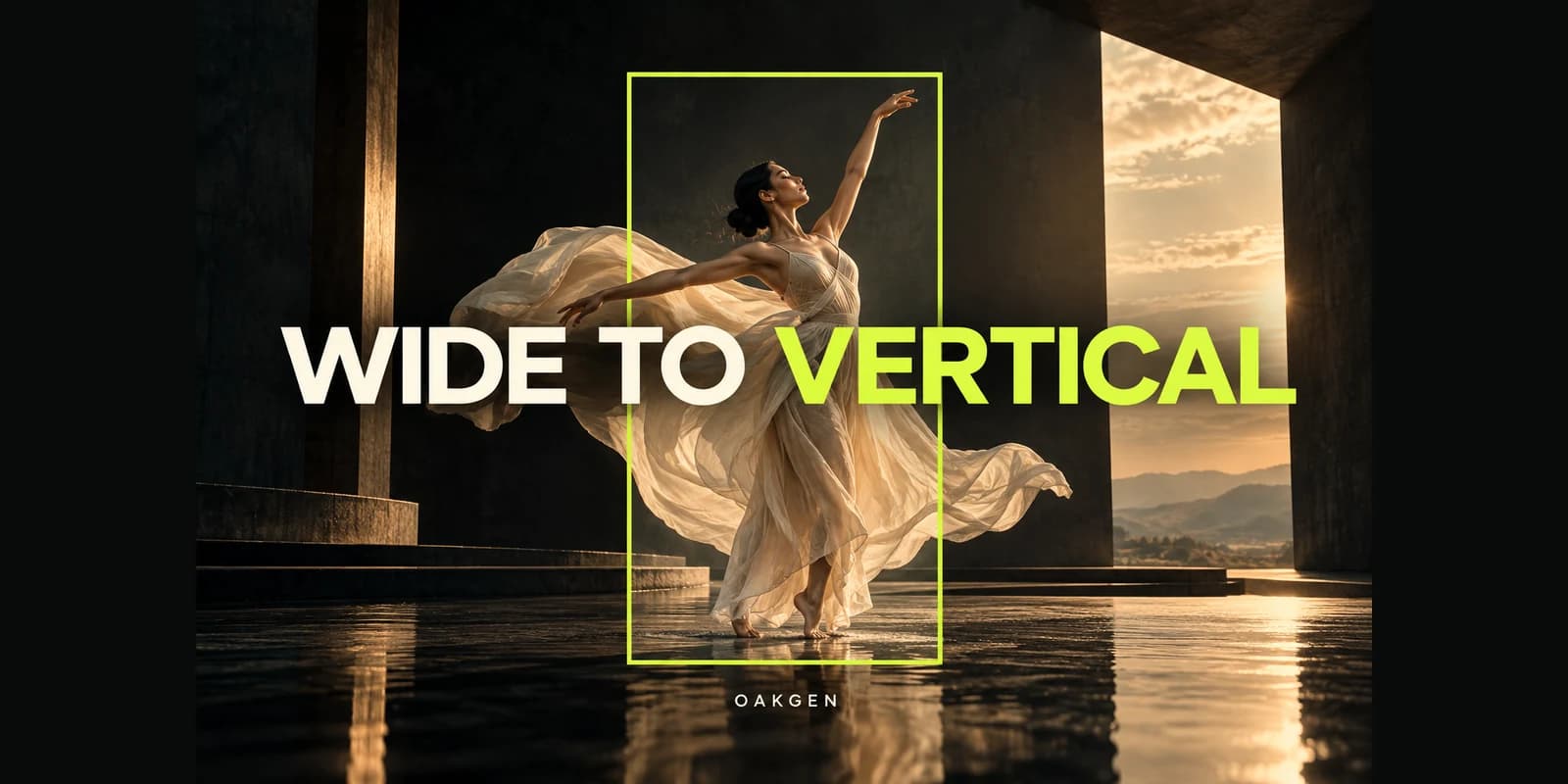
Use Oakgen’s AI Video Generator when a landscape creative needs a new portrait composition rather than a tighter crop. To convert landscape video to portrait, first ask whether the essential action fits inside a narrow frame throughout the clip. Crop if it does; fit the full shot into a designed canvas if it does not. Consider expansion only when invented surrounding content is acceptable, and regenerate when you can legitimately create a new performance.
The right choice protects the meaning of the shot. A vertical file that removes the product demonstration, second speaker or result is technically converted and editorially broken.
Compose the next shot for vertical
Start a portrait creative in Oakgen with the subject, action and caption space planned together. Check the selected model’s supported formats before generating.
Choose the treatment before choosing a tool
| Treatment | Keeps the original performance? | Main trade-off | Best starting case |
|---|---|---|---|
| Crop or tracked reframe | Yes, within the retained picture | Removes side content | One subject with a clear priority |
| Fit inside a vertical canvas | Yes, across the full picture | Smaller picture within the canvas | Interviews, demonstrations, evidence |
| Expand the picture with AI | Requires inspection of preserved and added regions | Invents unseen surroundings | Creative scenes with simple background needs |
| Regenerate in portrait with Oakgen | No; creates a new take | Timing and detail may change | Fictional scenes and replaceable ad creatives |
This guide is for editors and marketers deciding what to do with an existing wide clip. It is not a platform campaign plan. For that broader job, see planning platform-specific campaign variants.
Method: researched October 19, 2026. Oakgen is our product. The numerical examples are aspect-ratio calculations; the scene treatments are instructional examples, not rendered comparisons or measured quality tests. Crop and tracking instructions below refer to an external editor. They do not imply dedicated Oakgen crop, tracking or video-expansion controls.
The crop math that changes the decision
A 16:9 source and a 9:16 destination have opposite shapes. You cannot keep the whole picture, fill the destination and preserve proportions through ordinary scaling alone.
For a full-height portrait crop, multiply the source height by 9/16. That gives the usable width before resizing.
| Landscape source | Full-height 9:16 crop | What a 1080 × 1920 export requires |
|---|---|---|
| 1920 × 1080 | Approximately 608 × 1080 | Enlargement; no new captured detail |
| 3840 × 2160 | 1215 × 2160 | Downscaling to the delivery dimensions |
The exact encoded dimensions may need rounding for the export format. The framing lesson is unchanged: the portrait window retains about 31.6 percent of the original width, calculated as 81/256 for these aspect ratios.
A high-resolution source gives you more pixels to work with. It does not make two widely separated people fit into that window. Resolution and composition are separate constraints.
If you instead preserve the entire 1920 × 1080 image at 1080 pixels wide, the picture occupies roughly 1080 × 608 inside the portrait canvas. The remaining space needs a deliberate design. This can be the correct treatment when every part of the original matters.
Inspect the action envelope, not one frame
An action envelope is the area needed to show the important event across time. It includes where the person starts, where the hand travels, where the product ends and any result the viewer must see.
Scrub the opening, the largest movement, the key demonstration moment and the ending. Place a portrait guide over each. If the guide works only on the most attractive paused frame, the crop is not ready.
For a cooking clip, the face may be less important than the hand, pan and finished food. For a product review, a face tracker may hold the presenter beautifully while cutting the product out. Decide the editorial priority yourself before accepting automatic reframing.
Also distinguish empty scenery from useful context. The left edge might contain only a blank wall, or it might contain the person whose reaction makes the joke work. Both are “background” to a detector; only one is disposable to the story.
Worked example: one presenter, one bottle, three treatments
Imagine a wide shot in which a presenter stands left of center, lifts a bottle from a table on the right, and brings it beside their face. The label must be visible during the reveal. This is a planning example you can reproduce with your own footage.
Treatment A: crop and follow the action
Start with a portrait window that contains the presenter’s face and resting hand. At the lift, move the window toward the bottle only as far as necessary. Settle on a frame containing face and label for the reveal.
If the hand travels too far from the face, do not force a rapid pan between them. Cut to a product detail or choose a wider designed layout. A tracking box can follow the event and still produce an unpleasant video.
Adobe’s current Premiere tutorial shows Auto Reframe followed by adjustments to position, scale and keyframes. It is a useful external editing option for this treatment. Review the automated result and refine the frame around your actual subject priority. See Adobe’s reframing workflow.
Treatment B: expand the canvas
Expansion asks a model to synthesize content beyond the original image. For this scene, that might mean more wall, table or floor. It is a creative reconstruction, not recovery of recorded pixels.
Decide how large the existing picture should remain before choosing where to add space. If you keep the whole wide image at a small size and add a great deal above and below, the face and label may become too small. If you enlarge it and crop some edges before expansion, you have made a hybrid treatment; document what was removed.
A quiet wall is a more forgiving candidate than a moving hand crossing the boundary. Check every boundary crossing, reflections and the table edge through time. Do not approve the result just because its first frame looks plausible.
Treatment C: regenerate for portrait
If this is a fictional ad scene rather than an authentic testimonial, create a new composition. Prepare a portrait reference in Oakgen’s image generator, then use an appropriate reference-capable video model.
Place the bottle near the presenter from the beginning. Keep the lift short. Leave a clean region for the intended caption. You are redesigning the action so it works in the frame instead of asking an editor to chase it.
Treat the output as a new take. Verify product details, hand motion and the reveal independently. It cannot inherit approval from the landscape version simply because the prompt describes the same idea.
A framing worksheet you can reuse
Copy this into the project brief before making variants. Fill one row per essential event, not merely one row per shot.
| Event | Must remain visible | Can leave frame | Review point | Fallback |
|---|---|---|---|---|
| Opening hook | Presenter’s expression | Empty wall | First readable moment | Tighter introductory cut |
| Bottle lift | Hand and bottle | Lower table | Widest hand position | Product insert |
| Label reveal | Label and relevant expression | Spare headroom | Fully raised bottle | New portrait take |
| Closing instruction | Caption and subject | Decorative background | Final held frame | Designed end card |
Download the reframing worksheet and use it to compare treatments before exporting a complete set of variants.
Add four project-level decisions: the delivery ratio, intended display size, whether the original performance must be preserved, and whether invented surroundings are acceptable. Those constraints often choose the method before any software does.
Create a portrait reference in Oakgen when the worksheet points to regeneration. Get the still composition approved before spending effort on movement. A clear still is a useful checkpoint, though it does not guarantee that the animated shot will keep everything in place.
Two people: why face tracking is not the whole answer
A wide two-person conversation can fail a portrait crop even when both faces are easy to detect. The question is whether the audience needs both reactions at the same time.
If one person speaks while the other silently reacts, alternating crops may lose the reaction. A stacked layout may preserve both, but changes how the scene feels and can make eye contact harder to read. A fitted wide image preserves the original staging at the cost of picture size.
For an interview or testimonial, keep the authentic performance. Do not regenerate a new facial movement and present it as the original recording. Select a crop, layout or edit that honestly represents what happened.
For a fictional AI conversation, you can instead make dedicated portrait close-ups. Plan their relationship before generating them. The shot–reverse shot eyeline guide explains why two attractive individual portraits can still fail as a conversation.
Check captions across both speakers’ turns. A layout that works during one close-up may place words over the other person’s eyes after a cut. Use actual sample dialogue rather than a short placeholder when judging space.
Expansion needs a different quality checklist
Do not evaluate expansion using only whether the output fills the screen. It adds visual claims about what exists beyond the original frame.
Inspect straight lines across the join: door frames, shelves and table edges. Watch reflections and shadows for contradictions. Follow objects that enter or leave the generated region. Look for texture that changes between frames, particularly on plain walls where a moving seam can be conspicuous.
Ask whether new content changes the meaning. An invented person in a background, an extra product accessory or a newly visible brand mark can make the scene misleading even when the synthesis looks polished.
Preserve the original file and compare the retained region as well as the new area. A tool’s description of preservation is not a substitute for checking your actual output. If accuracy matters more than filling the screen, a designed canvas is often the more controllable choice.
This guide does not recommend expansion as a mandatory step or identify an Oakgen video-expansion button. Use it only through a tool whose current input limits and output behavior you have verified.
Make captions and graphics part of the reframe
Do the first framing pass with realistic captions, a product identifier and any essential end-card copy visible. Adding them afterward can force you to redo the whole composition.
Avoid treating a single universal safe-area percentage as a guarantee. Placement varies with the destination, viewing surface and interface. Preview the actual intended placement and check the current destination requirements when delivering.
Keep text away from the only region that demonstrates the product. If a hand gesture matters, a large caption over the hands has undone the point of the reframe. Move the copy, shorten it, or choose another shot rather than squeezing every element into the same area.
For a fitted landscape image, the surrounding canvas can hold a headline and captions. Give that space a clear hierarchy. Duplicating the entire video as a blurred background is one option, but the moving backdrop can compete with the main picture. A quiet background may communicate more clearly.
Build the vertical version around the message
Create a new Oakgen shot when the original composition cannot hold the subject, product and caption together. Plan the frame before animating it.
Avoid these expensive finishing mistakes
Stretching the source to fill the canvas. This distorts faces and objects. Preserve proportions and choose explicitly between cropping, padding, expansion and regeneration.
Upscaling before deciding the crop. First establish whether the shot works at all. Then decide if the retained region needs a resolution pass. The Oakgen upscaling guide covers that separate choice.
Following every movement. Constant reframing can feel more distracting than the original wide shot. Let the crop settle when the action settles; cut when a major change requires a new composition.
Using the same crop across a hard cut. Different shots have different priorities. Review each shot independently so a tracking move does not wander between unrelated subjects.
Approving only on a large monitor. A product label that is readable in the editing interface can be too small on the intended screen. Watch the export at a representative viewing size before delivery.
Frequently asked questions
How do I convert landscape video to portrait without stretching it?
Preserve its proportions. Crop to a portrait window, fit the full image inside a portrait canvas, use a verified expansion workflow, or recreate the scene vertically. Each option changes something different: coverage, picture size, surrounding content or the performance itself.
How much of a 16:9 video survives a 9:16 crop?
A full-height crop retains about 31.6 percent of the source width. That is why a static center crop often fails when a subject moves sideways or interacts with an object near an edge. Check the entire action, not just the opening frame.
Is AI expansion better than cropping?
Neither wins automatically. Cropping removes original content; expansion invents surrounding content. Choose based on which compromise is acceptable, then inspect the result through time. A simple fitted layout remains a useful option when preservation matters most.
Can Oakgen expand my existing video into portrait?
This article does not claim a dedicated Oakgen video-expansion control. Use Oakgen to create a new portrait composition with a suitable model. The crop and reframing example uses an external editor whose controls are documented separately.
Should I regenerate a real interview in portrait?
Not as a substitute for the authentic recording. Keep the original performance and use crops, a designed canvas or an appropriate edit. Regeneration produces a new take and can alter the expression, timing and meaning of what viewers see.
When a new take is appropriate, start the portrait version in Oakgen with the framing worksheet beside you. Build for the narrow frame from the outset, then verify the action and caption together before final export.