Kling Elements give image-to-video generation additional references for a character or object. Start with a clear opening image, attach a consistent reference set, and name the subjects with @Element1 and @Element2 in your prompt. Those references help describe who or what should remain recognizable as the shot moves; they don't guarantee an unchanged face, package, or logo.
In Oakgen's current Kling V3 Pro form, you can add up to two Elements. Each image Element needs a Frontal Image plus one to three Reference Images. You still need a Start Frame. Treat these as separate jobs: the frame establishes the shot; the Element describes its subject.
Test your character or product references in Kling image-to-video with one short shot before planning a sequence.
Which reference belongs in which field?
| Input | Its job | Use it when | Common mistake |
|---|---|---|---|
| Start Frame | Establish the opening composition | You want to animate an approved still | Uploading an unrelated portrait when the shot needs a product scene |
| Image Element | Supply views of a character or object | Identity or product appearance needs extra guidance | Mixing different people, SKUs, or wardrobe states |
| End Frame | Specify a desired final image | The ending composition matters | Asking for an ending that conflicts with the opening shot |
| Video Element | Supply a video reference within this generation route | You have a coherent moving reference of the subject | Assuming it exposes the same controls as Motion Control |
| Motion Control | Guide character actions using a reference video in a separate workflow | Reproducing a particular performance is the main job | Using Elements to try to copy exact choreography |
The Kling V3 Pro model page helps you choose the route. For this guide, open the image-to-video route, rather than the text-to-video form.
Scope and research note
This guide is for creators making recurring-character clips and ecommerce teams animating a real product. It focuses on preparing references, attaching them correctly, and deciding whether a result passes review.
We checked Oakgen's current form configuration, request schema, and provider mapping on September 30, 2026, alongside the official Kling and fal documentation. Oakgen is our product. The prompt examples below are illustrative briefs, not completed generation experiments; we don't report pass rates, saved costs, or unseen video results.
Kling's native Element Library guide describes saved reusable assets and voice-related features, with limits that depend on the native workflow. Oakgen's form uses the provider's generation inputs. A native-library tutorial doesn't establish that Oakgen exposes persistent Element creation, voice binding, or the same number of subjects.
Build a reference set that tells one story
A useful reference set answers a practical question: what should this subject look like when the camera or subject moves?
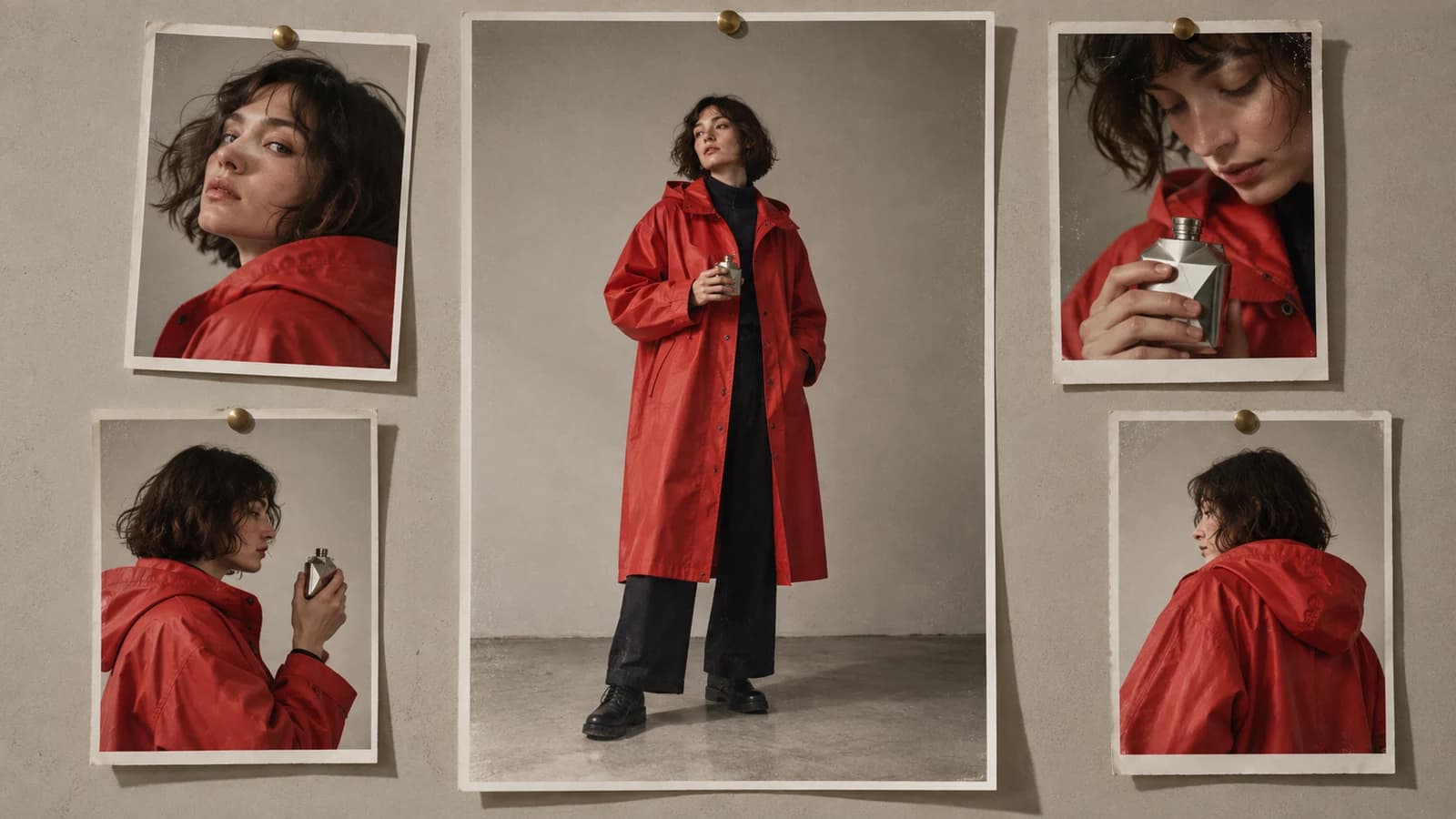
For a character, pick a clear frontal image and one additional angle of the same person in the same intended appearance. Add further views only when they reveal information the planned shot needs. A side profile helps a turn; a full-body view helps when the clothes and silhouette matter. A nearly identical crop adds less information.
Keep the face visible. Glasses, a hand covering the jaw, severe motion blur, or dramatic shadow can hide the detail you're asking the model to preserve. The reference needn't look like a passport photo, but its main subject should be easy to inspect.
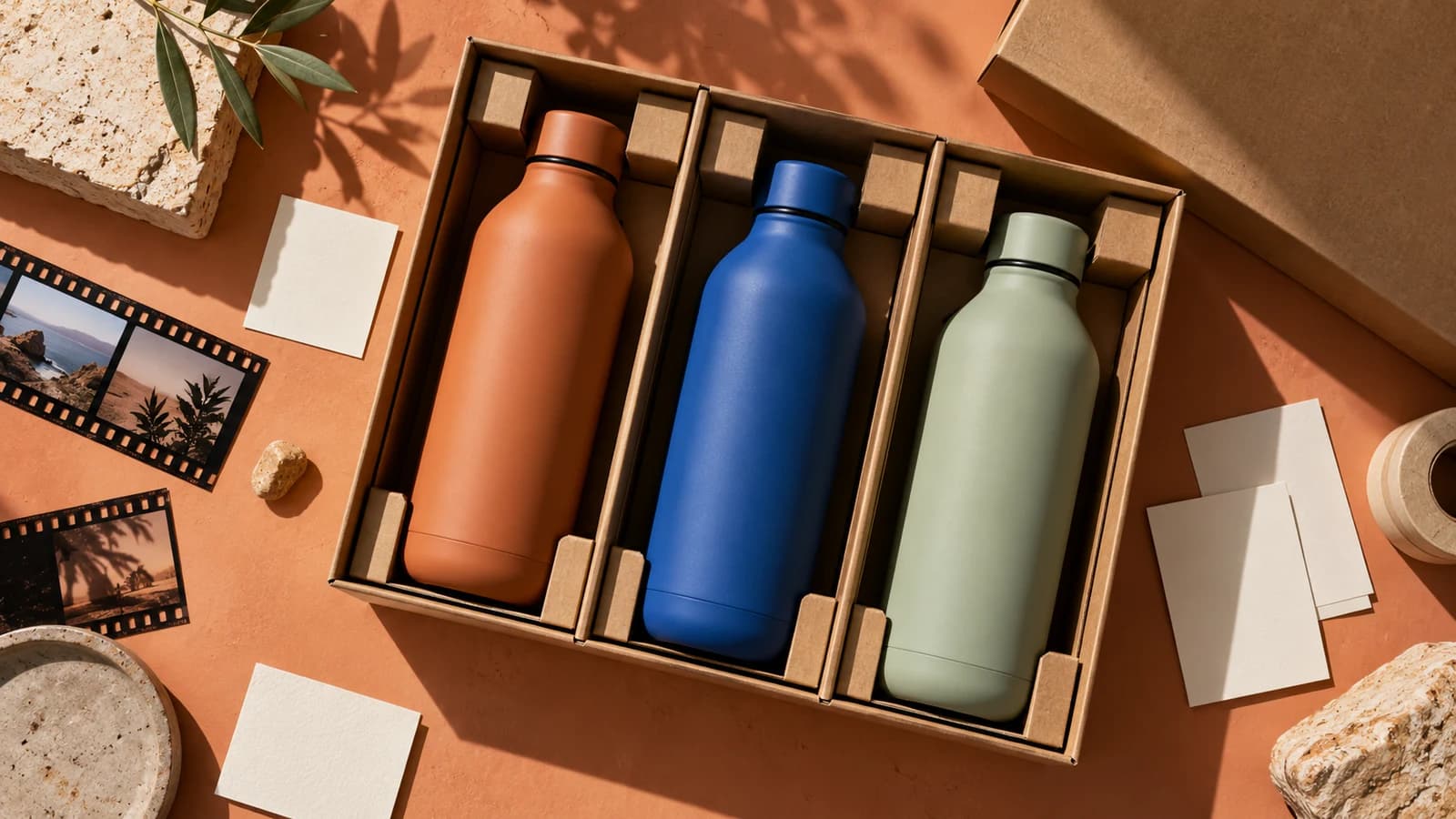
For a product, use the actual SKU and variant. A black bottle with a screw cap and a blue bottle with a flip lid don't describe different angles of one object. They describe different products. Give each variant its own source set.
Avoid treating an AI-generated side angle as verified evidence of a real package. It may invent the back label, seam, or lid mechanism. If you can't photograph another angle, design a shot that stays close to the known view; a small camera move often asks less of the reference set than a complete turn.
Copyable reference worksheet
Fill this out before uploading. It's a production checklist, not a required Oakgen import format.
Subject / SKU:
Approved variant or character appearance:

Start Frame file:
Opening composition and visible subject:

Element 1 role:
Frontal Image file:
Reference Image A file and angle:
Reference Image B file and useful detail, if needed:
Reference Image C file and useful detail, if needed:

Element 2 role, if needed:
Frontal Image file:
Additional reference files:

Details that must remain recognizable:
Details the references don't show:
Planned movement:
Reject the clip if:
Make a contact sheet for your own review if that helps you spot mismatched outfits or variants. Upload the individual images to the appropriate fields; don't assume a tiled contact sheet acts as several separate references.
If the opening scene needs work, edit an approved still in the image editor before animating it. The product-consistency workflow covers the broader handoff between stills and video.
Set up Kling Elements in Oakgen
The current form labels are Start Frame, Description, Duration, End Frame, Negative Prompt, and Elements. Elements sits among the advanced fields. Within an Element, you'll find Frontal Image, Reference Images, and the alternative Video Element input.
- Upload your Start Frame. Choose a still you would accept as the opening of the final clip. Check the crop, subject placement, and product details before spending a video generation on it.
- Add the first Element. For an image set, supply its Frontal Image and at least one Reference Image. The current form allows up to three additional images per Element.
- Add a second Element only when necessary. A presenter and a product are a reasonable two-subject setup. A single product shot doesn't need a second Element for decoration.
- Write the Description and choose Duration. The current form offers whole seconds from 3 to 15, with a five-second default. Begin with a short, simple action and review it before adding complexity.
- Check the quote and generate. Record the exact inputs and settings with the output. A failed creative result still belongs in the attempt log.
A frontal-only image Element is incomplete for this Oakgen route: the current request preparation leaves it out unless it also has at least one additional reference. Empty rows can therefore look like a reference problem when the intended image set never reached the provider as an Element.
Use either an image set or a Video Element for one Element entry. The current form switches between those choices. This guide's examples use image sets because their role is easier to audit against the opening still.
End Frame affects audio here. Oakgen's current Kling V3 Pro request mapping disables generated audio when you supply an End Frame. If the clip needs a specific sound track, account for that in the finishing plan instead of assuming both outputs will arrive together.
Address attached Elements in the prompt
Use @Element1 for the first Element and @Element2 for the second. The fal V3 Pro input documentation specifies this addressing convention and separates the start frame, end frame, and Element inputs.
Keep the attachment order fixed. If you move the product into the first slot while leaving a prompt that calls the presenter @Element1, the instructions now point at the wrong subject.
A short mapping line helps you inspect the brief:
@Element1 is the presenter in the Start Frame.
@Element2 is the bottle on the table in the Start Frame.
Follow that with the action. Don't spend most of the prompt rebuilding a face already visible in the references. Describe the requested shot and the details whose survival matters.
Open Kling image-to-video with your prepared reference set, then copy a suitable brief below and adapt it to your own subject.
Illustrative prompt: one recurring character
Suppose a fictional host appears in a seated introduction. Your references show the same host wearing a green shirt, and the Start Frame already shows the intended room.
One continuous medium close-up, beginning with the supplied Start Frame.
@Element1 is the seated host shown in the reference images.
The host glances toward the camera and gives a small closed-mouth smile.
Keep the same face, hairstyle, green shirt, and visible glasses.
The host remains seated; the camera stays fixed at eye level.
Retain the room and lighting established in the Start Frame.
This brief creates a manageable first check. You can inspect the face during a slight change in expression without also judging a walk, a camera orbit, an outfit change, or an interaction with another person.
If you need a wider shot, prepare an opening still that already has the wider framing. Asking a close-up portrait to become a full-body scene makes the model infer clothing and proportions that the opening image may not contain.
For dialogue or a multi-shot narrative, use the broader Kling prompting guide after this first subject check passes. Every added action needs its own review criteria.
Illustrative prompt: one product reference
Consider a fictional matte blue refill bottle with a silver cap. Use approved photographs of that same bottle; the Start Frame places it on a clean countertop.
One continuous product shot beginning with the supplied Start Frame.
@Element1 is the matte blue refill bottle in the reference images.
The bottle remains upright and stationary on the countertop.
The camera makes a small, slow push toward the bottle.
Keep the bottle silhouette, blue finish, silver cap, and label placement.
Keep the front label facing the camera throughout the shot.
Retain the countertop and soft side lighting from the Start Frame.
A complete orbit would expose unseen sides and repeatedly shrink or distort the label. The small push keeps the known view central, which makes it easier to identify a wrong cap or drifting label. That's a shot-design recommendation, not a measured guarantee of improved fidelity.
Exact words on packaging need a separate check. A plausible label can still contain incorrect letters or quantities. Read the logo and label preservation guide before approving product footage for a listing or paid campaign.
Build a single-product pilot once you have an approved source and a motion brief. The product video examples page can help you choose a shot role, such as a hero view or a detail clip.
Add movement without losing track of the failure
Change one meaningful variable per attempt. Keep the Start Frame and reference set fixed while trying a slightly larger head turn, for example. If you change the camera, duration, references, and action together, a better result won't tell you which change helped.
A useful progression is a fixed camera with a small subject action, followed by a camera move around a mostly still subject. Try a complex interaction only after those simpler shots meet your requirements. This progression is our proposed review method; we haven't run the sequence described here as a benchmark.
For a presenter holding a product, assign each Element explicitly and describe the contact: where the hand grips it, which face points toward the camera, and whether the product remains still. Reject a clip if the grip looks wrong even when both subjects remain recognizable.
When exact copied movement matters, Kling Motion Control addresses that separate task. A video attached as an Element shouldn't be treated as a substitute for the dedicated workflow.
Troubleshoot ignored references and identity drift
| Symptom | First check | Next useful attempt |
|---|---|---|
| Subject resembles only the Start Frame | Did the image Element include both required parts? | Complete the frontal-plus-reference set before rewriting the prompt |
| Presenter and product roles swap | Does Element order match the prompt? | Restore the mapping and state each subject's action |
| Face changes during a turn | Do references show that angle and the same appearance? | Reduce the turn or supply an approved matching view |
| Product color or cap changes | Are every reference and the opening still the same variant? | Remove incompatible inputs and keep the product stationary |
| Label becomes unreadable | Is the label small, angled, or moving out of view? | Keep the front visible and inspect text separately |
| Clip looks good initially but drifts later | Did you review the entire motion? | Shorten or simplify the action, then check again |
A rejected clip doesn't prove one cause. Missing inputs, conflicting references, an overambitious shot, and model variability can produce similar visible failures. Record your working hypothesis; then test the smallest change that could resolve it.
Use a frame-review log before export
Playback reveals timing; paused frames reveal details. Check both. Compare the first, middle, and final portions of the clip, plus any moment when the subject turns, becomes obscured, or touches another object. Those checkpoints don't replace watching the full clip.
Clip / attempt ID:
Start Frame and Element files:
Duration and exact Description:
Displayed generation cost:

Opening: identity, crop, product variant match?
Middle: shape, face, clothing, accessories remain correct?
Ending: same subject and plausible final pose?
During movement: hands, contact, occlusion, label errors?
Text: wording, numbers, spelling, position checked?
Audio: present if required, reviewed separately?

Decision: approve / retry / use a different shot / finish externally
Reason:
Single change for the next attempt:
Choose rejection rules before watching. A wrong SKU or changed face can disqualify an otherwise attractive clip. A minor background variation may be acceptable for an illustrative social post. The same decision won't suit both a product listing and a mood video.
Once the identity check passes, save the exact source set and prompt with the accepted clip. Reuse that approved packet for later shots, while reviewing every new result. Reuse gives you traceable inputs; it doesn't promise identical outputs.
Frequently asked questions
Is a Kling Element the same as the Start Frame?
No. The Start Frame sets the opening image. An Element supplies references for a character or object. Oakgen's Kling V3 Pro image-to-video workflow requires a Start Frame even when you add Elements.
How many Kling Elements can I add in Oakgen?
The current Oakgen form supports up to two Elements. An image Element needs a Frontal Image and one to three Reference Images. These form limits differ from Kling's native Element Library.
Can I use just one frontal image as an Element?
Use a frontal image plus at least one additional reference image. Oakgen's current request preparation omits image Elements that lack either the frontal image or an additional reference.
How do I mention an Element in the prompt?
Use @Element1 for the first attached Element and @Element2 for the second. Keep attachment order fixed and describe what each subject does.
Do I need an End Frame?
No. End Frame is optional. Add it when the final composition matters. Oakgen's current Kling V3 Pro integration turns off generated audio when an End Frame is supplied.
Do Kling Elements guarantee identical faces and labels?
No. Inspect the complete clip for changes to identity, shape, color, accessories, and text. Exact product labels may require approved source artwork and a separate finishing workflow.
Is a Video Element the same as Motion Control?
No. A Video Element supplies a reference within image-to-video. Motion Control is a separate workflow for transferring actions from a reference video.
Start with one subject, one approved opening still, and one simple action. Make your first reviewed Kling reference clip, keep the attempt log, and expand the shot only after the subject passes inspection.
Sources and further reading
Kling's Element Library guide documents its native library. The fal Kling V3 Pro image-to-video schema documents the provider inputs and Element addressing. Oakgen instructions reflect the application configuration and request mapping reviewed on September 30, 2026; settings can change.