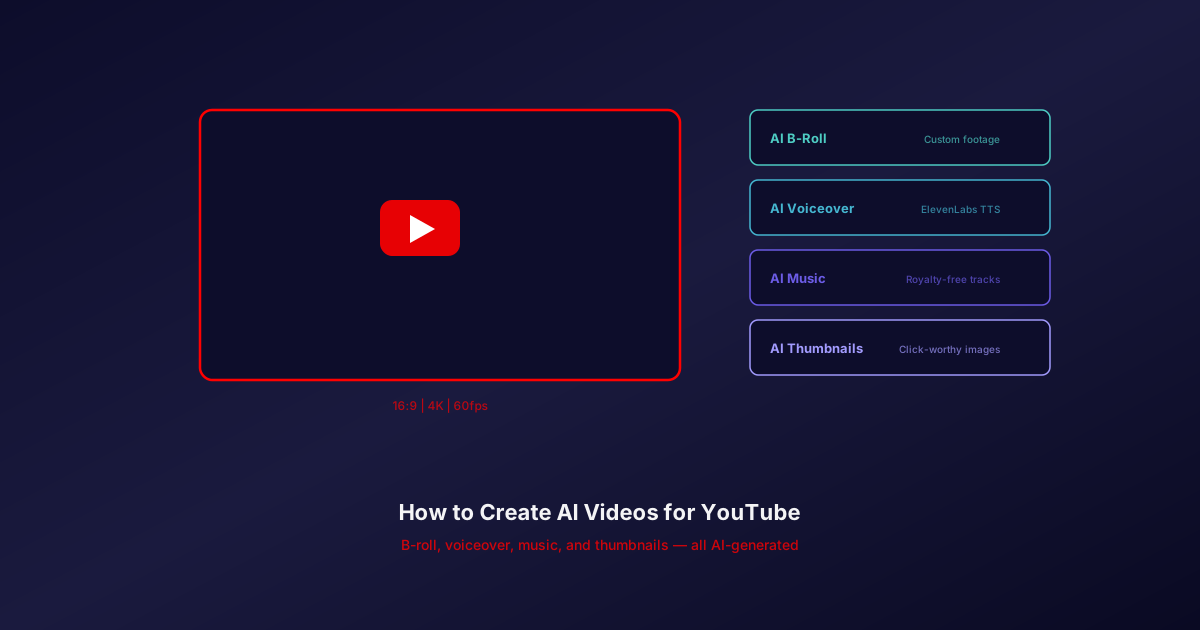
YouTube creators face a constant challenge: producing enough high-quality video content to satisfy the algorithm. A single 10-minute video can require hours of B-roll footage, a professional voiceover, background music, and an eye-catching thumbnail. Multiply that by 2-3 uploads per week and the production workload becomes unsustainable for solo creators and small teams alike.
In 2026, AI can handle every one of these elements -- often better and faster than traditional production methods. AI video generators produce custom B-roll in 30 seconds instead of 30 minutes of searching stock libraries. AI voiceover tools deliver broadcast-quality narration without a microphone. AI music generators create royalty-free tracks that will never trigger a copyright claim. And AI image generators produce thumbnails designed to maximize click-through rate.
This guide covers the complete workflow for using AI tools in YouTube production, from model selection to practical prompt templates to a repeatable content pipeline.
This guide covers AI-assisted YouTube production -- using AI to supplement and enhance your content, not replace your creative vision. The best YouTube channels in 2026 combine human creativity with AI-generated assets. You bring the ideas, personality, and editorial judgment. AI handles the labor-intensive production work.
How YouTubers Are Using AI in 2026
AI is not a single trick for YouTube creators. It is a toolkit that touches every stage of production. Here are the five primary use cases driving adoption across the platform.
-
AI B-Roll -- Custom footage matching your exact script, replacing generic stock footage. Instead of searching for 20 minutes to find a "close-up of a circuit board with blue lighting" that sort of works, you generate exactly that scene in 30 seconds. Every clip is unique to your video and perfectly matched to your narration.
-
AI Voiceover -- Professional narration without recording equipment. No treated recording room, no $300 microphone, no re-takes. AI voiceover tools produce natural-sounding speech from a text script, with adjustable tone, pacing, and even multilingual support for channels targeting global audiences.
-
AI Music -- Royalty-free background tracks, custom to your content. No more checking if a track is cleared for YouTube monetization. No more content ID claims derailing your ad revenue. AI-generated music is original by definition -- zero copyright risk, unlimited commercial use.
-
AI Thumbnails -- Eye-catching images designed to maximize CTR. Generate dozens of thumbnail concepts in minutes and A/B test them. AI image models with strong text rendering can add bold titles directly to the thumbnail without a design tool.
-
AI Visual Aids -- Diagrams, charts, animated illustrations for explainer content. Turn abstract concepts into clear visuals. Generate process flowcharts, comparison graphics, and annotated illustrations that would otherwise require a graphic designer or hours in Illustrator.
AI Video vs Stock Footage for YouTube
Most YouTubers currently rely on stock footage libraries for B-roll. The comparison is stark when you factor in cost, customization, and turnaround.
| Criteria | AI Video | Stock Footage |
|---|---|---|
| Cost | Credits per clip, varies by model and length | $20-200 per clip |
| Customization | Unlimited (prompt-based) | None (use as-is) |
| Copyright Risk | None (original generation) | License restrictions apply |
| Relevance | Exact match to your script | Generic, approximate match |
| Speed | ~30 seconds per clip | 10-20 minutes search time |
| Resolution | 1080p on Kling V3 Pro | Varies by library |
The economics favor AI at every level. A stock footage subscription runs $20-50/month for limited downloads, and premium clips cost $50-200 each. On Oakgen, a Pro plan at $19/month includes 5,000 credits. How many clips that buys depends on the model and clip length, since premium video models are billed per second. More importantly, every clip is generated to your exact specifications instead of "close enough."
Best AI Models for YouTube Content
Not all video models serve the same purpose. Here is how the top options map to YouTube production needs.
Kling V3 Pro (Kling 3.0) -- Highest Quality B-Roll
Kling V3 Pro is the Kling 3.0 model on Oakgen and the pick for hero shots, the premium B-roll that defines the visual quality of your channel. It renders 1080p clips with native audio in text-to-video and image-to-video.
- 1080p output in 16:9, 9:16, or 1:1
- Any clip length from 3 to 15 seconds
- Native audio generated with the video
- Character and object references in image-to-video, plus a separate motion control mode
- 437 credits for a 5-second clip on Oakgen (billed per second)
- Best for premium B-roll, product showcases, cinematic scenes
Veo 3.1 -- Native Audio Generation (Outside Tool, Not on Oakgen)
Veo 3.1 is Google's video model with synchronized audio generated alongside the visuals. It is not offered on Oakgen. If you want audio in the same pass on Oakgen, use Kling V3 Pro or Kling 2.6 Pro, which both generate native audio.
- Native audio with dialogue and environmental sound
- Useful for scenes that need ambient audio or spoken content
- Reduces post-production time for narrated segments
Wan 2.6 -- Budget-Friendly B-Roll (Outside Tool, Not on Oakgen)
Wan 2.6 offers solid quality at a lower cost, making it a workhorse for channels that need volume. Reference-to-video capabilities let you upload a brand image or style reference and generate clips that maintain visual consistency across your entire video. Wan is not offered on Oakgen; for consistent clips on Oakgen, start each shot from the same brand image with Kling v3 Pro or Hailuo 2.3 Pro image-to-video.
- Reference image support for brand consistency
- Lower credit cost for high-volume production
- Good quality for supplementary footage and quick cuts
- Multi-shot support for narrative sequences
LTX 2.0 Pro -- Ultra-Fast Iteration (Outside Tool, Not on Oakgen)
LTX 2.0 Pro generates video in 2-4 seconds -- by far the fastest option available. When you need to test 10 different prompt variations to find the right visual for a specific script moment, LTX lets you iterate at conversation speed. LTX is not offered on Oakgen; Runway Gen 4 Turbo image-to-video is the quick-draft option there.
- 2-4 second generation time
- Excellent for visual aids, diagrams, and quick explainer clips
- Rapid prompt iteration without credit anxiety
- Good enough for supplementary footage
Hailuo 2.3 Pro -- Balanced All-Rounder
Hailuo 2.3 Pro image-to-video sits between Kling's premium output and the quick-draft models. Start from a still and it animates it into clean B-roll. For most supplementary footage in a typical YouTube video, it delivers solid results without the premium cost.
- Image-to-video at 1080p
- Consistent quality with few failed generations
- Good for lifestyle scenes, product context, and mood footage
- Strong quality-to-cost ratio for weekly content
For a detailed comparison of all available models, see our best AI video generators in 2026 ranking.
5 YouTube Workflows Using AI
Here are five concrete workflows that YouTube creators are using to integrate AI into their production pipeline.
AI B-Roll for Essays and Explainers
Video essays and explainer channels benefit the most from AI B-roll. The genre demands constant visual variety to keep viewers engaged during narration, and stock footage rarely matches the specific concepts being discussed.
Workflow:
- Write your script and identify 15-20 visual moments that need B-roll
- Draft a prompt for each moment, matching the scene to your narration
- Generate clips with Kling V3 Pro (hero shots) or Hailuo 2.3 Pro image-to-video (supplementary footage)
- Drop clips into your timeline aligned with the corresponding narration
Prompt template: "Cinematic B-roll of [subject], slow motion, 16:9, professional lighting, [mood/color grading]"
Example: "Cinematic B-roll of a programmer's hands typing on a mechanical keyboard, warm desk lamp lighting, shallow depth of field, slow motion, 16:9" -- this generates a clip that would take 30 minutes to set up and film traditionally.
AI Intros and Channel Branding
First impressions matter on YouTube. A polished intro sequence signals production quality before your content even begins. AI tools let you create and iterate on intro sequences without motion graphics expertise.
Workflow:
- Design or upload your channel logo as a static image
- Use Kling V3 Pro image-to-video to animate the logo with cinematic motion
- Generate a branded intro sequence with consistent visual language
- Add an AI-generated music sting for audio branding
Animate your logo with particle effects, liquid metal transitions, or cinematic reveal sequences. Generate 5-10 variations and pick the strongest. The entire process takes 15 minutes versus days of work in After Effects.
AI Visual Aids for Tutorials
Tutorial and educational channels need constant visual aids -- diagrams, process flows, before/after comparisons, annotated screenshots. AI image generators handle these faster than manual design.
Workflow:
- Identify concepts in your script that need visual explanation
- Use GPT Image 1.5 for general diagrams and illustrations
- Use GPT Image 2 or Recraft V3 for text-heavy visuals (charts, comparison tables, labeled diagrams)
- Use FLUX 2 Pro for photorealistic visual aids
GPT Image 2 is particularly useful here because it handles text within images well. Need a comparison chart showing three pricing tiers? A labeled diagram of a software architecture? Generate it, then proofread every label before it goes on screen. See our best AI image generators guide for more options.
AI Shorts from Long-Form Content
Every long-form YouTube video contains 3-5 moments that could work as standalone Shorts. AI lets you supplement these moments with vertical video content rather than simply cropping your horizontal footage.
Workflow:
- Identify key takeaways or hook moments from your main video
- Generate 9:16 vertical AI clips that visualize each moment
- Add AI voiceover summarizing the key point
- Publish as YouTube Shorts with a link to the full video
This repurposing strategy feeds the Shorts algorithm while driving traffic to your main content. For more on vertical video optimization, see our AI social media video guide.
AI Thumbnails
Thumbnails determine whether anyone clicks your video. The difference between a 3% CTR and a 7% CTR is the difference between 10,000 views and 23,000 views on the same impressions. AI lets you generate and test more thumbnail concepts than ever before.
Workflow:
- Generate 5-10 thumbnail concepts using GPT Image 1.5 or FLUX 2 Pro
- Add bold title text in the Image Editor with GPT Image 2 or Nano Banana 2
- Upload 2-3 finalists to YouTube and use the built-in A/B test feature
- Track CTR data and refine your prompts based on what performs
Prompt template: "YouTube thumbnail, [subject], dramatic lighting, bold composition, high contrast, [emotion], 16:9, professional photography"
Strong thumbnails share common traits: high contrast, clear focal point, readable expression on faces, and minimal text that is legible at small sizes. AI lets you test all of these variables rapidly.
Adding AI Voiceover to Your Videos
Not every creator wants to record their own voice, and many formats -- like compilation channels, automated news summaries, and faceless channels -- rely entirely on voiceover narration.
ElevenLabs on Oakgen offers V3, Multilingual V2, and Turbo V2.5 voice models. V3 and Multilingual V2 cost 26 credits per 1,000 characters. Turbo V2.5 costs half that (13 credits per 1,000 characters) and generates faster for time-sensitive production.
MiniMax Speech 2.8 HD reads your script in a voice you have cloned on Oakgen, at 26 credits per 1,000 characters.
Key voiceover tips for YouTube:
- Match voice to content. A documentary tone for educational content, a conversational tone for commentary, an energetic tone for entertainment.
- Use consistent voices. Pick one voice and use it across your channel for brand recognition. Voice cloning on Oakgen lets you create a consistent AI narrator.
- Script for speech. Write shorter sentences. Use contractions. Add natural pauses with commas and ellipses. The AI follows your punctuation for pacing.
For a complete breakdown of voice options and cloning capabilities, see our AI voice cloning and text-to-speech guide.
For the most natural voiceover, write your script in a conversational tone. AI voices handle casual language better than formal writing. Read your script aloud first -- if it sounds stiff when you read it, the AI voice will sound stiff too. Use contractions, vary sentence length, and write the way people actually talk.
AI Music for YouTube Videos
Background music sets the emotional tone of your video, but music licensing is one of YouTube's most persistent headaches. Content ID claims can strip your ad revenue, and royalty-free libraries recycle the same tracks across thousands of videos.
AI-generated music eliminates both problems. Every track is original -- no copyright claims, no licensing fees, no other channel using the same music.
Best options on Oakgen:
- Eleven Music -- Instrumental tracks from a natural-language description, with a duration you set. Good for ambient background music, lo-fi study beats, mood-setting instrumentals, intros, and outros.
- Lyria 3 Pro -- Google's music model. Handles cinematic instrumentals as well as tracks with lyrics, and can take a reference image to guide the mood. Use it when your video needs a custom song with vocals or a documentary-style score.
Both are in the Music Generator.
For a comprehensive breakdown of each music model, see our AI music generation guide and our best AI music generators in 2026 ranking.
The key benefit for YouTubers: every AI-generated track is original, so you are not sharing a library track with thousands of other channels. Check the current usage terms before monetizing.
YouTube-Specific Production Tips
These practical considerations will save you time and prevent common mistakes when integrating AI into your YouTube workflow.
Resolution and aspect ratio. Always use 16:9 aspect ratio at 1920x1080 minimum. Kling V3 Pro outputs 1080p, which meets that bar; upscale in your editor if you are delivering a 4K timeline.
Visual continuity. Use consistent prompting across all clips in a single video. Establish your lighting style, color palette, and camera language in your first prompt, then carry those descriptors across every generation. "Warm golden hour lighting, shallow depth of field" applied consistently across 15 clips creates a cohesive visual experience.
Generate more than you need. For every B-roll moment, generate 2-3 variations. This gives you options in the edit and prevents the "this doesn't quite fit" problem that kills editing momentum. A few extra generations cost far less than a re-shoot.
Accessibility. Add captions to AI-generated segments. This is both an accessibility requirement and an algorithmic advantage -- YouTube's auto-captioning indexes your content for search. Burn in captions for segments without voice narration so viewers understand the visual context.
Disclosure. YouTube's AI disclosure policies require creators to label realistic AI-generated content. Add the "Altered or synthetic content" label in YouTube Studio when your video contains AI-generated footage that could be mistaken for real events. Transparent creators build more trust.
Batch production. Generate all your B-roll, voiceover, and music in dedicated sessions rather than stopping your edit to generate each clip individually. Queue 20 generations on Oakgen, review them all, then import the selects into your timeline.
For more on how to create AI video in 5 minutes or compare specific models in depth, see our Veo vs Kling vs Wan comparison.
Related reading
Generate YouTube-Ready AI Video
B-roll, voiceover, music, and thumbnails. All in one platform.