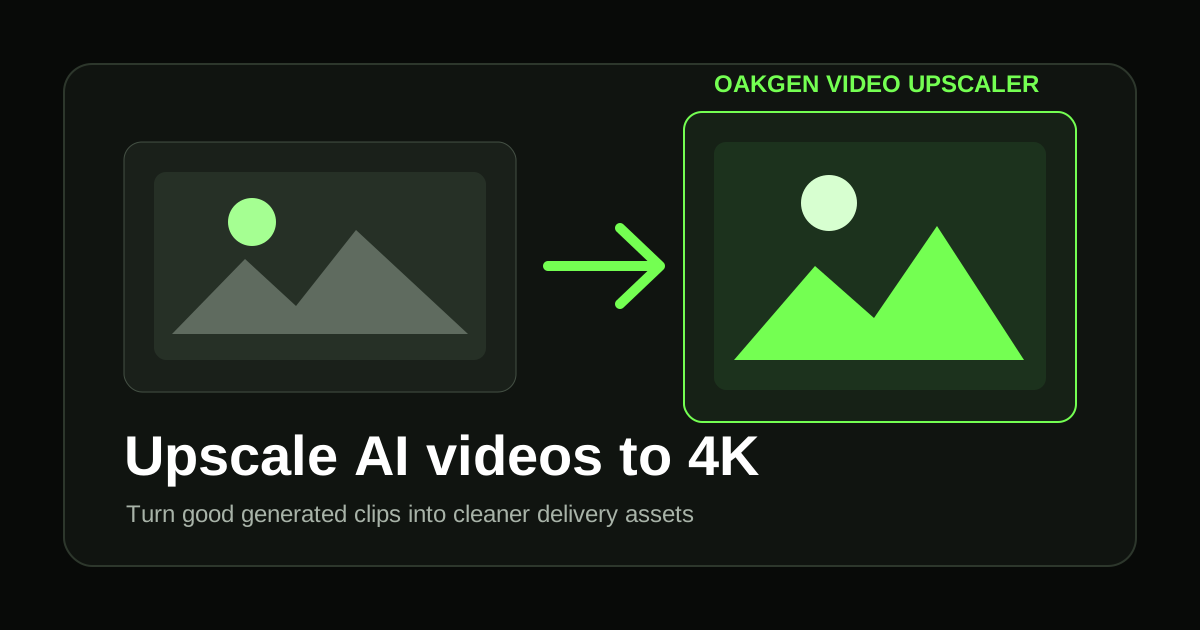
You do not always need to regenerate an AI video when the idea is right but the output is too soft. In many workflows, the smarter move is to keep the clip that nailed the composition and run it through Oakgen's Video Upscaler for a delivery pass.
That is especially true for short-form ads, product demos, talking-photo clips, real estate reels, and cinematic b-roll. The expensive part is often getting the shot right. Upscaling is the finishing step that helps a good shot survive TikTok compression, YouTube previews, client decks, and large-screen playback.
When upscaling beats re-rendering
Regenerate when the content is wrong. Upscale when the content is right but the pixels need help.
Use the Video Upscaler when:
- the subject, framing, and motion are correct
- the clip looks slightly soft at full screen
- the video was generated at 720p or 1080p but needs a sharper export
- you want to crop into the frame during editing
- social compression is making the clip look muddy
- old or low-resolution footage needs a cleaner archive version
Regenerate in the AI Video Generator instead when:
- faces are warped or inconsistent
- hands, logos, or text are broken
- camera motion is wrong
- the clip ignores the prompt
- the scene has heavy flicker or morphing
Upscaling is a polish layer. It is not a rewrite layer.
Oakgen's upscaler has more to work with when the source video is clean. A sharp 720p clip usually upscales better than a noisy, highly compressed 1080p clip.
The Oakgen 4K workflow
Here is the practical workflow we use when a generated video needs to become a finished asset.
1. Generate the shot at the right creative quality
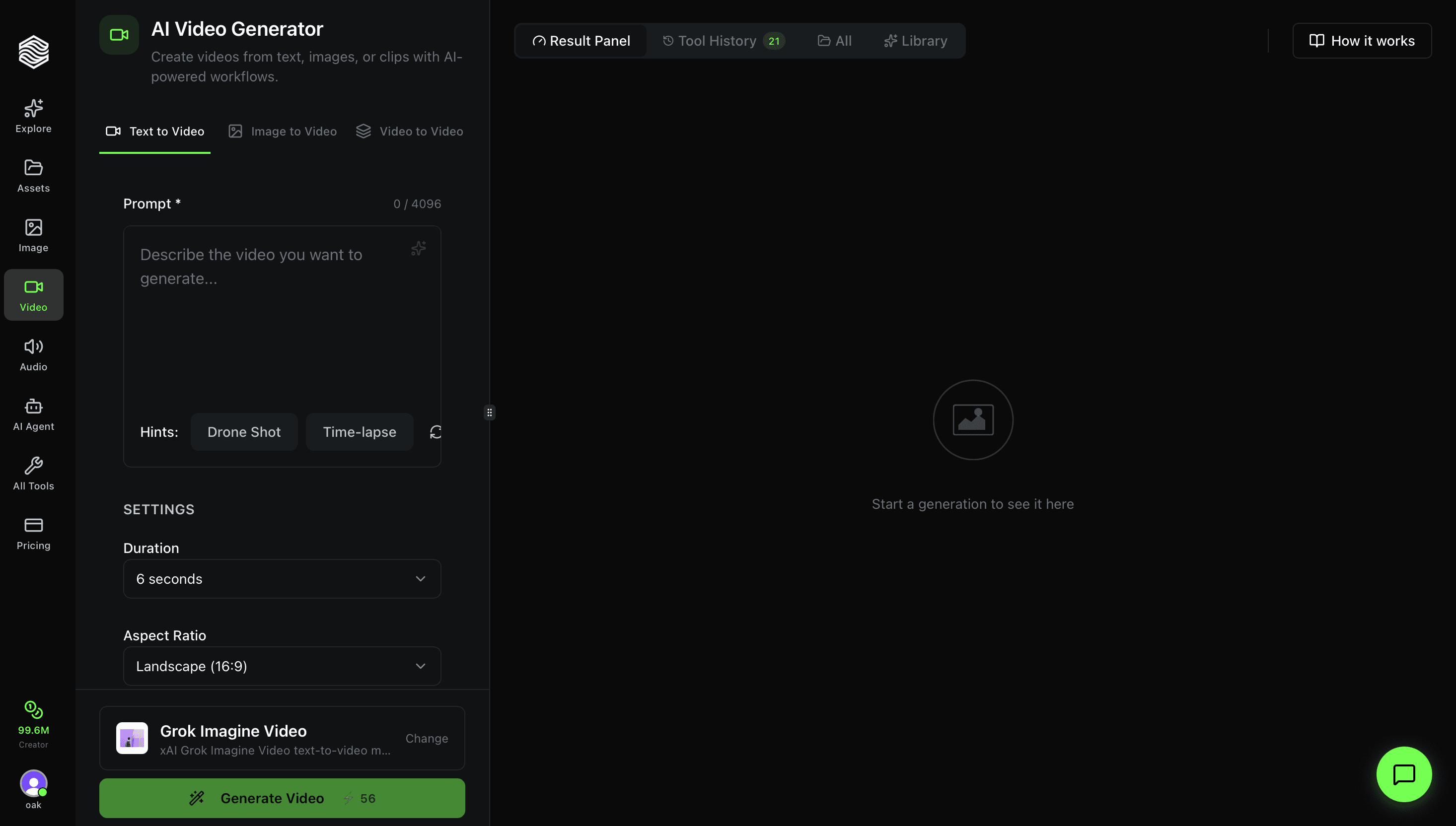
Start in the AI Video Generator, Talking Photo, or UGC Ads, depending on the asset.
For most teams, the first pass is not about maximum resolution. It is about getting the shot language right:
- product visible in the first second
- face or subject identity preserved
- camera motion that supports the idea
- no unreadable text overlays
- no important detail at the very edge of frame
- enough negative space for captions or crop variants
Once the creative pass works, download the clip or send it into the next step in your workflow.
2. Decide the target resolution
Oakgen's Video Upscaler content registry describes four target tiers: 720p, 1080p, 2K, and 4K. Pick based on the job, not ego.
| Destination | Good target | Why |
|---|---|---|
| TikTok, Reels, Shorts | 1080p | Most vertical feeds compress aggressively anyway |
| YouTube standard video | 1080p or 2K | Enough for clean playback and thumbnail capture |
| Client presentation | 2K | Gives room for fullscreen slides |
| Website hero video | 1080p or 2K | Balances quality and load time |
| Trade show screen | 4K | Large displays expose softness fast |
| Archive remaster | 2K or 4K | Future-proofs useful footage |
Do not send every clip to 4K automatically. If the source is very soft or compressed, a measured 1080p upscale can look more natural than an over-ambitious 4K pass.
3. Upload to Video Upscaler
Open Video Upscaler, upload the clip, and choose your target resolution. The tool accepts common video formats and is designed around short practical clips, including AI video outputs and existing video assets.
Before processing, do a quick quality check:
- watch the clip at 100 percent size
- check faces and hands frame by frame
- look for flicker around edges
- confirm the first and last frames are usable
- confirm the clip is worth saving
If the shot fails that check, regenerate. If it passes, upscale.
4. Edit with the new pixel budget
The reason upscaling matters is not just "more resolution." It gives you more freedom in post.
With a sharper upscaled clip, you can:
- crop a horizontal AI video into a vertical ad
- punch in on a product reveal
- stabilize a slightly loose shot
- pull a cleaner thumbnail frame
- add captions without making the background feel muddy
- combine clips from different models into one consistent edit
A common Oakgen workflow is:
- Generate multiple b-roll clips in the AI Video Generator.
- Send the winners through Video Upscaler.
- Generate music in the Music Generator.
- Add narration or voiceover in Voice Generator.
- Assemble the final cut in your editor of choice.
This keeps creative iteration fast while still giving the final asset a professional finish.
Prompting for upscaler-friendly videos
If you know you will upscale later, prompt your video model with clean edges and stable motion in mind.
Cinematic product shot of a matte black smart speaker on a clean stone counter, slow push-in camera move, soft window light from the left, shallow depth of field, no text, no logos, no hands, stable subject position, minimal background motion, realistic reflections, premium commercial look.
This kind of prompt upscales well because the subject is clear, the camera move is simple, and the background does not contain a dozen tiny moving details.
Avoid prompts that demand heavy chaos if you plan to upscale:
- crowds with many faces
- tiny on-screen text
- fast handheld camera shake
- glitter, confetti, sparks, and rain all at once
- complex logos in motion
- fast cuts inside one generated clip
The upscaler can enhance pixels. It cannot make a messy shot calm.
Best use cases
AI ad creatives. Generate three to ten rough video options, pick the one with the best hook, then upscale only that winner before adding captions and CTA overlays.
Real estate reels. Use video generation for exterior reveals, room transformations, or neighborhood b-roll, then upscale the selected clips before posting.
Talking-photo content. Lip-sync clips often live or die on face clarity. If the mouth sync is good but the output feels soft, upscale before publishing.
Product demos. A product reveal, app walkthrough background, or packaging shot can move from "AI draft" to "client-ready" with a clean 2K or 4K pass.
Archive footage. Old family videos, event clips, and legacy brand footage benefit from measured enhancement, especially when paired with careful trimming.
Common mistakes
Upscaling failed generations. If a clip has bad motion or broken faces, do not upscale it. Regenerate.
Jumping straight to 4K from a bad source. More pixels can make artifacts more visible. Choose the target resolution that fits the source.
Upscaling every draft. Upscale winners, not experiments.
Ignoring export compression. A clean 4K file can still look bad after social compression if you upload the wrong format or bitrate from your editor.
The simple rule
Use generation to solve the idea. Use upscaling to solve the delivery.
When the idea is wrong, go back to the AI Video Generator or the model that made the clip. When the idea is right and the image just needs more confidence, open Video Upscaler and give the shot the finish it deserves.
Upscale your best AI video
Take the clip that already works and polish it for social, client decks, or 4K delivery.