AI video generation has reached the point where anyone can create cinematic footage from a text description. No camera, no editing software, no video production experience required. On Oakgen.ai, you have access to 17 video models -- and you can go from zero to a finished video in under 5 minutes.
This guide walks you through both text-to-video and image-to-video workflows, recommends the best models for different use cases, and shows you how to get professional results on your first try.
What You Will Need
- A description of the video you want to create
- Optionally, a starting image for image-to-video generation
That is it. No downloads, no installations, no technical setup.
The Two Workflows: Text-to-Video vs. Image-to-Video
Before diving in, understand the two main approaches:
Text-to-Video: You describe the scene in words and the AI creates everything from scratch -- visuals, motion, composition. Best for creative exploration and when you do not have a specific starting frame in mind.
Image-to-Video: You upload a still image and the AI animates it. Best for when you have an existing image (generated or photographed) and want to bring it to life with motion. This gives you more control over the initial composition.
Quick-Start: Text-to-Video in 5 Minutes
Minute 1: Open the Video Generator
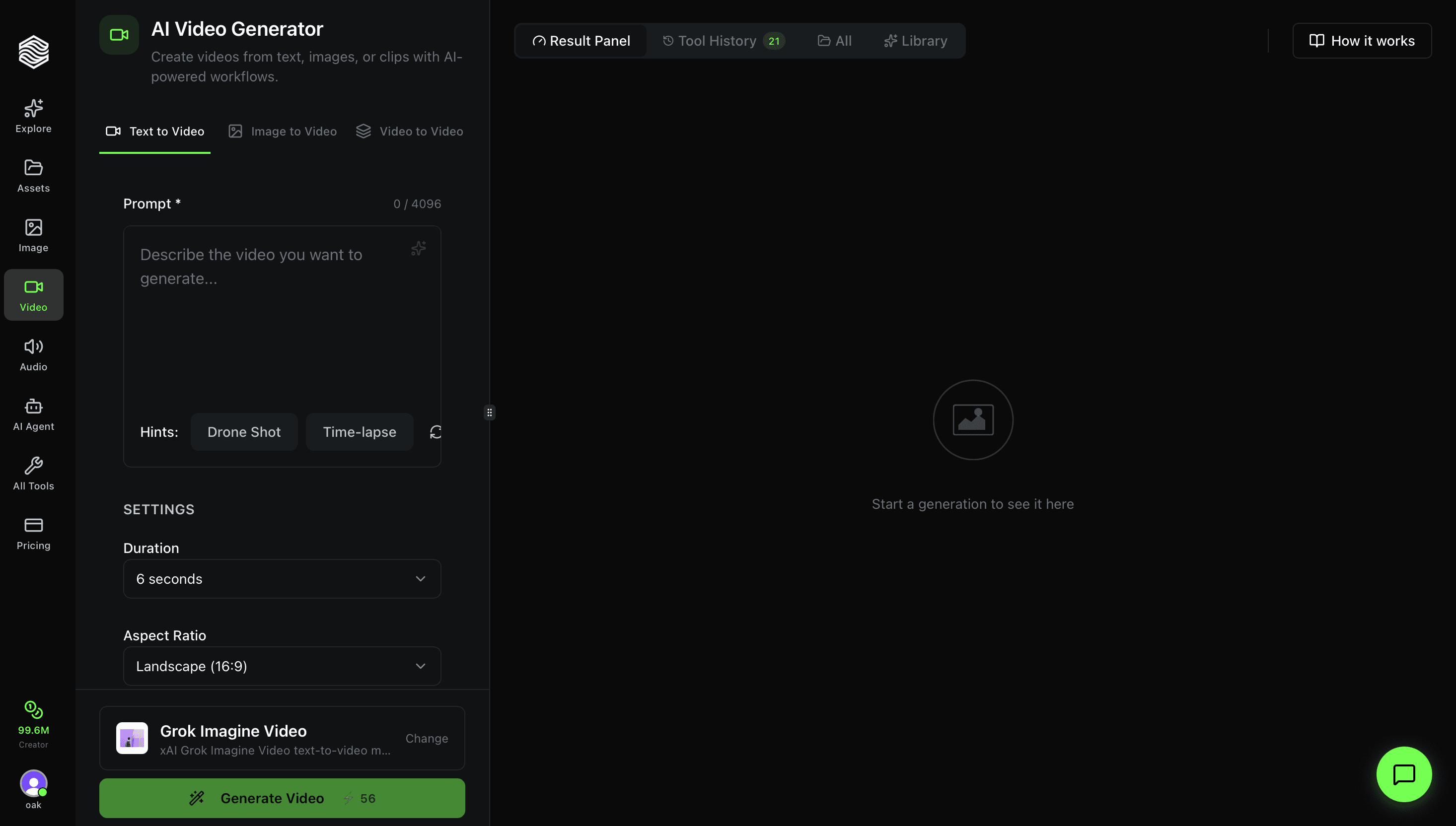
Log in to Oakgen.ai and navigate to the AI Video Generator from your dashboard sidebar.
Minute 2: Choose Your Model
Select a model from the dropdown, which shows the credit cost for each option. A good starting point:
| Model | Best For | Max Duration | Credits (5s) | Why Choose It |
|---|---|---|---|---|
| Kling 2.1 Master | Highest quality | 10 seconds | 45 credits | Best visual fidelity |
Minute 3: Write Your Prompt
Describe the scene you want to generate. AI video prompts work differently from image prompts -- you need to describe motion and camera work in addition to the visual scene.
Here is a strong starter prompt:
"A golden retriever running through a field of wildflowers at sunset, camera tracking alongside the dog at eye level, warm golden light, slow motion, cinematic color grading, shallow depth of field"
Key elements to include:
- Subject and action: What is happening in the video?
- Camera movement: Tracking shot, dolly forward, static, crane shot?
- Lighting: Golden hour, overcast, neon, studio?
- Speed: Normal speed, slow motion, time-lapse?
- Style: Cinematic, documentary, commercial, film grain?
Minute 4: Set Duration and Aspect Ratio
Choose your video duration:
- 5 seconds -- Good for social media clips, product reveals, loops
- 10 seconds -- Better for mini-narratives, ads, more complex scenes
Choose your aspect ratio:
- 16:9 -- YouTube, presentations, standard video
- 9:16 -- TikTok, Instagram Reels, YouTube Shorts
- 1:1 -- Instagram feed, social media posts
Minute 5: Generate and Download
Hit Generate. Oakgen processes your request and sends you a real-time notification when your video is ready -- typically 30 seconds to 2 minutes depending on the model and duration.
Once the video appears, you can:
- Play it directly in the browser
- Download in full resolution
- Regenerate with the same prompt for a different variation
- Send to Video Upscaler via the Video Upscaler for enhanced resolution
Not happy with the result? Tweak your prompt and regenerate. Change "slow motion" to "normal speed," swap "golden hour" for "blue hour," or adjust the camera movement. Small prompt changes can dramatically alter the output.
Quick-Start: Image-to-Video
Image-to-video gives you precise control over the starting frame. This workflow is ideal when you have an existing image you want to animate -- whether it is a product photo, an AI-generated image, or a design mockup.
Step 1: Get Your Source Image
You can use any image, but for best results:
- Use a high-resolution image (at least 1024x1024)
- Choose an image with a clear subject
- Avoid overly busy compositions
Pro move: Generate your source image on Oakgen first. Use Flux 2 Pro for photorealistic stills or Nano Banana 2 for 4K starting frames, then animate them.
Step 2: Upload and Describe the Motion
In the Video Generator, switch to Image-to-Video mode. Upload your image, then describe the motion you want:
"Slow camera push in, the woman's hair blows gently in the wind, soft ambient light shifts across her face, cinematic"
Focus your prompt on movement and changes rather than describing the image itself (the model can already see it).
Step 3: Generate
Select your model, duration, and hit Generate. The model will use your image as the first frame and create motion from there.
The strongest image-to-video combinations on Oakgen:
| Source Model | Video Model | Best For |
|---|---|---|
| Flux 2 Pro | Kling 2.1 Master | Photorealistic animations |
| Nano Banana 2 | Kling v3 Pro | Character-consistent motion |
| GPT Image 2 | Hailuo 2.3 Pro | Animated graphics |
| Recraft V3 | Runway Gen 4 Turbo | Illustrated animations |
All 17 Video Models on Oakgen
Oakgen gives you access to the broadest selection of video AI models available in one platform. Here is the full lineup:
Tier 1: Premium Quality
- Kling 2.1 Master -- Best overall quality, 1080p, up to 10 seconds
- Kling 2.0 -- Slightly faster, great quality, lower credit cost
- Seedance 2.0 -- ByteDance's cinematic model with native audio and multi-reference input
Tier 2: Strong All-Around
- Kling v3 Pro -- Strong character consistency across longer clips, at a higher credit cost
- Runway Gen 4 Turbo -- Fast image-to-video generation
- Hailuo 2.3 Pro -- Reliable and consistent image-to-video at 1080p
Tier 3: Specialized
- Additional models spanning different styles, speeds, and capabilities -- explore the full list in the Video Generator model selector
Prompt Templates for Common Use Cases
Product Reveal
"A sleek smartphone slowly rotates on a reflective black surface, studio lighting with soft highlights, dramatic shadows, commercial product photography style, 4K, smooth continuous rotation"
Nature Scene
"Aerial drone shot gliding over a misty mountain valley at sunrise, pine forests below, golden light breaking through clouds, slow cinematic movement, shot on RED camera"
Social Media Ad
"Dynamic quick cuts of a person unboxing a product, excited expression, close-up of product details, bright modern apartment, energetic pacing, lifestyle brand aesthetic"
Character Animation
"A woman in a red dress walks confidently down a city street at night, neon signs reflected in puddles, camera follows from behind, slow tracking shot, cinematic noir"
Match your prompt style to the model's strengths. Use cinematic language with Kling and Seedance. Experiment to find what each model responds to best.
Extending Your Videos
Add Audio
Pair your video with AI-generated audio:
- ElevenLabs or MiniMax Speech HD for voiceovers and narration
- Music Generator for background tracks using Lyria 3 Pro or Eleven Music
Combine with Other Tools
Oakgen's strength is the ability to chain tools together:
- Generate a character image with Image Generator
- Animate it with Video Generator
- Add a voiceover with Audio
- Create a talking-head version with Talking Photo
- Package it as a UGC Ad
All within one platform, one credit system, one workflow.
Video Generation Pricing
Video credits scale with model quality and duration:
| Model Tier | 5 Seconds | 10 Seconds |
|---|---|---|
| Premium (Kling 2.1) | 40-45 credits | 75-80 credits |
The generator shows the exact credit cost for every model and duration before you generate.
Oakgen does not offer a general free trial. Check the pricing page for current paid plans and active offers.
Common Questions
How long does generation take?
Most models produce a 5-second video in 30 seconds to 2 minutes. You will receive a real-time notification when it is ready -- no need to watch the screen.
Can I generate longer videos?
The maximum duration varies by model (5-20 seconds per generation). For longer content, generate multiple clips and combine them in your video editor of choice.
Which model should a beginner use?
Start with Kling 2.1 Master or Hailuo 2.3 Pro image-to-video, and check the credit cost shown in the generator before each run. Move to Kling v3 Pro when you need strong character consistency across longer clips.
Can I use AI videos commercially?
Yes. All videos generated on Oakgen are yours to use for commercial purposes, subject to the terms of service. No additional licensing required.