ChatGPT
 Claude
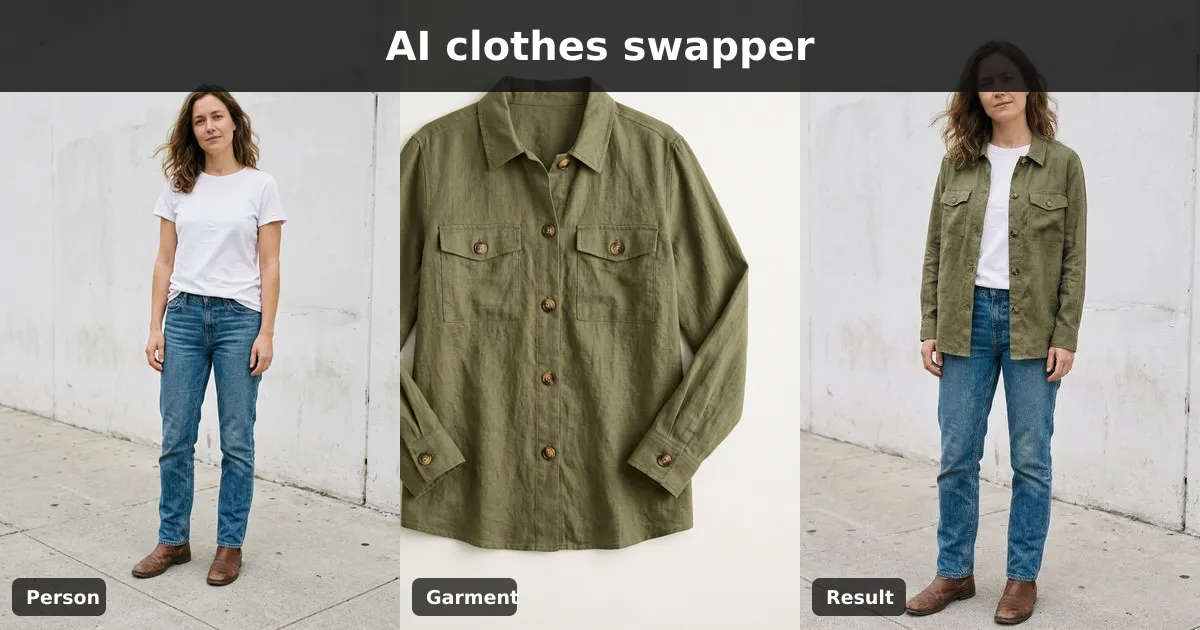
A clothes swapper puts the outfit from one photo onto the person in another. You upload a photo of the person and a photo of the garment, and an AI model redraws the person wearing it, with the fit, folds and lighting adjusted to their pose. Their face, hair and background stay the same. It's the most reliable way to change clothes in a photo when you need one specific garment, because the model sees the real item instead of guessing from a description.
Oakgen's AI clothes swapper works exactly this way: two uploads, no style menus. Below is a real two-photo example, how it compares with prompt-based AI outfit changers and Google's try-on, and the input rules that decide whether the swap looks real.
Which AI outfit changer should you use?
We looked at the pages ranking for "clothes swapper" and "AI outfit changer" on 2026-11-16. Tools take the new outfit in one of three ways: a reference photo, a text prompt, or a preset wardrobe. Several offer more than one.
| Tool | Type | Best for | Weak spot | Cost note (2026-11-16) |
|---|---|---|---|---|
| Oakgen Clothes Swapper | AI image-to-image, two photos | Putting one specific garment on a specific person | Needs a clear garment photo; no preset wardrobe | 28 to 72 credits per render; paid plans only |
| Google Try On | AI shopping feature | Trying listed products on your own full-length photo | Only products and regions Google supports | Free inside Google Shopping |
| Fotor AI clothes changer | Reference, prompt or presets | Trying many looks in one place | Many options to sort through | Free credits from daily tasks, per its page |
| MyEdit AI clothes changer | Fitting room, upload or prompt | Quick tries from a preset wardrobe | Presets are generic | Free daily credits, no watermark, per its page |
| Dreamina (CapCut) | Prompt-based image editing | Describing a new outfit in words | You write the prompt; no garment reference flow on its page | Check its page |
Google described its Try On model in its May 2025 announcement as a custom image model for fashion that understands how materials "fold, stretch and drape". It's the strongest option when the item is a listed product.
Our take: for shopping a listed product, use Google's try-on where it's available. For "show me in a suit" ideas, a prompt or preset tool is quicker. For a specific garment you photographed, such as your own product, a vintage find or a sample, a two-photo clothes swapper gives the most faithful result. That's the job Oakgen's template is built for.
How the Oakgen clothes swapper works
These details come from the template's definition in Oakgen's code, checked on 2026-11-16.
- Person Image: required. The person you want to dress.
- Outfit Reference: required. The photo with the garment.
- Additional instructions: optional, up to 2,000 characters in the studio.
- Models: Nano Banana Pro (the default), Nano Banana 2 and GPT Image 2.
- Estimated time: 15 to 25 seconds on the template page. Our run through Oakgen's API took about 35 seconds.
The template asks the model to "dress the person from the first image in the outfit from the second image", with matching light, proper fit and natural integration with the body. It also tells the model to avoid misaligned or floating clothes, poor fit and a distorted body.
On the public tool page you can upload the person image and pick a model while signed out. Click Open in Oakgen to continue in the studio, where you add the outfit reference and generate. Generation needs a paid plan, because Oakgen has no free plan.
Example: an olive linen overshirt on a street photo
We generated both inputs, so no real person or real product was involved: a full-length photo of a fictional woman in a white t-shirt, jeans and brown boots, and a flat-lay of an olive linen overshirt with chest pockets and horn buttons. We ran them through the template on Nano Banana Pro at 1K. We added one instruction: "Wear the overshirt open over the white t-shirt; keep the jeans and boots."
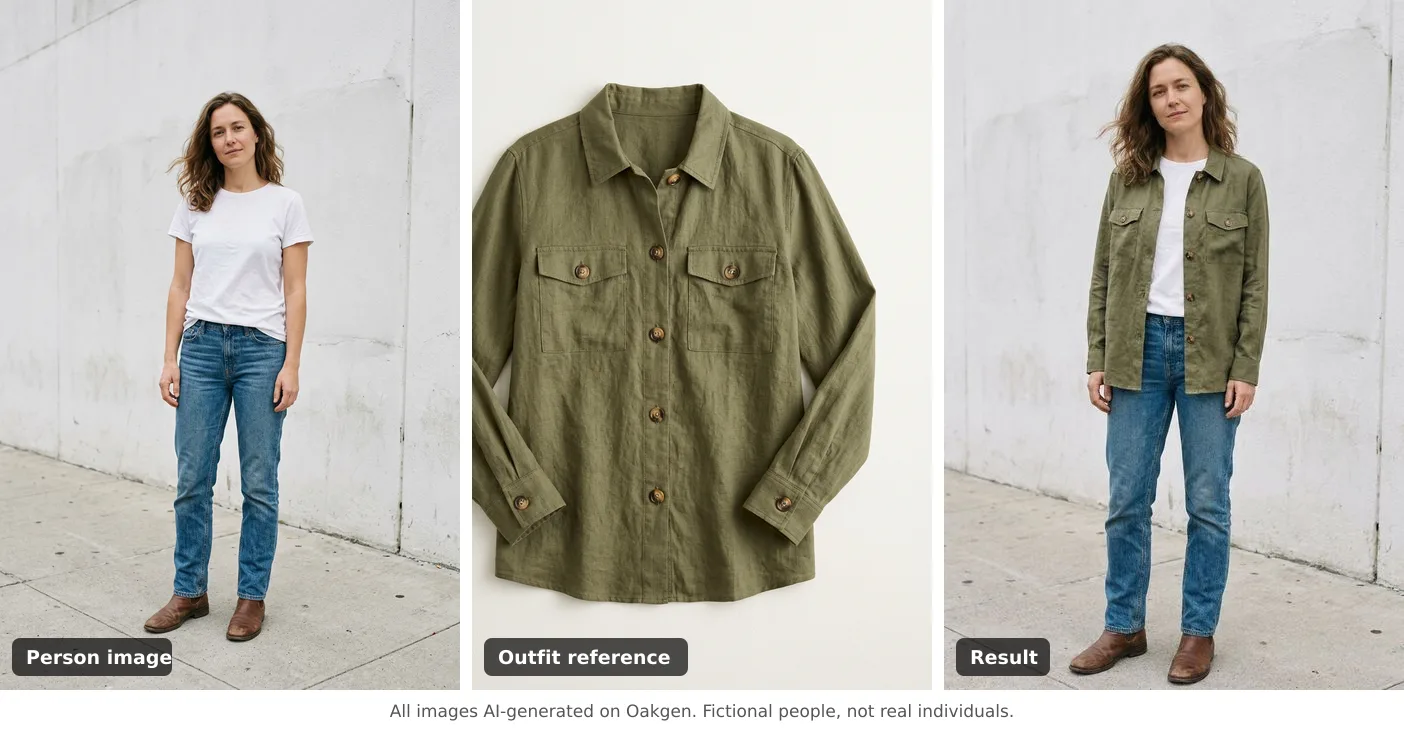
All three images are AI-generated. The woman and the garment are fictional.
What worked:
- The garment stayed faithful. Colour, chest pockets with flaps, button placement and the linen texture all carried over from the flat-lay.
- It sits like a real overshirt. It hangs open, the sleeves fall to the wrist and the hem sits at the hip, with folds where her arms bend.
- The instruction was followed. The t-shirt, jeans and boots stayed, so it reads as layering rather than a whole new outfit.
Where it was weaker:
- The framing shifted a little. The result is slightly wider and the pose changed slightly. Fine for a single image, but check before you place it next to the original as a strict before-and-after.
- Fabric detail is softer up close. The linen slub is visible but smoother than the flat-lay. It's good for social posts and mockups. For a product page hero shot, I'd still shoot the real garment.
Put your own garment on a person photo with the clothes swapper.
Input rules that make or break a clothes swap
| Input | Do | Avoid |
|---|---|---|
| Person image | Full or three-quarter body, arms relaxed, one person | Crossed arms, bags over the body, group photos |
| Person's current clothes | Fitted, simple layers | Bulky coats that hide the body shape |
| Outfit reference | Flat-lay or a clear on-model shot, the whole garment in frame | Cropped details, busy backgrounds, several garments |
| Garment angle | Front view | Folded or crumpled items |
| Lighting | Similar in both photos | Hard sun on one, studio light on the other |
| Instructions | Say what to keep: "keep the jeans and shoes" | Long style essays that compete with the reference |
If the reference shows a full outfit and you only want the jacket, say so in the instructions. Otherwise the model may copy everything it sees.
Step by step
- Prepare both photos using the rules above. Crop the garment photo so the item fills most of the frame.
- Open the clothes swapper and upload the person image.
- Click Open in Oakgen, sign in, and add the outfit reference in the studio.
- Add a short instruction about what to keep and how to wear it, for example "tucked in" or "worn open".
- Check the credit cost shown and generate.
- Compare neckline, sleeve length, hem and pattern against the reference. If something drifted, name it in the instructions and run it again.
Common mistakes
- Using a tiny or partial garment photo. The model fills in what it can't see, and that's where the cut and details drift.
- Expecting a size or fit check. The swap shows style, not how the real item will fit your body.
- Presenting the result as a product photo. If you sell the garment, label mockups clearly and keep real product photos on the listing.
- Editing photos of people without consent. Ask first, and never use an outfit changer to make someone appear undressed or in clothing they'd object to. For client work, check the rights to both images.
Other ways to change clothes in a photo
Sometimes you don't have a reference photo. Oakgen's outfit style transformer restyles clothing from presets such as Business Formal or Casual Chic, the virtual clothing try-on template dresses someone from a text description of the outfit, and the clothing colour changer keeps the garment and changes only its colour. To finish the look, the virtual shoe try-on guide covers footwear. If you spotted an outfit you like but don't know what it is, our guide to identifying clothes from a photo helps you name it first. The AI photo effects guide collects the whole series.
Swap your first outfit
Photograph the garment flat on a plain surface, pick a clear full-length photo of the person, and tell the model what to keep. Open the AI clothes swapper to try it. Plans and credit prices are on the Oakgen pricing page.
Frequently asked questions
What is a clothes swapper?
A clothes swapper is an AI tool that takes the outfit from one image and renders it on the person in another image, keeping their face, pose and background. Oakgen's Clothes Swapper asks for two uploads: a person image and an outfit reference.
Is it better to describe the outfit or upload a reference?
Upload a reference when you need a specific garment, because the model can see its colour, cut and details. Describe it in text when you just want ideas, such as 'a navy suit' or 'a summer dress'. Oakgen's Clothes Swapper uses a reference; its Outfit Style Transformer works from preset styles, and its Virtual Clothing Try-On works from a text description.
Can I virtually try on clothes before buying them online?
Yes, for a sense of style. Google Try On lets you try supported product listings on your own full-length photo. An AI clothes swapper works with any garment photo you have. Neither tells you the size or fit, so check the retailer's size guide.
How much does the Oakgen clothes swapper cost?
Each render uses credits. At the default 1K setting on 2026-11-16, Oakgen quoted 51 credits for Nano Banana Pro (the default model), 28 credits for Nano Banana 2 and 72 credits for GPT Image 2. Oakgen has no free plan; the studio shows the cost before you generate.
Can I use the clothes swapper without an account?
You can open the tool page, upload the person image and pick a model while signed out. The outfit reference is added in the Oakgen studio after you click Open in Oakgen, and generating needs a paid plan.
Is it okay to change clothes on someone else's photo?
Only with their consent, and never to make someone look undressed or to put them in a context they didn't agree to. For brand work, make sure you have the rights to both the person photo and the garment photo.