ChatGPT
 Claude
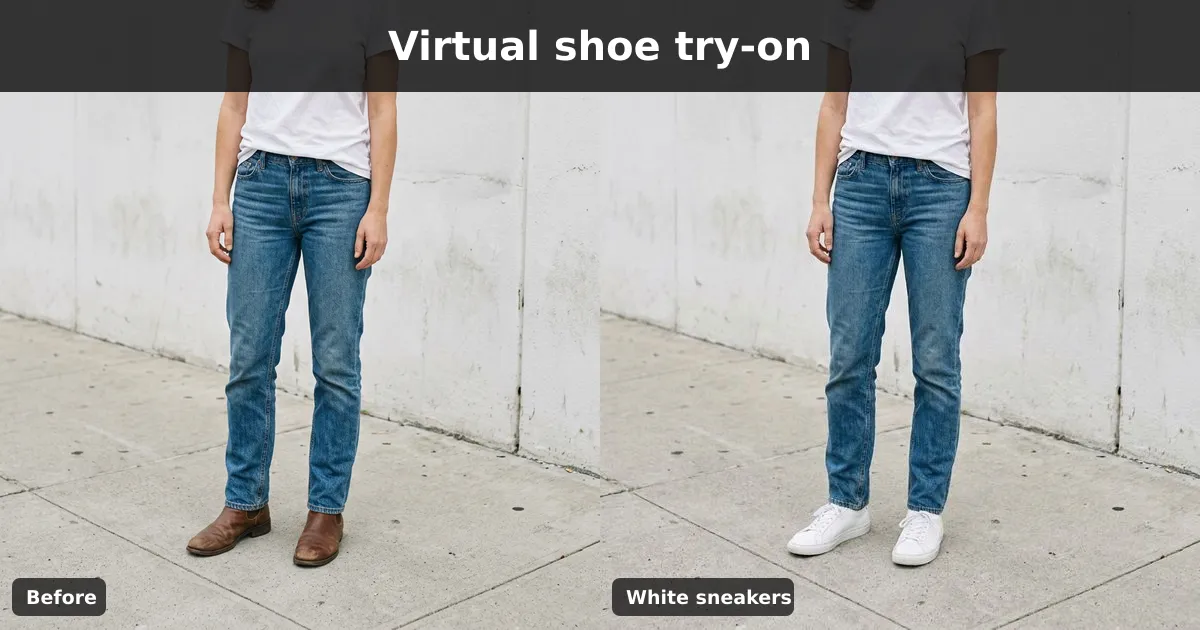
A virtual shoe try on shows a pair of shoes on you before you buy or style them. There are two ways to do it. AR apps put a 3D model of a specific shoe on your feet through the phone camera. AI photo tools replace the shoes in a full-body photo you already have. Use AR when you want one exact product from a supporting retailer. Use an AI photo try-on when you want to see how a type and colour of shoe works with a whole outfit, in a picture you can save or share.
Oakgen's virtual shoe try-on is the photo kind. You pick from eight shoe types and six colours, and it swaps the footwear while leaving your pose, outfit and background alone. Below is a real example, a comparison with the AR and shopping options, and the photo setup that gives clean results.
Which virtual shoe try-on should you use?
We looked at the pages ranking for "virtual shoe try on" and "AI sneaker try on" on 2026-11-16. The results mix retailer AR features, standalone sneaker apps and AI photo editors.
| Tool | Type | Best for | Weak spot | Cost note (2026-11-16) |
|---|---|---|---|---|
| Oakgen Virtual Shoe Try-On | AI image-to-image template | Seeing a shoe type and colour with your whole outfit | Generic shoes, not a named product | 28 to 72 credits per render; paid plans only |
| Google Try On | AI shopping feature | Trying listed products on your own full-length photo | Only for products and regions Google supports | Free inside Google Shopping |
| Amazon Virtual Try-On for Shoes | AR in the shopping app | Supported styles from listed brands, live on your feet | Launched on iOS in the US and Canada; supported styles only | Free in the app |
| SneakerKit (Vyking) | AR sneaker app | Live sneaker try-on from the phone camera | iPhone only; limited to its 3D catalogue | Listed as free on the App Store |
Google says its Try On feature, which works from a full-length photo, covers shoes as well as clothing, in a 2025 announcement for Australia. Amazon's AR feature launched in 2022 for brands including New Balance, Adidas and Puma, according to TechCrunch's launch report.
Our take: if you're about to buy one specific listed shoe, try the retailer's own feature first, because it shows the real product. If you're a stylist, creator or shop owner asking "white sneakers or black boots with this look?", an AI photo try-on is faster and you keep the whole outfit in frame.
How the Oakgen shoe try-on works
These details come from the template's definition in Oakgen's code, checked on 2026-11-16.
- Input: one full-body photo.
- Shoe Type: Sneakers (the default), High Heels, Boots, Loafers, Sandals, Dress Shoes, Ballet Flats or Oxford Shoes.
- Shoe Color: Black (the default), White, Brown, Tan/Nude, Red or Metallic.
- Additional instructions: optional, up to 2,000 characters in the studio.
- Models: Nano Banana Pro (the default), Nano Banana 2 and GPT Image 2.
- Estimated time: 10 to 15 seconds on the template page. Our run through Oakgen's API took about 35 seconds.
The template tells the model to replace the footwear with your chosen type and colour, "properly positioned and matching the outfit", with realistic perspective. It also tells it to avoid floating shoes, the wrong size, the wrong angle and shoes that look disconnected from the feet.
You can open the tool signed out, upload your photo and pick the type, colour and model. Open in Oakgen carries those choices into the studio. Generating needs a paid plan, as Oakgen has no free plan.
Example: brown boots to white sneakers
We generated a fictional woman first, standing on a sidewalk in jeans, a white t-shirt and brown leather ankle boots. Then we ran that photo through the template on Nano Banana Pro at 1K with Sneakers and White, and no extra instructions.
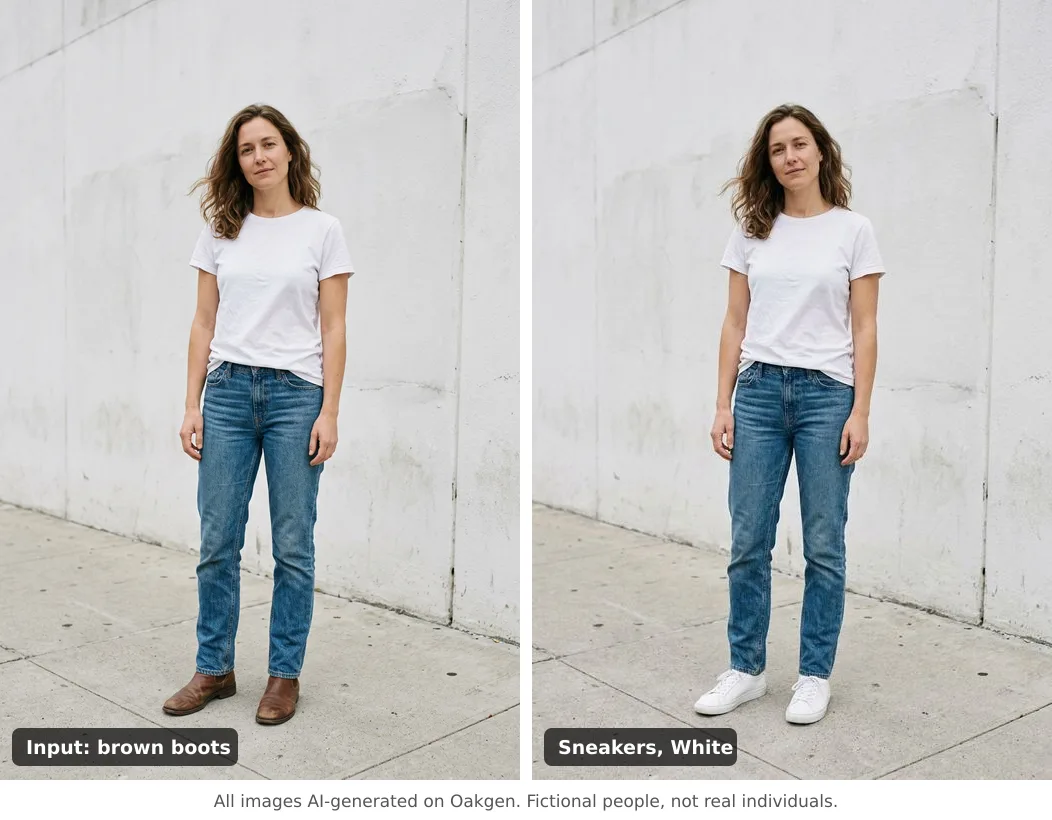
Both images are AI-generated. The woman is fictional.
What worked:
- The shoes sit on the ground. The sneakers line up with the angle of her feet and have a soft shadow on the pavement.
- The jeans hem changed sensibly. With boots gone, the hem now falls over the top of low sneakers instead of bunching on a boot shaft.
- Everything else stayed. Face, pose, t-shirt, wall and pavement are unchanged, which is what makes a style comparison useful.
Where it was weaker:
- "Sneakers" means a plain sneaker. You get a clean white low-top, not a specific model. If you want a chunky sole, a high-top or a visible logo-free runner, say so in the instructions.
- Feet are a small part of the frame. In a full-length photo the shoes are tiny. Crop the result if you want to judge the detail.
Swap the shoes in your own full-body photo.
Settings to try for common outfit questions
| Outfit question | Shoe Type | Shoe Color | Extra instruction to try |
|---|---|---|---|
| Casual jeans: clean or rugged? | Sneakers, then Boots | White, then Brown | "chunky sole" for sneakers |
| Office trousers | Loafers, then Oxford Shoes | Brown or Black | "polished leather" |
| Summer dress | Sandals, then Ballet Flats | Tan/Nude | "thin straps" for sandals |
| Evening outfit | High Heels | Black, Red or Metallic | "pointed toe, mid heel" |
| Product colourway check | Same type each time | Run all six | none; keep everything else fixed |
The last row is what an ecommerce or styling team would do: keep the type fixed and change only the colour, so the frames line up for a carousel or a style deck.
Photo setup for a clean shoe swap
- Full length, feet visible. Both shoes clearly in frame and on the ground. Cropped feet give the model nothing to replace.
- Waist-height camera. Shooting from far above makes the feet small and foreshortened.
- Trousers not covering the shoes. Wide or long trousers hide the shape, so the model has to guess.
- Plain ground. Pavement, wooden floor or a studio sweep is easier than grass or gravel that covers the soles.
- Even light. Strong shadows across the feet make the new shoes look pasted on.
Common mistakes
- Expecting a fit check. A photo try-on can't tell you the size or how the shoe will feel. Use the brand's size guide.
- Expecting a branded product. The template draws a generic shoe of the type you pick. Don't present it as a specific brand's product.
- Changing several things at once. Change type or colour, not both, when you're comparing.
- Using someone else's photo without asking. Get consent before you edit and post a photo of another person, including a model from an old shoot.
Where it fits with clothes try-ons
Shoes are usually the last piece of an outfit. If the top or jacket is still undecided, start with the AI clothes swapper, which moves a garment from a reference photo onto a person, then do the shoes here. Oakgen also has an outfit style transformer and a clothing colour changer. Our guide to AI photo effects lists every tool in the series, and the AI lookbook guide for fashion brands covers building full shoots.
See the shoes before you style them
Take one full-length photo with your feet in view, then try two shoe types in the colour you're considering. Open the virtual shoe try-on to set it up. Plans and credit prices are on the Oakgen pricing page.
Frequently asked questions
How can I try on shoes virtually?
There are two ways. AR apps and retailer features such as Amazon's Virtual Try-On for Shoes put a 3D model of a specific shoe on your feet through the phone camera. AI photo tools such as Oakgen's Virtual Shoe Try-On replace the shoes in a full-body photo with a chosen type and colour.
Can I try on a specific sneaker model with Oakgen?
Not by product name. The template offers eight shoe types and six colours, so it shows a generic white sneaker or black boot, not a particular release. For a specific product, use a retailer try-on where it's available, or describe the shoe in the optional instructions and treat the result as an approximation.
Does a virtual shoe try-on show fit or size?
No. A photo try-on shows how the style looks with your outfit. It can't measure your feet or tell you how a shoe fits. Use the brand's size guide for that.
What photo works best for an AI shoe try-on?
A full-length photo with both feet visible on the ground, shot from about waist height, in even light. Avoid photos where trousers cover the shoes or the feet are cropped.
How much does the Oakgen shoe try-on cost?
Each render uses credits. At the default 1K setting on 2026-11-16, Oakgen quoted 51 credits for Nano Banana Pro (the default model), 28 credits for Nano Banana 2 and 72 credits for GPT Image 2. Oakgen has no free plan; the studio shows the cost before you generate.
Can I use it without signing in?
You can open the tool page, upload a photo and pick the shoe type, colour and model while signed out. Generation happens inside Oakgen after you sign in on a paid plan, and your settings carry over.
Sources
- Oakgen Virtual Shoe Try-On template (read 2026-11-16)
- TechCrunch, Amazon launches Virtual Try-On for Shoes (2022-06-09)
- Google, Try On for clothes and shoes in Australia (2025-10-09)
- Google, how to use Try On with your own photo (updated 2025-11-20)
- SneakerKit on the App Store (read 2026-11-16)
- Oakgen pricing (read 2026-11-16)