ChatGPT
 Claude
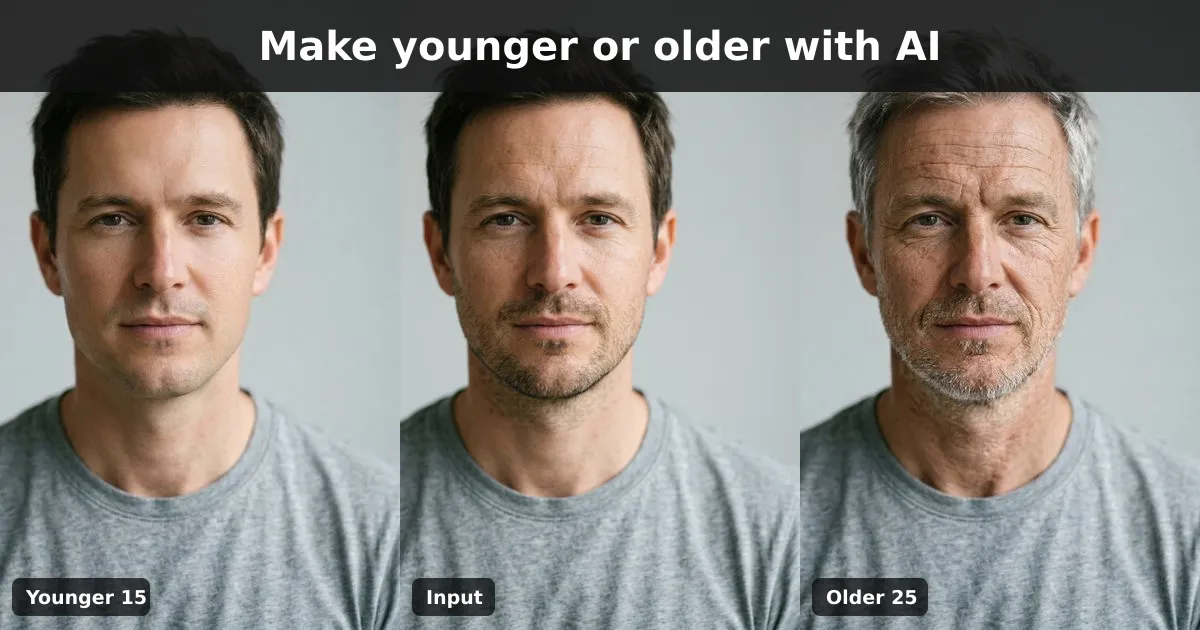
To make a photo younger with AI, upload a clear front-facing portrait, choose the younger direction, set how many years to remove, and generate. The same tool runs the other way for AI age progression: pick older, set the years, and the model adds grey hair, lines and looser skin while trying to keep the face recognizable. Small steps of 10 to 15 years look most believable. Very large jumps tend to drift into a different person.
Oakgen's AI age transformer does this with two controls: Make Younger or Make Older, and a Years Change slider from 5 to 40. Below you'll find a real before-and-after we made with it, the settings we'd use for common jobs, and the cases where you should not use an age filter at all.
Which AI age progression tool should you use?
We looked at the pages ranking for "make younger AI" and "AI age progression" on 2026-11-16. Most are single-purpose web tools. They differ mainly in how you set the target age and what they ask before you upload.
| Tool | Type | Best for | Weak spot | Cost note (2026-11-16) |
|---|---|---|---|---|
| Oakgen Age Transformer | AI image-to-image template | Older or younger by a set number of years, with a choice of three models | Sets years of change, not an exact target age | 28 to 72 credits per render; paid plans only |
| Pixoate AI Age Progression | AI photo effect | Exact target ages (eight presets from 1 to 70) | Fixed presets only | Check its page |
| How Old Do I Look | AI photo effect | A quick fun result with no account | Few controls | Free, no signup, per its page |
| Aymo AI | AI photo effect | Setting a target age, up to 4K on paid plans | Higher resolution is paid | Free tier plus paid plans, per its page |
| starryai AI Age Filter | Prompt-based editor | Describing the change in your own words | You write the instructions | Credit-based |
Our take: if you just want a laugh, a free no-signup tool is fine. If you need a clean result you'll reuse in a video, card or edit, pick a tool where you control the direction and amount, and where you can rerun the same settings. That's where the Oakgen template is useful, and the rest of Oakgen's photo tools are there if the portrait needs more work afterwards.
How the Oakgen age transformer works
These details come from the template's definition in Oakgen's code, checked on 2026-11-16.
- Input: one portrait.
- Age Direction: Make Younger or Make Older. The default is Older.
- Years Change: a slider from 5 to 40 in steps of 5. The default is 15.
- Additional instructions: an optional text box in the studio, up to 2,000 characters.
- Models: Nano Banana Pro (the default), Nano Banana 2 and GPT Image 2.
- Estimated time: 10 to 15 seconds on the template page. Our runs through Oakgen's API took about 30 to 40 seconds each.
The template turns your choices into one instruction. For a younger result, it asks the model to make the person "appear younger with smoother skin and youthful features by approximately 15 years", change skin texture, hair colour and facial features, and keep their identity. It also tells the model to avoid unrealistic, grotesque, cartoonish or unrecognizable results.
You can open the tool signed out, upload a portrait and set every option. When you click Open in Oakgen, your settings carry over into the studio. Generating needs an account on a paid plan, because Oakgen has no free plan.
Example: one face, minus 15 and plus 25 years
We didn't use a real person. We first generated a fictional man of about 38 with a text-to-image model, then ran that portrait through the template twice on Nano Banana Pro at 1K: once as Make Younger with 15 years, once as Make Older with 25 years. No extra instructions were added.
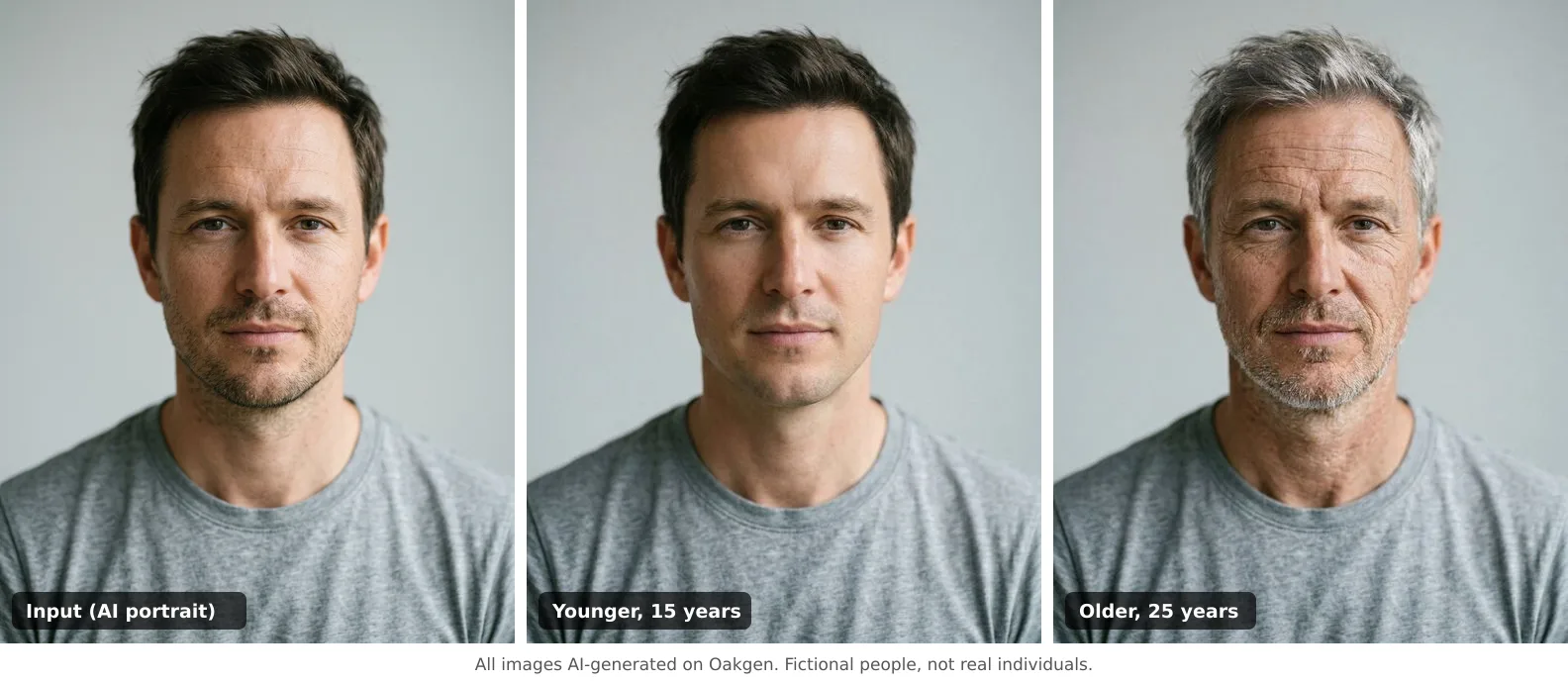
All three images are AI-generated. The man is fictional.
What worked:
- Identity held. Ear shape, eyebrows, nose and the shirt stayed the same in all three, so they read as one person.
- Older looked plausible. At plus 25 years the hair turned mostly grey, the forehead and eye lines deepened and the stubble became a grey beard.
- Background and lighting were untouched. That makes the three frames easy to place side by side or crossfade in a video.
Where it was weaker:
- Younger is subtler. At minus 15 years the model mostly removed stubble and smoothed skin. It looks like the same man after a good night's sleep and a shave, more than a man of 23. If you want a clear "student photo" look, raise the slider to 20 or 25, or add an instruction such as "fuller cheeks, thicker hair".
- The older skin is a little busy. Up close, the texture is more uniform than real aged skin. It's fine at social size and less convincing at full screen.
This is good enough for a birthday post, a "then and now" reel or a character sheet. It isn't a portrait I'd print large without a retouch pass.
Try the same two settings on your own portrait in the Age Transformer.
Settings to use for common jobs
This is the table we'd hand a colleague. It's based on the controls above and on what we saw in the test.
| Job | Direction | Years Change | Extra instruction to try |
|---|---|---|---|
| "See yourself older" social post | Make Older | 20 to 30 | "keep the same expression" |
| Birthday or anniversary card | Make Older or Younger | 10 to 15 | "warm, flattering light" |
| Character at three life stages | Run both | 15 and 30 | "same clothes and framing" |
| Clear de-aging look (younger) | Make Younger | 20 to 25 | "fuller cheeks, thicker hair" |
| Subtle refresh of a headshot | Not this tool | — | Use the wrinkle remover instead |
For the last row, a de-aging filter changes who someone looks like. If you only want softer lines, the AI wrinkle remover or skin smoothing template is the better pick, because it leaves the age alone.
Step by step
- Pick the right photo. Front-facing, eyes visible, even light, no heavy filter. Hats and sunglasses hide the parts the model needs to change.
- Open the Age Transformer and upload the portrait.
- Choose the direction and set Years Change. Start at 15.
- Pick a model. Keep the default Nano Banana Pro for your first run. Nano Banana 2 costs less if you're testing many photos.
- Click Open in Oakgen, sign in, add optional instructions, check the credit cost shown in the studio and generate.
- Compare against the original. Look at the eyes, ears and hairline. If the person no longer looks like themselves, lower the years and run it again.
If you're making a sequence, keep the same photo and model for every step and change only the slider. That gives you frames that line up.
Common mistakes
- Starting at 40 years. The biggest jumps change bone structure the most and are the most likely to lose identity. Build up in steps.
- Using a group photo or a tiny face. The model needs a face that fills a good part of the frame.
- Expecting a forecast. The result shows common aging cues, not your future. The tool doesn't know anyone's genetics, health or habits.
- Treating it as a beauty tool. "Younger" here is a costume, not a goal. We don't make claims about how anyone should look.
- Editing other people without asking. Ask first. Aged or de-aged photos of a real person can be hurtful or misleading when they're shared out of context.
Age progression is not a forensic or identity tool
There's a serious version of this work. The National Center for Missing & Exploited Children uses forensic artists who study family photos and how children's faces grow, and update a missing child's image every two years until they turn 18, according to Adobe's 2022 case study of NCMEC. That's skilled, reviewed work.
A consumer AI filter, including ours, does something much simpler: it edits one photo to look older or younger. Don't use it to identify a person, to guess what a missing person looks like now, or as evidence of anything. Use it for creative and personal projects.
Where it fits in a bigger edit
Age edits are one of several face effects in Oakgen. The same portrait can go through the hairstyle changer or the glasses try-on next. For the full set of effects, including the virtual try-ons and identifiers, see our guide to AI photo effects. If you're working on looks rather than age, the virtual piercing try-on guide uses the same upload-and-pick flow.
Make your first age-progression edit
Pick a well-lit portrait you have the right to edit, start at 15 years in either direction, and compare it with the original before you go further. Open the AI age transformer to set it up. Oakgen plans and credit prices are on the pricing page.
Frequently asked questions
How do I make a photo look younger with AI?
Upload a clear, front-facing portrait to an AI age tool, choose the younger direction and set how many years to remove. In Oakgen's Age Transformer that means picking Make Younger and moving the Years Change slider (5 to 40, in steps of 5). Start at 10 or 15 years; large jumps change the face more and drift from the original identity.
Can AI show what I will look like when I'm older?
It can show a plausible older version of the face in the photo, not a prediction. The model adds common aging cues such as grey hair, lines and softer skin. It does not know your genetics, health or habits, so treat the result as a creative preview.
Is AI age progression accurate enough for finding missing people?
No. Consumer AI age filters are not forensic tools. Organizations such as the National Center for Missing & Exploited Children use trained forensic artists who study family photos and growth patterns. Do not use a consumer result to identify, search for or make claims about a real person.
How much does the Oakgen Age Transformer cost?
Each render uses credits. At the default 1K setting on 2026-11-16, Oakgen quoted 51 credits for Nano Banana Pro (the default model), 28 credits for Nano Banana 2 and 72 credits for GPT Image 2. Oakgen has no free plan; the studio shows the exact cost before you generate.
Can I use the age transformer without signing in?
You can open the tool page, upload a portrait, choose the direction, set the years and pick a model while signed out. Generating happens inside Oakgen after you sign in on a paid plan, and the tool carries your settings over.
Can I age someone else's photo?
Only with their permission. Ask before you edit a friend's or relative's face, and do not post aged or de-aged images of other people in a way that could mislead. Never use the tool on photos of children you are not responsible for.
Sources
- Oakgen Age Transformer template (read 2026-11-16)
- Pixoate AI Age Progression (read 2026-11-16)
- How Old Do I Look AI age progression (read 2026-11-16)
- Aymo AI Age Progression (read 2026-11-16)
- starryai AI Age Filter (read 2026-11-16)
- Adobe, NCMEC customer story on forensic age progression (2022-08-19)
- Oakgen pricing (read 2026-11-16)