

 ChatGPT
 Claude
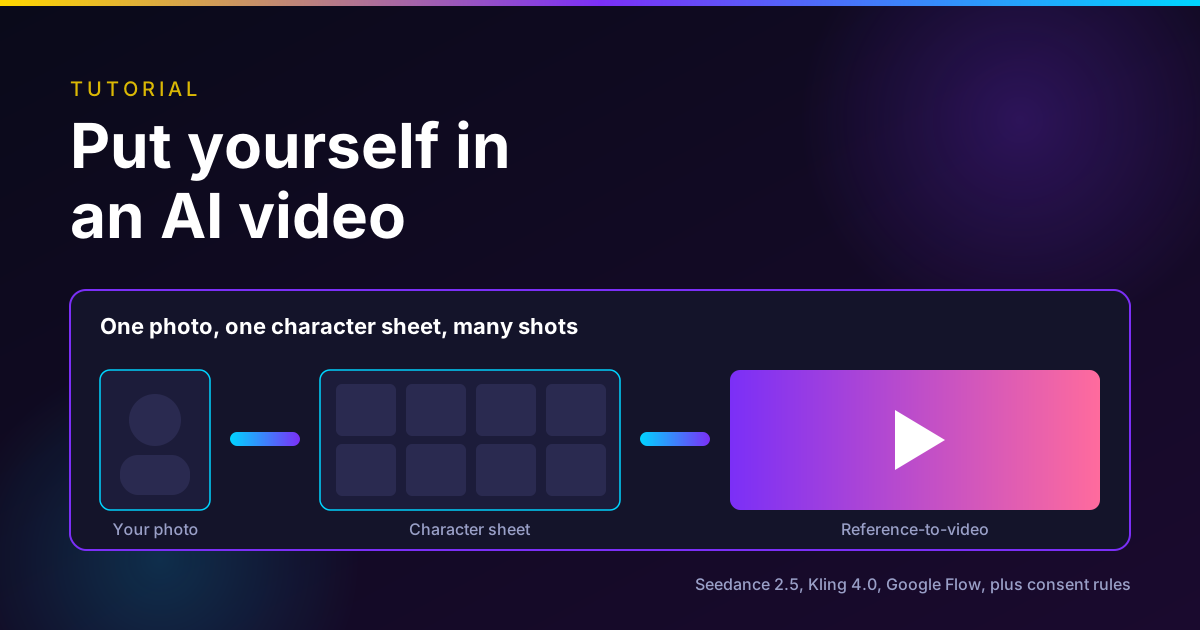
To put yourself in an AI video, you need two things: a reference set of your face that a video model can hold onto, and a tool that is willing to take a real face. The second part is where most tutorials go wrong. As of November 13, 2026, ByteDance's documentation says Seedance 2.5 does not accept reference images with real human faces unless the person goes through its verification flow. Google Flow has a dedicated avatar feature, but not in the EEA, the UK or Switzerland. Kling 4.0 takes reference elements and its guide does not state a face rule.
So the honest answer is: build a character sheet from one good photo, then pick the route your region and tool allow. In Oakgen, that means an AI Influencer made from your photo, used with @YourName in a model like Kling 4.0.
Turn one photo into a 12-shot character
Start an AI Influencer from your own photo, approve the portrait, then run the photoshoot and use @YourName in video.
Which route can take your face?
| Route | Takes a real face? | How you prove it is you | Region limits | Best for |
|---|---|---|---|---|
| Google Flow avatar (@me) | Yes, by design | QR code on your phone, on-screen verification steps | Not in the EEA, the UK or Switzerland | Personal videos in Google's tools |
| Seedance 2.5 on BytePlus | Only as an authorized real-person asset | Real-person verification by QR, upload and authorization | Requires a BytePlus account | Teams and production companies |
| Seedance 2.5 on Dreamina | No, uploads with realistic faces are blocked | Not offered there per Dreamina's March 2026 post | None stated | Stylized or invented characters |
| Kling 4.0 elements | No face rule stated in its guide | None described | None stated | Reference-locked shots |
| Oakgen AI Influencer + Kling 4.0 | Character starts from your photo; model rules still apply | You confirm the person agreed | None stated by Oakgen | One character reused across many videos |
Sources for this table are in the sections below. Rules change fast, so check the tool's own page before a big project.
Who this is for
- A creator who wants to appear in trend videos without filming each one.
- A founder who needs a consistent on-screen presenter for product clips.
- Anyone who saw a "put yourself in AI videos" tutorial and hit a refusal.
If you want to recreate a famous scene, read our End of Watch AI trend tutorial first. The face rules there are stricter, because the original actors never agreed.
How we checked this
On November 13, 2026, we read BytePlus's Seedance portrait and real-person asset guides, Dreamina's March 2026 post, ByteDance's Seedance 2.5 launch post, Kling's 4.0 user guide, Google Flow's avatar and credit help pages, Google's Gemini Omni Flash developer guide, and the YouTube, TikTok, Meta and legal pages in the sources. We read Oakgen's own character flow and model settings the same day.
We did not upload anyone's face to any tool for this article. A popular YouTube tutorial on this topic could not be confirmed (its captions were unreadable), so we left its steps out. Everything below is from vendor documentation, not our own test.
Disclosure: Oakgen is our product. We include it because it has a photo-to-character flow, and we say where other tools do something Oakgen does not.
Step 1: Take the right photo
Everything downstream copies this photo. A bad source gives you a slightly wrong face in every clip.
BytePlus's guidance for its verified real-person assets is a useful standard even outside BytePlus: a "front-facing close-up with a neutral expression, framed above the shoulders", where "the face should occupy about two-thirds of the image", in portrait orientation. It asks for a separate front-facing full-body image too, and recommends "clear, front-facing image(s)" (BytePlus, read November 13, 2026).
A checklist that follows from that:
- Camera at eye level, arm's length or more, no wide-angle selfie distortion.
- Soft, even light from the front. No hard shadows across one side.
- Face unobstructed: no sunglasses, caps, hands or hair across the eyes.
- Neutral expression in one photo. You can add a smile later.
- Plain background.
- The outfit you want to wear in the videos. Changing it later is harder than choosing it now.
- No filters, no beauty mode, no heavy compression.
Step 2: Build a character sheet
One photo shows one angle. A video model has to show you turning, walking and talking, so give it more angles.
A character sheet is a small set of images of the same person from fixed angles. Oakgen's character flow uses 12 shots, and they make a good list for any tool:
| Shot | Why the model needs it |
|---|---|
| Front, neutral | The identity anchor |
| Front, smiling | Teeth and cheek shape when you speak |
| Three-quarter left and right | Most video frames are at an angle |
| Profile left and right | Turns and walk-bys |
| From below and from above | Low and high camera angles |
| Full body front, three-quarter and back | Proportions, outfit, walking shots |
| Seated | Talking-head and interview setups |
Oakgen generates the other 11 shots from your approved front photo with an image-editing model, keeping "the same face, same skin tone, same hair, same accessories and same outfit" on a plain light-gray background. You can do the same by hand in any image editor that accepts a reference.
Two rules for the sheet:
- Reject drift early. If one shot has a different nose or jawline, delete it. One bad reference teaches the video model the wrong face.
- Keep the outfit fixed. Change clothes with a separate edit, not by mixing outfits inside the sheet.
For a deeper method, see how to create an AI influencer that stays the same person and the 20-image drift test.
Step 3: Pick a reference-to-video route
Route A: Google Flow avatar
Google Flow has an avatar feature built for exactly this. Google describes it as a way to "create an avatar with an appearance and voice that faithfully reflect your identity". You open a project, select your profile picture, choose create avatar, scan a QR code with your phone and follow the on-screen steps (Google Flow Help, read November 13, 2026).
Three limits to know:
- Avatars are not available in the EEA, the UK or Switzerland.
- Avatar data cannot be shared through Flow tools or public project links.
- Google runs extra checks on all likeness content generated.
Flow's video model is Gemini Omni Flash 1.2, rolled out on November 5, 2026 (Google on X). Flow's credit page says any user can generate or edit clips up to 10 seconds at 1 credit per second at 360p or 3 credits per second at 720p. Clips up to 15 seconds need a Google AI Plus, Pro or Ultra plan (Google Flow Help).
Developers using the Gemini API get a different mechanism: up to 6 reference images per request, "up to 3 images per character for up to 2 characters" (Google AI Studio). That is reference images, not the verified avatar.
Route B: Seedance 2.5 with an authorized real-person asset
ByteDance is explicit: "Seedance 2.5 and Seedance 2.0 series models do not support directly uploading reference images/videos that contain real human faces" (BytePlus, read November 13, 2026). Dreamina said in March 2026 that such uploads are blocked automatically (Dreamina AI on X).
The supported path is BytePlus's real-person asset library:
- The account that will generate (BytePlus calls it the asset user) completes real-person or enterprise authentication and creates an asset group in the ModelArk playground.
- It sets an authorization period and generates an invitation QR code.
- The person (the authorizer) scans it, logs in to their own BytePlus account, agrees to the face-processing rules and completes real-person verification.
- They upload their face close-up, full-body photo and optional voice (2 to 30 seconds, WAV or MP3, up to 15 MB).
- The asset user accepts the authorized assets and calls them as
asset://<asset ID>in Seedance 2.5.
BytePlus warns that verification "may occasionally be affected by lighting, angles, and other factors" and that a face consistency check runs on each upload (BytePlus). This route suits a team filming a real presenter more than a casual creator.
Once you have an asset, Seedance 2.5 takes up to 30 images, 10 video clips and 10 audio clips as references and makes up to 30 seconds per pass (ByteDance Seed, July 31, 2026).
Even invented faces can be refused. Fuser reported Seedance 2.5 declining two generated portraits of an invented woman because they "may contain likenesses of real people" (Fuser, test run October 23, 2026).
Route C: Kling 4.0 elements
Kling 4.0 builds consistency through elements. Its guide lists up to 10 reference images, 5 reference videos and up to 7 elements per task, including up to 3 video elements, with at most 15 reference assets in total. A video element is made from 3 to 8 seconds of source footage (Kling 4.0 User Guide, November 4, 2026). Clips run 3 to 30 seconds.
We did not find a real-face policy in the guide. That is not the same as permission. Kling's general terms and content filters still apply, and the consent rules below apply to you either way.
Fuser's same-prompt test found Kling 4.0 kept a character's "face, silver hair, tortoiseshell glasses, ochre coat" from two reference photos, where Seedance 2.5 declined the request. That was one run per model, with invented faces.
Step 4: Write the prompt
Whichever route you use, the prompt follows the same shape. Swap the bracketed parts.
9:16 vertical, one continuous shot, no cuts, no subtitles.
@[YourName or Image1] is the only person in the scene. Keep the face, hair, skin tone and outfit exactly as in the references.
Setting: [a rooftop at golden hour / a busy coffee shop / a desk with a laptop].
0-3s: [you] walks into frame from the left and stops at center.
3-7s: [you] looks into the lens and says "[one short line]".
7-10s: [you] smiles, turns three-quarter right and walks out of frame.
Camera: medium shot, eye level, slow push-in.
Sound: room tone and the spoken line only. No music.
Keep it to one person per shot until the face holds. Two people in one frame is where faces start to merge.
Step 5: Check the result
- Watch at full screen on a phone, with sound.
- Pause on the three-quarter turn. That is where identity drifts first.
- Check teeth and eyes in the close-up.
- If the face drifts, remove the weakest reference and re-run. More images do not always help.
Consent, likeness and labels
You can always use your own face. Everyone else needs to agree.
Other people. TikTok does not allow AI content showing "the likeness of young people under the age of 18, or the likeness of adult private figures used without their permission", and it bans AI content that falsely shows public figures endorsing something (TikTok Support, read November 13, 2026). BytePlus requires the person to verify and authorize. Oakgen's photo start says "Only use people who agreed."
Labels. YouTube requires creators to disclose when realistic content "makes a real person appear to say or do something they didn't" and when it generates a realistic scene that never happened (YouTube Help). TikTok requires a label on realistic AI content. Meta adds an "AI info" label when it detects AI signals or you self-disclose (Meta).
Law. In the U.S., the TAKE IT DOWN Act became Public Law 119-12 on May 19, 2025. It prohibits publishing nonconsensual intimate depictions, real or computer-generated, and requires covered platforms to remove them within 48 hours of a valid request (Congress.gov). In the EU, Article 50 of the AI Act applies from August 2, 2026 and says deployers of a system that makes a deep fake "shall disclose that the content has been artificially generated or manipulated" (EU AI Act Article 50). This is general information, not legal advice. Our disclosure rules by platform post covers posting in more detail.
How to put yourself in an AI video in Oakgen
Here is what Oakgen supports as of November 13, 2026.
What works.
- Open AI Influencers and choose Start from a photo. Drop in your own photo. The flow says "Only use people who agreed" and skips casting.
- Approve the portrait, or ask for small edits first.
- Run the photoshoot. Oakgen generates the 12-shot sheet described in Step 2, about a minute of work, with the credit price shown on the button.
- Optionally add a voice.
- In a video model that takes reference images, type @YourName. Oakgen picks the best shots for the scene within that model's reference limit.
For video, Kling 4.0 is the most practical pairing on Oakgen today. It cost 531 credits for 10 seconds at 720p or 1080p in Oakgen's quote on November 13, 2026, and its reference mode takes up to 10 images, 5 videos and 7 elements. Each image element needs a frontal photo plus one to three more references. On Oakgen it is silent, so add your voice in the edit.
Seedance 2.5 is also on Oakgen, with native audio, at 1,599 credits for 10 seconds at 720p. We have not tested whether Oakgen's Seedance route accepts a photoreal face from your sheet. Given ByteDance's written rule, expect refusals and try one reference before planning a series around it.
What Oakgen does not do.
- No Google Flow avatar. That feature lives only in Google's tools.
- No BytePlus real-person verification. Oakgen cannot pass an
asset://ID to Seedance. - No Seedance 2.5 Flash.
- Oakgen lists a Gemini Omni Flash model, but we do not recommend it on Oakgen right now. Use Omni through Google Flow or the Gemini API instead.
For a full comparison of the two video models, read Kling 4.0 vs Seedance 2.5. For which model to use for which kind of shot, see the November 2026 shot-type leaderboard.
Mistakes to avoid
- Starting from a filtered selfie. The model copies the filter.
- Mixing photos from different years. A haircut or weight change reads as two people.
- Trying to get around a face filter. The refusal is the vendor's policy. Use a supported route.
- Putting a friend in without asking. It breaks platform rules and, in some places, the law.
- Two people in your first test. Prove one face holds first.
- Skipping the label. Realistic AI video of a real person needs disclosure on the major platforms.
FAQ
Can I upload a selfie to Seedance 2.5 and star in the video?
Not directly on ByteDance's own platforms. BytePlus documentation says Seedance 2.5 and 2.0 do not support reference images or videos with real human faces. The supported route is its real-person asset library, where the person completes real-person verification by QR code and authorizes an account to use their image.
What is the easiest verified way to put myself in an AI video?
If you live outside the EEA, the UK and Switzerland, Google Flow's avatar feature is built for this. You create the avatar by scanning a QR code and following the on-screen steps, and Google says the avatar reflects your appearance and voice. Avatar data cannot be shared through Flow tools or public project links.
How many photos do I need for a consistent AI character?
Start with one sharp, front-facing photo in even light, then build a character sheet. Oakgen's character flow turns one photo into a 12-shot reference set: front, smiling, both three-quarter views, both profiles, from below, from above, full body front, three-quarter and back, and seated.
Does Kling 4.0 accept my own face as an element?
Kling 4.0 supports up to 7 elements per generation, including up to 3 video elements. Its user guide, read November 13, 2026, did not state a real-face policy. On Oakgen, a Kling 4.0 image element needs a frontal image plus one to three more reference images, and Kling 4.0 returns silent video there.
Can I put a friend or a celebrity in an AI video?
Only with their clear permission, and never a celebrity. TikTok bans AI content that uses the likeness of adult private figures without permission or of anyone under 18. BytePlus requires the person to verify and authorize. Oakgen's photo start says to use only people who agreed.
Do I have to label an AI video of myself?
On most platforms, yes, if it looks real. YouTube requires disclosure for realistic altered or synthetic content. TikTok requires labels on realistic AI content. In the EU, Article 50 of the AI Act, which applies from August 2, 2026, requires deployers to disclose deep fakes.
How do I do this in Oakgen?
Open AI Influencers, choose Start from a photo with your own photo, approve the portrait and run the 12-shot photoshoot. Then type @YourName in a video model that takes reference images, such as Kling 4.0 Reference. Oakgen has no Google Flow avatar or BytePlus real-person verification, so Seedance 2.5 may still refuse a photoreal face.
Star in your next video
Build your 12-shot character from one photo, then use @YourName with Kling 4.0 or another reference model.
Sources
- BytePlus ModelArk, Create portrait videos with Dreamina Seedance models (read 2026-11-13)
- BytePlus ModelArk, Add real-human assets to asset library (read 2026-11-13)
- Dreamina AI on X, realistic human faces not supported in uploads (2026-03-26, read 2026-11-13)
- ByteDance Seed, Introducing Seedance 2.5 (2026-07-31, read 2026-11-13)
- Kling AI, Kling 4.0 User Guide (2026-11-04, read 2026-11-13)
- Google Flow Help, Create and use your avatar in Google Flow (read 2026-11-13)
- Google Flow Help, Manage your Google Flow credits (read 2026-11-13)
- Google AI Studio, Generate and edit videos with Gemini Omni Flash (read 2026-11-13)
- Google, Gemini Omni 1.2 Flash rollout post on X (2026-11-05, read 2026-11-13)
- Fuser, Kling 4.0 vs Seedance 2.5: Same-Prompt Test (2026-10-23 test, read 2026-11-13)
- YouTube Help, Disclosing use of altered or synthetic content (read 2026-11-13)
- TikTok Support, AI-generated content (read 2026-11-13)
- Meta, Our approach to labeling AI-generated content and manipulated media (updated 2025-10-23, read 2026-11-13)
- Congress.gov, S.146 TAKE IT DOWN Act, Public Law 119-12 (2025-05-19, read 2026-11-13)
- EU AI Act, Article 50 transparency obligations (read 2026-11-13)

