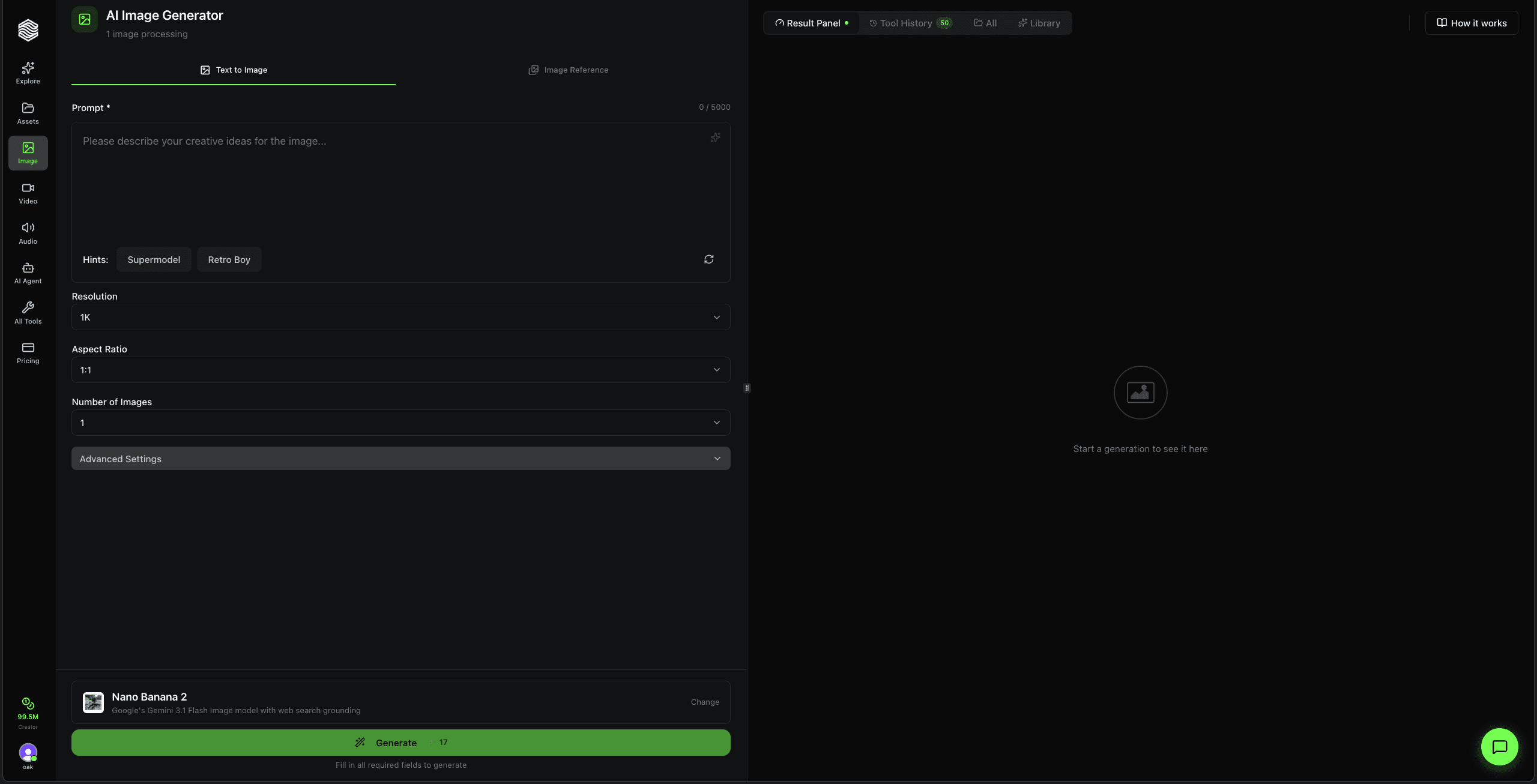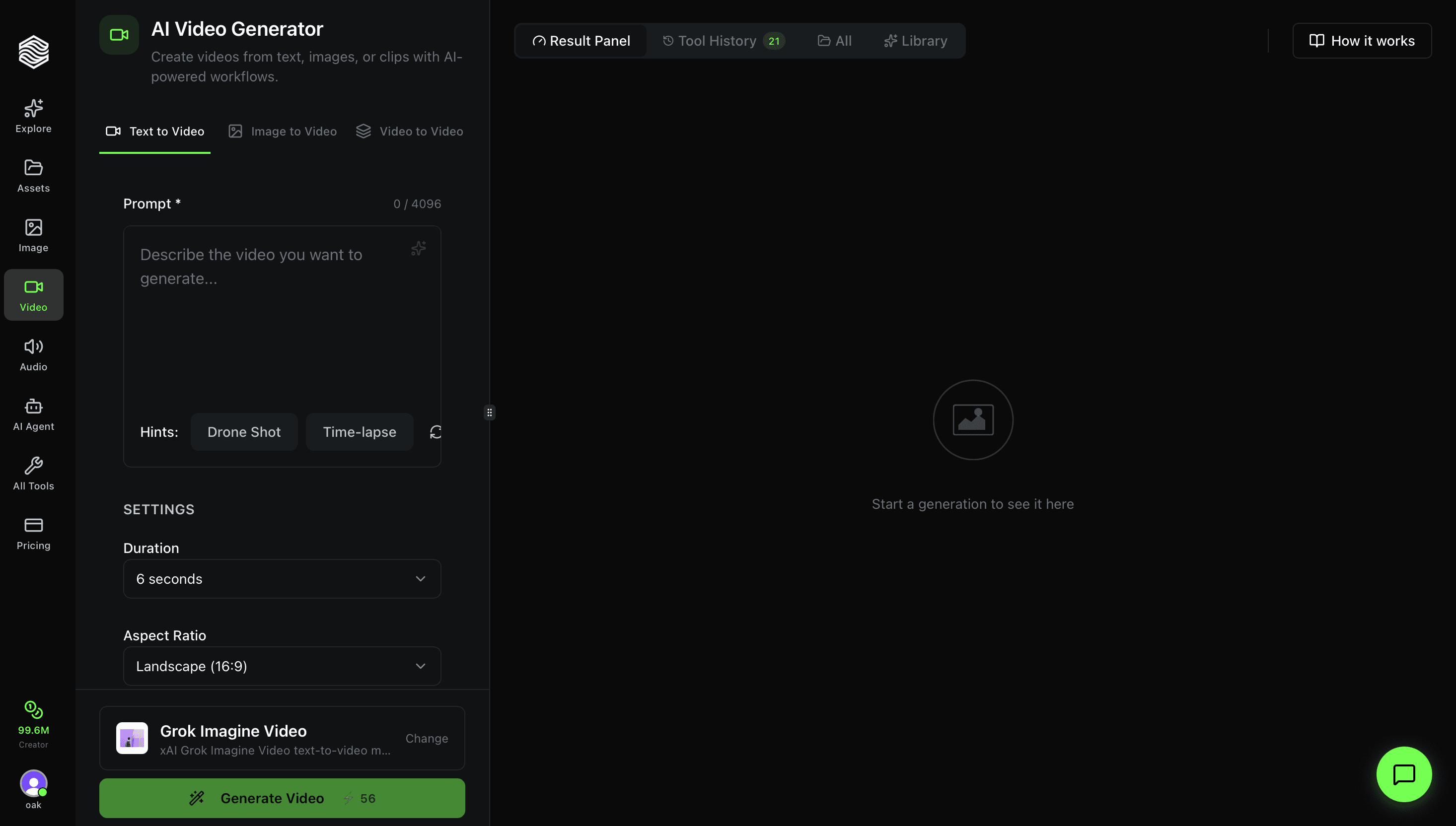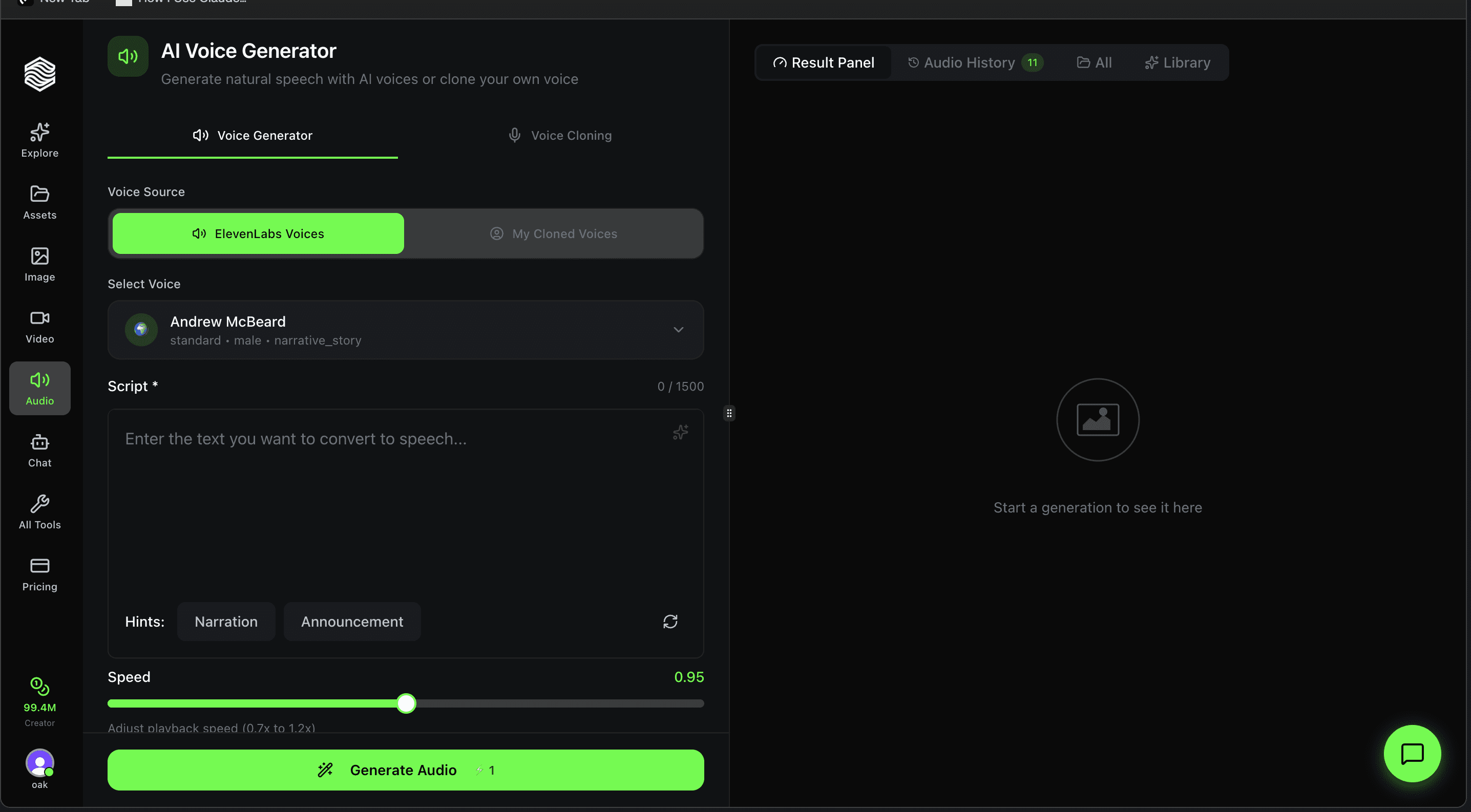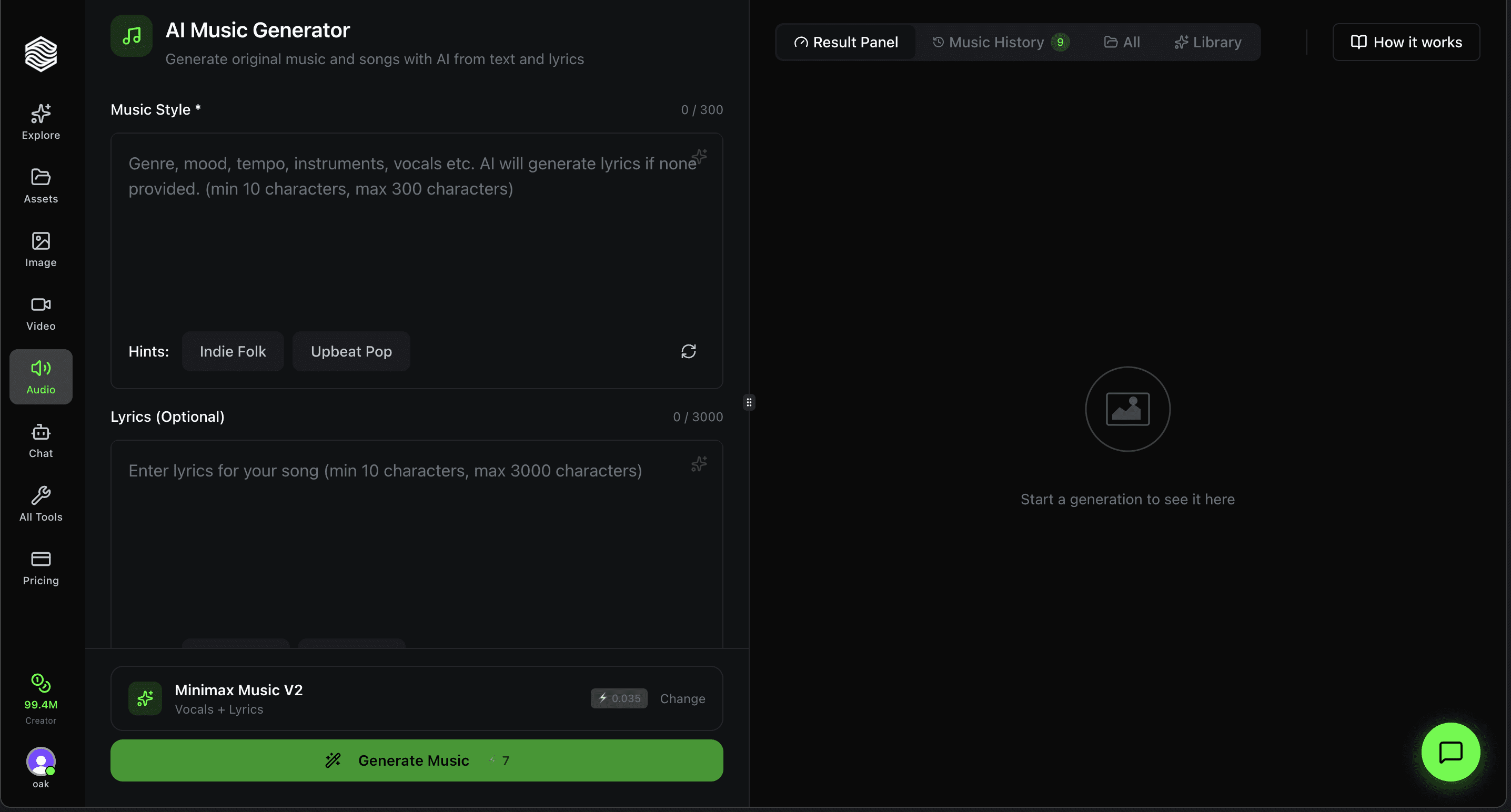
This is a complete walkthrough of the AI Music Generator on Oakgen.ai. Every feature, every setting, explained with screenshots.
Interface Overview
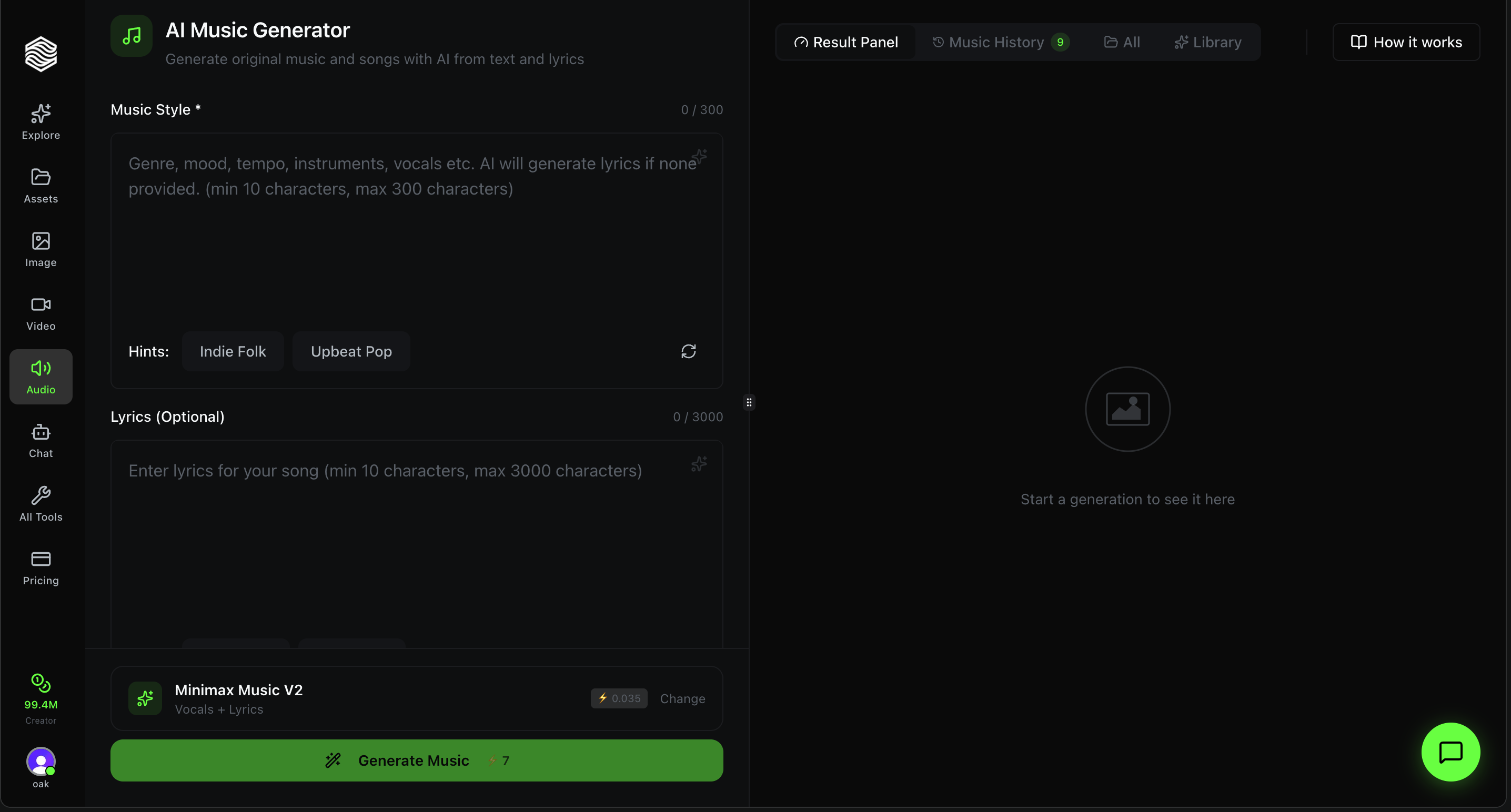
The Music Generator has two main areas:
- Left panel -- Your controls: music style description, lyrics input, model selector, and the Generate button.
- Right panel -- Your results: generated tracks, full tool history, and your saved library.
At the top of the right panel, you can switch between:
- Result Panel -- Shows your latest generation
- Music History -- Every track you have generated (with count)
- All -- All generations across all tools
- Library -- Tracks you have saved
- How it works -- A quick explainer of the generation process
Describing Your Music Style
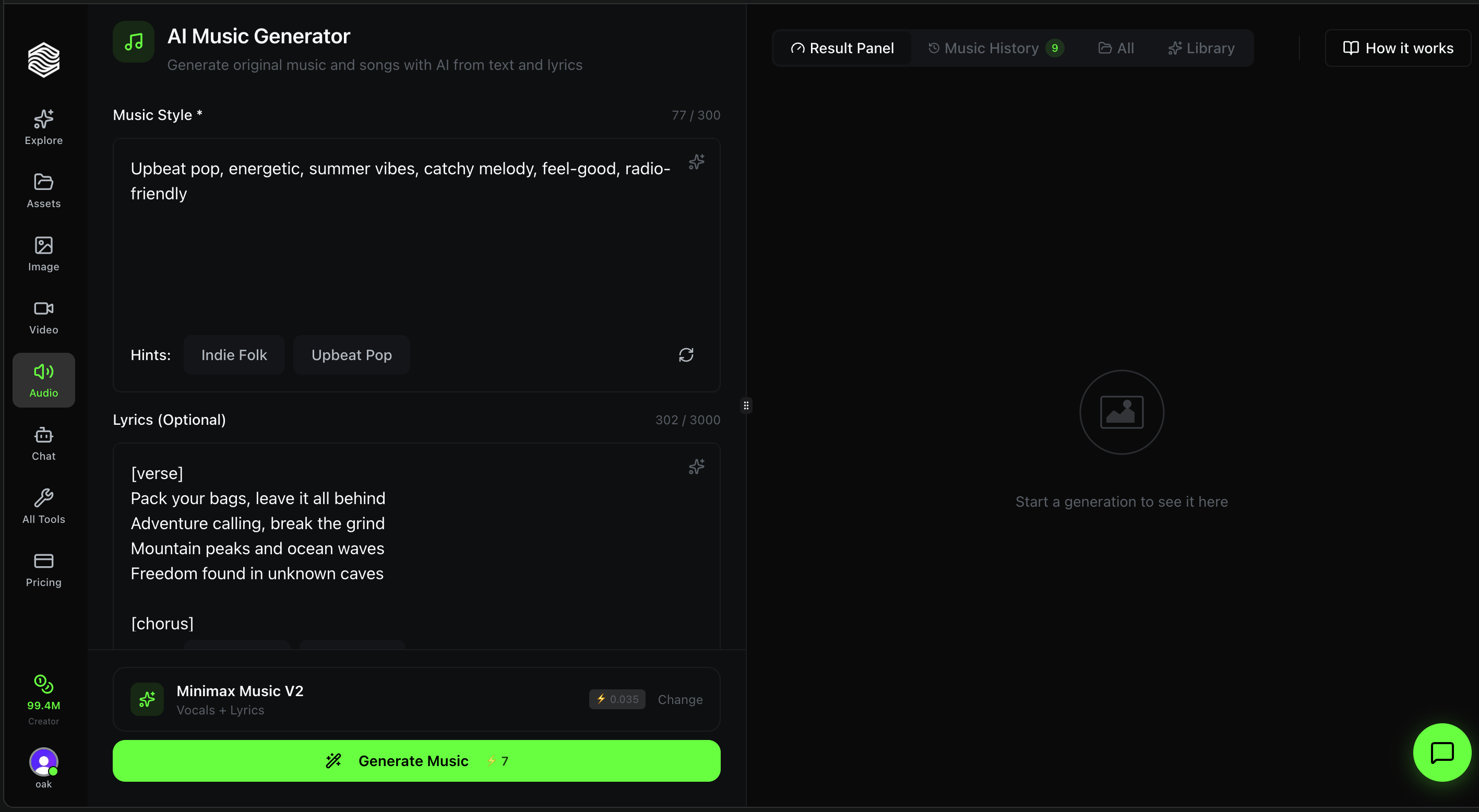
The Music Style field is required. Describe the genre, mood, tempo, instruments, and vocal style you want. The character limit depends on the model: up to 1,500 characters for Lyria 3 Pro and 4,100 for Eleven Music.
Good style descriptions include multiple attributes:
- "Upbeat pop, energetic, summer vibes, catchy melody, feel-good, radio-friendly"
- "Lo-fi hip-hop, chill beats, jazzy piano, vinyl crackle, late-night study mood"
- "Epic cinematic orchestral, dramatic strings, brass fanfare, trailer music"
Below the style field, Hints provide quick-start suggestions. Click Indie Folk or Upbeat Pop to populate the field instantly. Hit the refresh icon for new suggestions.
The sparkle icon (top-right of the style box) enhances your description with AI -- it expands a basic idea into a detailed, model-optimized style prompt.
The more specific your style description, the better the result. Instead of just "rock," try "90s alternative rock, distorted guitars, driving drums, grunge vocals, raw energy." Include mood, era, instruments, and vocal style.
Adding Lyrics (Optional)
Lyria 3 Pro supports lyrics. You can write full song lyrics with section markers to structure the track:
[verse]
Pack your bags, leave it all behind
Adventure calling, break the grind
Mountain peaks and ocean waves
Freedom found in unknown caves

[chorus]
We are running wild and free
Every road is where we need to be
Supported section markers: [Intro], [Verse], [Chorus], [Bridge], [Outro]
If you leave the lyrics field empty:
- Lyria 3 Pro can still generate vocals if your description asks for them, or an instrumental
- Eleven Music generates an instrumental track
You do not need to write lyrics. Many models generate great results from just a style description. If you want an instrumental track, leave lyrics empty. Both models support instrumental generation.
Selecting an AI Model
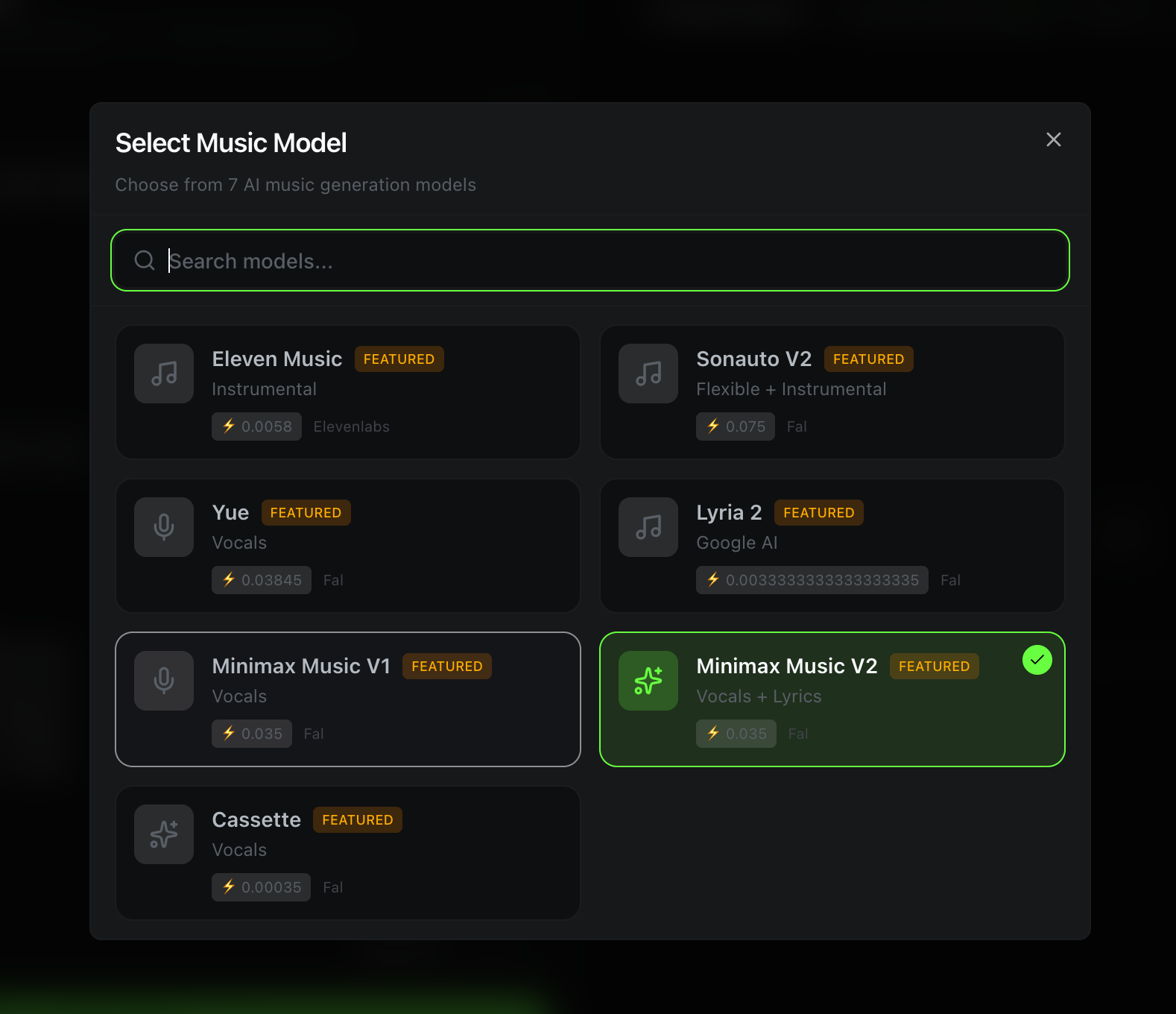
Click Change next to the current model name to open the model selector. Oakgen offers 2 AI music models, each with different strengths.
All Available Models
| Model | Type | Vocals | Best For |
|---|---|---|---|
| Lyria 3 Pro | Text-to-Music | Vocals + Lyrics or Instrumental | Google's studio-quality music model. Describe genre, mood, tempo, instruments, and vocals in up to 1,500 characters. Can also take up to 10 reference images to generate music inspired by them. |
| Eleven Music | Text-to-Music | Instrumental | ElevenLabs-powered music generation from natural language prompts (up to 4,100 characters). Duration control from 3 to 400 seconds. |
Choosing the Right Model
Want vocals with lyrics? Use Lyria 3 Pro.
Want instrumentals only? Use Eleven Music or Lyria 3 Pro.
Want a specific track length? Use Eleven Music, which lets you set the duration.
Want music that matches a visual? Use Lyria 3 Pro with reference images.
Different models interpret the same prompt differently. Spend a few credits testing both models with your style description to find the best fit for your project.
Generating and Viewing Results
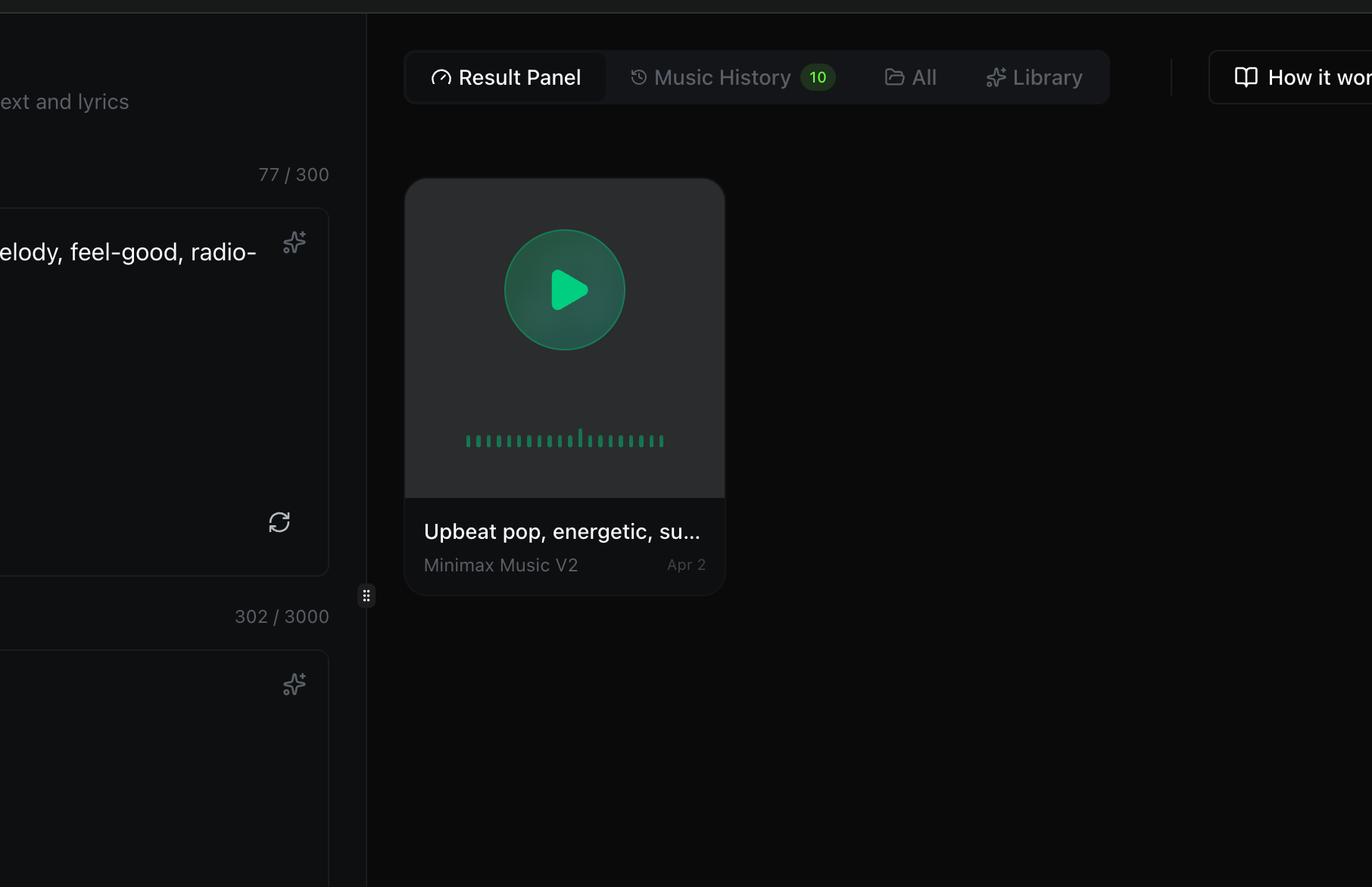
Click Generate Music to start. The button shows the credit cost for your current settings.
Once your track is ready, it appears in the Result Panel on the right. You can:
- Play the track directly in the browser using the green play button
- See the waveform visualization of the generated audio
- View the model used (e.g., Lyria 3 Pro) and the generation date
- Check Music History to see all past generations
- Download the track in full quality
You will also receive a real-time notification when the track is complete, so you do not need to stay on the page.
Quick Reference
| Feature | Where to Find It |
|---|---|
| Describe music style | Music Style text area (limit depends on model) |
| Add lyrics | Lyrics (optional, Lyria 3 Pro) |
| Enhance style with AI | Sparkle icon (top-right of style box) |
| Change AI model | Click "Change" at bottom of left panel |
| Browse both models | Model selector modal |
| View past generations | Music History tab (right panel) |
| Save a track | Library tab (right panel) |
| Learn how it works | "How it works" button (top-right of right panel) |