This is a complete walkthrough of the AI Voice Generator on Oakgen.ai. Every feature, every setting, explained with screenshots.
Interface Overview
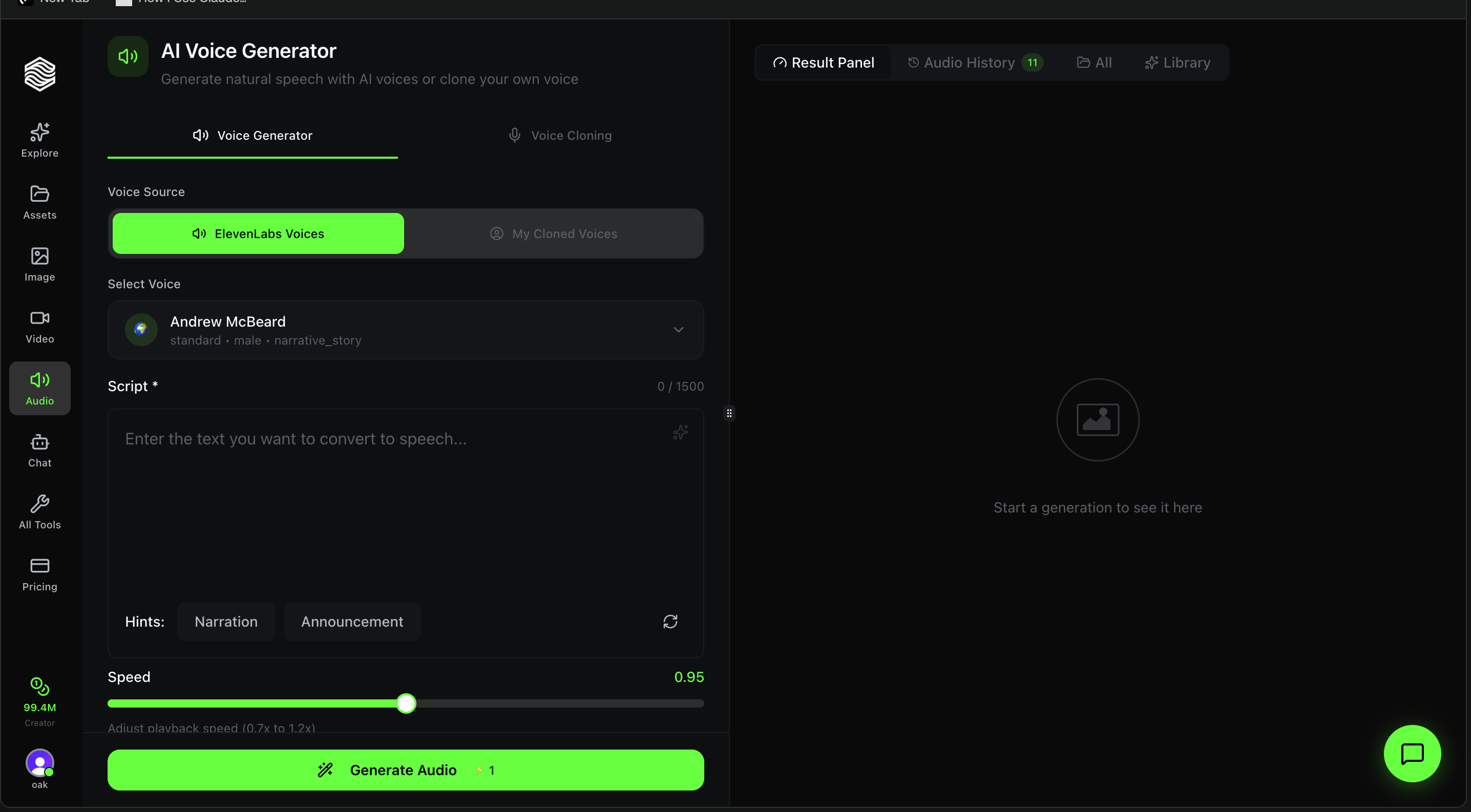
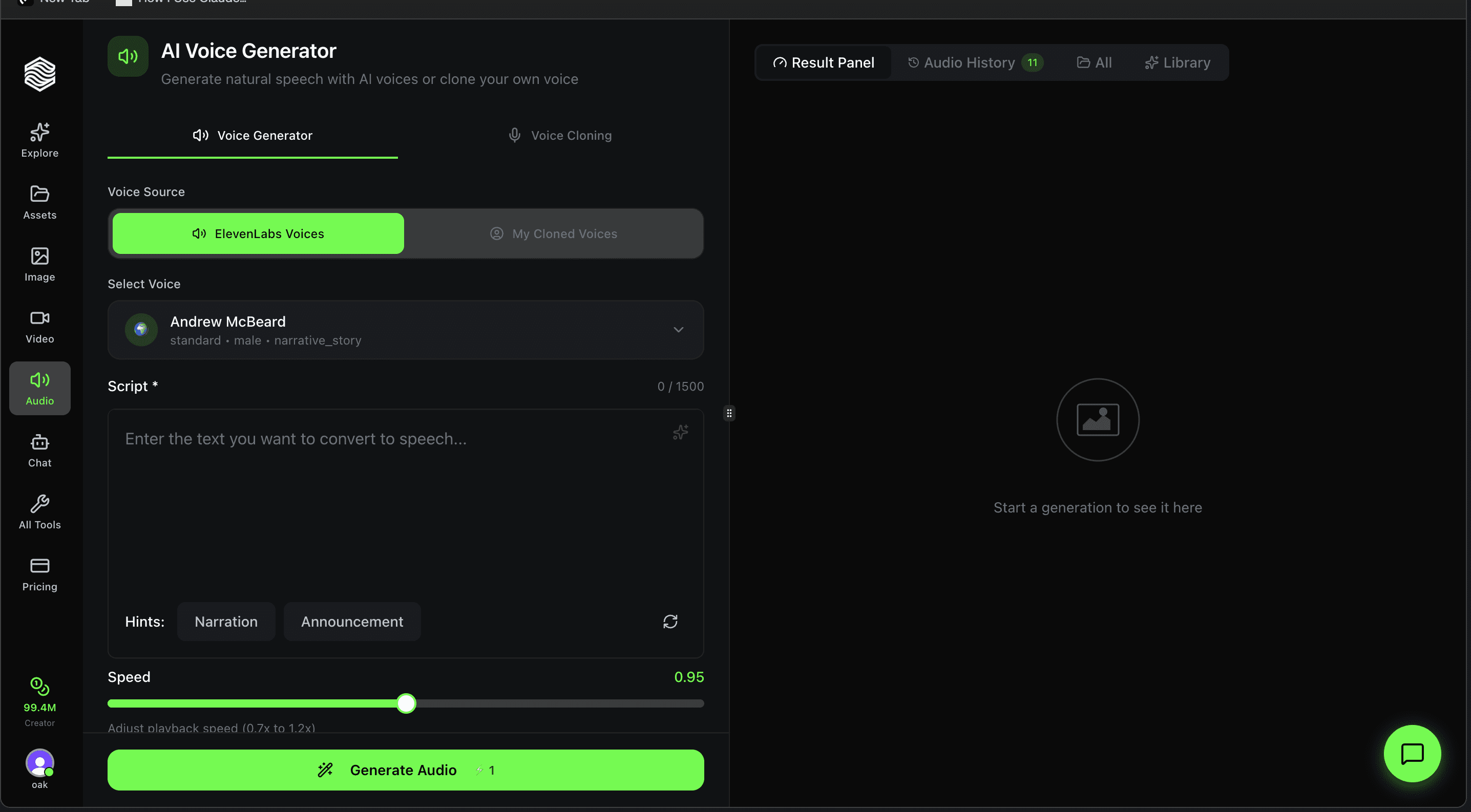
The Voice Generator has two main areas:
- Left panel -- Your controls: voice selection, script input, speed slider, and the Generate button.
- Right panel -- Your results: generated audio, full tool history, and your saved library.
At the top of the left panel, you will see two tabs:
- Voice Generator -- Generate speech from text (default)
- Voice Cloning -- Clone a new voice from an audio sample
At the top of the right panel, you can switch between:
- Result Panel -- Shows your latest generation
- Audio History -- Every audio clip you have generated (with count)
- All -- All generations across all tools
- Library -- Audio clips you have saved
Choosing a Voice Source
Under Voice Source, you have two options:
- ElevenLabs Voices -- A library of 100+ pre-made AI voices with different accents, genders, and styles.
- My Cloned Voices -- Voices you have cloned from your own audio samples.
Using ElevenLabs Voices
With ElevenLabs Voices selected, click the voice dropdown to open the voice selector.
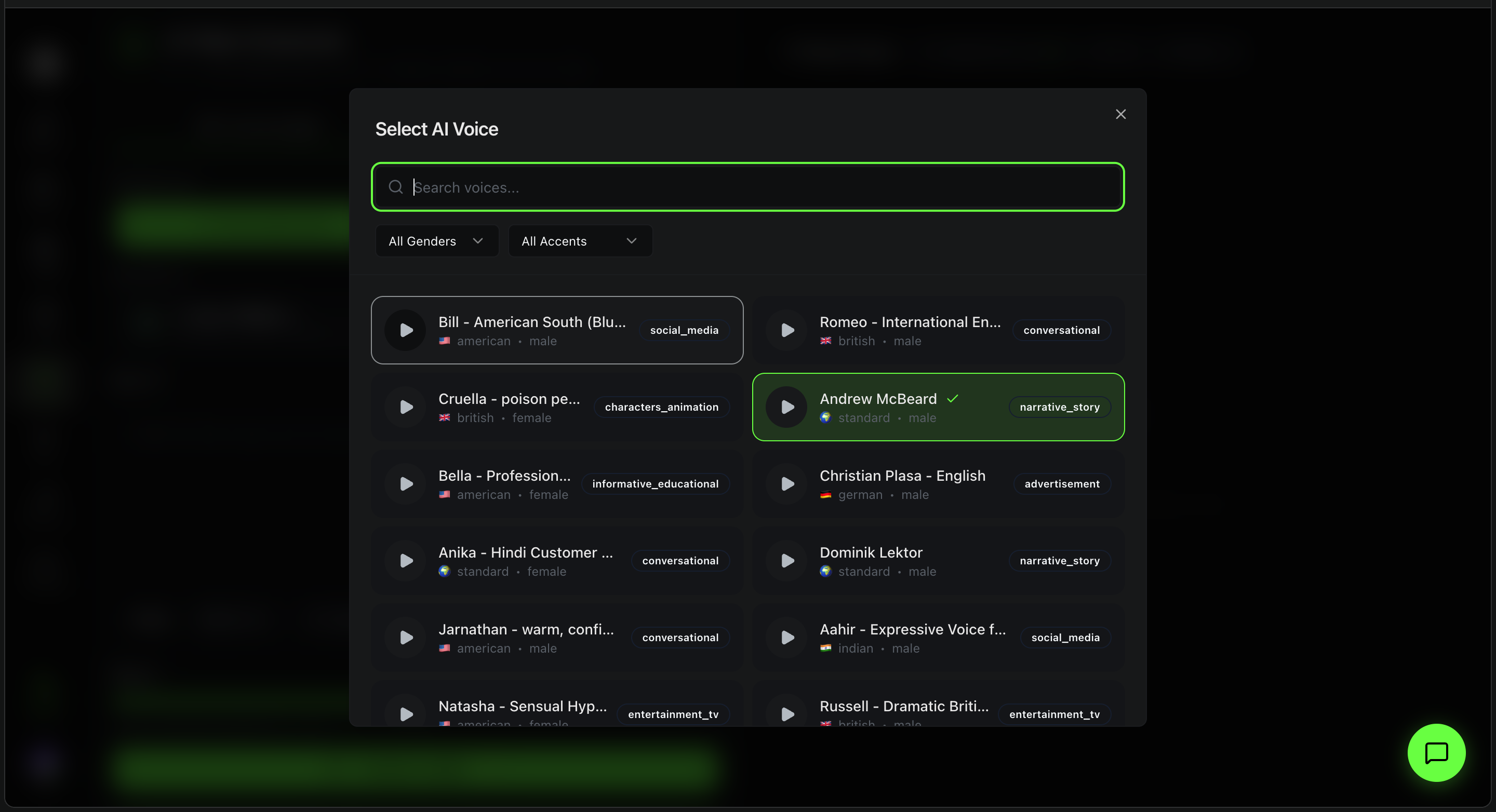
The voice selector lets you browse and filter the full ElevenLabs voice library:
- Search bar -- Type a name to find a specific voice instantly.
- Gender filter -- Filter by All Genders, Male, or Female.
- Accent filter -- Filter by accent (American, British, Indian, German, etc.).
Each voice card shows:
| Detail | What It Tells You |
|---|---|
| Name | The voice name (e.g., Andrew McBeard, Bella) |
| Accent | The accent or nationality |
| Gender | Male or Female |
| Category | The voice style -- narrative_story, conversational, social_media, advertisement, entertainment_tv, etc. |
| Play button | Preview the voice before selecting |
Click a voice card to select it. The selected voice is highlighted in green with a checkmark.
Choose a voice category that matches your content. Use narrative_story for audiobooks, conversational for podcasts, social_media for short-form content, and advertisement for marketing material.
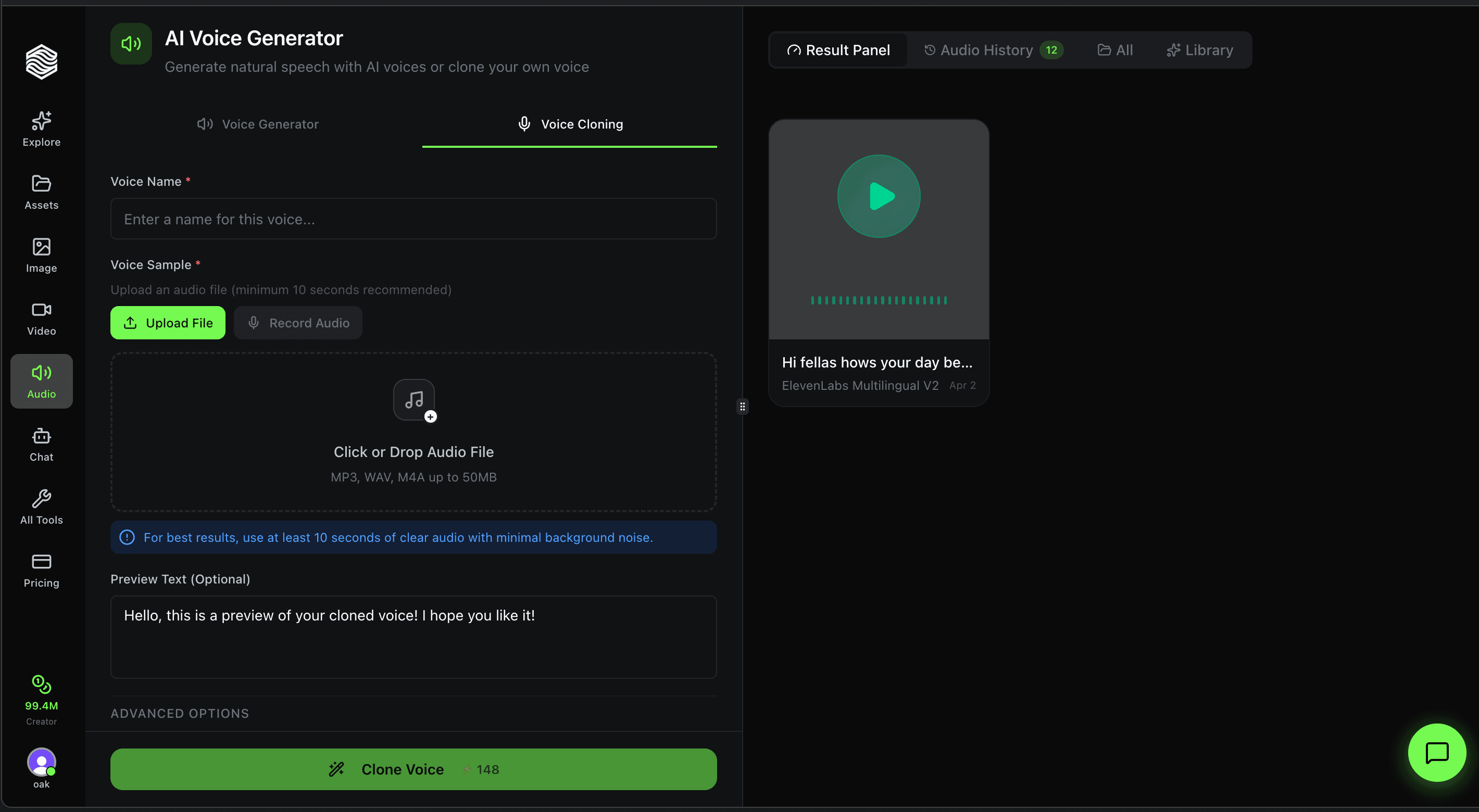
Using Cloned Voices
Switch to My Cloned Voices to use a voice you have previously cloned.
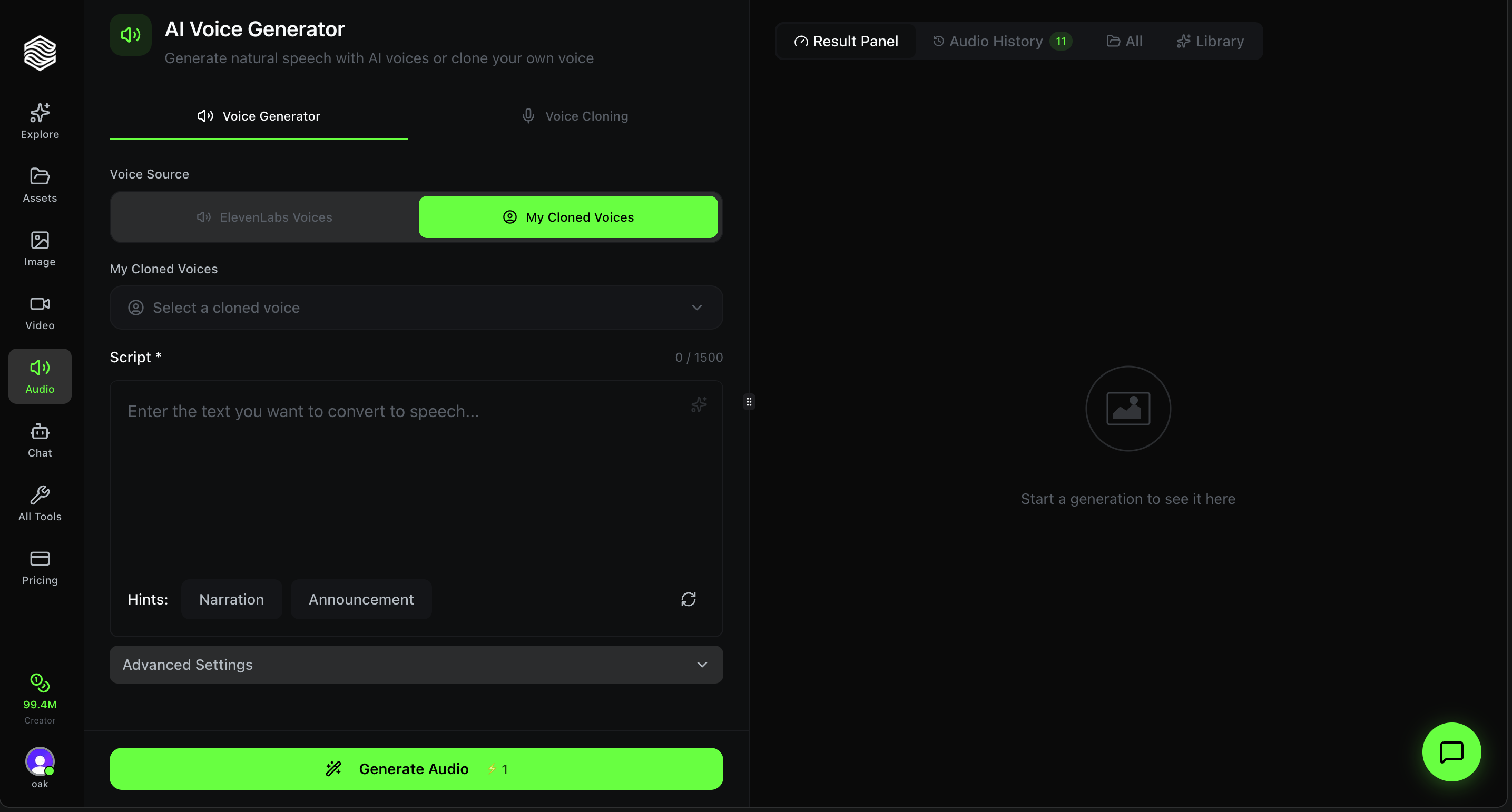
Click the dropdown to see your cloned voices.
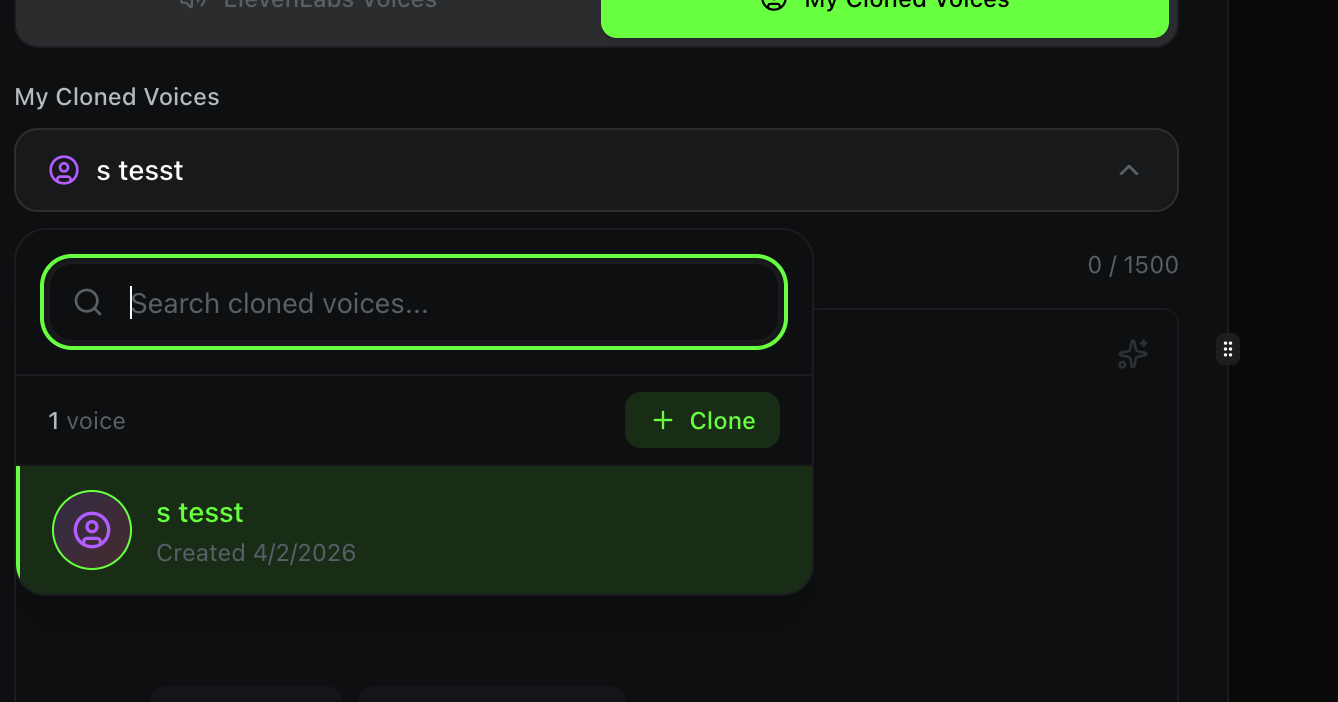
The dropdown shows:
- A search bar to find voices by name
- The total count of your cloned voices
- A + Clone button to create a new cloned voice directly from here
- Each voice card shows the name and creation date
Select a cloned voice and it will be used for your next generation.
If you have not cloned a voice yet, click the + Clone button or switch to the Voice Cloning tab at the top. See our voice cloning tutorial for the full walkthrough.
Writing Your Script
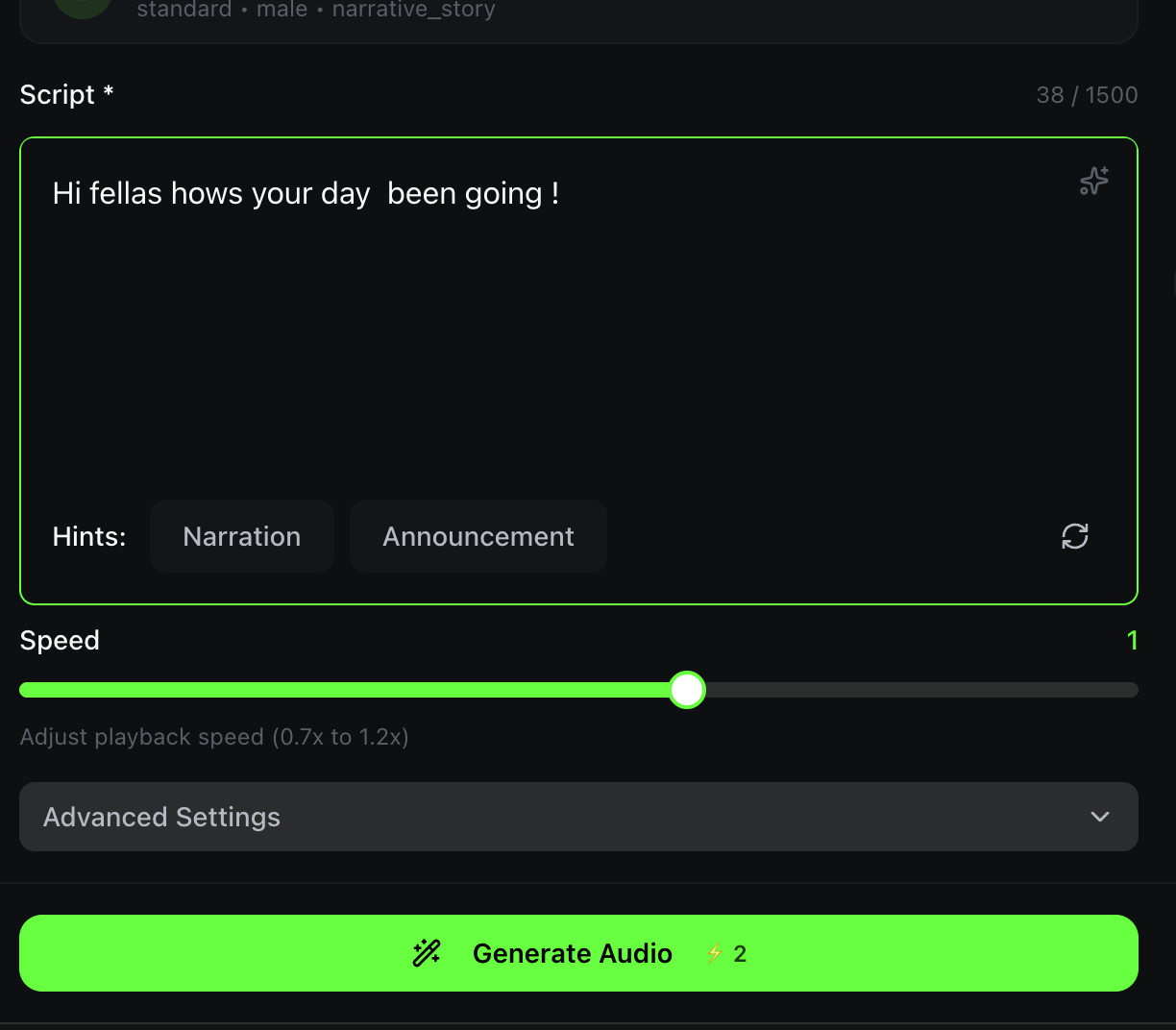
The Script field accepts up to 1,500 characters. Type or paste the text you want converted to speech.
Below the script field, you will find Hints -- click Narration or Announcement to get a pre-written sample script for that style. Hit the refresh icon for new suggestions.
The sparkle icon (top-right of the script box) enhances your script with AI -- it can rephrase or expand your text for more natural-sounding speech.
Adjusting Speed
The Speed slider controls playback speed from 0.7x to 1.2x. The default is around 1.0x.
- 0.7x - 0.9x -- Slower, deliberate delivery. Great for narration, educational content, or accessibility.
- 1.0x -- Natural speaking pace.
- 1.1x - 1.2x -- Slightly faster. Good for energetic ads or social media clips.
Advanced Settings
Click Advanced Settings to expand additional options for fine-tuning voice output. These include model-specific parameters for voice stability, similarity boost, and style control.
Generating Audio
Click the Generate Audio button to start. The button displays the credit cost (e.g., 1-2 credits depending on script length).
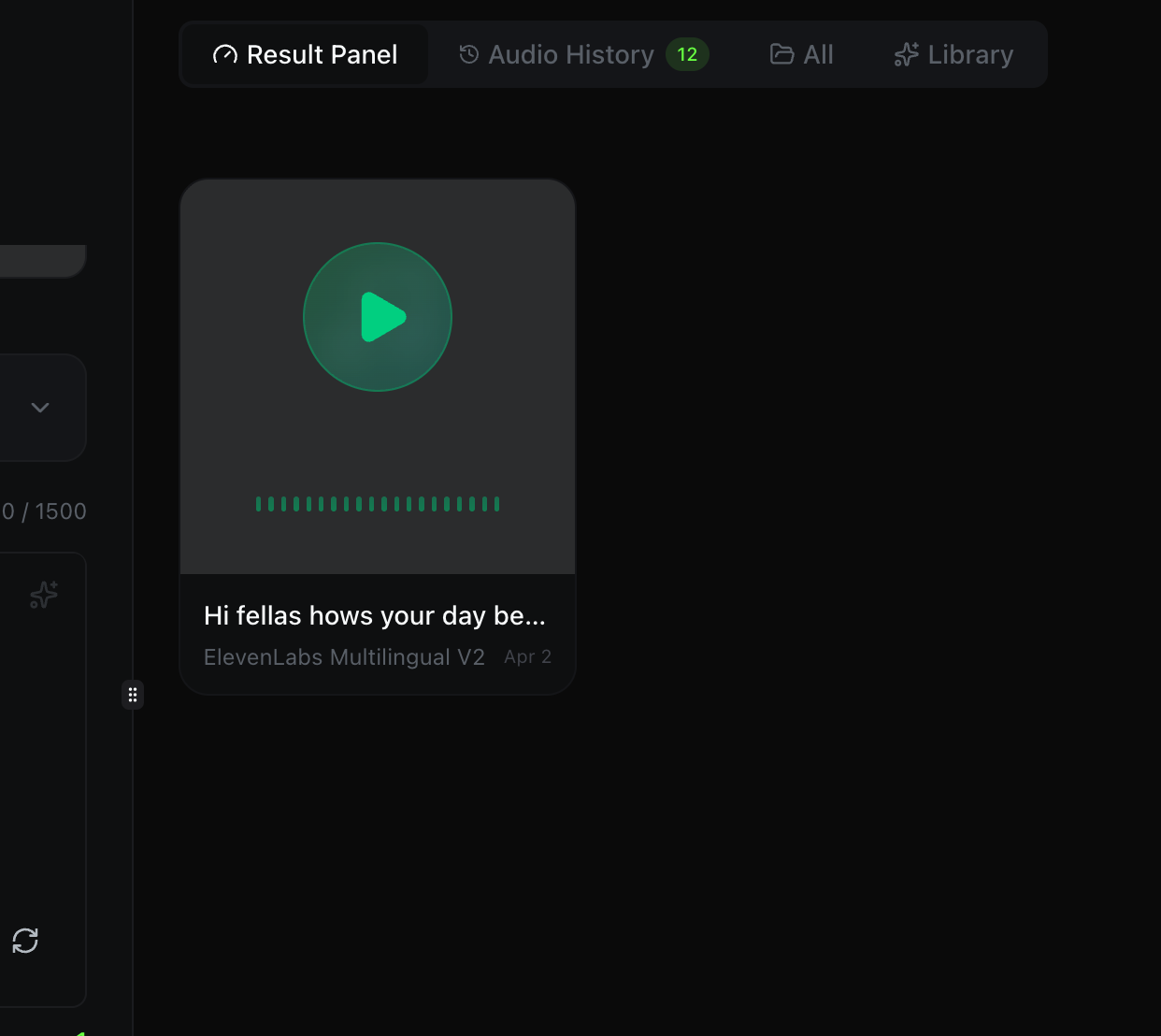
Once your audio is ready, it appears in the Result Panel on the right. You can:
- Play the audio directly in the browser using the green play button
- See the waveform visualization of the generated audio
- View the model used (e.g., ElevenLabs Multilingual V2) and the generation date
- Check Audio History to see all past generations
Generation is fast -- ElevenLabs voices typically return audio in just a few seconds.
Quick Reference
| Feature | Where to Find It |
|---|---|
| Switch voice source | Voice Source toggle (ElevenLabs / My Cloned) |
| Browse all voices | Click the voice dropdown → voice selector modal |
| Filter voices | Search bar, Gender, and Accent filters in selector |
| Write script | Script text area (up to 1,500 characters) |
| Enhance script with AI | Sparkle icon (top-right of script box) |
| Adjust speed | Speed slider (0.7x to 1.2x) |
| Fine-tune voice | Advanced Settings section |
| View past generations | Audio History tab (right panel) |
| Save an audio clip | Library tab (right panel) |