AI voiceover timing starts with the space available for speech. A 30-second video may need five seconds for a reveal, a close-up, or an ending card. That leaves 25 seconds for narration. Estimate a short script for that window, generate it, measure the actual take, and cut unnecessary words before increasing the speed.
You can generate those takes in Oakgen's AI voice generator, using the same voice and settings while you revise. Oakgen provides speech controls; the final alignment, silence edits, and video export happen in your video editor.
Open Oakgen Audio and try a short first take. Keep your script in a separate document so the next revision starts from the same approved wording.
The quick decision table
| What you hear or see | First change | What to check afterward |
|---|---|---|
| Narration continues over the closing card | Shorten the script to fit the speech window | Final word ends before the reserved hold |
| Voice sounds hurried throughout | Remove one secondary point | Main message is understandable on one listen |
| Words fit, but the action is hard to follow | Add a visual hold and recalculate the budget | Viewer can see the important action finish |
| Only the opening silence is excessive | Trim unused leading silence in your editor | First consonant and natural breath remain intact |
| A name or measurement causes a stumble | Rewrite its spoken form and regenerate | Meaning and pronunciation are correct |
| Take is slightly too long after rewriting | Try a modest speed adjustment | No rushed endings, artifacts, or lost emphasis |
This guide is for creators, marketers, and editors fitting narration to short videos. The desk-repair brief is fictional. Planning estimates and measured sample results are identified separately.
Research note, October 7, 2026: We checked Oakgen's exposed controls and ElevenLabs' documentation. The audio samples use the checked-in provider adapter, with measured durations; they do not demonstrate the Oakgen web interface or a completed video.
1. Separate the video's length from the speech budget
Mark timeline moments that need space without narration.
Our fictional video shows a desk wobbling, inspects the leg fasteners, and ends with a stability check. We reserve two seconds for a clear demonstration and three seconds for the finished result. That leaves 25 seconds for speech across the remaining shots.
| Allocation | Seconds | Purpose |
|---|---|---|
| Full video | 30 | Total delivered runtime |
| Demonstration hold without narration | 2 | Let the placement read visually |
| Closing result hold without narration | 3 | Show the change and ending card |
| Available narration | 25 | All spoken lines and their internal pauses |
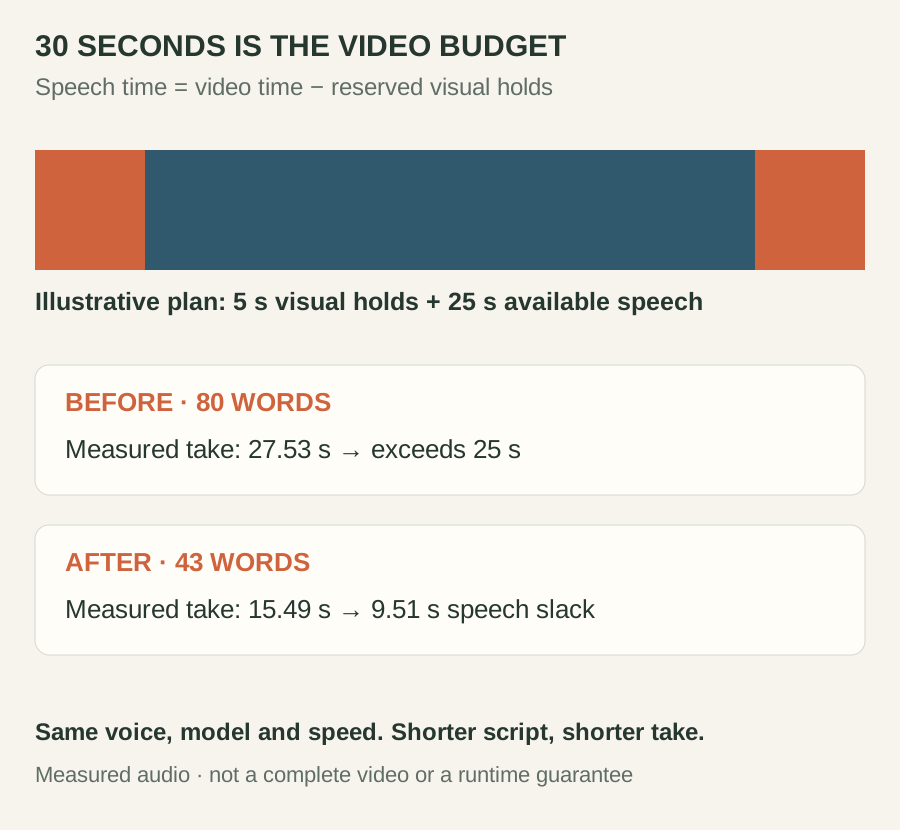
These allocations are editing choices; write yours down before generating.
Count pauses once: an internal spoken pause belongs in the narration allocation. A separate silent shot belongs in the reserved visual time.
2. Use a word budget to reject an oversized draft
The planning formula is:
Estimated words = available speech seconds × assumed words per minute ÷ 60

Example: 25 × 132 ÷ 60 = 55 words
The assumed 132 words per minute is not a universal rate or measured result. Names, spelled-out letters, emphasis, and pauses change delivery.
| Available speech | Assumed rate for this example | Estimated draft length |
|---|---|---|
| 20 seconds | 132 words per minute | 44 words |
| 25 seconds | 132 words per minute | 55 words |
| 30 seconds | 132 words per minute | 66 words |
Use estimates to catch oversized drafts. Replace them with measurements after generation.
Count numbers in their spoken form. “2026” is one token in many counters but several spoken words. Our AI voice pronunciation guide covers this preparation.
3. Shorten the script without deleting its purpose
Here is the fictional desk video's first draft. It has 80 space-separated words:
Before you buy a new desk, check the one you already own. A loose leg
can make the whole surface wobble, even when the desktop is in good
condition. Clear everything off, turn the desk over carefully, and look
at the fasteners that attach the leg to the frame. Tighten the loose
ones gradually, set the desk upright, and check it again on a level
floor. If the leg or bracket is cracked, stop and replace the damaged
part instead.
At our assumed rate, 80 words would require about 36.4 seconds. That estimate flags the draft for editing; the generated file determines its actual runtime.
The shorter version has 43 space-separated words, below the 55-word planning ceiling:
A wobbling desk may have a loose leg. Clear the top, turn the desk over
safely, and check the leg fasteners. Tighten loose fasteners gradually,
then test the desk on a level floor. If a leg or bracket is cracked,
replace it instead.
The edit removes the purchase argument and repeated explanations while keeping the inspection, action, and damaged-part warning. It is a fictional narration brief; real furniture work requires appropriate handling and manufacturer instructions.
Ask what each sentence contributes. Keep the problem, essential instructions, and next action. Combine lines that do the same job.
Keep qualifications, safety instructions, and important limitations. If they cannot fit clearly, choose a smaller subject or a longer video.
Generate the Shorter Script
Keep the voice and settings fixed while you compare wording. Measure the generated file before deciding that it fits.
Listen: the same voice before and after the edit
We generated both scripts on October 7, 2026 through Oakgen's checked-in ElevenLabs provider adapter, directly against the provider. This was not an Oakgen web-interface test or a completed video export. We selected Rachel, explicitly requested Multilingual V2, and kept speed 1.0, stability 0.5, similarity 0.75, style 0, and speaker boost enabled for both files.
Before: the 80-word draft
After: the 43-word revision
The copyable scripts above are the transcripts. We measured complete MP3 file durations with ffprobe, including any silence encoded in each file. The figures below are rounded to two decimal places.
| Take | Words | Measured file duration | Against the 25-second speech allocation |
|---|---|---|---|
| Before | 80 | 27.53 seconds | Overruns by 2.53 seconds |
| After | 43 | 15.49 seconds | Leaves 9.51 seconds unused |
This edit makes room; it does not produce an exactly 25-second take. The shorter narration leaves 14.51 seconds total without speech in a 30-second video, including the five reserved seconds. Decide whether those additional seconds support a useful demonstration, whether an essential explanation should return, or whether the video should become shorter. Do not add filler merely to occupy the timeline.
The measured first take is also much faster than our planning estimate. That is why the assumed word rate cannot approve a file. These two samples show one script-editing comparison, without a listener study or repeated-generation benchmark. Listen for clarity yourself, then measure and review your own selected take against its footage.
4. Set up one repeatable take in Oakgen
Open the voice-generator walkthrough if you need the full interface introduction. For this timing exercise:
- Choose ElevenLabs as the voice source and select a voice.
- Paste the spoken script without shot instructions or timestamps.
- Choose Multilingual V2 for this initial plain-text exercise.
- Leave Speed at 1.0 and note the other settings.
- Generate, listen, and download the take for timeline checking.
Oakgen's verified ElevenLabs selector offers V3 and Multilingual V2, with speed from 0.7–1.2 in steps of 0.05. There is no verified exact-duration field. Keep timing instructions outside the spoken script.
Hold voice, model, speed, and other settings constant when comparing scripts.
Save the submitted text, including punctuation: commas and sentence boundaries can affect the next read.
5. Measure the file and place it against the picture
Import the audio into your video editor. Measure the complete file, then inspect where the first audible word begins and the final word finishes. The file may contain unused silence at its edges; the useful spoken performance may be shorter.
Check duration and alignment separately. A take can fit the available time yet describe an action after its shot has changed.
Listen without the script, then watch against the actual video. Mark rushed instructions, mistimed actions, or a crowded ending.
Align “check the leg fasteners” with the inspection shot. Place the demonstration hold in your editor.
6. Change speed only after the words work
If a shorter script reads clearly but still overruns slightly, try one small speed increase and measure again.
For external playback or tempo editing, the arithmetic is:
Required speed factor = measured current duration ÷ target duration

Illustrative example: 26.5 seconds ÷ 25 seconds = 1.06
That suggests a six percent increase for the same recording. A fresh generation can change phrasing and pauses too. Oakgen's 1.05 step is a nearby experiment, not a guarantee that this hypothetical take will land at 25 seconds.
ElevenLabs documents speed control and cautions that extreme values can affect speech quality. Listen to the result instead of approving the slider value.
For external tempo editing, preserve pitch where possible and listen for artifacts. Never cut the last syllable to hit the end marker.
7. Choose pauses that match the model
Start with ordinary punctuation and sentence structure. They are useful writing tools, but they do not guarantee exact silent intervals.
ElevenLabs' pause documentation distinguishes the models: Multilingual V2 accepts SSML break tags, with documented pauses up to three seconds; V3 uses audio tags and punctuation and does not support those SSML breaks.
For an explicitly selected Multilingual V2 take, this is an optional provider-documented syntax example:
Tighten loose fasteners gradually. <break time="0.5s" /> Then test the desk.
The pause occupies part of the speech budget. Measure the generated result; this example is not a demonstrated half-second silence in Oakgen. Too many breaks can make delivery unstable, according to the same provider documentation.
Oakgen can retry a failed V3 request using V2 while keeping the submitted text unchanged. Therefore, a V3 selection alone cannot establish that V3 interpreted your audio tags. For this workflow, plain text, measured runtime, and external silence placement give you a clearer approval process. If your shot needs a precise hold, create it on the editing timeline.
Copy the timing worksheet and take log
Download the timing worksheet and record each script version, settings, measured runtime, and remaining speech budget.
Use this worksheet before generation:
Video/version:
Total video duration:
Visual holds outside narration:
Available narration = total duration minus visual holds:
Assumed words per minute, for planning only:
Estimated words = available narration × assumed rate ÷ 60:
Essential information that must survive shortening:
Selected voice/model/settings:
Acceptance condition for final word and final visual:
Complete one row per file; this is a reusable blank log.
| Take | Script revision | Voice/model | Speed | Measured file duration | Measured narration after edge trim | Decision and reason |
|---|---|---|---|---|---|---|
| A | Record exact submitted text | Record selections | Record value | Measure | Measure | Keep / revise |
| B | Record wording changed | Keep fixed if comparing copy | Record value | Measure | Measure | Keep / revise |
| C | Record final revision | Record selections | Record value | Measure | Measure | Accepted only after timeline review |
Generate your next take in Oakgen Audio, then add its measured duration and the reason you kept or rejected it. That record is more useful for your next project than a generic words-per-minute chart.
Finish and approve the actual delivered video
Place the accepted narration in your external video editor, preserve the visual holds, and set any music so it does not obscure speech. Generate or align captions after the audio edits are final. If you replace a line, change speed, or trim silence, recheck caption timing.
Review the export on a phone speaker and headphones. Check the final word, demonstration, and closing hold.
Keep the accepted audio, script, settings, and final video together; label rejected takes. An on-screen presenter can use Oakgen Talking Photo, while supporting footage can come from the AI video generator. Both still need timing checks and final assembly in your editor.
Frequently asked questions
How many words fit in a 30-second AI voiceover?
There is no fixed count. In this guide's planning example, 30 seconds minus 5 seconds of visual holds leaves 25 seconds for narration. At an assumed 132 words per minute, that suggests 55 words. Generate the take and measure its actual duration before approving it.
Can Oakgen make a voiceover exactly 30 seconds long?
Oakgen's verified voice-generator controls include voice selection, ElevenLabs V3 or Multilingual V2, and speed from 0.7 to 1.2. There is no verified exact-duration control. Generate and measure the narration, then assemble and finish the timed video in your video editor.
What should I do when my AI voiceover is too long?
Remove repetition and words the picture already communicates, then regenerate at the same voice and settings. Preserve pauses that help the viewer understand the action. Try a small speed increase only after the shorter script reads clearly.
Does a 1.1 speed setting guarantee a ten percent shorter take?
No. A generated performance can change its pauses and delivery as well as its pace. Measure the new file. Current duration divided by target duration is useful for estimating an external playback-speed change, but it does not guarantee the runtime of a fresh generation.
Can I use pause tags with both ElevenLabs models?
Use model-specific syntax. ElevenLabs documents SSML break tags for Multilingual V2 and audio tags or punctuation for V3. V3 does not support SSML breaks. Oakgen can retry a failed V3 request with V2, so selecting V3 alone does not prove that a tag-based take was generated by V3.
When should I generate captions for the video?
Generate or align captions after accepting the narration and placing it in the final timeline. Recheck them after any script replacement, silence edit, or speed change. Review the exported video so caption timing matches the file viewers will actually see.
Make a Voiceover That Leaves Room for the Picture
Write a smaller spoken brief, generate one controlled take, and approve it against the actual video timeline.