ChatGPT
 Claude
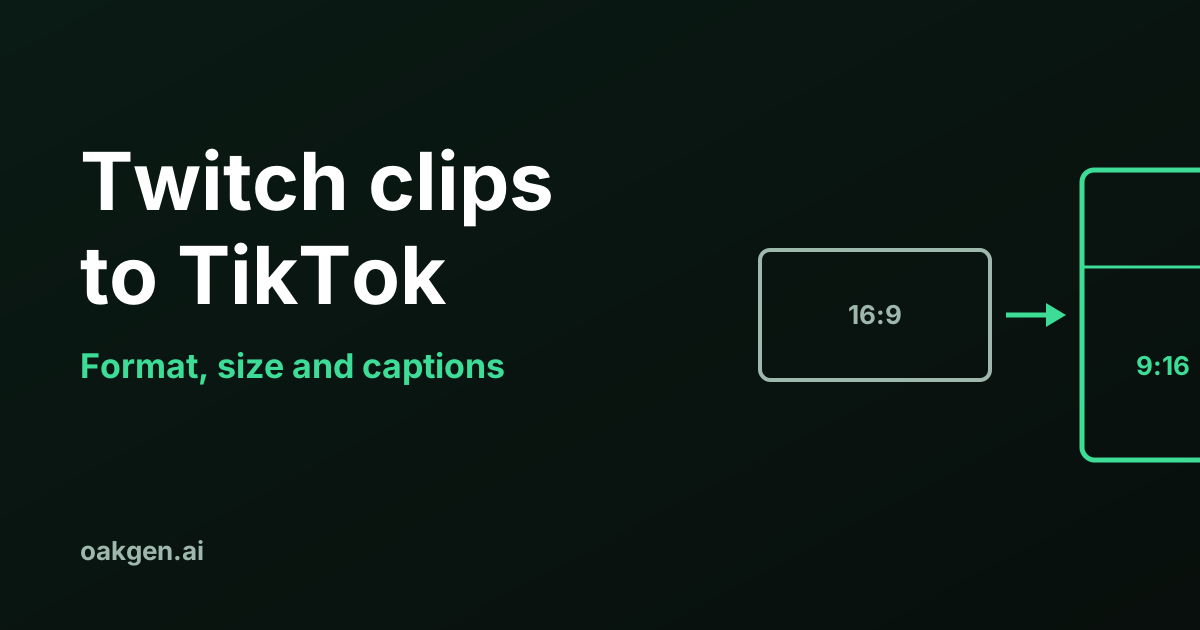
To move Twitch clips to TikTok, use the portrait version Twitch now makes of every clip. A Twitch clip is at most 60 seconds, the portrait version is 9:16, and the frame to export is 1080 by 1920 pixels. That fits TikTok, and it fits YouTube Shorts, which allows up to 3 minutes.
The sizes and limits here come from Twitch's, TikTok's and YouTube's own help pages, all read on 19 November 2026. Where a page gives no number, none is given here.
What frame size and length does each platform accept?
One file works on all three: 9:16, 1080 by 1920 pixels, 60 seconds or less. The table shows what each platform's own page says.
| Twitch clip (the source) | TikTok | YouTube Shorts | |
|---|---|---|---|
| Maximum length | 60 seconds | Uploads up to 60 minutes. Recorded in the app, up to 10 minutes | Up to 3 minutes |
| Shape | Any ratio from 16:9 to 9:16. Portrait version made automatically | Help page for posting gives no ratio. Ad specs recommend vertical 9:16 | Square or vertical |
| Resolution | Not stated | Ad specs: 540 by 960 or more for vertical. Posting API: 360 to 4,096 pixels on each side | Shorts upload at a maximum of 1080p |
| File size | Not stated | Posting API: 4 GB maximum | Not stated on the Shorts pages |
| Title or caption text | Clip title | Not stated on the pages we read | Title of 100 characters at most |
Notes on that table, so nothing in it is read as more than it is.
TikTok's numbers come from three different pages. The 60-minute and 10-minute lengths are from TikTok's help page for people posting. The 540 by 960 minimum is from TikTok's ad specifications, which apply to ads. The 360 to 4,096 pixel range, the 23 to 60 frames per second range and the 4 GB limit are from TikTok's developer guide for tools that post through its API. That guide, dated 4 August 2026, also says all creators can post 3-minute videos through the API, and some can post 5 or 10 minutes. A tool that posts for you may therefore have a shorter limit than the app.
1080 by 1920 is our pick, backed by two published specs. YouTube's ad specifications recommend 1080 by 1920 for vertical video, and YouTube Help says Shorts upload at a maximum resolution of 1080p. TikTok's minimum for a vertical ad is half that size. Nothing published by the three platforms asks for more.
Do not add black bars yourself. YouTube's page on aspect ratios says padding baked into a video interferes with the player adapting to the viewer's device. Fill the 9:16 frame.
How do you make the Twitch clip in the first place?
Click the clip icon on a live stream or a past broadcast and publish from the Clip Creator. Twitch's help page lists the steps, and how to clip on Twitch goes through them for desktop, mobile and VODs.
- Click the clip icon. On mobile you may need to tap the video for it to appear.
- The Clip Creator opens as an overlay you can move, so the stream keeps playing.
- Set the length with the slider under the player, up to 60 seconds.
- Review the suggested crop for the portrait version.
- Add a title and click Publish.
Streamers have one more route. Saying "Twitch, Clip That" out loud during a live broadcast makes a clip automatically, and it lands in the Clips Manager.
Who can clip is up to the streamer. Twitch says all logged-in viewers can clip any channel unless the streamer has disabled clips, limited them to followers or subscribers, or blocked that user. The page also warns that clipping the first 1 minute 30 seconds of a VOD may fail.
How does Twitch's portrait layout work?
Twitch saves every clip twice, horizontal and portrait, and suggests a crop for the portrait one that keeps the camera and gameplay in frame. Its help page says the suggestion comes from detecting where the camera and gameplay sit in the stream, and that it does not store face data or perform facial recognition.
You have two layouts to choose from in the Clip Editor.
- Stacked splits the frame into two boxes, one above the other. Twitch calls it ideal when the stream has both a face cam and gameplay. You drag the horizontal line between the boxes to change their sizes.
- Full uses one box that covers the whole vertical frame.
If the detector cannot find a camera or gameplay region, for example on an IRL stream, Twitch falls back to a centred crop. Empty space is filled with a blur effect.
Three details save time.
- Set the layout once. Twitch remembers the last portrait layout you used on a clip of your channel and applies it to future clips, including ones your viewers make.
- Edit on a computer. Twitch says you can trim and title on mobile, but "portrait clip editing is not yet available on mobile".
- Fix clips that show black bars. If portrait clips look like horizontal clips with bars, Twitch's fix is to open any clip in the Clips Manager with the scissor icon and edit the portrait layout once.
Twitch does not publish pixel sizes for the two boxes. If you build the layout in your own editor, the arithmetic for a 1080 by 1920 frame is worked through in facecam over gameplay: the layout for stream clips.
One oddity on the page: step 4 says you can choose any aspect ratio from 16:9 to 9:16, while a question further down says the ability to edit the aspect ratio of portrait clips was delayed because clips that were not 9:16 caused bugs in the Discovery Feed and Stories. Staying at 9:16 avoids the problem either way, and it is the shape TikTok and Shorts want.
How do you post or download the portrait clip?
Use the Share button next to the clip. What you see there depends on whose clip it is.
Clips of your own channel. Twitch lets you post directly to TikTok, YouTube Shorts, Instagram and Snapchat. The title and description fields come filled with suggested text that you can replace. You can also download the horizontal or portrait version.
Clips you made of another channel. Direct posting appears only if that streamer has turned the setting on. When you post such a clip to TikTok or Instagram, Twitch adds the streamer's channel name as a hashtag and says it cannot be removed. On YouTube that hashtag is not added. You can download horizontal or portrait versions of clips you created.
No portrait download offered? Twitch says that means no portrait version exists yet. Click Edit, choose Edit Layout, change the captured area, then apply and save. Wait a minute for the render and the portrait download appears.
If you download the file, upload it to TikTok in the app with the Add post + button, then Upload. TikTok's help page says an upload from a web browser sends the entire video, and that you change the length by uploading in the app. For Shorts, upload a file of up to 3 minutes with a square or vertical shape through the YouTube app or YouTube Studio.
What about captions?
Twitch can add captions, but the streamer decides. The Add Captions option appears in the Clip Creator only when the streamer has enabled captions in Clips Settings. Clips made with the Clip That quick action or Auto Clips include captions by default.
The streamer and their channel editors can turn captions on or off, or correct the wording, within 30 days of the clip's creation. After that the captions are locked. Edited caption text passes through AutoMod, and explicit language is masked in the final clip.
If you want your own caption style, add the text in an editor after downloading. If the clip already carries Twitch's captions and it is a clip of your channel, toggle them off first, or you will have two sets on screen.
Where to put caption text is a separate question. Neither Twitch's clip page nor the TikTok and YouTube posting pages we read publish a caption safe zone for ordinary posts. YouTube publishes one for vertical video ads and TikTok publishes template files for ads. The numbers, and how far they apply to a normal clip, are in the facecam layout guide.
When is Twitch's own tool the better choice, and when is it not?
For a clip of your own channel that is 60 seconds or less, Twitch's built-in route is the better choice. It makes the portrait version, remembers your layout and posts to TikTok and Shorts from one menu, so a separate converter has nothing to add.
It runs out in a few cases.
- The moment is longer than 60 seconds. Twitch's clip limit is fixed. Kick's is 180 seconds, as covered in how to clip on Kick. For a longer Twitch moment you need the VOD and an editor.
- You are on your phone. Portrait layout editing is not available on mobile.
- You want many clips from one long stream. Clicking through a six-hour VOD by hand is the slow part. The method is in how to clip streams for TikTok and YouTube Shorts, and paid tools that scan a VOD for you are priced in best Opus Clip alternatives for streamers. We did not test those tools on Twitch footage for this article.
- The clip is not yours to post. If the streamer has not turned on sharing, the Share menu shows you links only.
That last point goes beyond Twitch's settings. For game footage, the publisher's rules apply too. Rockstar's policy, read on 19 November 2026, says Take-Two generally does not object to non-commercial fan use that does not intentionally spoil the plot, and that it can have material taken down at any time. Paid clipping needs a campaign brief or the streamer's agreement, which how to make money clipping GTA 6 streams explains.
Oakgen is building an AI clipping tool for streamers and clippers. It is not available yet.
Built for streamers and clippers
Oakgen is building an AI clipping tool for streamers and clippers. See what Oakgen offers streamers today.
How we checked this
On 19 November 2026 we read Twitch's help article "How to Create, Edit, and Share Clips", TikTok's help pages on video length and on making a post, TikTok's developer guide on video restrictions, TikTok's in-feed ad specifications, three YouTube Help pages on Shorts and aspect ratios, Google's video ad specifications and Rockstar's posting policy.
We did not create, export or post a clip for this article. We did not measure the pixel size of a Twitch portrait download, so the table says "not stated" for it. The 1080 by 1920 recommendation is our reading of the published specifications, not a figure Twitch or TikTok gives for ordinary posts. TikTok's lengths can differ by account, which its developer guide says outright for API posting.
Frequently asked questions
How do I turn a Twitch clip into a TikTok?
Make the clip on Twitch, then use the portrait version Twitch generates beside the horizontal one. For clips of your own channel you can post it to TikTok from the clip's Share menu, or download the portrait file and upload it in the TikTok app. Twitch's help page, read on 19 November 2026, says clips can be up to 60 seconds and that the portrait layout can be Stacked or Full.
What size should a Twitch clip be for TikTok?
Use a 9:16 frame at 1080 by 1920 pixels. TikTok's ad specifications, read on 19 November 2026, list vertical 9:16 video at 540 by 960 pixels or more, and YouTube's ad specifications recommend 1080 by 1920 for vertical video. YouTube Help says Shorts upload at a maximum resolution of 1080p, so a larger file gains nothing there.
Is there a Twitch clip to TikTok converter?
Twitch has one built in. Its help page, read on 19 November 2026, says a portrait version is generated automatically for every clip, with a suggested crop that keeps the camera and gameplay in frame. A separate converter is only needed when you want something Twitch's editor does not do, such as a clip longer than 60 seconds or your own caption style.
Can I post someone else's Twitch clip to my TikTok?
From Twitch's Share menu, only if that streamer has turned the setting on. Twitch's help page, read on 19 November 2026, says that when you post another channel's clip to TikTok, the streamer's channel name is added as a hashtag and cannot be removed. That setting covers the Twitch export. It does not settle who owns the game footage or whether you may monetise it.
How long can a TikTok or a YouTube Short be?
TikTok's help page, read on 19 November 2026, says videos you upload can be up to 60 minutes and videos you record in the app up to 10 minutes. YouTube Help on the same date says a Short is up to 3 minutes with a square or vertical shape. A Twitch clip tops out at 60 seconds, so it fits both.
Can I add captions to a Twitch clip?
Only when the streamer has enabled captions for their channel. Twitch's help page, read on 19 November 2026, says the Add Captions option then appears in the Clip Creator, and that the streamer and their editors can edit or remove captions on clips of the channel within 30 days of creation. After 30 days the captions are locked.
Sources
- Twitch Help: How to Create, Edit, and Share Clips
- TikTok Help Center: Camera tools (video length)
- TikTok Help Center: Making a post
- TikTok for Developers: Media Transfer Guide (video restrictions)
- TikTok Ads Manager help: TikTok Auction In-Feed Ads
- YouTube Help: Upload YouTube Shorts
- YouTube Help: Get started creating YouTube Shorts
- YouTube Help: Video resolution and aspect ratios
- Google Ads Help: About video ad specs
- Rockstar Games: Policy on posting copyrighted Rockstar Games material