ChatGPT
 Claude
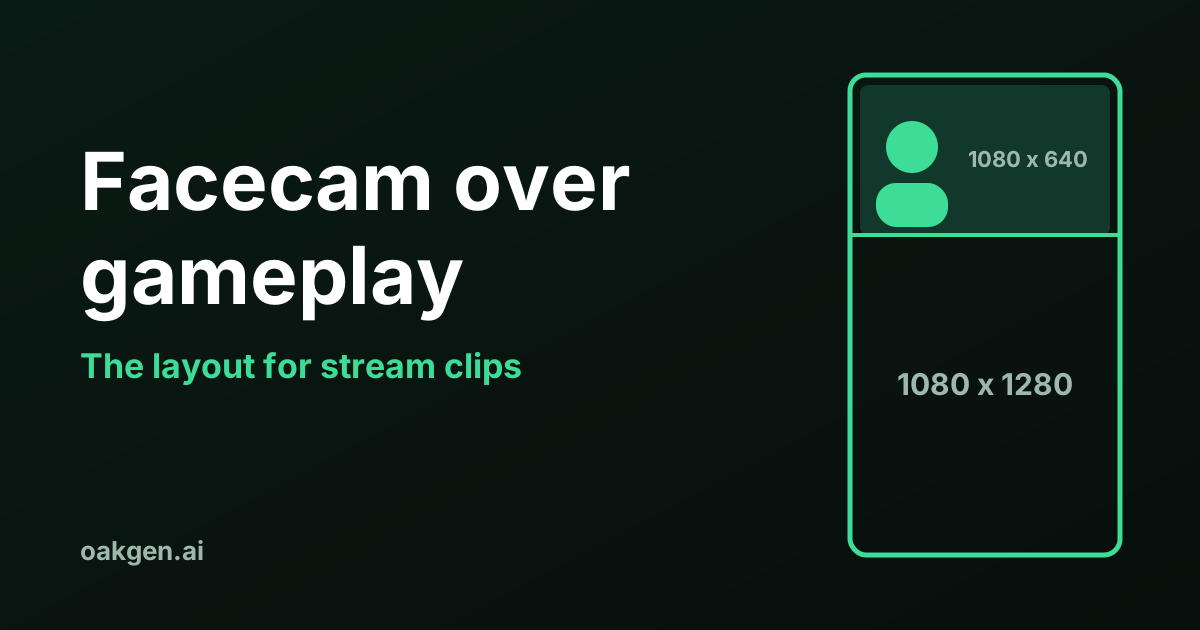
The facecam layout to start from for a vertical stream clip is a stack: a 1080 by 640 facecam panel on top of a 1080 by 1280 gameplay panel. The two heights add up to 1,920, so the stack fills a 1080 by 1920 frame with no bars. The gameplay panel shows 47.5% of the stream's width.
The pixel sizes below are our own arithmetic, and every sum is shown so you can check it or redo it for another split. The caption safe zones are only what the platforms themselves publish, read on 19 November 2026. Where they publish nothing, we say so.
What are the pixel sizes for a stacked facecam layout?
Pick a height for the facecam panel, and the gameplay panel gets the rest of the 1,920 pixels. Both panels are 1,080 wide. The table assumes a 1920 by 1080 stream.
| Split (facecam to gameplay) | Facecam panel | Gameplay panel | Strip cut from the 1920 by 1080 gameplay | Width kept | Gameplay scaling |
|---|---|---|---|---|---|
| One third to two thirds | 1080 x 640 | 1080 x 1280 | 911 x 1080 | 47.5% | 1.19 times larger |
| 40 to 60 | 1080 x 768 | 1080 x 1152 | 1012 x 1080 | 52.7% | 1.07 times larger |
| Half and half | 1080 x 960 | 1080 x 960 | 1215 x 1080 | 63.3% | 0.89, slightly smaller |
| Full, no facecam | none | 1080 x 1920 | 608 x 1080 | 31.6% | 1.78 times larger |
| Fit, whole picture with bars | none | 1080 x 608 | 1920 x 1080 | 100% | 0.56, much smaller |
A taller gameplay panel shows a narrower slice of the game, enlarged. A taller facecam panel shows more of the game's width but makes the game smaller and blows the face up further.
No platform sets the split. Twitch's help page describes its Stacked layout as two boxes with a horizontal line you can drag, and gives no pixel values. The one third to two thirds row is our suggested starting point because the gameplay stays slightly enlarged, not shrunk, and the face panel is close to the shape of a normal webcam picture.
How is the gameplay crop worked out?
The gameplay panel has a fixed shape, so you cut a strip of the same shape out of the stream and scale it to fit. Three steps, using the one third to two thirds split.
Step 1. Panel shape. The panel is 1080 wide and 1280 tall. Width divided by height is 1080 / 1280 = 0.84375.
Step 2. Strip width. Use the full 1,080 pixel height of the stream. The strip must have the same shape, so its width is 1080 x 0.84375 = 911.25 pixels. Round to 912, since video encoders generally want whole, even numbers.
Step 3. Scale. The strip is 1,080 tall and the panel is 1,280 tall, so the strip is enlarged by 1280 / 1080 = 1.185.
The share of the picture you keep is 911.25 / 1920 = 0.4746, or 47.5%. You lose 1920 minus 911.25, which is 1008.75 pixels of width. If the strip is centred, that is about 504 pixels off each side.
The same three steps give the other rows.
- 40 to 60. 1080 / 1152 = 0.9375. Strip width 1080 x 0.9375 = 1012.5. Kept: 1012.5 / 1920 = 52.7%. Scale 1152 / 1080 = 1.067.
- Half and half. 1080 / 960 = 1.125. Strip width 1080 x 1.125 = 1215. Kept: 1215 / 1920 = 63.3%. Scale 960 / 1080 = 0.889.
- Full. 1080 / 1920 = 0.5625. Strip width 1080 x 0.5625 = 607.5. Kept: 607.5 / 1920 = 31.6%. Scale 1920 / 1080 = 1.778.
The strip does not have to be centred. Slide it left or right to follow the action. What you cannot do is keep both edges. Before you settle on a crop, check where the game puts its on-screen information, because anything in the corners of a 16:9 picture falls outside a 911 pixel strip.
For a 1280 by 720 stream, every strip and facecam size is two thirds of the 1080p figure and every scale factor is 1.5 times larger. The gameplay strip for a 1280 tall panel becomes 607.5 by 720, enlarged 1280 / 720 = 1.78 times.
How big does the facecam get, and why does it look soft?
The facecam is the small part of the stream, so it is enlarged far more than the gameplay. The enlargement is the panel height divided by the height of the facecam in the stream.
Take a 16:9 facecam and a 1080 by 640 panel. The panel's shape is 1080 / 640 = 1.6875, a little narrower than 16:9, which is 1.778. So you keep 1.6875 / 1.778 = 94.9% of the facecam's width and trim about 2.5% off each side.
| Facecam size in a 1080p stream | Strip used for a 640 tall panel | Enlargement | Enlargement for a 960 tall panel |
|---|---|---|---|
| 384 x 216 | 364 x 216 | 640 / 216 = 2.96 times | 960 / 216 = 4.44 times |
| 480 x 270 | 456 x 270 | 640 / 270 = 2.37 times | 960 / 270 = 3.56 times |
| 640 x 360 | 608 x 360 | 640 / 360 = 1.78 times | 960 / 360 = 2.67 times |
A picture enlarged three or four times looks soft. You have two ways to reduce it: make the facecam larger in the stream layout, or give it a shorter panel in the clip.
The half and half split is the hardest on the face. Its panel shape is 1080 / 960 = 1.125, close to square, so a 16:9 facecam keeps only 1.125 / 1.778 = 63.3% of its width there. Use it when the streamer sits in the middle of the camera frame.
When should gameplay fill the frame instead?
Fill the frame with gameplay when the action is the whole clip, or when there is no facecam to show. A chase or a crash loses nothing by dropping the face. A reaction clip loses the point.
Full keeps a 607.5 pixel strip, 31.6% of the picture, enlarged 1.78 times. Fast side-to-side movement leaves that strip quickly, so you either move the crop to follow it or pick a wider layout.
The opposite choice, fitting the whole 16:9 picture into the frame, gives a 1080 by 607.5 image and leaves 1920 minus 607.5, which is 1312.5 pixels, empty, about 656 above and 656 below. Twitch's clip tool fills that space with a blur effect when you choose a ratio that does not fill the frame. YouTube's page on aspect ratios advises against baking padding or black bars into a video, so avoid plain black bands.
Where must captions not sit?
For ordinary posts, the platforms publish almost nothing, so the honest answer is narrower than most template sites suggest. Here is what each one's own pages say, as read on 19 November 2026.
| Platform | Published safe zone for ordinary posts | Published safe zone for ads |
|---|---|---|
| YouTube Shorts | None on the Shorts help pages we read | Yes, with pixel numbers, for vertical video ads |
| TikTok | None on the help pages we read | Yes, as downloadable template files, no numbers on the page |
| Twitch clips | None | Not applicable |
| Kick clips | None | Not applicable |
YouTube's ad numbers. Google Ads Help has an image titled "YouTube | Vertical Video Ads" for a 1080 by 1920 frame. It marks 288 pixels at the top, 672 at the bottom, 48 on the left and 192 on the right as outside the safe zone. The safe area is therefore 1080 minus 48 minus 192, which is 840 pixels wide, and 1920 minus 288 minus 672, which is 960 pixels tall. It runs from x 48 to x 888 and from y 288 to y 1248. Google says overlays, calls to action and buttons can cover what is outside it.
TikTok's ad guidance. TikTok's in-feed ad specifications say the safe zone "is determined by the dimension (vertical, horizontal, or square), ad caption length, and any additional formats used", and offer zip files with the templates. The page itself gives no pixel numbers. We did not open the zip files, so we quote none.
Both are written for ads. Treat the YouTube box as a cautious guide for a normal Short, not as a rule YouTube states for one.
Put next to the stack, the YouTube box is useful. The dividing line of a one third to two thirds layout is at y 640. The safe area spans y 288 to 1248, so the line sits inside it with 352 pixels above and 608 below. Captions placed across the dividing line, or in the top part of the gameplay panel, are inside the box. The lower 672 pixels of the frame are outside it, and that is 672 / 1280 = 52.5% of the gameplay panel. Keep text out of that lower half, and keep it at least 192 pixels in from the right edge.
Then check on a phone. Post the clip privately or look at it after it goes up, with your real caption attached. That is the only safe zone test that reflects your caption length and your device.
How do you build the layout?
On Twitch, the editor does it. On anything else, two layers on a 1080 by 1920 canvas do it.
In Twitch's Clip Editor. Open the clip from the Clips Manager with the scissor icon, select Edit Layout, choose Stacked, and drag the horizontal line to set the two box sizes. Twitch's help page says portrait layout editing is not available on mobile, and that the layout you set is remembered for later clips of your channel. More on that route is in Twitch clips to TikTok.
In your own editor, for a one third to two thirds split.
- Create a 1080 by 1920 canvas.
- Place the stream on a layer. Crop it to a 912 by 1080 strip around the action, scale it to 1080 by 1280, and put its top edge at y 640.
- Duplicate the stream on a second layer. Crop it to the facecam, trimmed to a 1.6875 shape, scale it to 1080 by 640, and put its top edge at y 0.
- Add captions inside the area described above.
- Export at 1080 by 1920.
Kick's help pages do not mention a vertical version of a clip, so a Kick clip takes the second route. The steps for getting the file are in how to clip on Kick, and the full workflow from stream to post is in how to clip streams for TikTok and YouTube Shorts.
When is another layout or tool the better choice?
For clips of your own Twitch channel, Twitch's automatic crop is the better choice over doing this by hand. Its help page says it detects where the camera and gameplay sit and suggests a crop, and it applies your saved layout to every later clip. The sums here matter when you edit outside Twitch.
Skip the stack altogether in three cases.
- No facecam. Use Full, or Fit with a blurred background.
- The facecam is tiny. If the face would need four times enlargement, a soft panel across a third of the screen looks worse than no panel.
- The joke is at the edge of the screen. If what matters is in a corner of the game picture, a 47.5% strip cannot hold it and the action together. Fit keeps everything.
Paid tools that reframe automatically are priced in best Opus Clip alternatives for streamers. We did not test how any of them place a facecam.
Oakgen is building an AI clipping tool for streamers and clippers. It is not available yet.
Vertical clips for streamers
Oakgen is building an AI clipping tool for streamers and clippers. See what Oakgen offers streamers today.
How we checked this
The panel sizes, strip widths, percentages and scale factors are our own arithmetic from the frame sizes 1920 by 1080 and 1080 by 1920. Each sum is written out above. We did not render test clips, so the remarks about softness follow from the enlargement factors, not from a viewing test.
On 19 November 2026 we read Twitch's help article on clips, Google Ads Help's video ad specifications, TikTok's in-feed ad specifications, YouTube Help pages on Shorts and aspect ratios, TikTok's help page on camera tools and Kick's help page on clips. The YouTube safe zone numbers are read from the labelled image on Google's page. We did not open TikTok's safe zone zip files. We found no published safe zone for ordinary TikTok posts, Shorts, Twitch clips or Kick clips on the pages we read, which is not proof that none exists elsewhere.
Frequently asked questions
What is the best facecam layout for vertical clips?
A stacked layout: the facecam in a panel across the top of a 1080 by 1920 frame and the gameplay in a panel below it. A one third to two thirds split gives a 1080 by 640 facecam panel and a 1080 by 1280 gameplay panel, because 640 plus 1280 is 1,920. No platform publishes a required split. Twitch's editor lets you drag the dividing line anywhere.
How much of the gameplay do you lose in a stacked layout?
With a 1080 by 1280 gameplay panel cut from a 1920 by 1080 stream, you keep a 911 pixel wide strip of the 1,920, which is 47.5% of the width. A half and half split keeps 63.3%. Filling the whole vertical frame with gameplay keeps 31.6%. These are our own sums from the frame sizes, shown in the article.
Why does my facecam look blurry in a vertical clip?
Because it is being enlarged. A facecam that takes up 480 by 270 pixels of a 1080p stream has to be scaled up 2.37 times to fill a panel 640 pixels tall, since 640 divided by 270 is 2.37. A 640 by 360 facecam needs 1.78 times. A bigger facecam in the stream, or a shorter facecam panel in the clip, reduces the enlargement.
What is the caption safe zone for TikTok and YouTube Shorts?
For ordinary posts, the TikTok and YouTube help pages we read on 19 November 2026 publish none. For ads, Google Ads Help shows a safe zone on a 1080 by 1920 vertical video that leaves 288 pixels at the top, 672 at the bottom, 48 on the left and 192 on the right. TikTok's ad specifications offer downloadable safe zone files and say the zone shrinks as the ad caption gets longer.
Does Twitch have a stacked facecam layout?
Yes. Twitch's help page, read on 19 November 2026, says the portrait version of a clip can use a Stacked layout that splits the screen into two boxes, or a Full layout that uses one. You adjust the horizontal line in the Stacked layout to change the size of each box. Twitch does not publish pixel sizes for the boxes.
When should gameplay fill the whole frame?
When the action is the whole clip and the face adds nothing, or when the stream has no facecam. Filling a 1080 by 1920 frame from a 1920 by 1080 source keeps a strip 607.5 pixels wide, 31.6% of the picture, enlarged 1.78 times. Anything near the left and right edges of the game picture is lost.
Sources
- Twitch Help: How to Create, Edit, and Share Clips
- Google Ads Help: About video ad specs (universal safe zones for video ads on YouTube)
- TikTok Ads Manager help: TikTok Auction In-Feed Ads (safe zone)
- YouTube Help: Get started creating YouTube Shorts
- YouTube Help: Upload YouTube Shorts
- YouTube Help: Video resolution and aspect ratios
- TikTok Help Center: Camera tools
- Kick Help Center: How to create clips on KICK