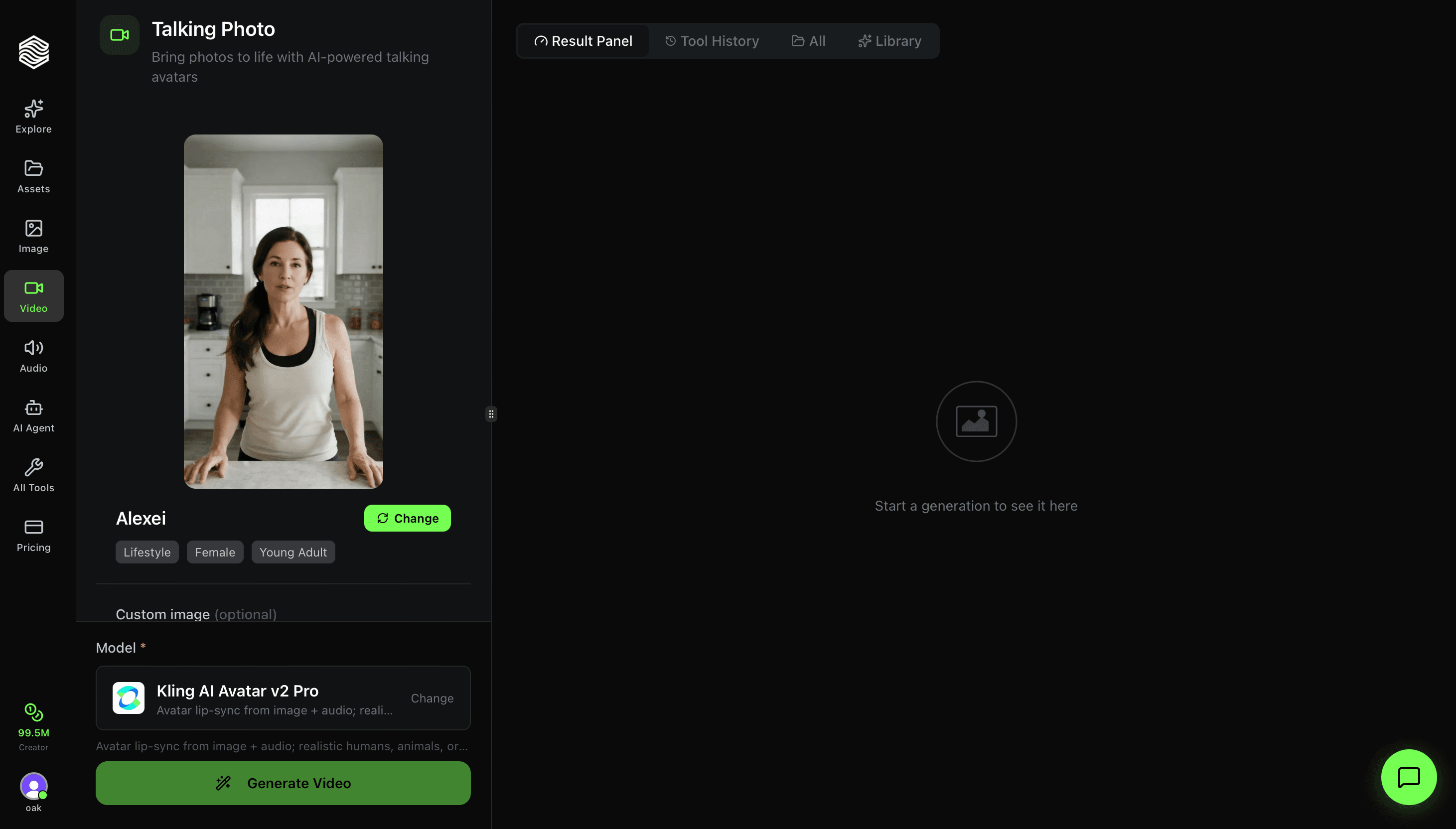
This is a complete walkthrough of the UGC Ad Creator on Oakgen.ai. Create talking avatar ads and B-roll product videos -- no filming, no actors, no editing software.
Interface Overview
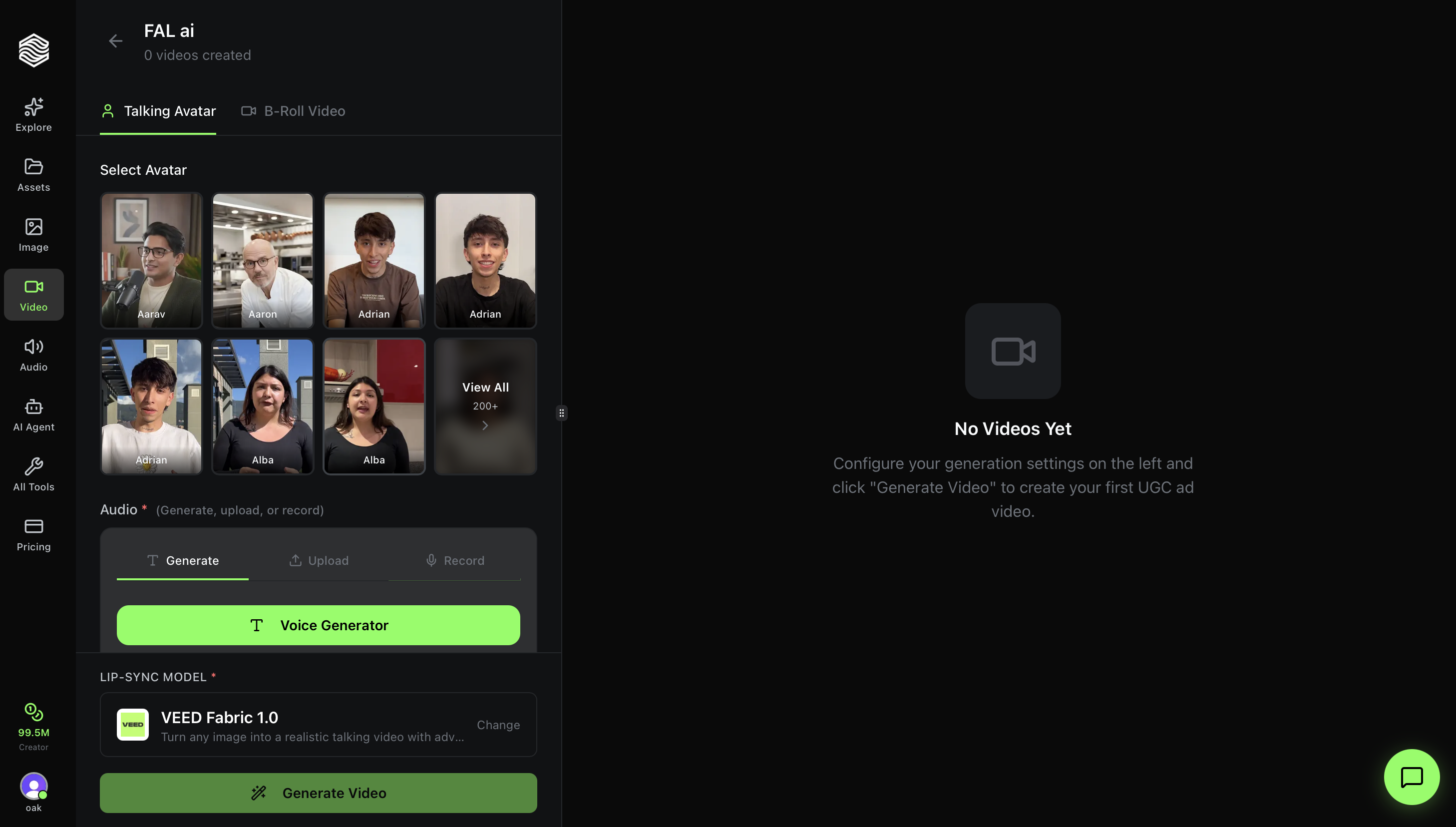
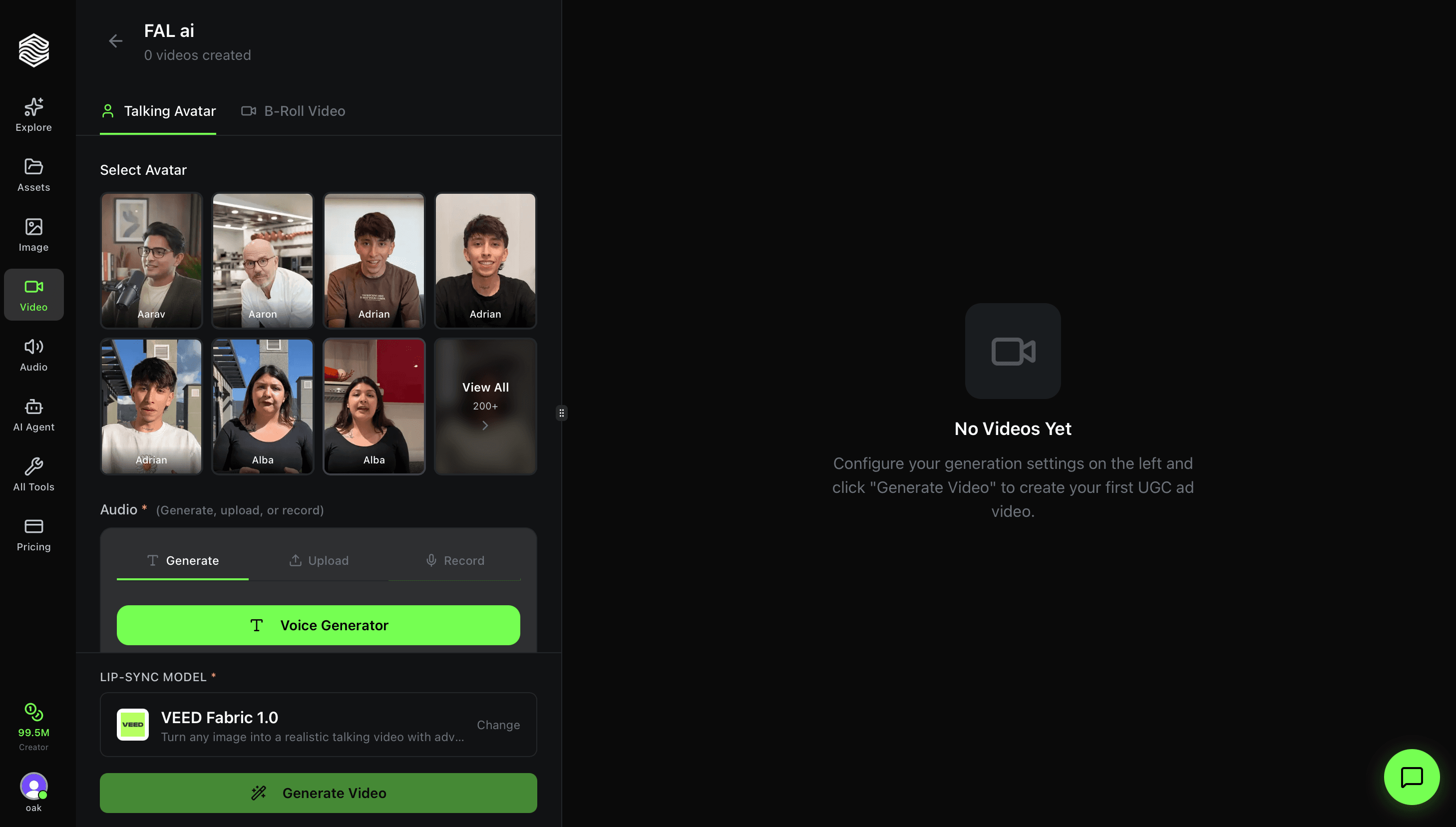
The UGC Ad Creator has two panels:
- Left panel -- Your controls: avatar selection, audio input, settings, model selector, and the Generate button.
- Right panel -- Your generated videos. Shows processing, completed, and failed generations.
At the top of the left panel, you will see your project name and a count of videos created.
Two Generation Modes
Switch between modes using the tabs at the top of the left panel:
Talking Avatar
An AI avatar speaks your script with realistic lip-sync. This is the default mode. You pick an avatar, provide audio (generate, upload, or record), and the AI produces a talking-head video that looks like a real person delivering your message.
B-Roll Video
Generate cinematic B-roll footage from a prompt and product image. No avatar or audio needed -- just describe the scene and the AI creates product footage. Great for supplementing your talking avatar clips with product shots.
Step 1: Select an Avatar
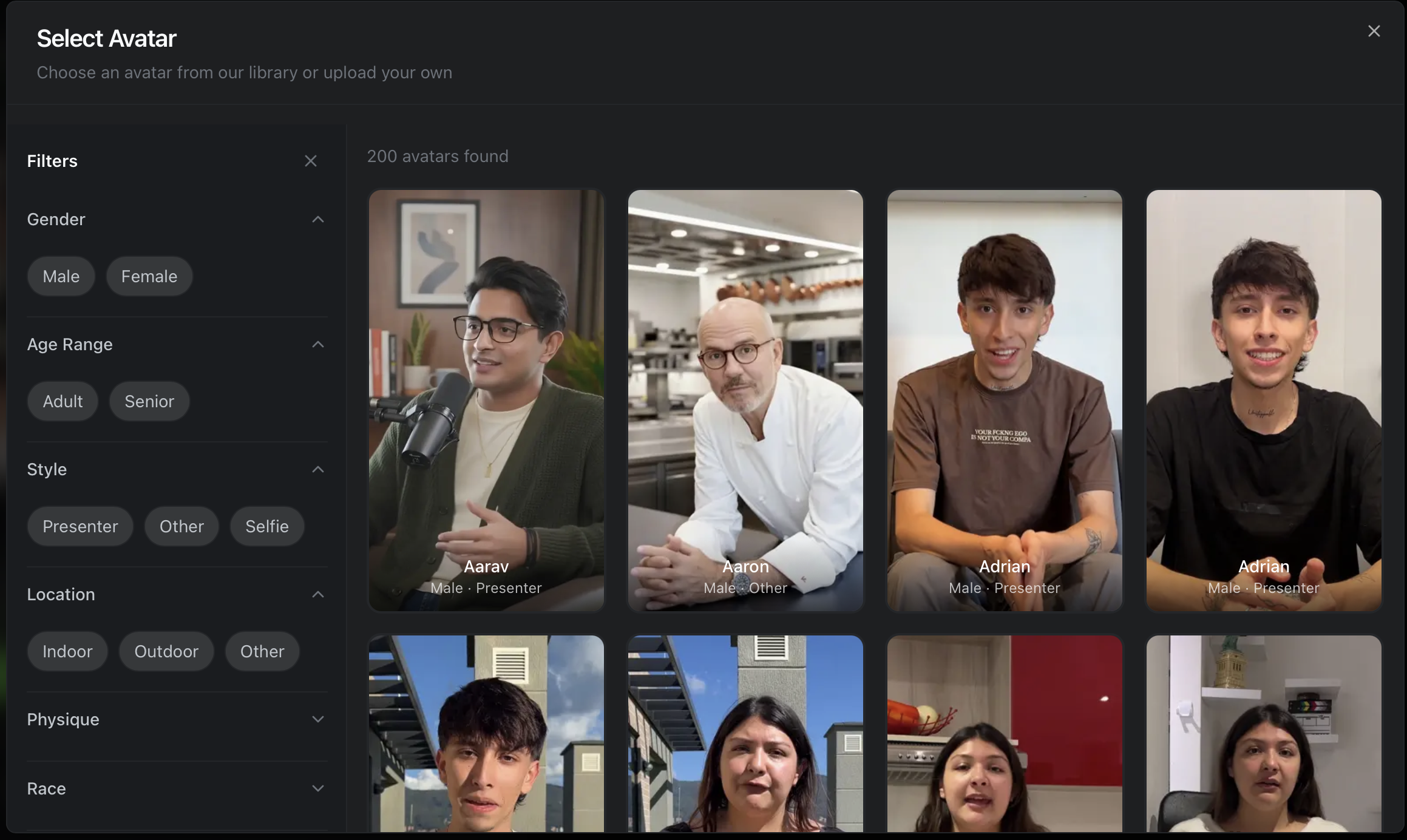
In Talking Avatar mode, the first thing you do is pick who will deliver your message. The avatar grid shows a preview of available avatars. Click View All to open the full library.
Avatar Library
The full library contains 300+ avatars. Use the filters on the left to narrow your search:
| Filter | Options |
|---|---|
| Gender | Male, Female |
| Age Range | Adult, Senior |
| Style | Presenter, Other, Selfie |
| Location | Indoor, Outdoor, Other |
| Physique | Various body types |
| Race | Various ethnicities |
Each avatar card shows a preview image, name, gender, and style label (e.g., "Male - Presenter"). Click any avatar to select it.
Pick an avatar that matches your target audience and brand tone. A "Presenter" style works for professional ads, while "Selfie" style feels more authentic for social media UGC.
After Selecting an Avatar
Once you click an avatar, you get three options:
- Use Avatar Directly -- Use the avatar image as-is for lip-sync
- Create Product-in-Hand Image -- AI composites your product into the avatar's hands (great for product demos)
- Use Previously Generated Image -- Reuse a composite you already created
Step 2: Add Audio
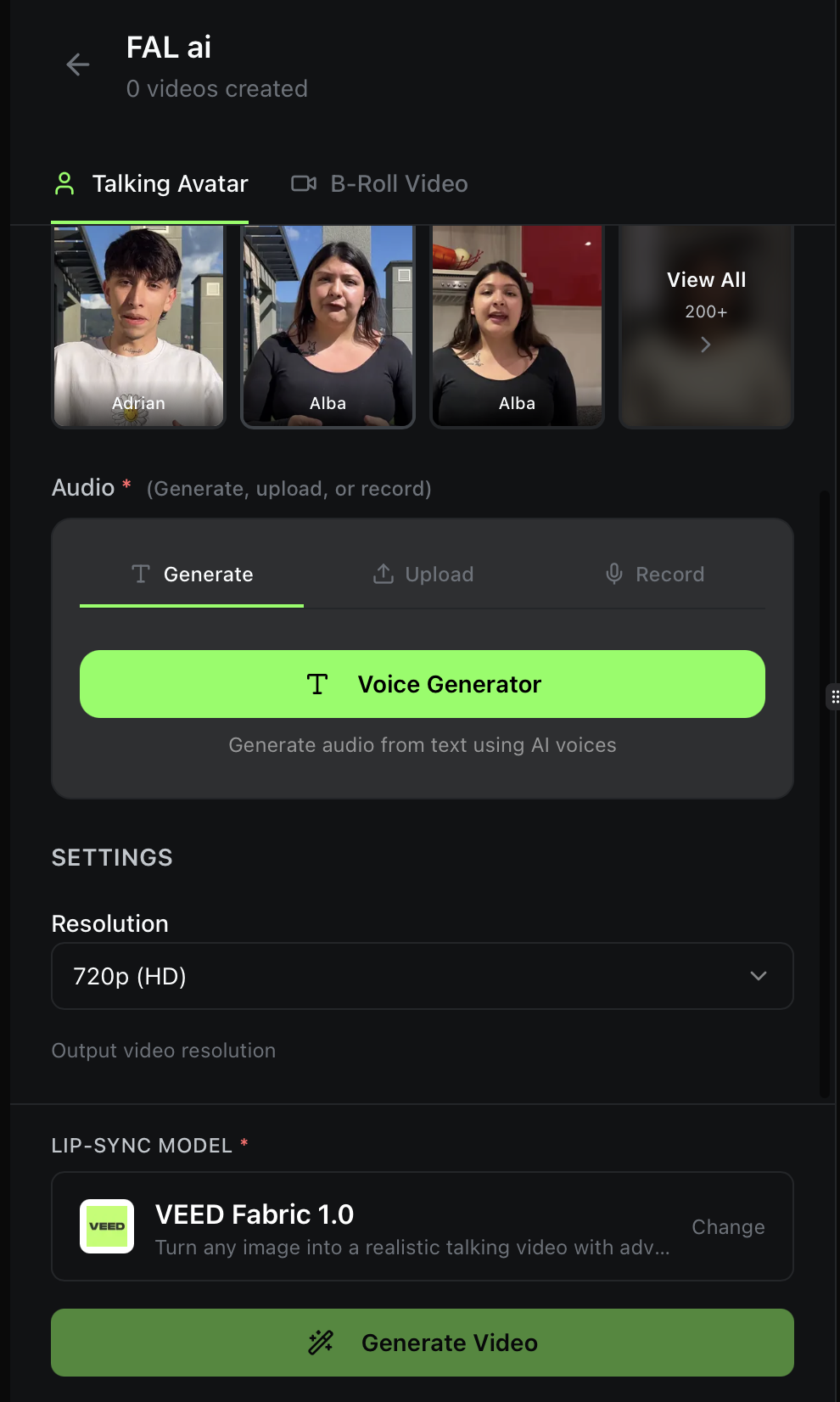
The Audio section has three tabs:
Generate
Click Voice Generator to open the text-to-speech dialog. Write your script (50-1,000 characters), pick an AI voice, and generate the audio. The AI handles pronunciation, pacing, and tone. Credit cost is calculated based on script length.
Upload
Upload a pre-recorded audio file. The file must be between 1 and 60 seconds long. Use this if you have professional voiceover files or want to use a specific voice.
Record
Record your voice directly in the browser. Same 1-60 second limit. Hit record, speak your script, and stop. Good for quick tests or when you want your own voice on the ad.
In Talking Avatar mode, you must provide audio before generating. The lip-sync model needs audio to animate the avatar's mouth movements.
Step 3: Configure Settings
Below the audio section, you will find:
Resolution
Select the output video quality from the dropdown. Default is 720p (HD). Higher resolution produces sharper output.
Step 4: Choose a Lip-Sync Model
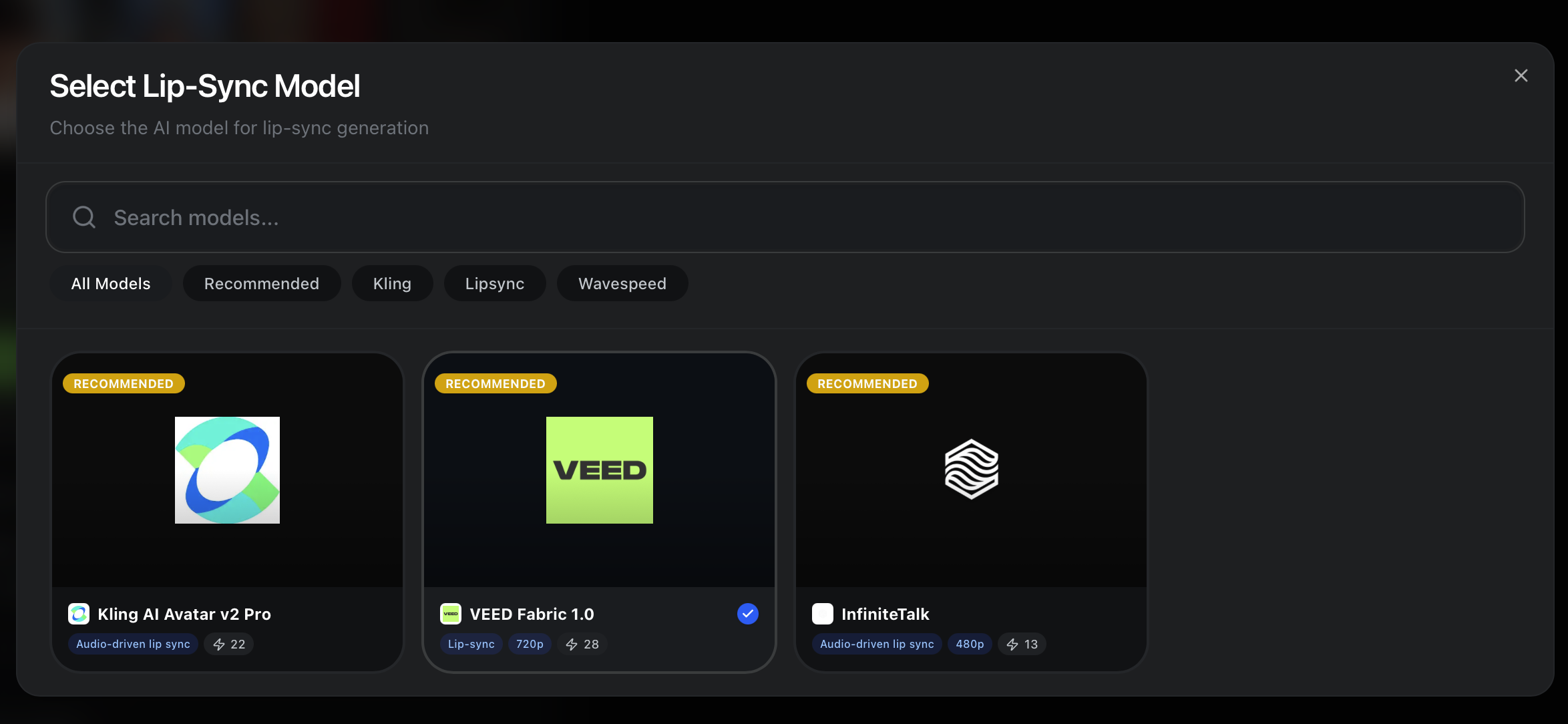
Click Change next to the current model to open the model selector. Filter by:
- All Models -- Browse everything
- Recommended -- Oakgen's top picks
- Kling / Lipsync / Wavespeed -- Filter by provider or category
Available Models
| Model | Type | Resolution | Credits |
|---|---|---|---|
| VEED Fabric 1.0 | Lip-sync | 720p | 28 |
| InfiniteTalk | Audio-driven lip sync | 480p | 13 |
- VEED Fabric 1.0 is the default and recommended for most use cases -- best balance of quality and realism at 720p.
- InfiniteTalk is the most budget-friendly option at 13 credits per generation.
Step 5: Generate
Click the green Generate Video button at the bottom. The button shows the estimated credit cost. Your video will appear in the right panel once processing is complete.
Quick Reference
| Feature | Where to Find It |
|---|---|
| Switch modes (Talking Avatar / B-Roll) | Tabs at top of left panel |
| Pick an avatar | Avatar grid + "View All" for full library |
| Generate voiceover | Audio > Generate > Voice Generator |
| Upload audio file | Audio > Upload |
| Record your voice | Audio > Record |
| Set resolution | Settings > Resolution dropdown |
| Change lip-sync model | Click "Change" next to model name |
| View generated videos | Right panel |