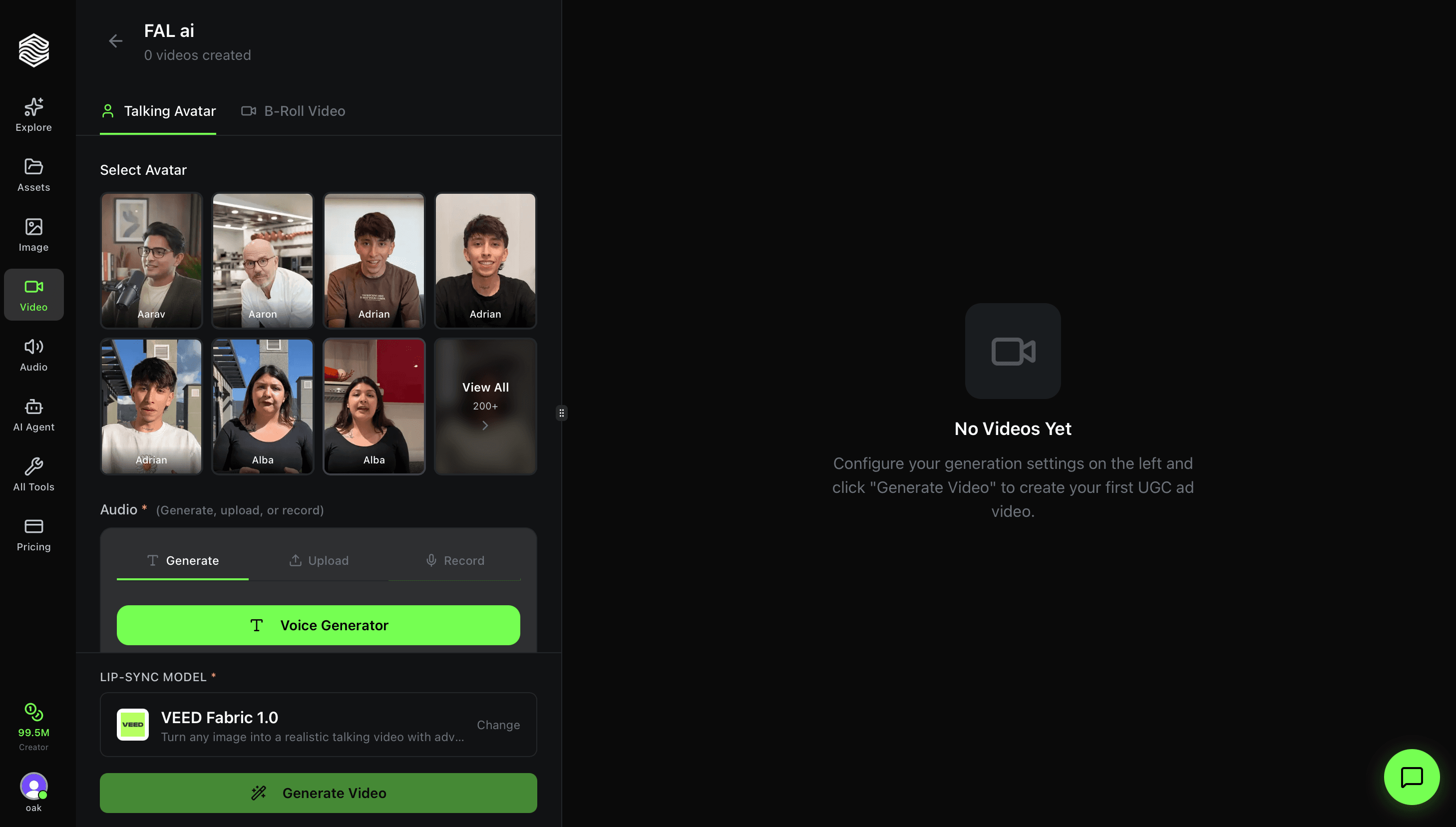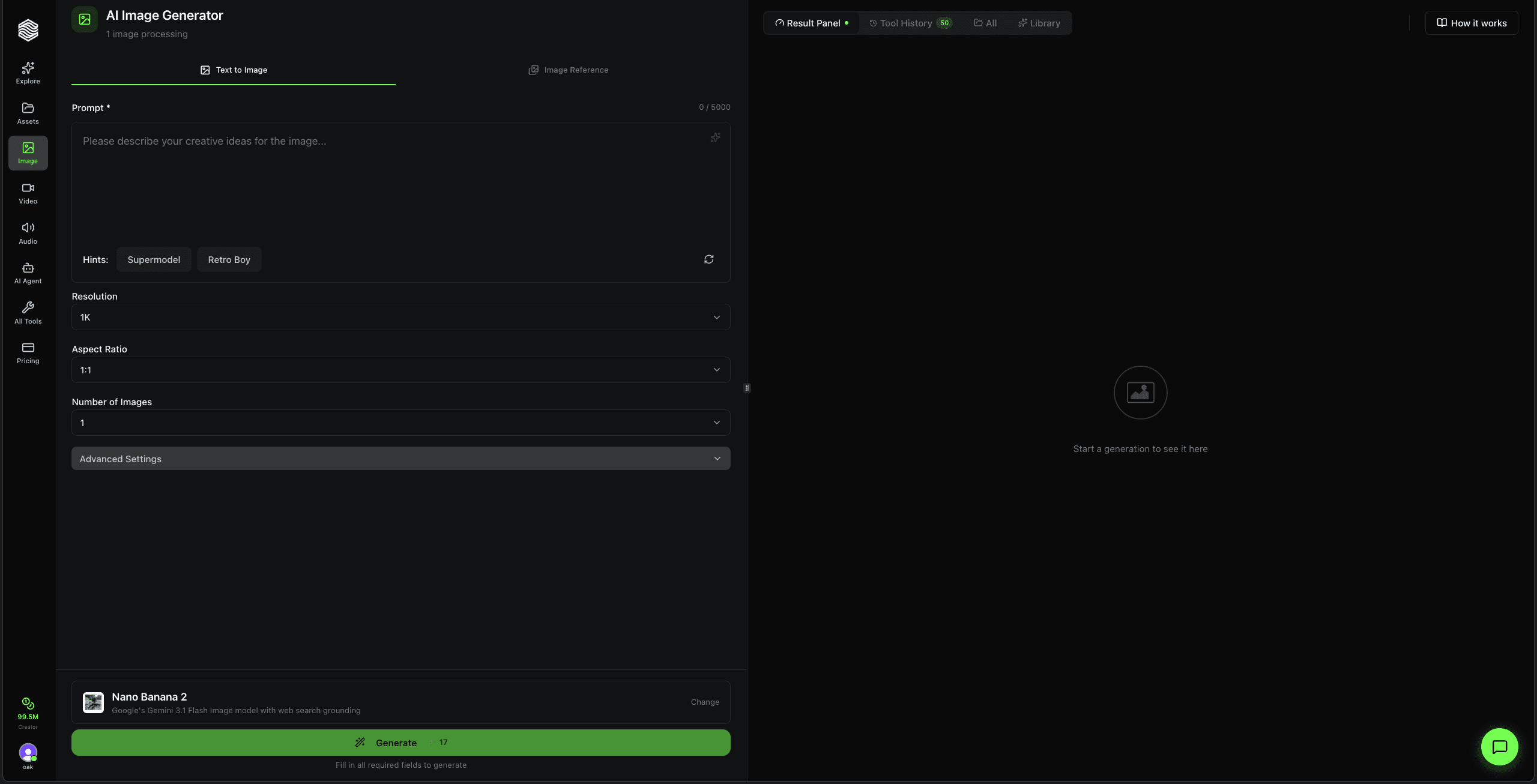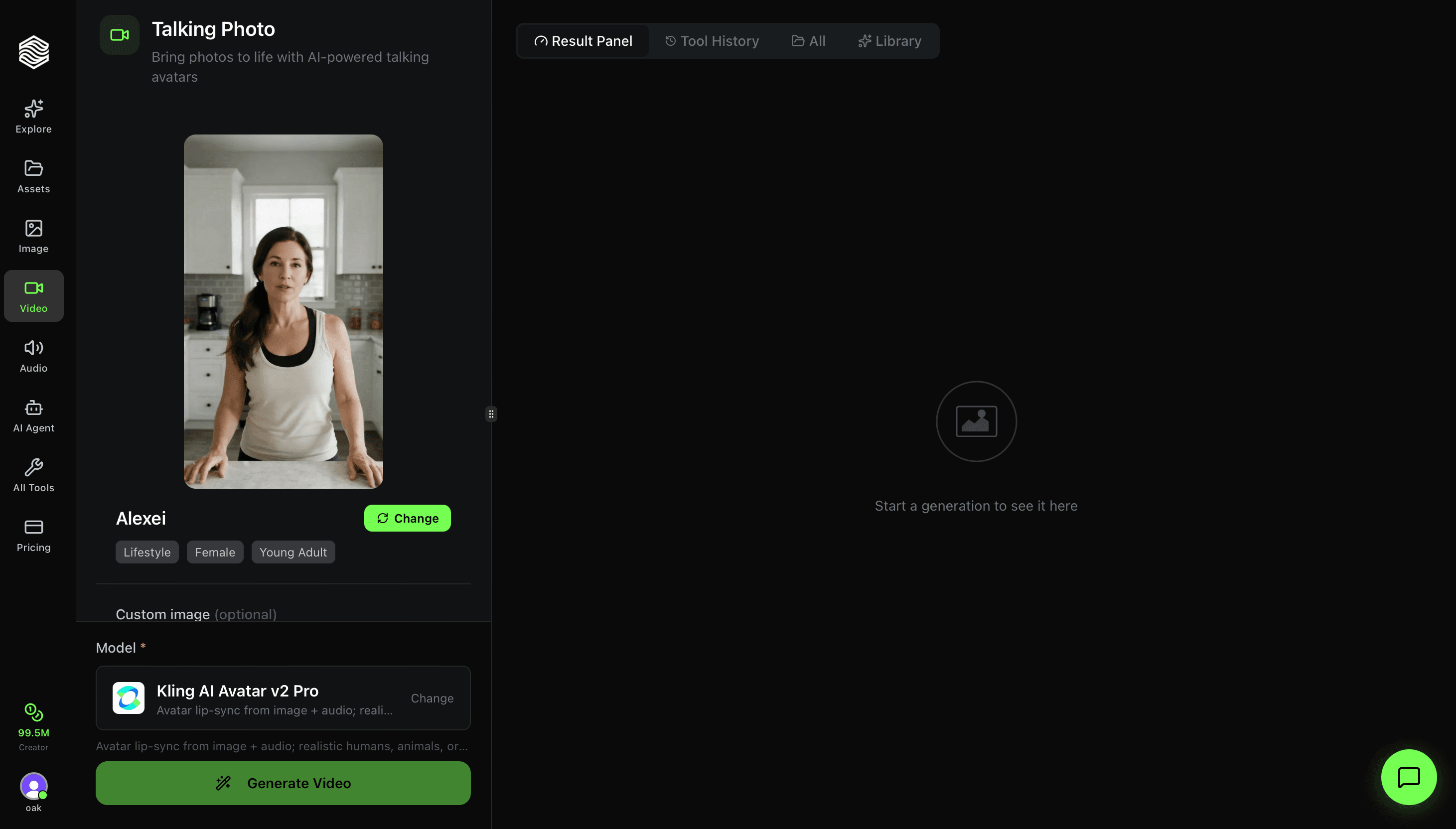
This is a complete walkthrough of the Talking Photo tool on Oakgen.ai. Pick a photo, add audio, and the AI makes it talk with realistic lip-sync.
Interface Overview
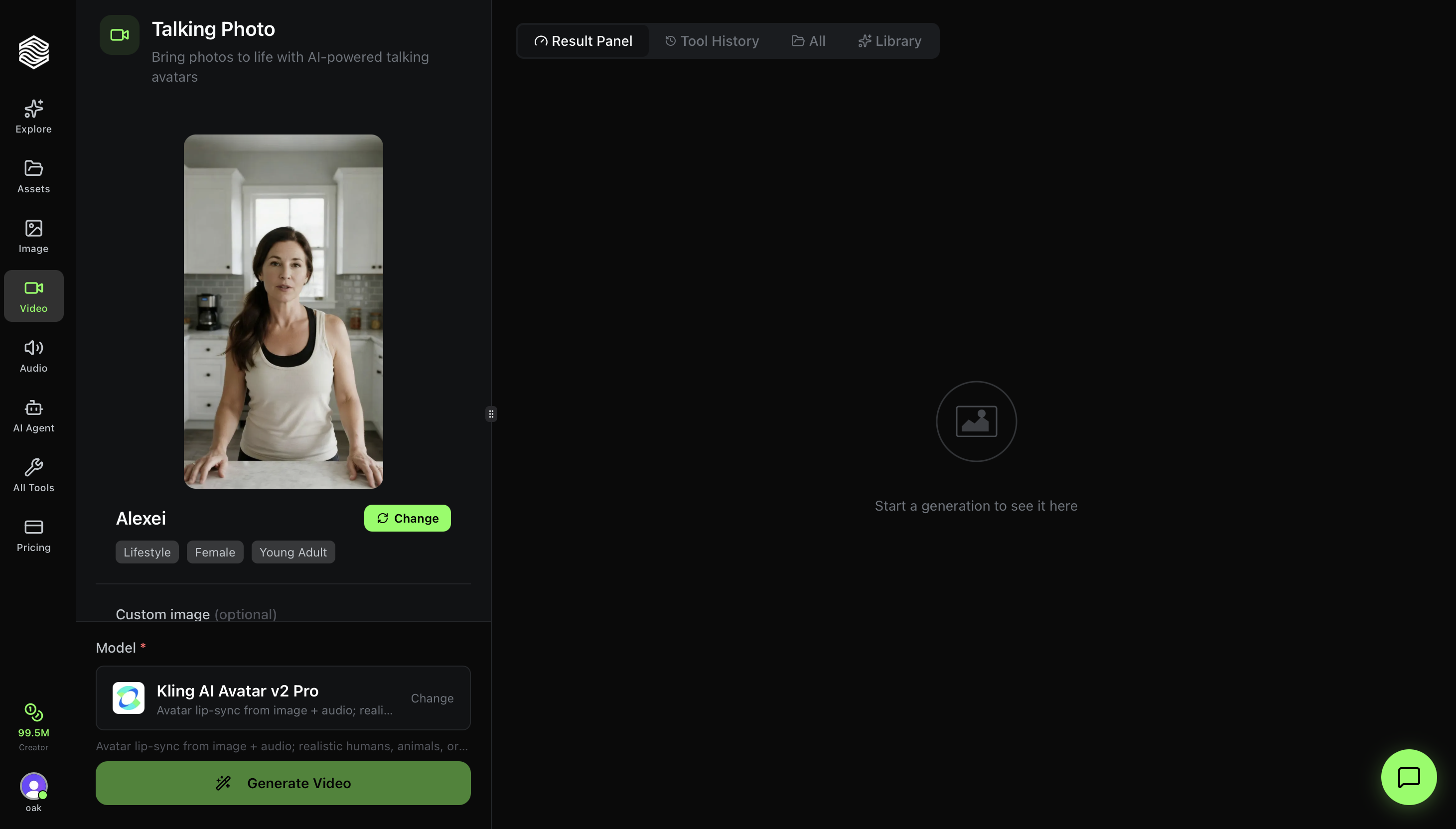
The Talking Photo tool has two panels:
- Left panel -- Your controls: avatar selector, custom image upload, audio input, model selector, and the Generate button.
- Right panel -- Your results: Result Panel, Tool History, All, and Library tabs.
Step 1: Pick an Avatar
A pre-selected avatar is shown at the top of the left panel with its name (e.g., "Alexei") and tags describing the style, gender, and age group (e.g., Lifestyle, Female, Young Adult).
Click Change to open the full avatar library. You can filter avatars by:
- Theme -- Lifestyle, presenter, selfie, and more
- Gender -- Male, Female
- Age -- Young Adult, Adult, Senior
- Search -- Type a name to find a specific avatar
The library loads avatars in an infinite scroll grid. Click any avatar to select it.
Custom Image (Optional)
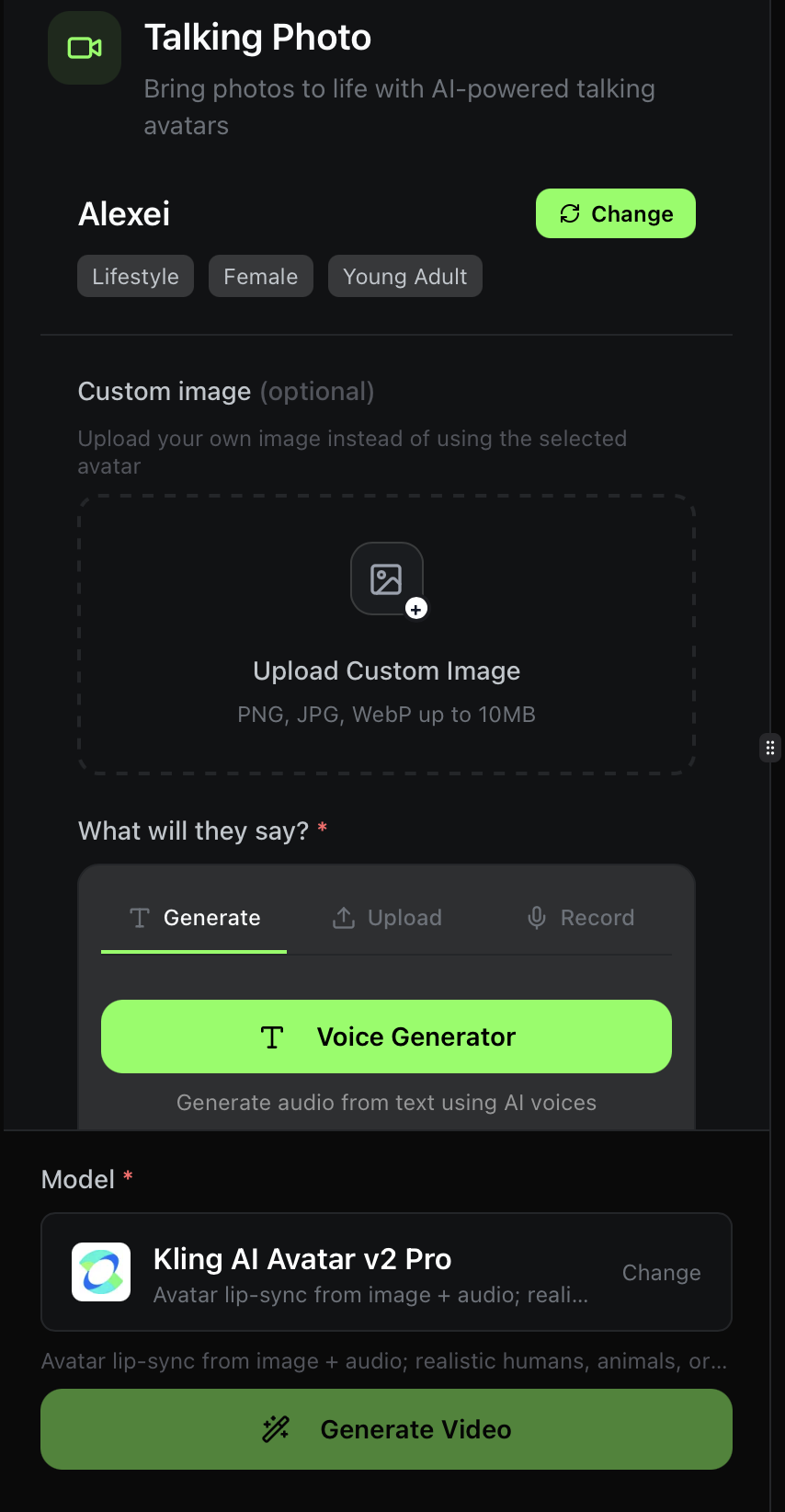
Below the avatar, there is a Custom image upload area. Use this to upload your own photo instead of using a library avatar. Accepts PNG, JPG, or WebP up to 10MB.
This is useful when you want to animate:
- Your own headshot or portrait
- A product mascot or character
- An AI-generated face from the Image Generator
Use a clear, front-facing photo with the subject's face visible. Avoid group photos, heavy occlusion, or extreme angles -- the lip-sync works best with a direct or slight-angle portrait.
Step 2: Add Audio
The section labeled "What will they say?" has three tabs:
Generate
Click Voice Generator to open the text-to-speech dialog. Write your script (up to 2,000 characters), pick an AI voice, and generate the audio. Cost: 1 credit per TTS generation.
Upload
Upload a pre-recorded audio file (MP3, WAV, M4A). Duration must be between 1 and 120 seconds.
Record
Record your voice directly in the browser. Same 1-120 second limit. Good for quick tests or when you want your own voice.
You must provide audio before generating. The lip-sync model needs audio to animate the mouth movements.
Once audio is ready, a badge appears showing the duration, voice name (if TTS), and a preview player. You can Change or Remove the audio from there.
Step 3: Choose a Model
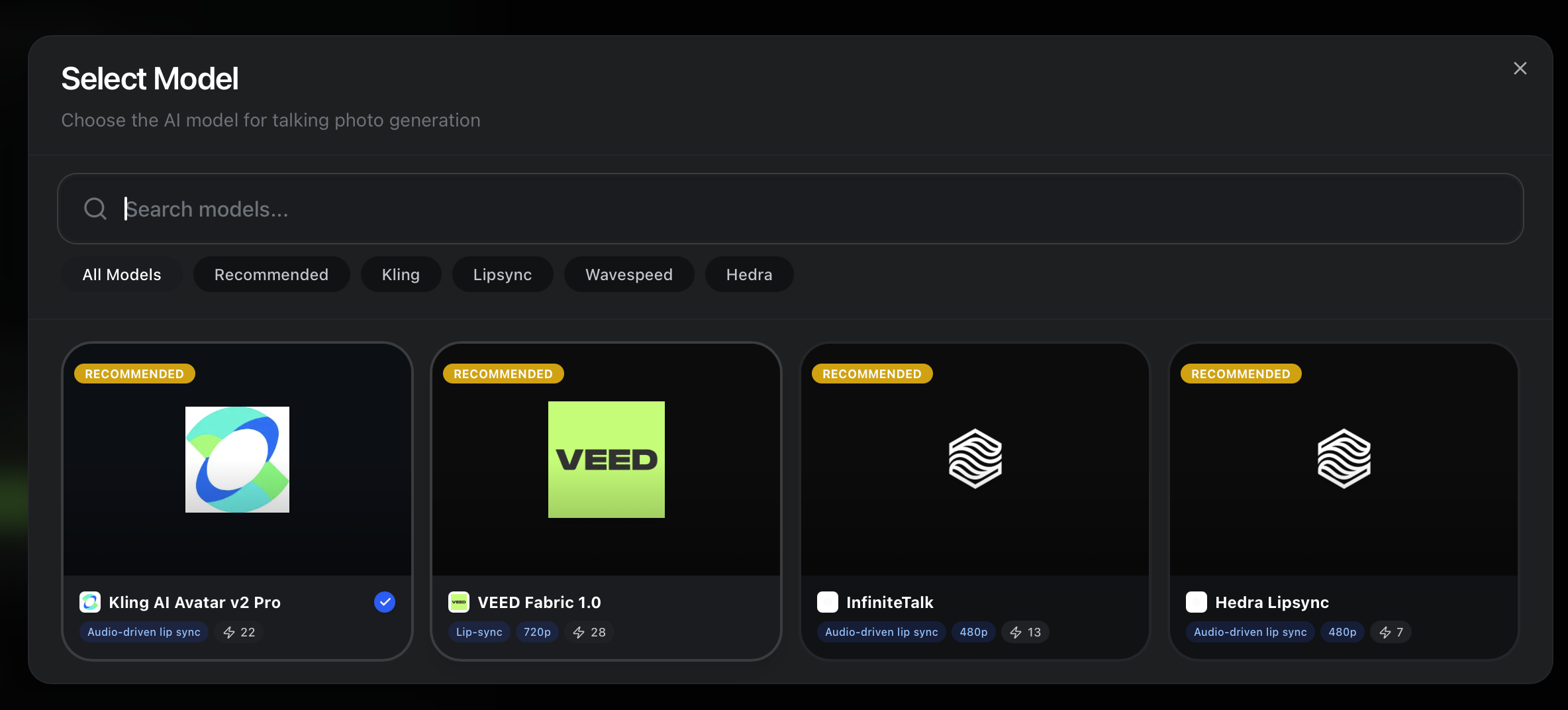
Click Change next to the current model to open the model selector. Filter by:
- All Models -- Browse everything
- Recommended -- Oakgen's top picks
- Kling / Lipsync / Wavespeed / Hedra -- Filter by provider
Available Models
| Model | Type | Resolution | Credits |
|---|---|---|---|
| VEED Fabric 1.0 | Lip-sync | 720p | 28 |
| InfiniteTalk | Audio-driven lip sync | 480p | 13 |
| Hedra Lipsync | Audio-driven lip sync | 480p | 7 |
- VEED Fabric 1.0 offers 720p output with strong lip-sync accuracy.
- Hedra Lipsync is the most budget-friendly at just 7 credits per generation.
Step 4: Generate
Click the green Generate Video button at the bottom. The button shows the estimated credit cost. Your talking photo video will appear in the right panel once processing is complete.
You will receive a real-time notification when it is ready -- no need to stay on the page.
Quick Reference
| Feature | Where to Find It |
|---|---|
| Pick an avatar | Avatar card at top + "Change" button |
| Upload your own photo | Custom image upload area (below avatar) |
| Generate voiceover | "What will they say?" > Generate > Voice Generator |
| Upload audio file | "What will they say?" > Upload |
| Record your voice | "What will they say?" > Record |
| Change lip-sync model | Click "Change" next to model name |
| View past generations | Tool History tab (right panel) |