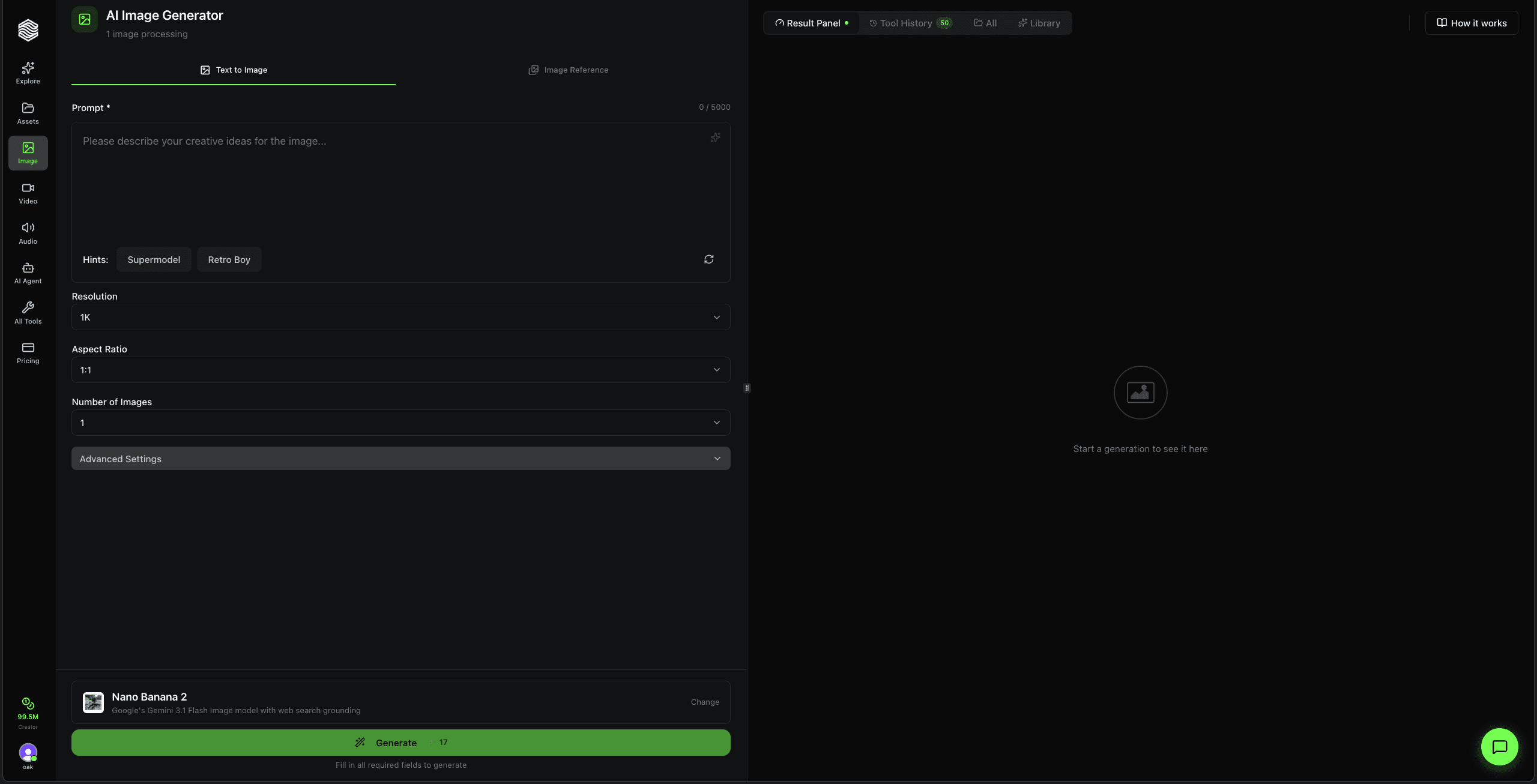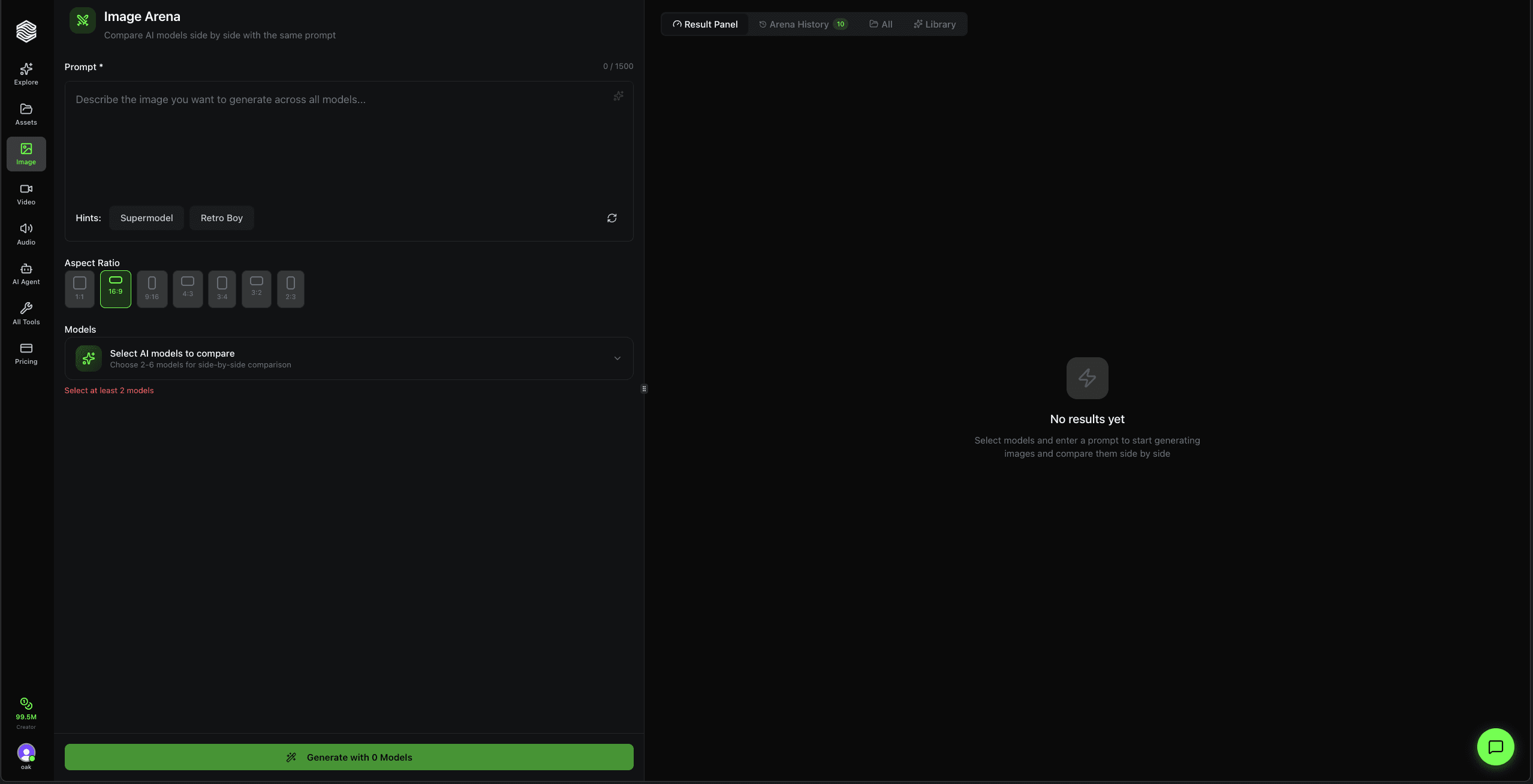
This is a complete walkthrough of the Image Arena on Oakgen.ai. Pick multiple AI models, enter one prompt, and compare the results side by side -- the fastest way to find which model works best for your use case.
Interface Overview
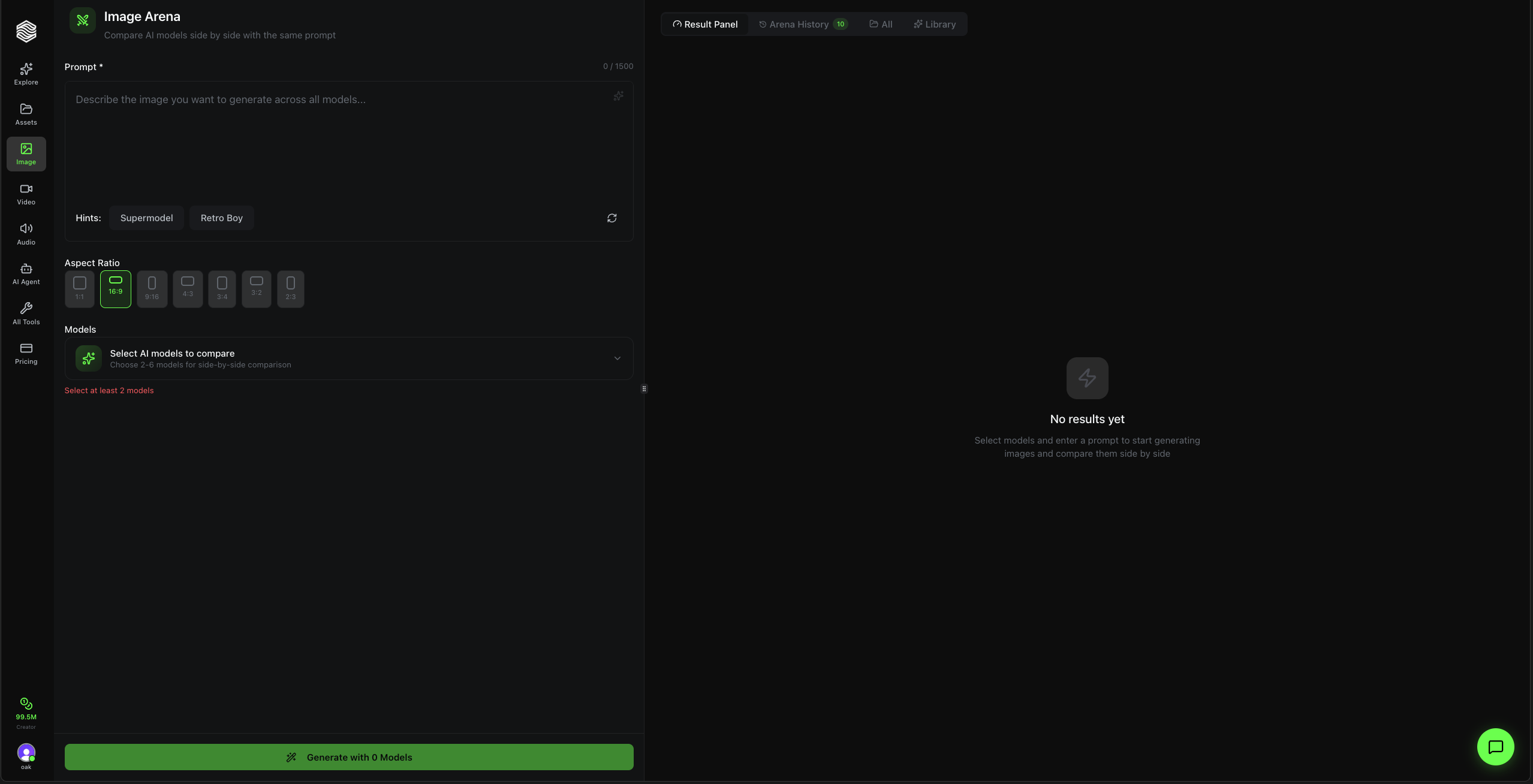
The Image Arena has two main areas:
- Left panel -- Your controls: prompt, aspect ratio, model selector, and the Generate button.
- Right panel -- Your results: the latest arena comparison, past arenas, all generations, and your saved library.
At the top of the right panel, you can switch between:
- Result Panel -- Shows the current arena results
- Arena History -- Every arena you have run (with count)
- All -- All generations across all tools
- Library -- Images you have saved
Writing a Prompt
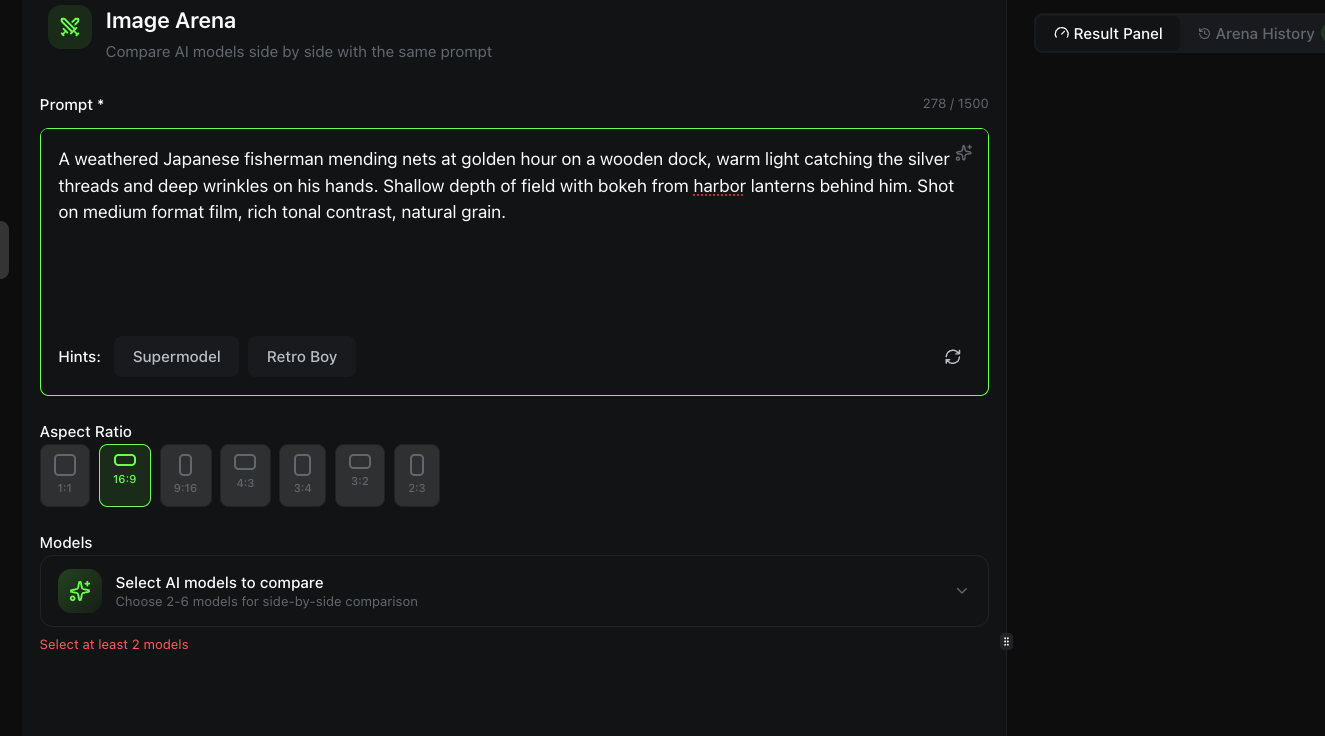
The prompt box accepts up to 1,500 characters. Describe exactly what you want -- scene, subject, style, lighting, composition.
Hints appear below the prompt box. Click Supermodel or Retro Boy to get a pre-written prompt instantly. Hit the refresh icon for new suggestions.
The sparkle icon (top-right of the prompt box) enhances your prompt with AI -- it takes a basic description and expands it into a detailed, model-optimized prompt.
The whole point of the Arena is comparison. Write one strong prompt and let the models interpret it. You will be surprised how differently each model handles the same description.
Aspect Ratio

Choose the shape of your output image. All selected models receive the same aspect ratio for a fair comparison.
| Aspect Ratio | Best For |
|---|---|
| 1:1 | Social media profile images, Instagram posts |
| 16:9 | Website banners, presentations, YouTube thumbnails |
| 9:16 | Phone wallpapers, Instagram Stories, TikTok |
| 4:3 | Standard photography framing |
| 3:4 | Portrait-oriented prints |
| 3:2 | Classic photo ratio |
| 2:3 | Tall portrait compositions |
The default is 16:9. Set this before generating -- you cannot change it after the fact.
Selecting AI Models
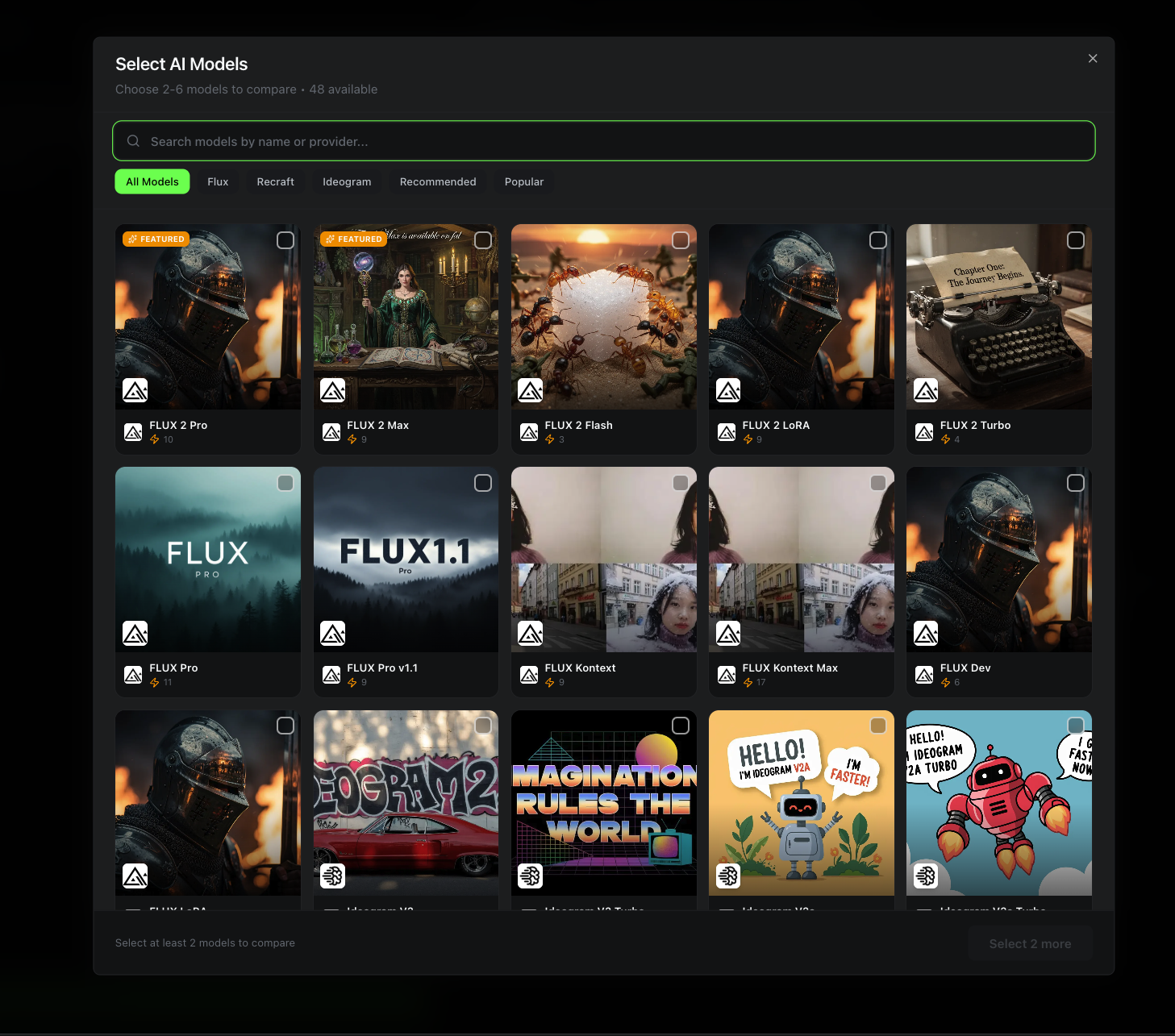
Click Select AI models to compare to open the model selection dialog. You must pick between 2 and 6 models for each arena.
Browsing Models
The dialog shows a grid of model cards, each with a preview image, model name, and provider logo. Use the category tabs at the top to filter:
- All Models -- Browse everything available
- Flux -- All FLUX variants (Pro, Dev, Schnell, Realism, etc.)
- Recraft -- Recraft V3 and variants
- Ideogram -- Ideogram V3
- Recommended -- Oakgen's top picks
- Popular -- Most-used models by the community
You can also type in the search bar to find a model by name.
Confirming Your Selection
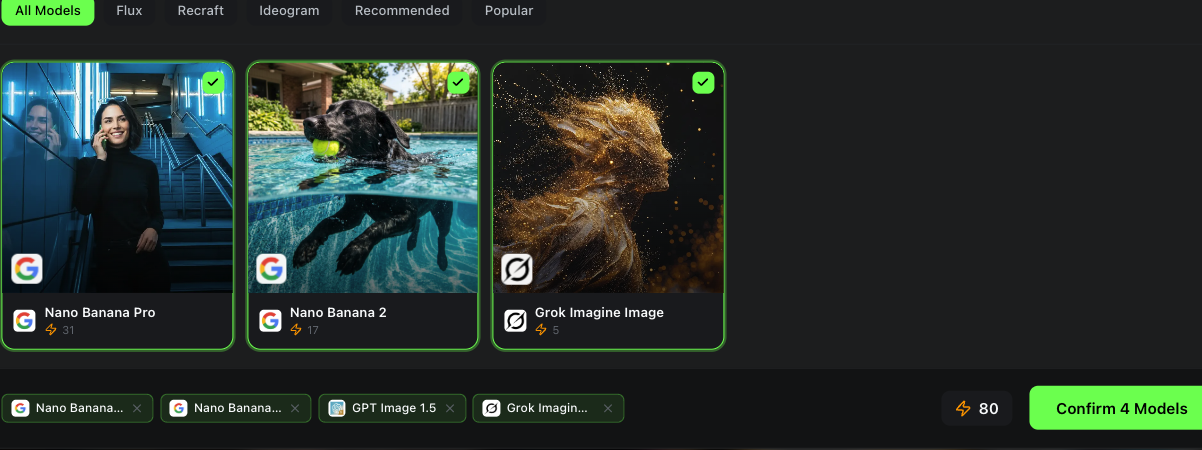
As you select models, they appear as chips at the bottom of the dialog. The total credit cost updates in real-time -- in the example above, 4 models cost 80 credits total.
Click Confirm X Models when you are ready. You will return to the main form with your selection locked in.
Pick models from different providers (e.g., one FLUX, one Recraft, one Ideogram) to see how each provider interprets your prompt. Comparing models within the same family is useful too -- try FLUX Pro vs. FLUX Schnell to see the quality/speed tradeoff.
Generating
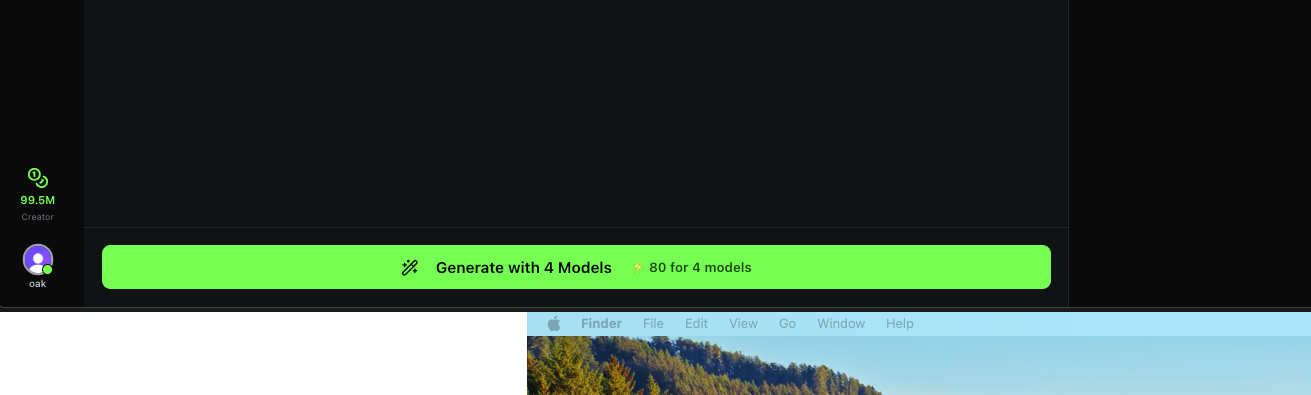
The green Generate button at the bottom shows the model count and total credit cost (e.g., "Generate with 4 Models -- 80 for 4 models"). Click it to start.
Viewing Results
Processing
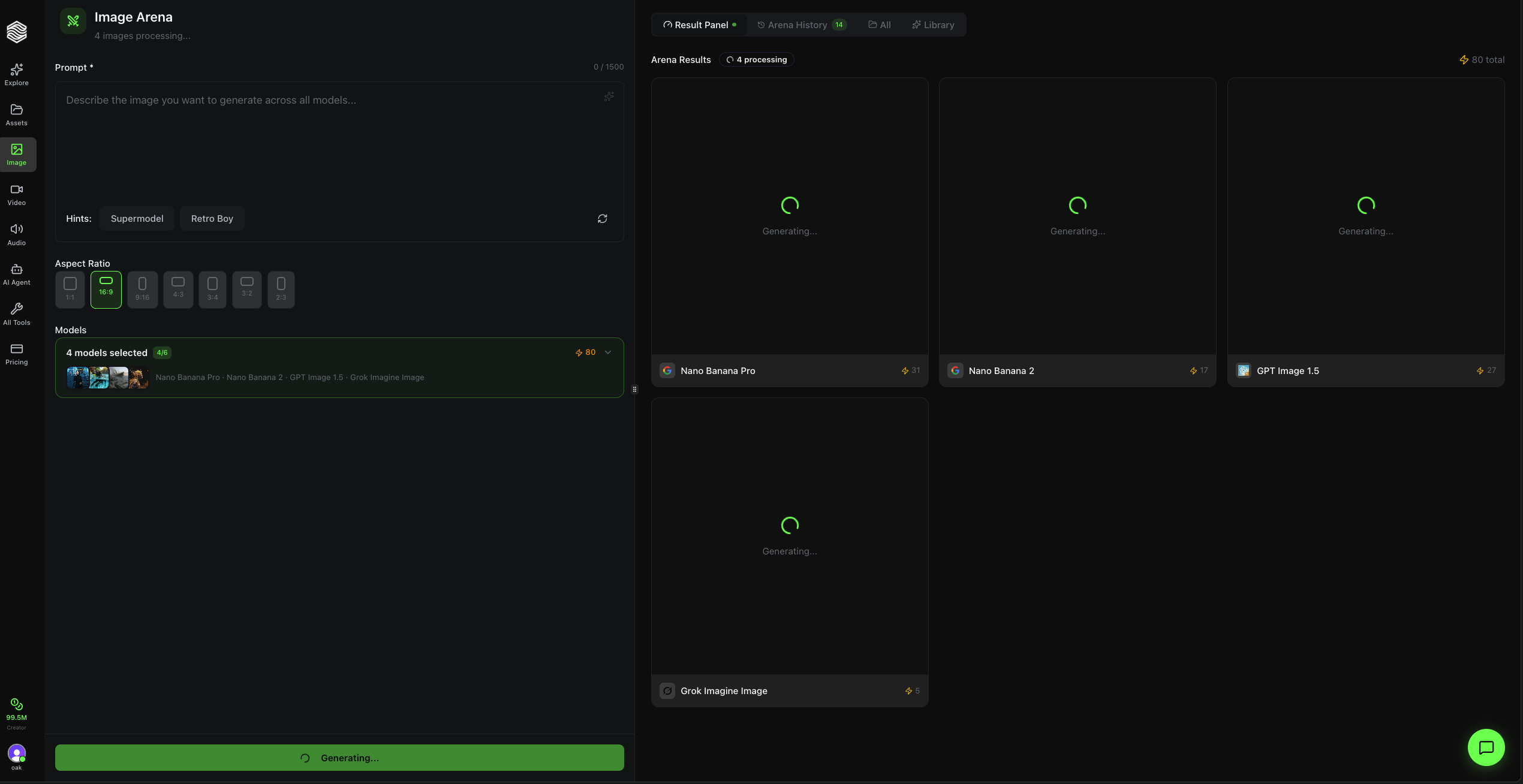
After you click Generate, the right panel switches to the Result Panel automatically. You will see one card per model, each showing a loading spinner and the model name. The header shows how many are still processing and the total credit cost.
Each card also displays the per-model credit cost (e.g., Nano Banana Pro at 31 credits, Nano Banana 2 at 17 credits).
Completed Arena
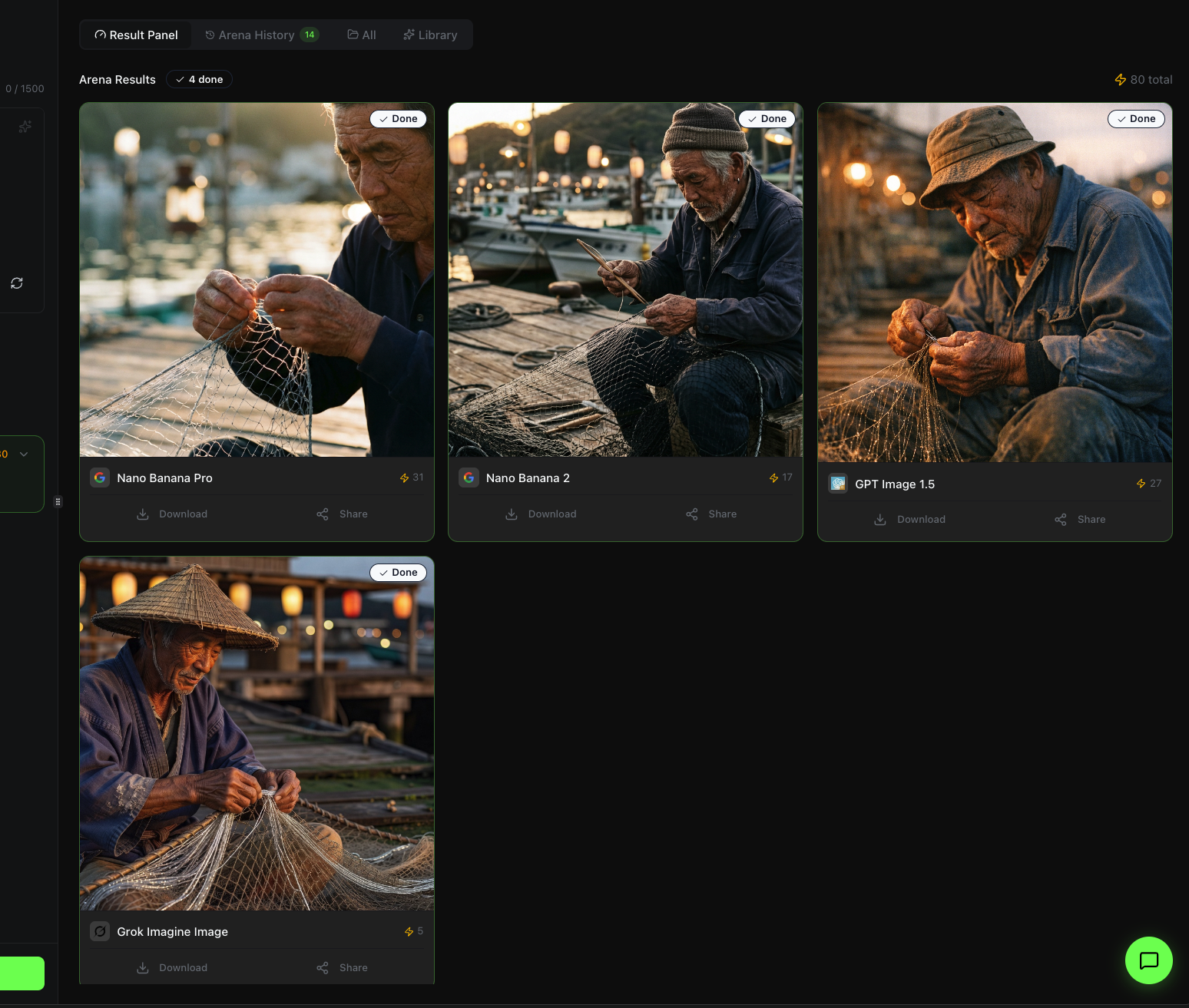
As each model finishes, its card updates with the generated image. All images are displayed in a grid so you can compare them at a glance. A green Done badge appears on completed cards.
You will also get real-time notifications as each model completes, so you do not need to stay on the page.
If one model fails, the others still complete. You only pay for successful generations -- failed models are automatically refunded.
After Generation
Once your arena is complete, you can:
- Compare visually -- All images in one grid, same prompt, same aspect ratio, different models
- View Arena History -- Click the Arena History tab to browse all past arenas
- Share to community -- Share your arena results to the Oakgen community feed
- Favorite -- Mark arenas you want to revisit
- Delete -- Remove arenas you no longer need
Quick Reference
| Feature | Where to Find It |
|---|---|
| Write/enhance prompt | Main text area + sparkle icon |
| Set aspect ratio | Aspect Ratio selector (below prompt) |
| Select models (2-6) | Click "Select AI models to compare" |
| Filter models | Tabs in model dialog (Flux, Recraft, Ideogram, etc.) |
| See total cost before generating | Bottom of model dialog + Generate button |
| View current results | Result Panel tab (right panel) |
| View past arenas | Arena History tab (right panel) |
| Share results | Share button on completed arena |