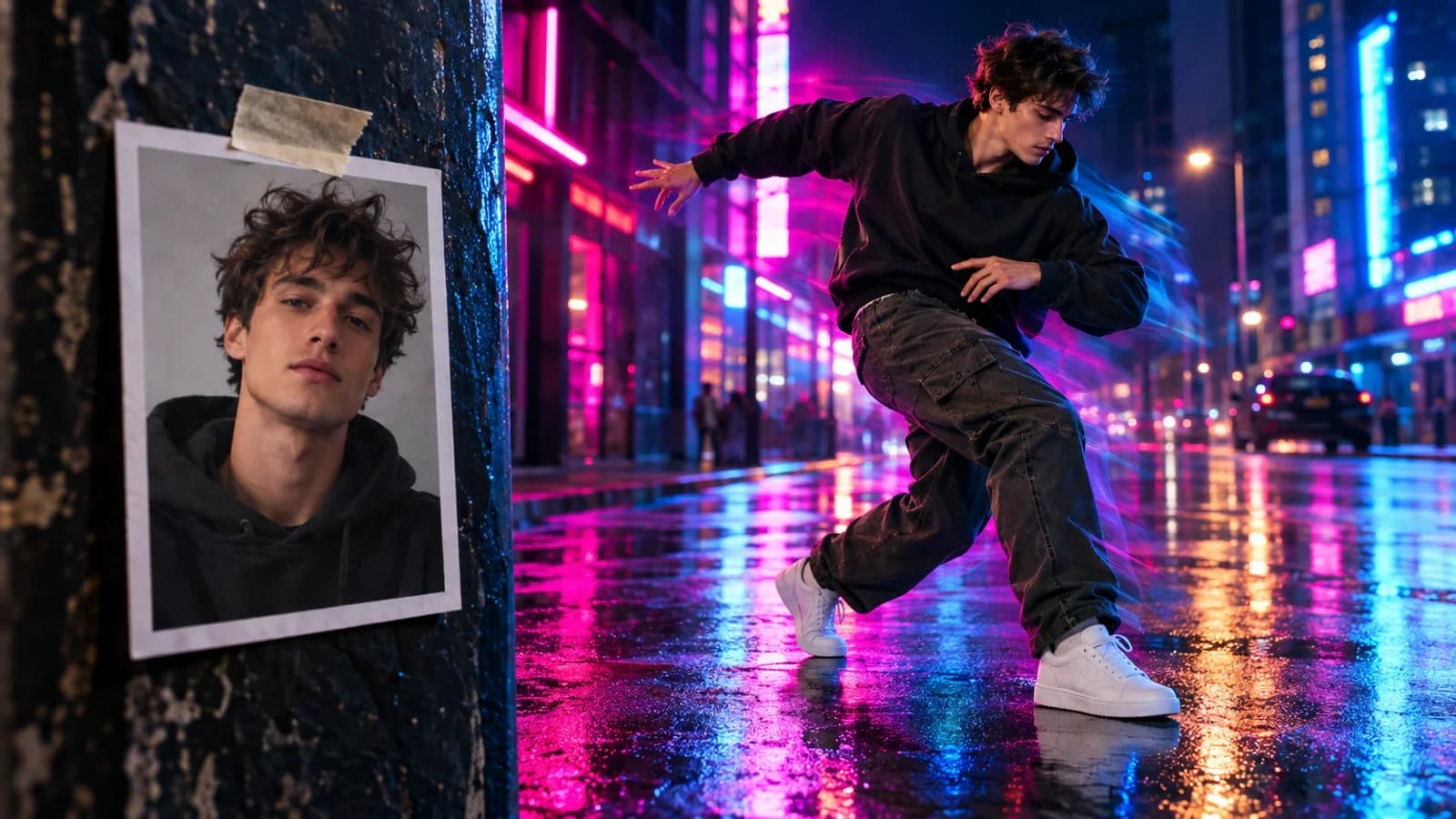
A still photo opens its mouth and starts talking. The lips move naturally. The head tilts slightly. The eyes blink. It looks real enough to stop someone mid-scroll.
That is what AI talking avatar technology does, and it has gone from novelty to serious business tool in under a year. Marketers use them for product explainers. Educators build entire course libraries with virtual instructors. Social media creators produce daily content without ever turning on a camera.
This guide covers everything you need to know about creating AI talking avatar videos on Oakgen.ai, from choosing the right avatar to generating your first video in minutes.
What Are AI Talking Avatar Videos?
AI talking avatars take a static image -- a photograph, an illustration, or a pre-built template -- and animate it to speak. The AI analyzes the audio input (either text-to-speech or an uploaded audio file), maps mouth movements to phonemes, adds natural head motion and blinking, and outputs a video that looks like a real person speaking.
The technology has improved dramatically. Early versions produced uncanny-valley results with obvious lip-sync errors. Current models from HeyGen, Hedra, and Kling produce output that is difficult to distinguish from real video at social media resolutions.
Who Uses Talking Avatars?
- Marketers and agencies -- Product demos, explainer videos, and personalized outreach at scale
- E-commerce brands -- Product review videos and customer testimonials without hiring actors
- Educators and trainers -- Course content, tutorials, and training materials
- Social media creators -- Daily content without filming setups or editing sessions
- Sales teams -- Personalized video messages for prospects
- Multilingual businesses -- The same avatar speaking in multiple languages
Oakgen's Talking Avatar Toolkit
On Oakgen, you have access to multiple avatar providers and tools through a single interface. Here is what is available.
Avatar Sources
363+ Pre-Built HeyGen Avatars
HeyGen provides the largest library of pre-built, photorealistic avatars. These are professionally filmed and motion-captured to produce natural movements.
- Male and female avatars across diverse ethnicities and age ranges
- Business casual, formal, and creative styling options
- Multiple camera angles (frontal, slight angle, close-up)
- Each avatar supports 40+ languages with lip sync
- No source photo needed -- pick a template and start
Best for: Professional business content, explainers, training videos
Audio Options
You have two ways to provide the audio your avatar will speak:
- Text-to-Speech (TTS) -- Type your script and Oakgen generates natural-sounding speech. Supports multiple voices, languages, and speaking styles. Up to 2,000 characters per generation.
- Audio Upload -- Record your own voice or upload any audio file. The avatar will lip-sync to your audio. Maximum 120 seconds per clip.
If you are producing a series of videos for a brand, consider using a consistent TTS voice throughout. This builds recognition and trust, similar to having the same spokesperson in every video. Oakgen's TTS supports multiple voice profiles so you can find one that matches your brand tone.
Step-by-Step: Create Your First Talking Avatar Video
Step 1: Choose Your Tool
Navigate to the Talking Photo tool from the Oakgen dashboard. You will also find it linked from the Avatar Generator if you want to browse templates first.
Step 2: Select or Upload Your Avatar
You have three choices:
- Browse HeyGen Templates: Click the template gallery to browse 363+ pre-built avatars. Filter by gender, ethnicity, style, or use case. Click any avatar to select it.
- Upload a Photo: Click "Upload Image" to use your own photo. For best results, use a clear, front-facing portrait with good lighting and a neutral expression. The mouth should be visible and not obscured.
- Use a Generated Avatar: Head to the Avatar Generator first to create a custom avatar, then bring it to the Talking Photo tool.
Step 3: Write Your Script or Upload Audio
For text-to-speech:
- Enter your script in the text field (up to 2,000 characters)
- Select a voice from the available options
- Preview the audio before generating
For uploaded audio:
- Click "Upload Audio" and select your file
- Supported formats: MP3, WAV, M4A
- Maximum duration: 120 seconds
Step 4: Configure Settings
Adjust these settings based on your needs:
- Provider: Choose between HeyGen, Hedra, or Sync Labs depending on your avatar source and desired style
- Expression intensity: Control how animated the avatar's expressions are
- Background: Some templates support background customization
Step 5: Generate
Hit Generate and wait for processing. Depending on the provider and audio length, generation typically takes 30 seconds to 2 minutes. You will receive a real-time notification when your video is ready.
Step 6: Download and Use
Download your finished video in MP4 format. The output is ready for immediate use in social media, presentations, websites, or any other platform.
Tips for Better Results
Getting natural-looking talking avatar videos is part technology, part technique. These tips will help you get professional results consistently.
Write Natural Scripts
The biggest mistake people make is writing scripts that read like essays. Talking avatars look most natural when the script sounds conversational.
Instead of: "Our company's innovative solution leverages cutting-edge artificial intelligence to optimize workflow efficiency across enterprise environments."
Write: "We built a tool that helps your team get more done in less time. Here is how it works."
Short sentences. Simple words. Contractions. The way people actually talk.
Choose the Right Source Photo
If you are uploading your own photo, these details matter:
- Front-facing: The face should be looking directly at the camera
- Good lighting: Even, diffused lighting produces the best results. Avoid harsh shadows
- Neutral expression: A slight smile or neutral face works best. The AI adds expressions on top
- Visible mouth: No hands covering the face, no scarves, no heavy facial hair obscuring the lip line
- High resolution: At least 512x512 pixels, ideally higher. Low-resolution photos produce blurry videos
Match Audio Length to Content
Shorter is almost always better. For social media, aim for 15-30 seconds. For explainers, 60-90 seconds. The talking avatar format works best for concise, focused messages.
Oakgen supports up to 120 seconds of audio and 2,000 characters for text-to-speech per generation. For longer content, generate multiple clips and stitch them together in any video editor.
Test Multiple Providers
Different providers produce different results with the same input. HeyGen templates are the most polished for business content. Hedra tends to produce more expressive, dynamic movement. Kling excels at realistic micro-expressions. Generate a short test clip with each to see which matches your project.
Pricing: Oakgen vs Standalone HeyGen
Here is where the economics get interesting. HeyGen, the leading standalone talking avatar platform, charges $24/month for their Creator plan. That gets you talking avatars -- and only talking avatars.
| Feature | HeyGen Creator ($24/mo) | Oakgen Pro ($19/mo) |
|---|---|---|
| Talking Avatars | Yes (HeyGen only) | Yes (HeyGen + Hedra + Kling) |
| Avatar Templates | 200+ | 363+ |
| Image Generation | No | 40+ models |
| Video Generation | No | 17 models |
| Music Generation | No | 5 models |
| Audio/TTS | Limited | 2 models |
| Image Upscaling | No | 3 models |
| Photo Studio | No | Yes |
| UGC Ad Generator | No | Yes |
| Monthly Credits | N/A (minute-based) | 5,000 credits |
| Price | $24/month | $19/month |
For $5 less per month, Oakgen Pro gives you talking avatars from multiple providers plus the entire AI creative studio -- image generation, video generation, music, audio, upscaling, and more. If talking avatars are part of a broader content creation workflow (and they usually are), the value proposition is clear.
Use Case Ideas
Product Launch Videos
Use a HeyGen business avatar to announce new features or products. Script a 30-second overview, generate the video, and post it across LinkedIn, Twitter, and your website. Total production time: 5 minutes.
E-Learning Course Content
Build an entire course with a consistent AI instructor. Use the same avatar template across all lessons for continuity. Generate each lesson segment as a separate clip and compile them in your course platform.
Multilingual Customer Support
Create FAQ response videos in multiple languages using the same avatar. The TTS system handles language switching, and the lip-sync adapts automatically. One avatar, ten languages, zero additional production cost.
Social Media Content at Scale
Produce daily talking-head content for Instagram Reels, TikTok, or YouTube Shorts. Write scripts in batch, generate videos back-to-back, and schedule them across the week. A month of daily content can be produced in an afternoon.
Personalized Sales Outreach
Generate personalized video messages for high-value prospects using a professional avatar. Mention their company name and specific pain points in the script. It is significantly more engaging than a text email and takes seconds to produce.
Getting Started
Browse the 363+ avatar templates, write a quick script, and generate your first video. You will have a finished, download-ready talking avatar clip in under two minutes.