 ChatGPT
 Claude
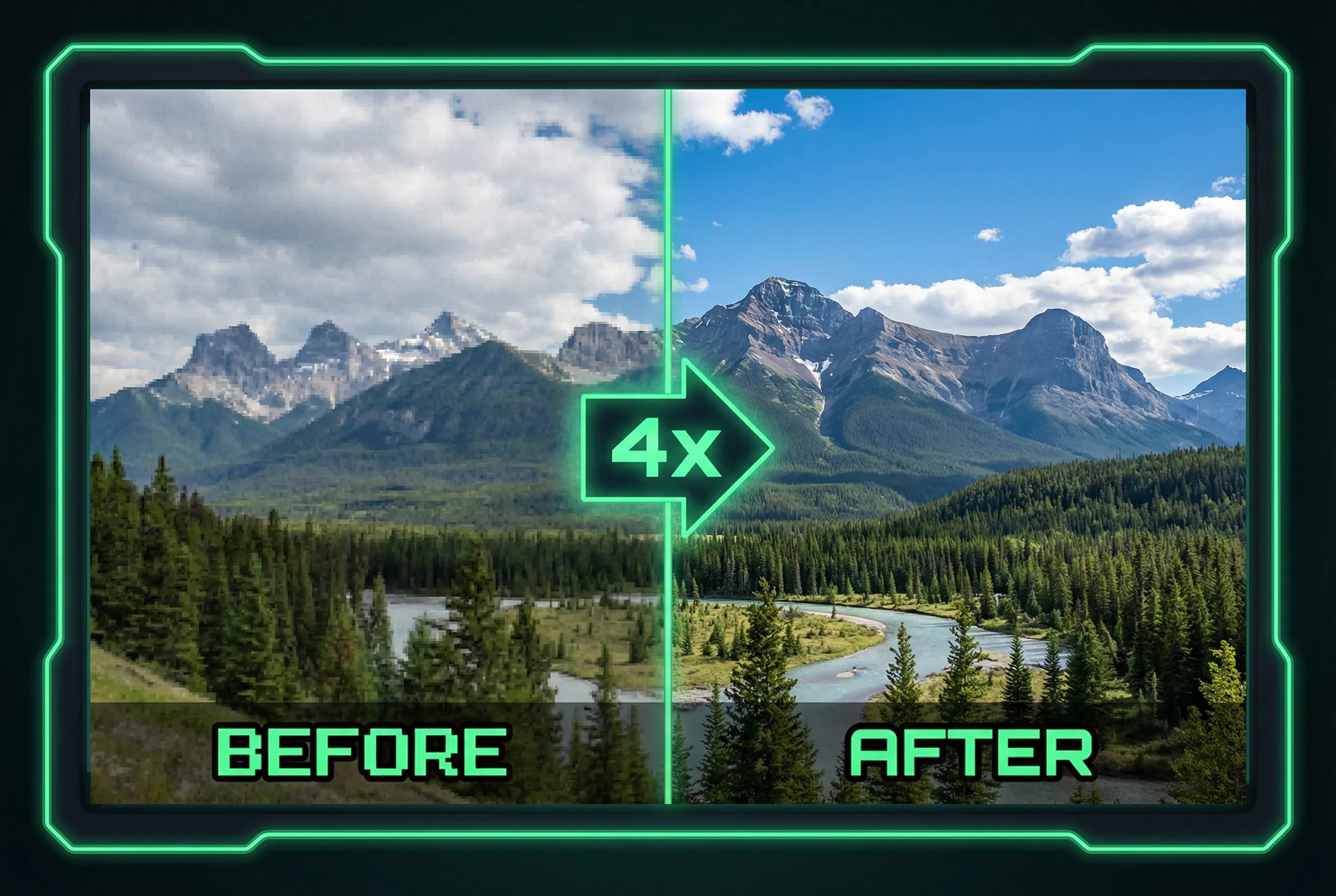
Upscale a packaging image only after deciding which printed words must match the product. Tiny lettering can look sharper while changing a digit or making up a letter. Keep the original and use a verified artwork file to recover source text when a customer, regulator, or print vendor needs exact wording.
List the parts you can actually verify
For a square bottle photo, choose three regions: the product name, the net quantity, and a block of fine print. Magnify the original with a simple viewer. Mark which lines are readable and confirm their values against an approved label or another photo. If a label is already illegible in the source, the enlarged candidate cannot serve as evidence for what it says. Keep the product number and unit handy for the comparison.
Inspect shape and meaning together
At the target display size, compare letter spacing and baselines in the upscaled output. Then read the actual text. Look for a zero replaced by a letter O, duplicated punctuation, a product number that has shifted, or an invented outline around a logo. If the source was photographed at an angle, check that the label edges and lines of type keep their perspective. A straight horizontal baseline is not a correction when the box is tilted.
Stop at the verified words
Use the AI image upscaler for the resolution increase. Match the packaging text to the source or the confirmed artwork before publishing. If the result changes one important character, keep the original label region and composite it carefully, or arrange a new photo with better focus. Use authoritative product information in adjacent page copy so shoppers can find exact details without depending on generated letterforms.