ChatGPT
 Claude
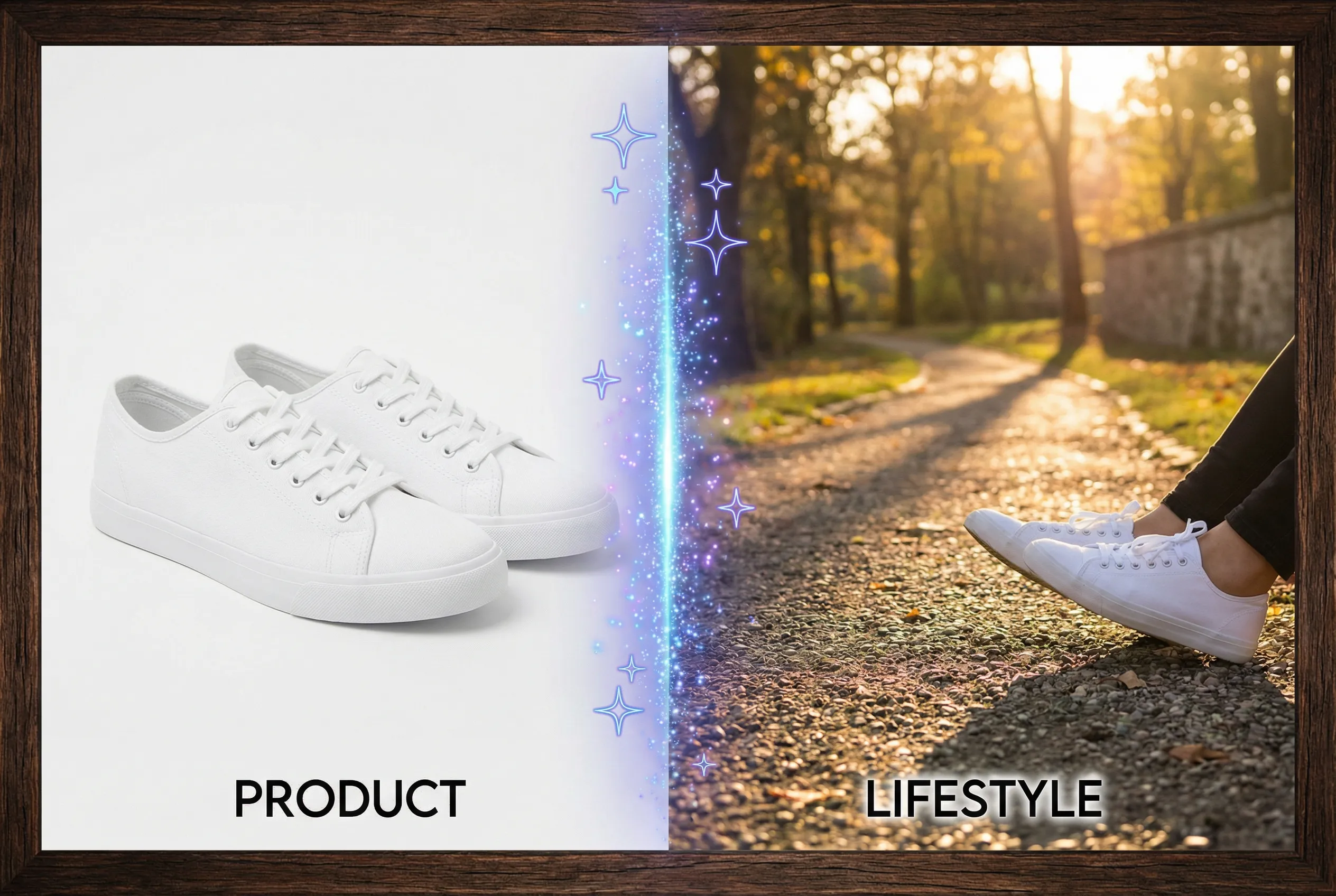
A product image can become harder to reuse when the headline appears inside the generated art. Write your text as separate layers so the copy can be corrected, localized and repositioned for new crops. Use the image to carry the scene and reserve a quiet area for the type.
Plan for one longer copy variant
For a small cosmetics ad, prepare a short headline and a longer alternate before generating the backdrop. Place both on the design template temporarily. Check which line is widest and whether the product can remain visible around it. A background with high-contrast texture under lettering creates a problem even when the copy technically fits. Choose simple open space and preserve the packaging text where it belongs.
Check two reduced layouts
Use the real font, actual offer text and legal line if one is required. Review the draft at its mobile display size and test if the headline remains legible after cropping. If a prompt-generated word already appears in the background, remove it with a clean edit or pick a different candidate. Avoid using fake packaging details or generated typography as authoritative sales information.
Send two kinds of files
Try the product photography tool to prepare a styled image from a source reference. Save the clean master and a final exported ad. Keep a working project that contains clearly labeled text layers. A good workflow lets another designer swap an offer, add a localization, or change the crop without regenerating the product image.
Give the editable copy layers names such as Headline, Claim, and Offer Date. That makes it easier to find the approved text when an old campaign asset is reopened later.