ChatGPT
 Claude
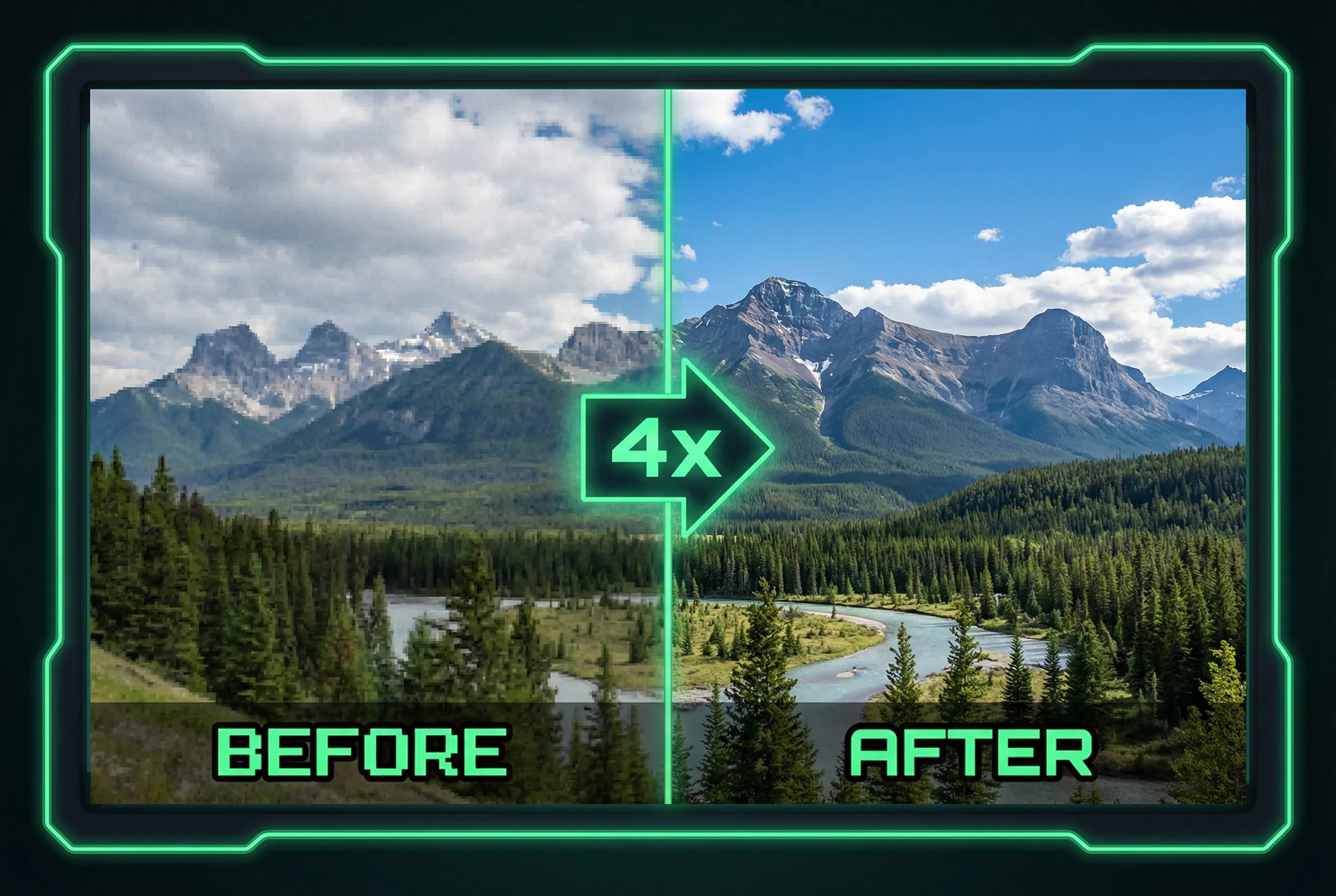
A photo can benefit from added size while the logo inside it becomes harder to read. High-contrast marks are especially revealing because an upscaler can add bright and dark bands around the original edges. Compare the mark on the actual background it will appear against, and use the genuine artwork when you need an exact logo file.
Start from an edge you recognize
Suppose a signed coffee bag has a small dark logo on pale kraft paper. Save an original crop around one vertical letter and one curved part of the mark. Place both copies at the same displayed size when testing the original against the larger candidate. If the line gets an extra white boundary or looks outlined where the source had a single edge, that's a halo, even if the whole picture looks crisp in a gallery.
Check intersections and gaps too
Inspect the narrowest negative space inside the letters and the places where two shapes nearly touch. A tool can close a gap on a badge or make two nearby strokes fuse. Show the same crop on the intended light and dark surrounds to see where artifacts become visible. If the source photograph must remain realistic, avoid layering a clean logo over a highly reflective curved surface without matching the perspective and lighting.
Keep the source mark authoritative
Try the AI image upscaler on a copy and use the least aggressive result that meets the output size. If you own the vector logo, use that in the layout rather than exporting the mark from a photograph. For an upscaled photograph, favor the candidate that keeps the logo's edges and gaps recognizable at the target display size without adding a decorative outline.