ChatGPT
 Claude
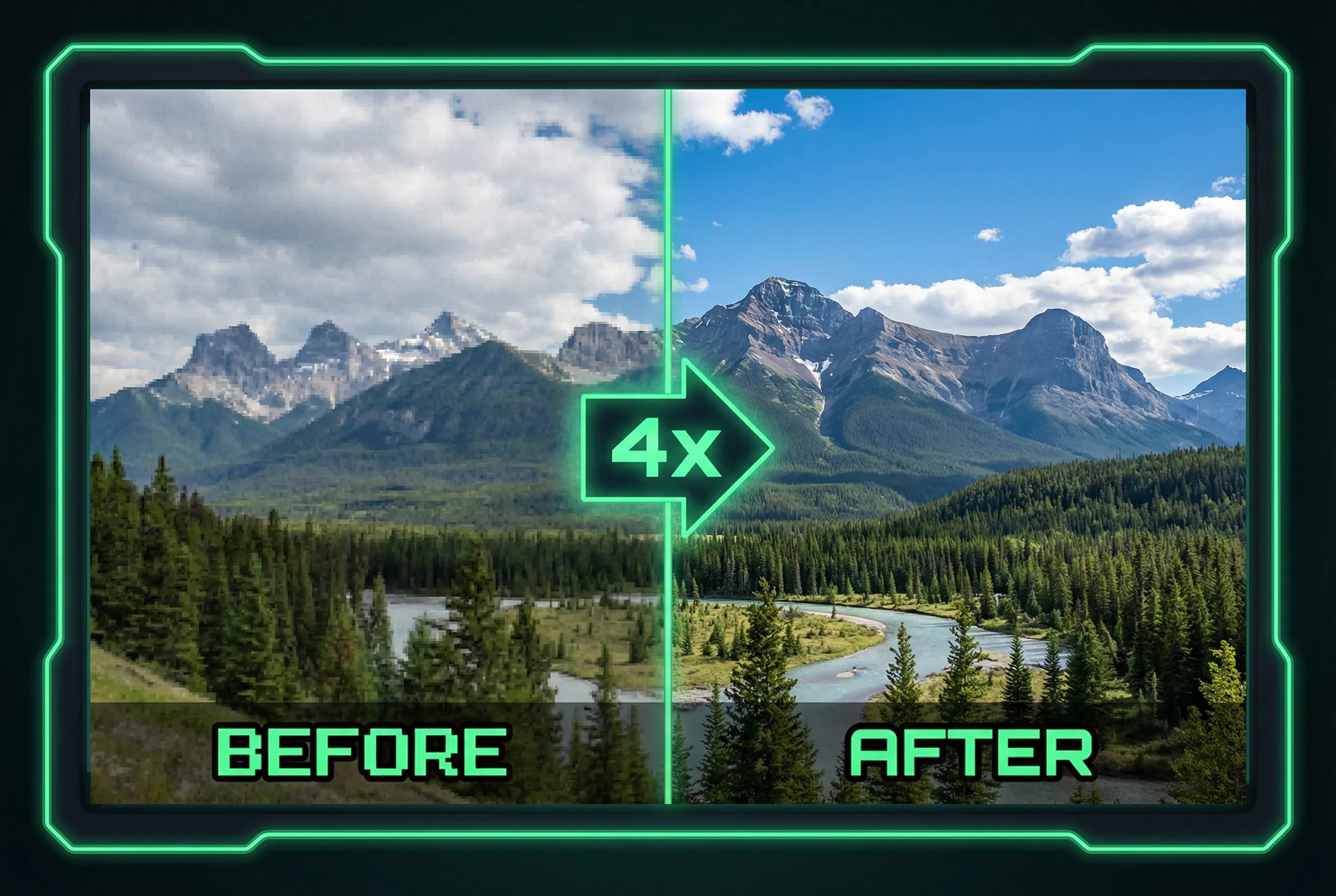
A frame grab makes a useful thumbnail when it shows the right action, but a frame caught mid-motion can be blurred even in a high-resolution video. Upscaling may make that blur more visible. Choose the frame that communicates the scene and has enough clean detail before boosting size or adding text to it.
Scrub for a stable moment
For a clip of hands pouring coffee, compare at least three adjacent frames around the most readable pour. The hand and stream move at different speeds. Choose a frame where the vessel label and the dominant action look recognizable in the same view. If visible motion blur remains, keep it in the moving region and anchor the thumbnail with a stable main subject. Pull the original frame from the video rather than taking a screen capture of a scaled player.
Check one moving edge and one still edge
Compare the original and enhanced still at the same thumbnail dimensions. The mug rim should remain one continuous curve, while the moving hand can retain natural softness. A double outline along the hand or a repeated bead in the coffee stream suggests the enhancer is guessing at a moving structure. Watch for newly invented type inside film grain or on small labels, particularly where the thumbnail leads to a product page.
Let the design carry the detail
Try the AI image upscaler if the selected frame is too small for the design. A short overlay headline and clear crop often improve readability more than high sharpening. Open your final image at the smallest typical thumbnail size before approving it. The action should be identifiable at a glance, with no added artifacts on the edges that tell the story of the clip.