
 ChatGPT
 Claude
A portrait with very little room above the head can look cramped in a cover layout. Extend the background above the head only if its silhouette is complete. When the hair itself is clipped, an extension can invent strands or a different hairstyle. The choice depends on how much trustworthy detail is present at the edge of the original portrait.
Decide whether the problem is space or missing hair
For a 900 × 1,200 headshot with 30 pixels above the visible hairline, a taller layout might need another 150 pixels of plain background. If the original hair is already complete, mark its highest point and compare the original with the proposed composition before changing it. If the photo cuts through the head, use an uncropped source where likeness matters. A newly generated hairline is a creative interpretation, even when the result looks plausible.
Extend just above the boundary
Ask for the existing background to continue upward with the same falloff and no added accessories, and keep the rest of the frame anchored. Look for reflected highlights that get brighter in the wrong direction or duplicated flyaway strands. When a plain backdrop has very little detail, a conventional solid or graduated fill may reproduce it more reliably than an AI extension. Save the working version separately from your untouched original.
Check the crop in its real placement
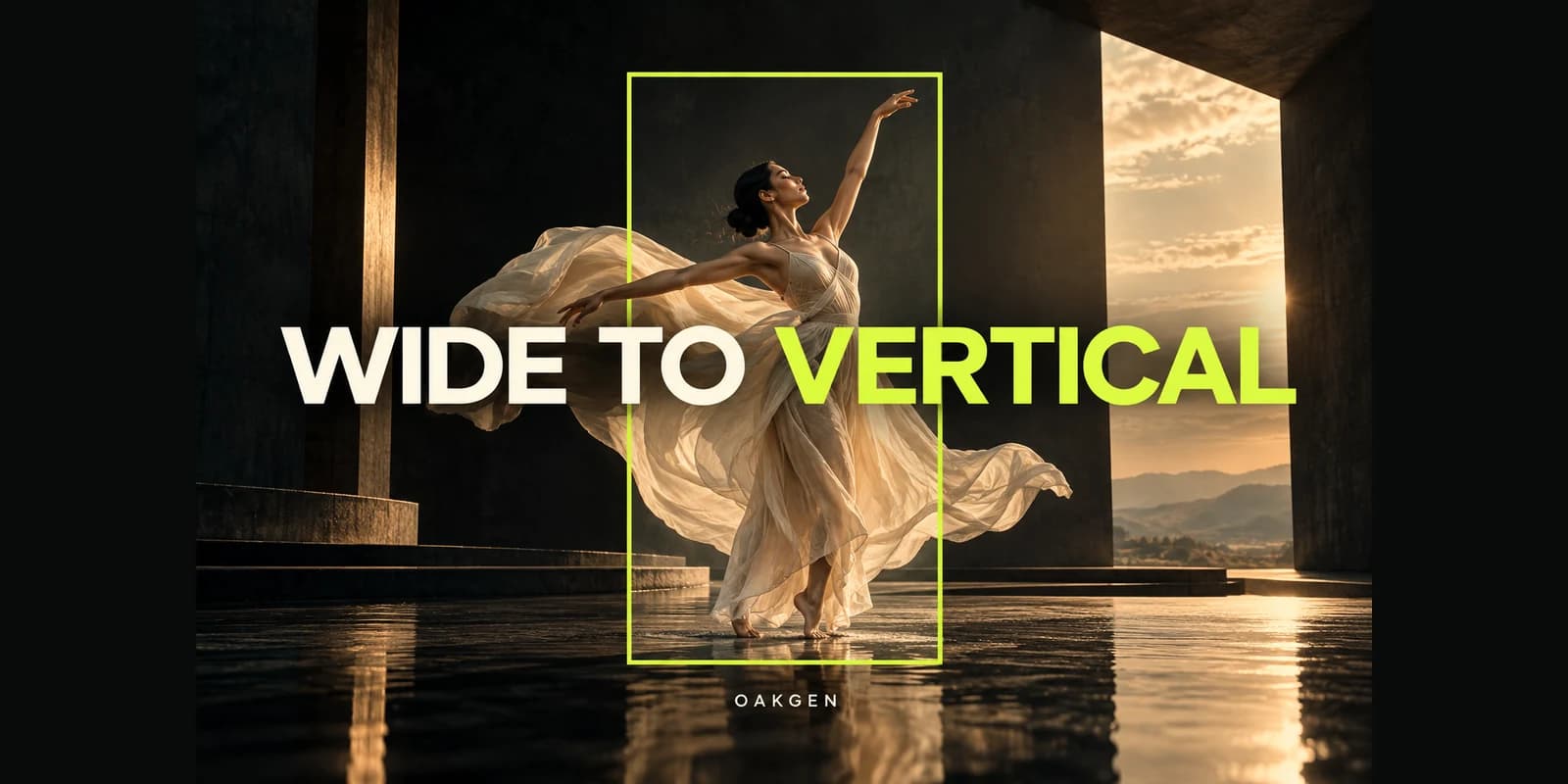
Try AI image extender if enough of the background is available to continue it. Align the new output to the original against the eye centers and the jawline before checking headroom. Reject the result if visible facial landmarks shift or if the head gets taller. At the final avatar or cover size, make sure the crop no longer grazes the top of the hair and the subject still feels centered.