
 ChatGPT
 Claude
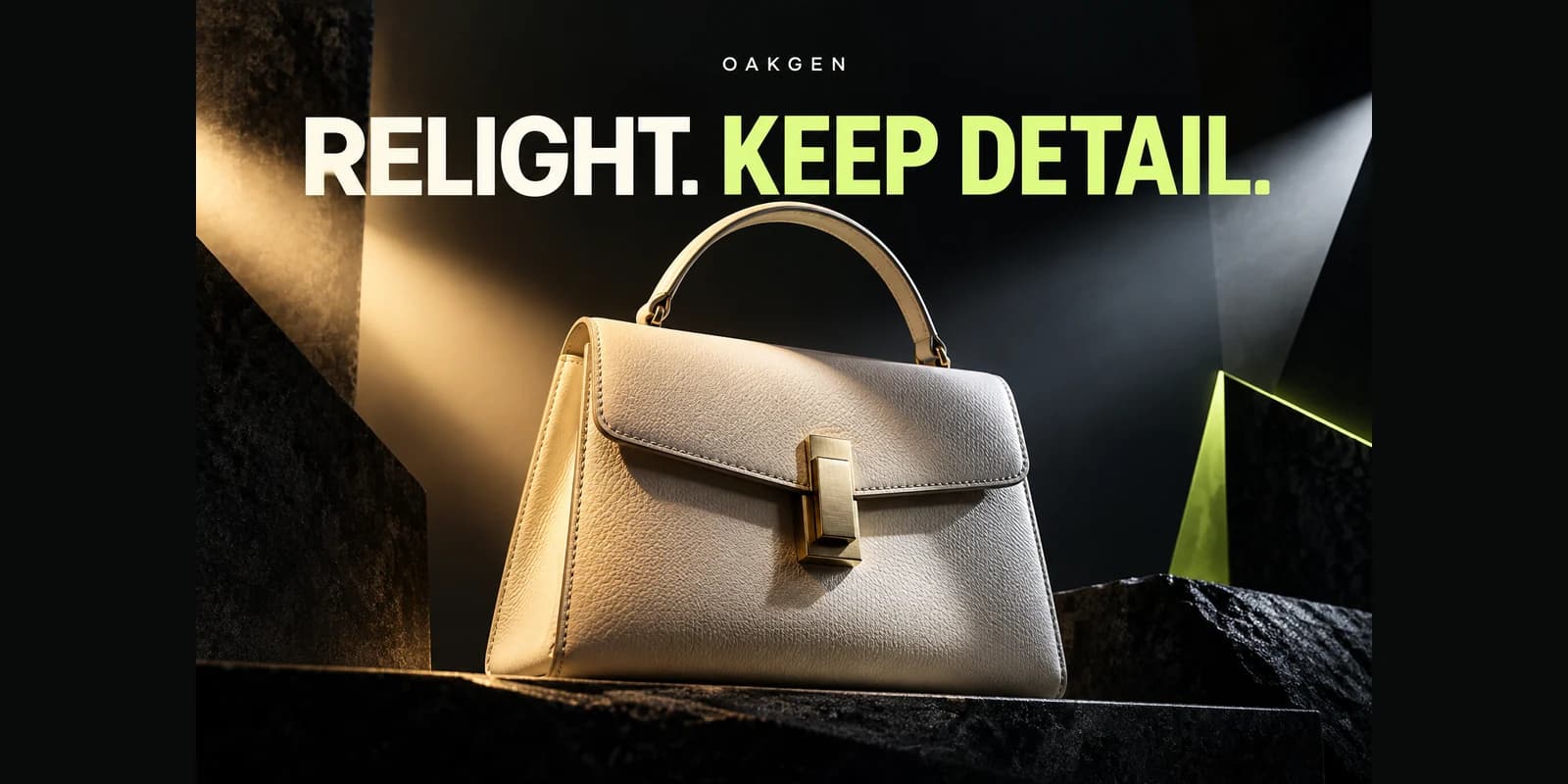
A contact sheet lets you compare variants against the same brief instead of judging each new image in isolation. Keep similar crop and display size throughout the grid. Before choosing, agree on a few acceptance criteria that matter more than visual novelty and that you can actually observe in every candidate.
Set three review criteria
For an article illustration about a rainy train platform, you might check that the view reads as a platform, that the character is clearly separated from wet reflections, and that signs remain generic. Give each row a short label showing which instruction changed. Keep the source versions untouched if you need to compare later. A small consistent grid is easier to scan than a long group of full-size outputs.
Review in two rounds
First discard images with a factual or composition problem, such as inaccurate signage or a blocked subject. Then compare the remaining images at their intended publication size and assess presentation. Use a focused zoom only on the details readers can notice. If two candidates meet the brief, choose one that needs less extra work for the intended use. Don't let one particularly sharp surface hide a larger geometry issue elsewhere.
Keep the winning cue with the image
Use the AI image generator to make distinct candidates and save the chosen image along with the brief. Note which change mattered, such as a quieter background or a wider composition. That makes future iterations more purposeful and gives another editor a practical way to repeat the review for a related article.
Write down the reason you rejected a near miss. A future version can solve that particular issue without repeating the same inspection.