

 ChatGPT
 Claude
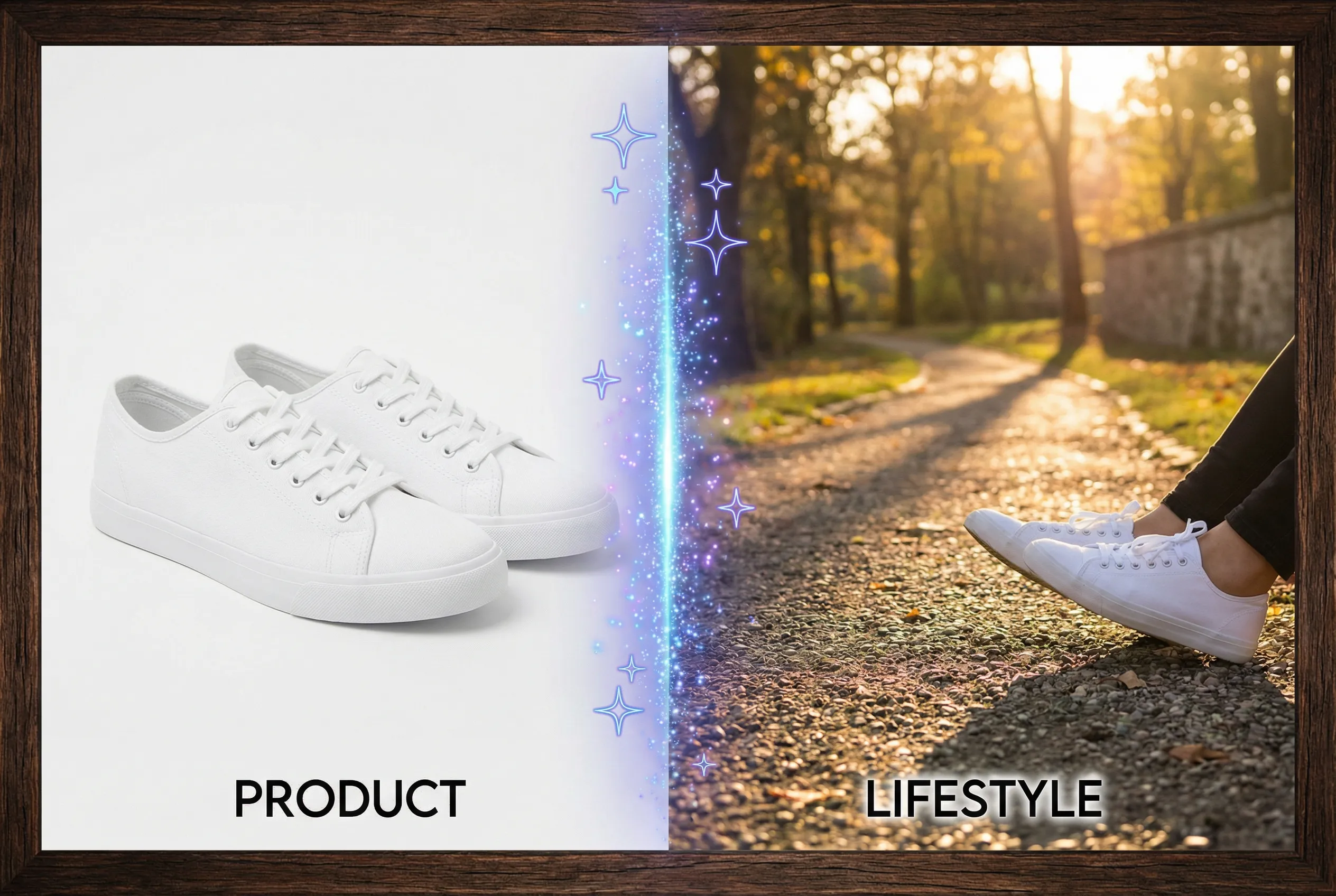
A new backdrop has to agree with the position of the existing product. When a horizon or tabletop seam sits too high, the object can seem to float. Before replacing the background, choose whether the product should rest on a visible surface or appear on a seamless sweep.
Read the ground contact in the source
Consider a bottle photographed from slightly above eye level. The base looks like an ellipse, and the original shadow touches the front at one point. Mark the height of that contact point and where a surface line would logically appear. If the new background is a kitchen counter, see whether its edges and the bottle imply a similar angle. A strong horizon can emphasize any mismatch.
Make the join intentional
Try a seamless backdrop for a neutral catalog image or a subtle distant line for a lifestyle result. Keep background edges away from critical text and details on the object. Look just beneath the object for a small, plausible contact shadow and compare the direction of longer shadows to the brightest light. If a generated shadow starts beyond the base, the product can appear suspended.
Verify at two display sizes
Start with the background replacer and keep a copy of the source. Review the finished image as a product tile to confirm the silhouette and as a large image to check the surface join. If ground cues continue to look wrong, choose a simpler background with no visible horizon. A clean backdrop should still preserve how the product sits in space.
If only one item in a set appears to float, compare it against a quiet accepted image before changing the horizon for the entire collection.

