

 ChatGPT
 Claude
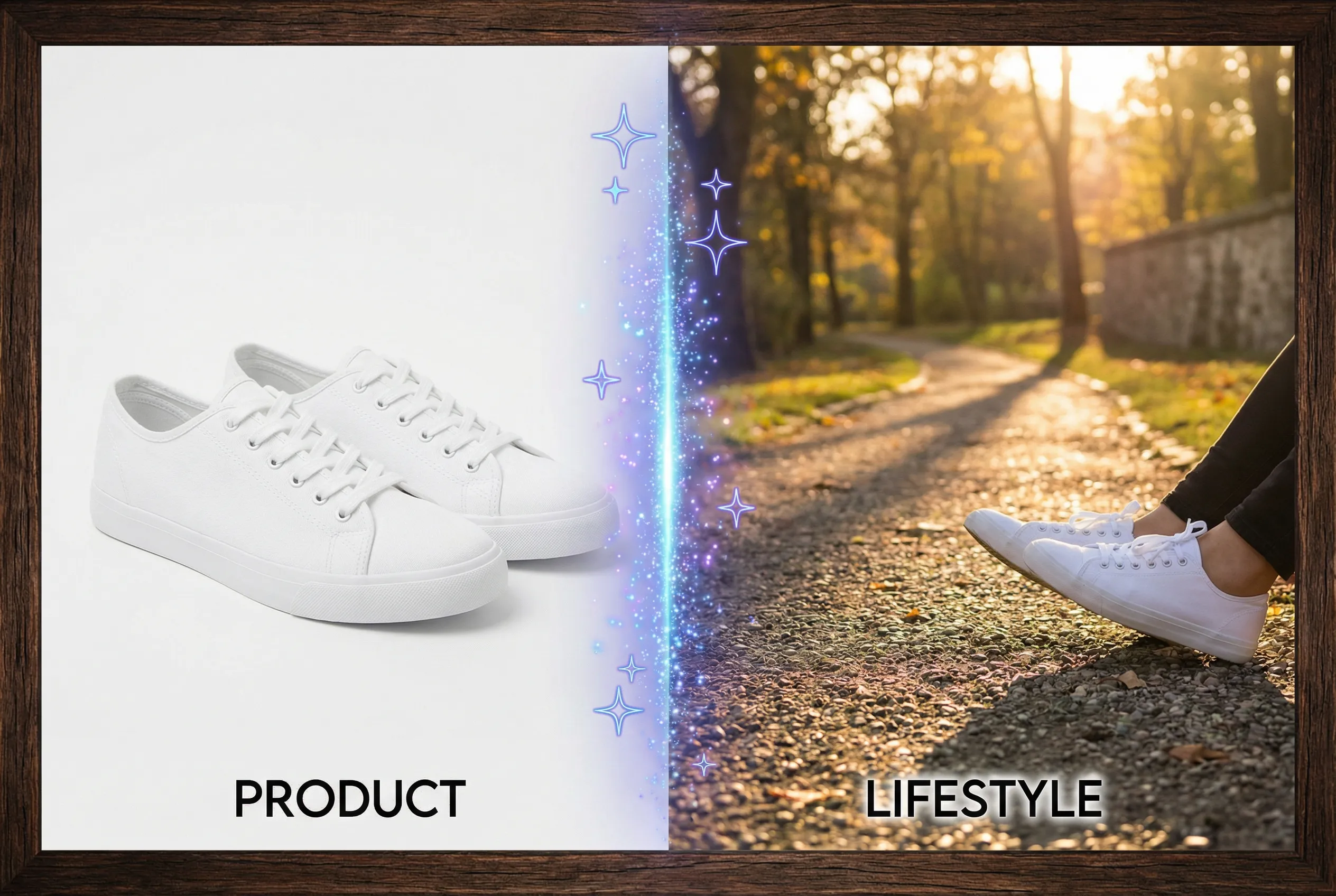
Removing the background from a group photograph leaves a group of products. It doesn't recover the area of a product hidden by another object. Plan the individual catalog assets from the visible parts first, then ask for a clean source wherever the product is incomplete.
Build an occlusion inventory
Imagine three water bottles on a display. The red bottle at the front covers the lower half of a green bottle, while the blue one is fully visible. Mark each item and its hidden areas in a working copy. The blue item may be ready to cut out. The green item's hidden information may include its base, capacity mark, or exact outline, and the group photo cannot confirm any of those details. Decide whether each separate asset needs billing-grade detail or only a general illustration.
Shoot the missing views under the same setup
Keep the camera, lighting and approximate distance stable, and photograph the fully visible green bottle after moving the red one. Take an extra photo if you need the same front angle as the group. Keep a ruler or a known reference outside the crop if the items must stay in scale once they are separated. Before editing, identify the source you will use for each final file so the group image isn't accidentally treated as the primary product record.
Approve the separate files alongside the group
Use the background remover on the individually visible products or the new photographs. Open the entire collection on one contact sheet and check that each file shows one complete object. Compare final proportions against the source references. If a file contains an invented silhouette or a patch of a neighbor's color, request a cleaner input rather than reconstructing details the catalog needs to show accurately.

