ChatGPT
 Claude
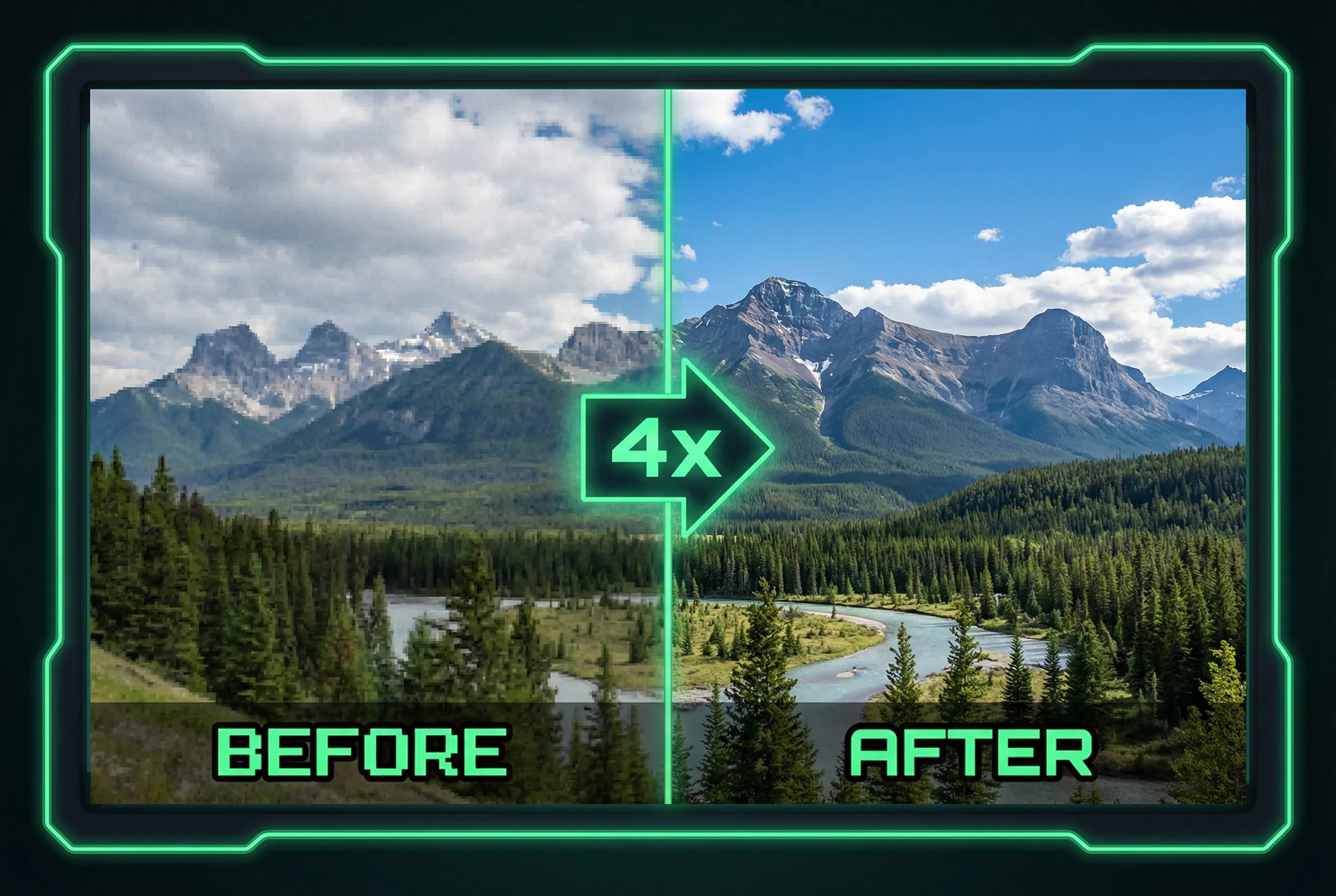
An upscale factor multiplies each side, so 2× turns a 900 × 600 image into 1,800 × 1,200, with four times as many pixels. A 4× output would measure 3,600 × 2,400 if the tool applies that factor in both directions and no size cap intervenes. Pick the scale that meets the delivery size and leaves the source looking believable.
Calculate from the final crop
Say a 900 × 600 photo will be cropped to square around a mug. The longest possible square inside the source is 600 × 600. To deliver 1,400 × 1,400, the usable crop needs at least 2.34× enlargement in each direction. If you have only 2× and 4× choices, compare a modest conventional enlargement of the 2× result against a resampled 4× candidate. Both can hit the dimensions, but the detail will be different.
Follow the file through its last export
Compare the actual output pixel dimensions and file size with the brief. Upscaling can increase byte size and sometimes add noise that compression handles poorly. Export after choosing the crop and inspect the real file at its intended size. If a platform limits upload bytes, set an appropriate quality level at the final encoding stage instead of assuming that a larger image can always be compressed enough while preserving detail.
Choose a defensible size
Use the AI image upscaler with the real crop in mind. Save the smallest result that clears the pixel requirement and keeps visible details consistent with the original. Move to a larger candidate only if its added resolution improves the actual finished asset. A larger number on paper has little practical use when the reference photo is too soft to support it.