
 ChatGPT
 Claude
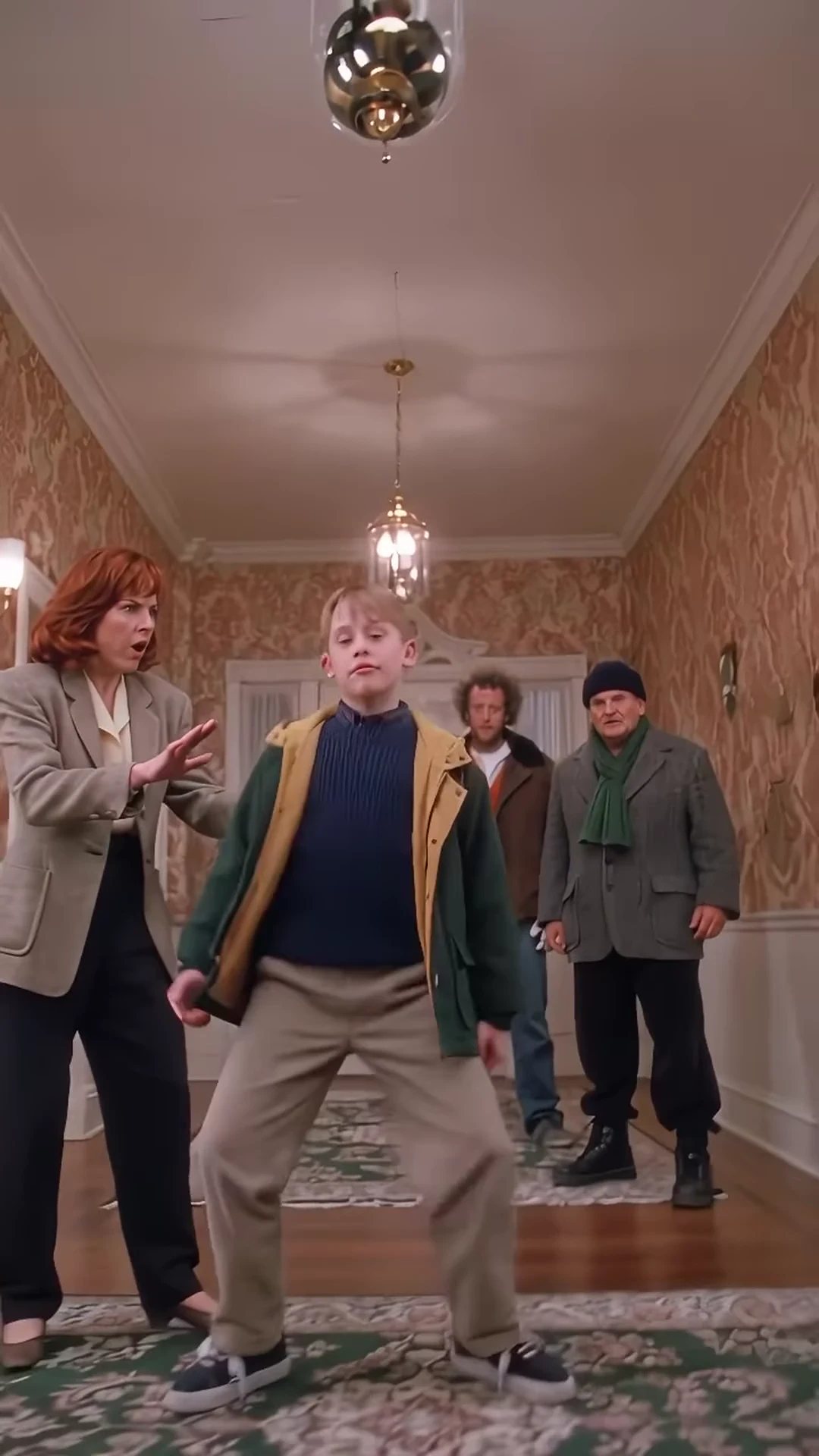
To make the Gesi Ka Jali dance AI video, open the Gesi Ka Jali Dance template, add one photo for each of its four roles and choose 720p or 1080p. The template is set up to return a 14-second vertical video. One person does the deadpan hip sway through a Home Alone-style Christmas house, and the other three react. The original soundtrack is included, and you don't need to learn any moves.
Make the Gesi Ka Jali dance
Four photos, seven shots, one very straight face. The price shows before you generate.
Choosing who plays whom makes the biggest difference to this one, so start there. For the story behind the song and the dance's other names, read the Gesi Ka Jali dance explained.
Step 1: Cast the reactions as well as the dance
It's tempting to think only about the dancer. But the dancer's expression barely changes, and the laughs come from the people around them.
| Role | What they do | Who to cast |
|---|---|---|
| Dancer | Sways through six of the seven shots with a straight face | The person who never breaks in a photo |
| Shocked onlooker | Gasps, turns round with both arms out, then waves an arm across the frame | The worrier in the group |
| Shouting onlooker | Watches quietly, then gets a close shot with an open mouth and a flung-out arm | Your most dramatic friend |
| Grinning onlooker | Stands behind everyone, grinning and then laughing | The one who would be filming this |
A family can cast the calmest person as the dancer. In an office, the quietest colleague dancing while the manager shouts is a joke everyone will get. Housemates can simply play themselves.
Step 2: Match each photo to its shots
Upload one person per photo. Use sharp pictures with the face turned to the camera, the hair visible and no sunglasses. Each role is framed differently, so the best photo for one may not suit another:
- Dancer: use a full-length photo. This person appears both in an extreme close-up and as a small figure on the stairs, so the model needs a clear face and the whole outfit. Keep the knees visible.
- Shocked onlooker: show the sleeves. At around 9 to 11 seconds, this role is mostly an arm waving across the frame.
- Shouting onlooker: put the face first. The close reaction lasts just over a second, so the person has to be recognisable straight away.
- Grinning onlooker: choose someone who looks clearly different from the Shouting onlooker. They stand next to each other in the group shot.
Try to use four photos with similar lighting and clothes in different colours. When the camera changes angle every couple of seconds, outfits help viewers keep track of people. The photo guide covers hats, glasses and tricky hairstyles.
Use your own photos and photos of adults who have agreed to appear. The dancer in the reference is a boy, but please don't upload a child's photo. The template asks the model to keep an adult's real age, build and height.
Step 3: Keep the house or choose a background
Leave Background empty to keep the red staircase, the patterned wallpaper, the warm lamps and the small Christmas tree.
To use your own setting, add a wide photo of an empty place with open floor. It has to work for seven camera angles, including one from behind the dancer. If there are no steps in the photo, the template asks for the finish to take place on the floor or ground. Living rooms, gardens and school halls give the model more to work with than a narrow corridor does.
A background doesn't change the price, but rebuilding the room is a bigger change than replacing the people. Expect more variation, and check every shot.
Step 4: Choose the quality and check the quote
Pick 720p or 1080p. They cost the same. 720p is enough for most phone feeds, while 1080p can help in the wide and staircase shots, where faces are small. Check the quote before you generate. It covers the full 14-second video. Replacing all four people is what the template asks the model to do, so check the result.
The template edits the clip in three sections that start and end on real cuts, then joins them on the original timeline. The sections are silent, so the song is never sent to the video model. The original soundtrack is added back to the finished file.
Step 5: Pause on five moments
Watch the video once at normal speed, then go back and check these five moments:
- About 1 second: does the face still match as the camera pulls away from the close-up?
- About 4.5 seconds: are all four people in the roles you chose? The Shocked onlooker should be on the left and the Shouting onlooker furthest right.
- About 8 seconds: does the dancer's hair look right from behind?
- 9 to 11 seconds: is the dancer's face the same each time the arm moves out of the way?
- About 11.5 seconds: is the Shouting onlooker clearly the person you cast, in the same outfit as before?
If one person looks wrong, replace only that person's photo before you try again. A sharper, front-facing picture is the best first fix. If two people have swapped roles, use photos with more distinct hair and clothes. Generating again uses credits, so check the new quote first.
Step 6: Post it clearly labelled
The MP4 is already vertical, so you can post it to Reels, TikTok or Shorts without cropping. Keep captions away from the lower part of the frame, where the dancer's feet are.
- Say it's AI-made. People could mistake a Home Alone-style clip for real footage. Don't call it a deleted scene.
- Check the music rules. Oakgen doesn't license "Gesi Ka Jali" for your posts. Platforms may have different rules for business accounts and ads.
- Get everyone's approval. Show all four people the finished video before you post it.
For a caption, let the cast do the work: "Every family has one of each" invites people to tag their own four. "Which one are you?" works well for a group of friends.
Is this the right template for you?
Choose it if you have four willing people and want a quick comedy clip. If you want a solo dance, try the Hotel Lobby Street Dance. If there are two of you and you like the holiday setting, Home Alone Boxing tells a different joke. You can compare the holiday-house options in the Home Alone dance guide.
Got your four?
Cast the dancer and the three people who can't believe it.
Frequently asked questions
What do I need to make the Gesi Ka Jali dance AI video?
Four photos of four different people: the Dancer, the Shocked onlooker, the Shouting onlooker and the Grinning onlooker. A fifth photo, of a place, is optional.
Can I make it with only my own photo?
This template needs a photo for each of its four roles, because it is set up to replace everyone in the reference clip. Ask three friends or family members for a photo and their permission.
Do I have to learn the dance?
No. The hip sway, the reactions and the timing come from the reference clip. Your photos set how each person looks.
Does anyone lip-sync?
No. The dancer keeps a straight face or a small smile. Two onlookers open their mouths as silent reactions, and the reference clip's original soundtrack plays throughout.
How long is the video?
14 seconds in vertical 9:16, with seven shots and six cuts.
How much does it cost?
The template shows the exact credits before you generate. The price is the same at 720p and 1080p, with or without a background photo.