ChatGPT
 Claude
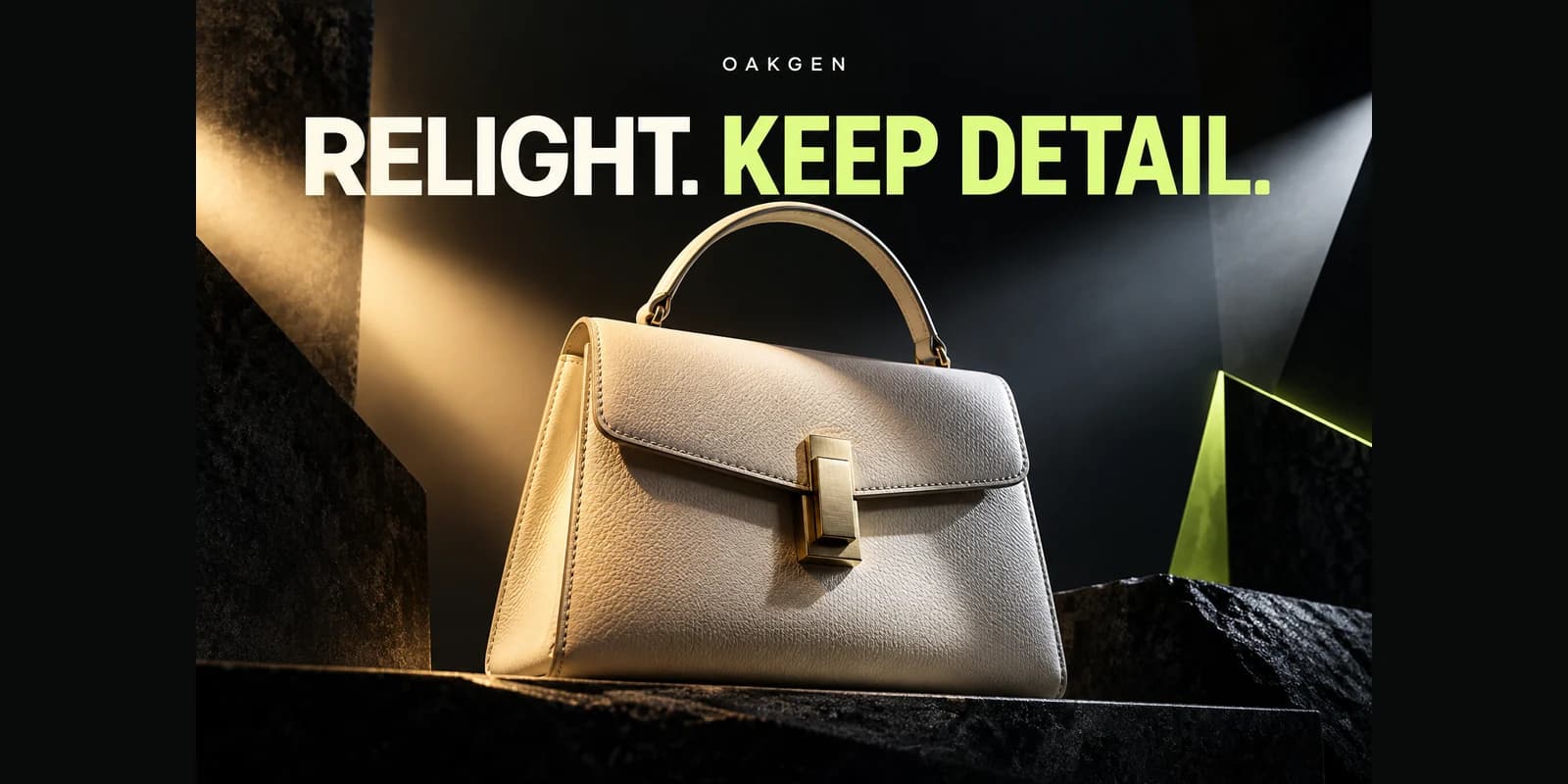
A hero image should make the page message easier to read. Keep the headline as real text in the website and place important visual elements away from the text block. This gives the design room to adapt when the viewport changes, when copy wraps, or when assistive technology reads the page.
Plan two layouts before rendering
Imagine a café homepage where the desktop hero puts an espresso machine at the right and the headline on the left. On a narrow screen the headline may move above the image or use a nearby overlay. Decide which part of the machine must be visible in both crops. Leave the opposite side visually quiet and reserve enough height for a longer heading. An image that works only when text stays on one line is fragile.
Preview with actual words and colors
Place the picture behind the actual heading and link design on the two intended artboards. Test the contrast where the picture is lightest and darkest near the text, since a single sampled area can overlook a bright edge or reflection. If there is insufficient contrast, shift the layout, use a deliberate overlay, or choose an alternative image. Avoid flattening the headline into the photo.
Approve from the real page
Use the AI image generator to create an original subject and environment, or provide a reference using a compatible image model. Verify the candidate in the page at narrow and wide sizes before shipping it. The result should let readers see the key image cue and read the message without making them choose between the two.