
 ChatGPT
 Claude
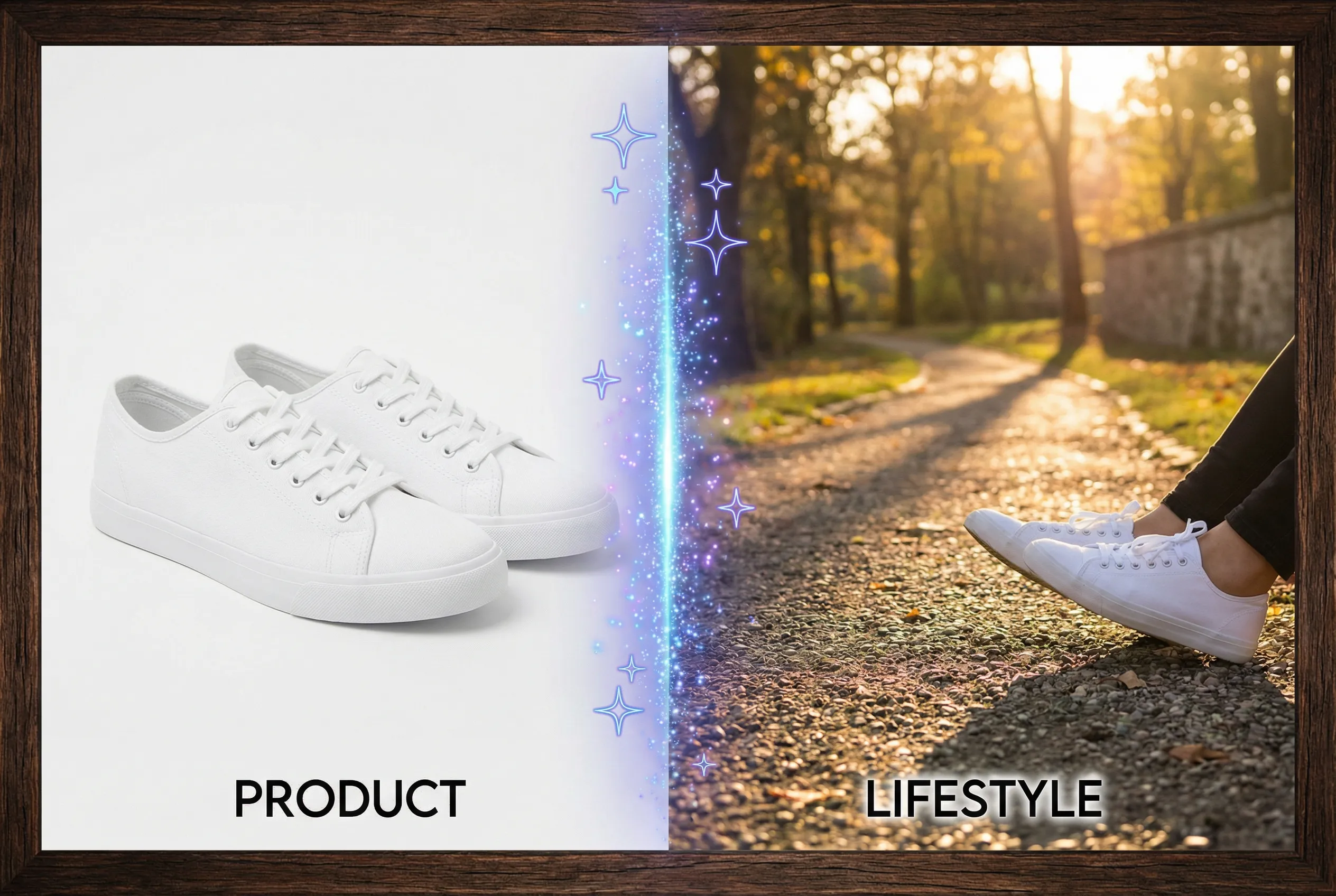
An iPhone Live Photo can carry a short motion moment as well as a representative still. A still image converter receives whichever image you hand it, so choose and export the key frame in a photo app first. Focus on where the expression or action is clear even without the rest of the motion.
Find the readable instant
For a photo of someone holding a book, look across a short span around the default key frame. An adjacent instant may have open eyes but motion blur in the title, while the default captures the book sharply. Decide whether the portrait or the title matters more for the planned asset. Check hands and the edge of the subject, since softness in those areas can worsen if the converted image is later compressed or cropped.
Export a still before converting
Use the phone or photo editor to save the chosen frame as a still file in a supported format. Keep the motion original available separately. Open the extracted frame on its own to confirm it is the one you selected, then note its dimensions and orientation. A pleasant preview of continuous motion can conceal a slightly different expression in the actual still.
Verify the JPG at its destination
If the still is HEIC and the destination needs JPG, use the HEIC to JPG converter and reopen the copy. Confirm that the key action and the subject's pose remain readable at the upload size. Keep the JPG separately named so someone else can identify the specific frame without reopening the Live Photo.