ChatGPT
 Claude
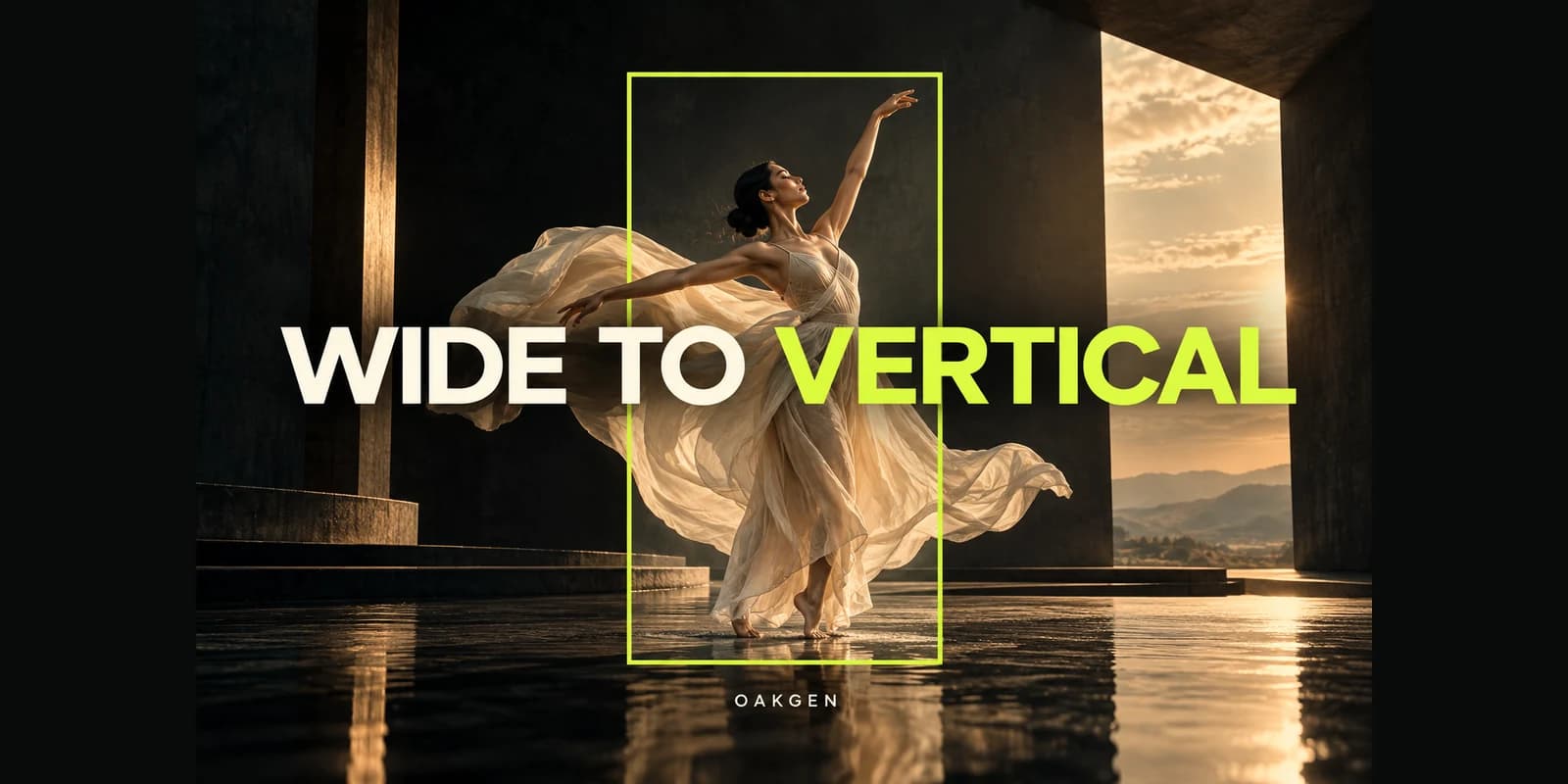
An image extender can make room for a headline beside a product without shrinking the product or stretching its proportions. Start with the actual copy block and decide where the extra pixels must go. Extending both sides when you only need room on the right wastes usable space and creates another edge to inspect. Plan the rough layout before generating anything.
Mark the headline rectangle first
Take a square 1,200-pixel photo of a kettle that fills the left half of a planned display ad. The final frame is 1,800 × 1,200. Lay a temporary text rectangle on the right and measure its widest line with the correct typeface. Leave breathing room around the handle and the frame edge. If copying the source photo across at its original size fills this rectangle, the layout needs horizontal space, not a different crop or image scale.
Give the new region one simple job
Make the added area a continuation of the existing paper sweep, wall, or tabletop. Keep the surface seam heading in the same direction and avoid asking for new objects, type, or a second light source. If the existing counter already has a horizon line, note its position using a temporary overlay and compare that line after the extension. Add the actual headline in your editor as editable text, and use the real longest headline when checking contrast.
Reject any change inside the product silhouette
Try the AI image extender for the expanded area and place the source over its output at half opacity. If the kettle seam, logo, or handle doubles, keep the original pixels in that region and join the extension only in the blank surround. Stop when the final headline block fits, the original label stays legible, and no existing object is repeated near the join.