

 ChatGPT
 Claude
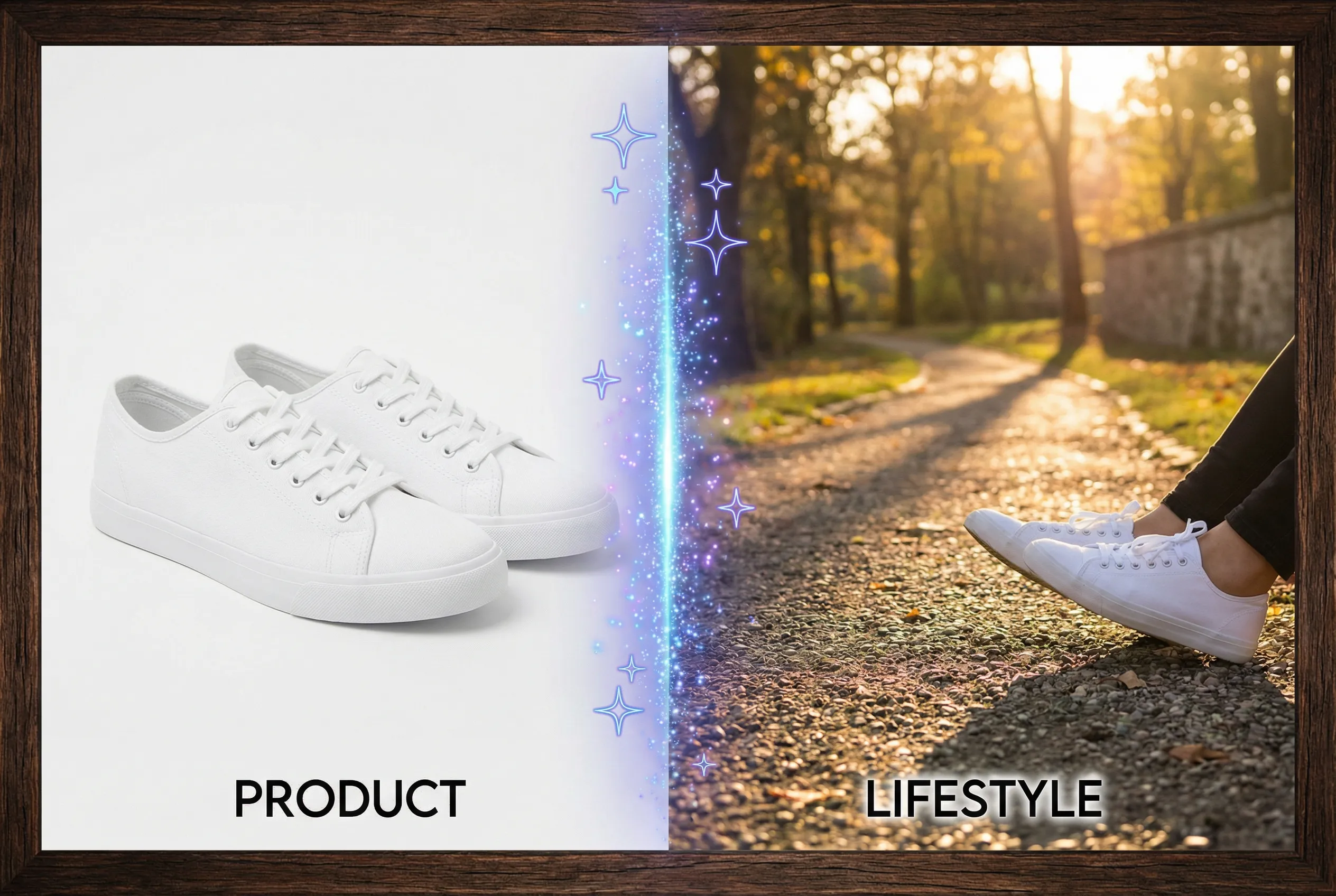
A contact shadow makes a cutout look grounded. When you remove the old backdrop, decide whether the delivery needs the true captured shadow, a recreated shadow, or a clean floating asset. A single opaque image can't adapt the same shadow naturally to every destination because the underlying surface color is already mixed into the photographed shadow.
Separate the product from the shadow
Consider a white shoe on a pale gray tabletop. The dark underside of the sole belongs to the shoe, while the soft shape underneath darkens the tabletop. Look for the sharply defined edge at the point where the sole meets the table. Save that source crop before you generate any cutout. If an automated result removes the dark seam of the sole along with the shadow, it has changed the object rather than just isolated it.
Recreate contact where reuse matters
For a catalog asset that will move between backgrounds, deliver the clean cutout and add a shadow in the layout. Use an editor to place a slightly blurred, narrow shadow immediately below the touchpoints. Tie its direction to the strongest highlight on the object. The shadow should fade as it moves away and should remain weaker than the darkest part of the product. Compare with a second backdrop color to see whether the darkness looks too heavy.
Keep the shadow consistent across the set
Start with the background remover, review the sole, and compare the final composite against two products from the same catalog. An asset passes if the contact points look anchored and the ground plane is consistent. A dark halo around the entire outline is a sign to reduce or reshape the shadow, because contact happens below the object rather than around every edge.

