

 ChatGPT
 Claude
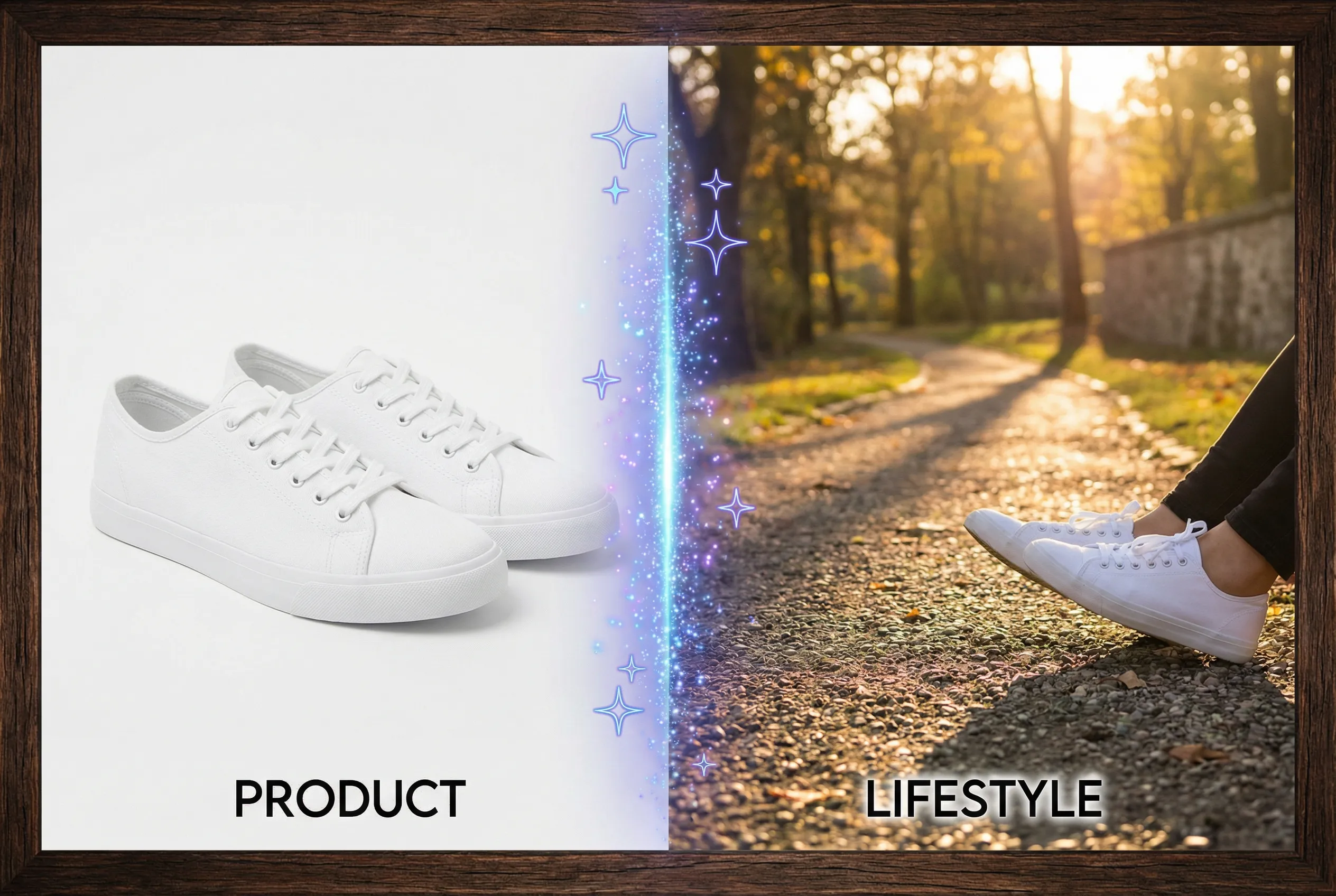
A share image can be displayed in different crops across messaging apps and social feeds. The portrait that looks centered on the article may be cut off in a compact preview. Create a small set of reference thumbnails and make sure the required face characteristics stay within the area common to them.
Build a wide and a compact preview
For an interview piece, place the subject's face and the publication mark on separate layers in a wide composition. Then simulate a square or narrow crop around the usual center. If the full outfit is decorative, it can safely fall out of the compact view. Preserve the subject's eyes and recognizable silhouette in both layouts. Add text with a separate card design only if it's important in the context where previews display.
See what survives a small share
Open the image in a low-resolution preview and look for facial visibility next to the article title. The clearest thumbnail may use a closer crop than the header art. Review any important lettering, avoiding thin strokes that break after downsampling. Test a social preview in the destination platform when possible, since matching a layout ratio in an editor cannot reproduce every service's behavior.
Choose the social asset separately
Use the image resizer to create preview crops where the supported sizes are helpful and save a different file for the share card if needed. Keep the source header artwork and the thumbnail separately. A good result lets readers identify the subject in both views without packing extra detail into a small space.

