Inspire is Oakgen's built-in prompt library and AI prompt creator. It is available inside every generator -- image, video, music, and audio. This guide walks you through every feature so you can get the most out of it.
Opening Inspire
Look for the lightbulb icon in the prompt textarea of any generator. Click it to open the Inspire dialog.
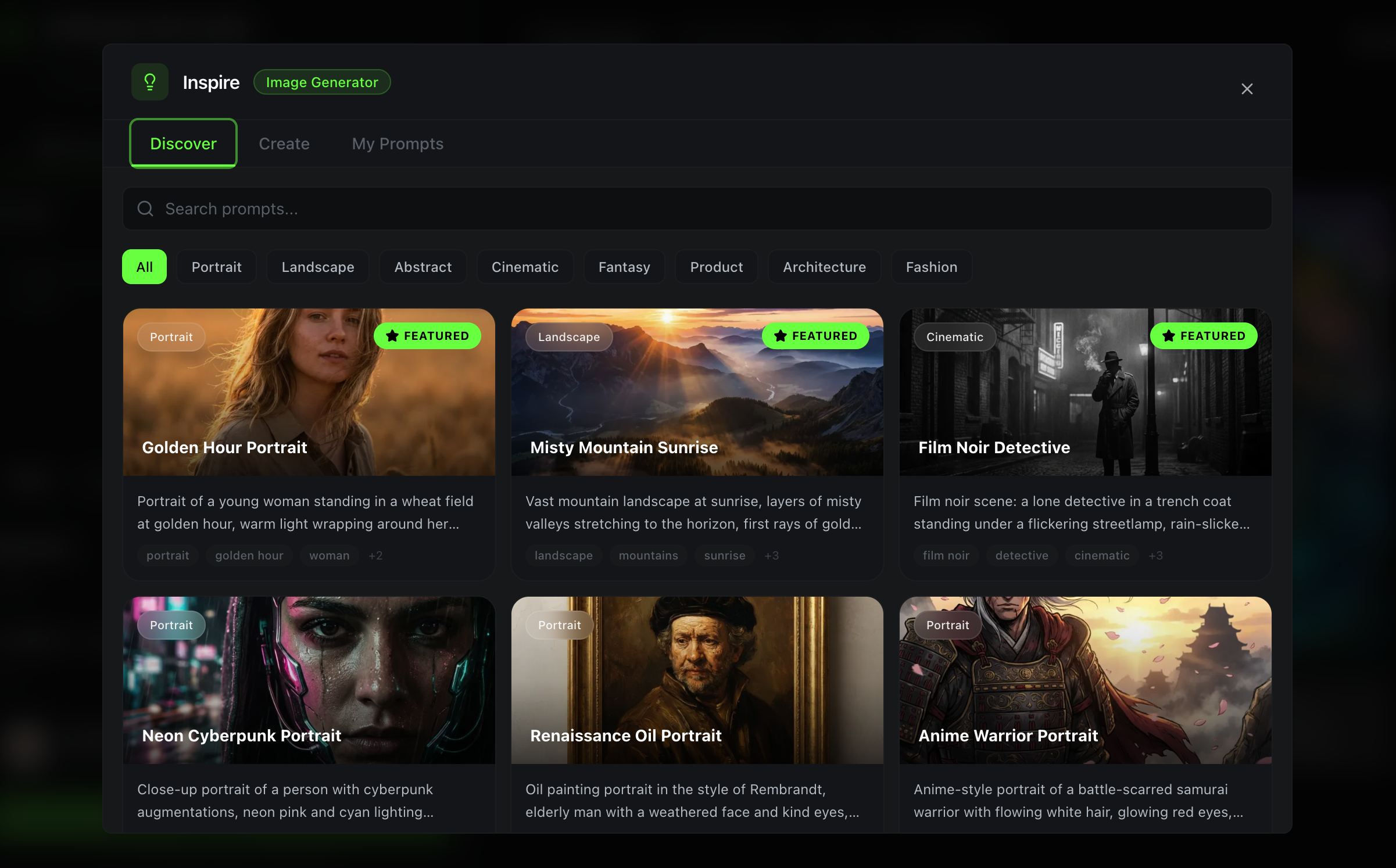
The dialog shows which generator you are working in (e.g., "Image Generator") and three tabs: Discover, Create, and My Prompts.
Tab 1: Discover -- Browse Curated Prompts
The Discover tab is a library of 60+ professionally written prompts organized by category. Here is how to use it.
Browsing by Category
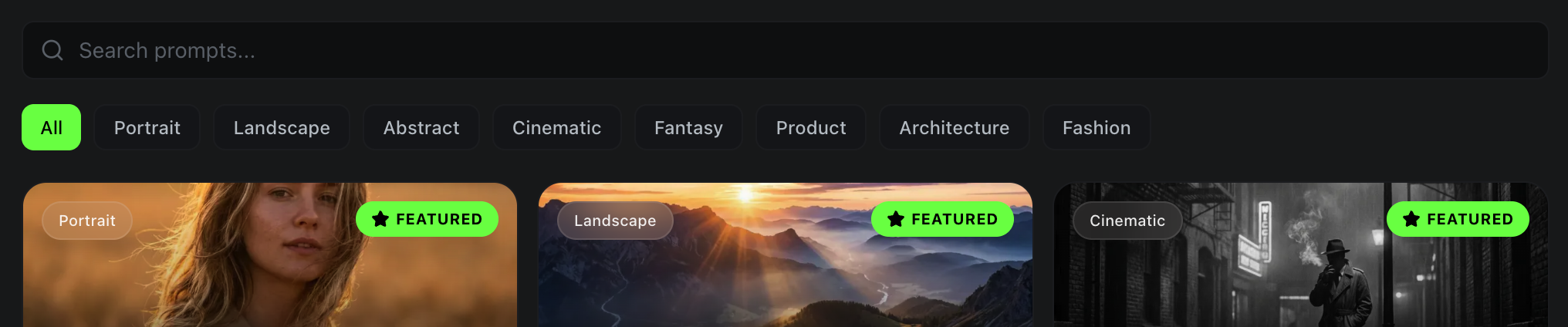
At the top of the Discover tab, you will see category filter pills. These change based on which generator you are in:
- Image: Portrait, Landscape, Abstract, Cinematic, Fantasy, Product, Architecture, Fashion
- Video: Cinematic, Drone Shot, Time-lapse, Product, Nature, Motion Graphics, Talking Head
- Music: Lo-Fi, Ambient, Electronic, Classical, Rock, Pop, Hip-Hop, Cinematic Score
- Audio: Narration, Character Voice, Audiobook, Commercial, Podcast
Click any category to filter prompts. Click "All" to see everything.
Searching
Use the search bar at the top to find prompts by keyword. The search looks through titles, descriptions, and tags. Results update as you type.
Using a Prompt
When you find a prompt you like, you have three options:
| Action | What It Does |
|---|---|
| Use Prompt | Drops the prompt text directly into your generator's textarea and closes the dialog. You can generate immediately. |
| Save | Adds the prompt to your personal My Prompts library for future use. |
| Remix | Opens the prompt in the Create tab so you can customize and modify it. |
Some prompts are marked as featured -- these have been tested extensively and produce consistently great results. They appear at the top of the list.
Negative Prompts
Image prompts often include a negative prompt -- text that tells the AI what to avoid (e.g., "blurry, distorted hands, low quality"). When you use or save a prompt, the negative prompt comes with it.
Tab 2: Create -- Build Prompts From Your Ideas
The Create tab is a three-step workflow that turns your rough creative ideas into polished, structured prompts using AI.
Step 1: Describe Your Vibes
Type your idea in plain language. Do not worry about formatting or prompt syntax -- just describe what you want.
Examples:
- "A woman walking through a rainy Tokyo street at night, neon reflections"
- "Chill instrumental beat for a cooking video, warm and cozy"
- "Dramatic slow-motion shot of waves crashing on rocks"
- "Deep narrator voice for a true crime podcast"
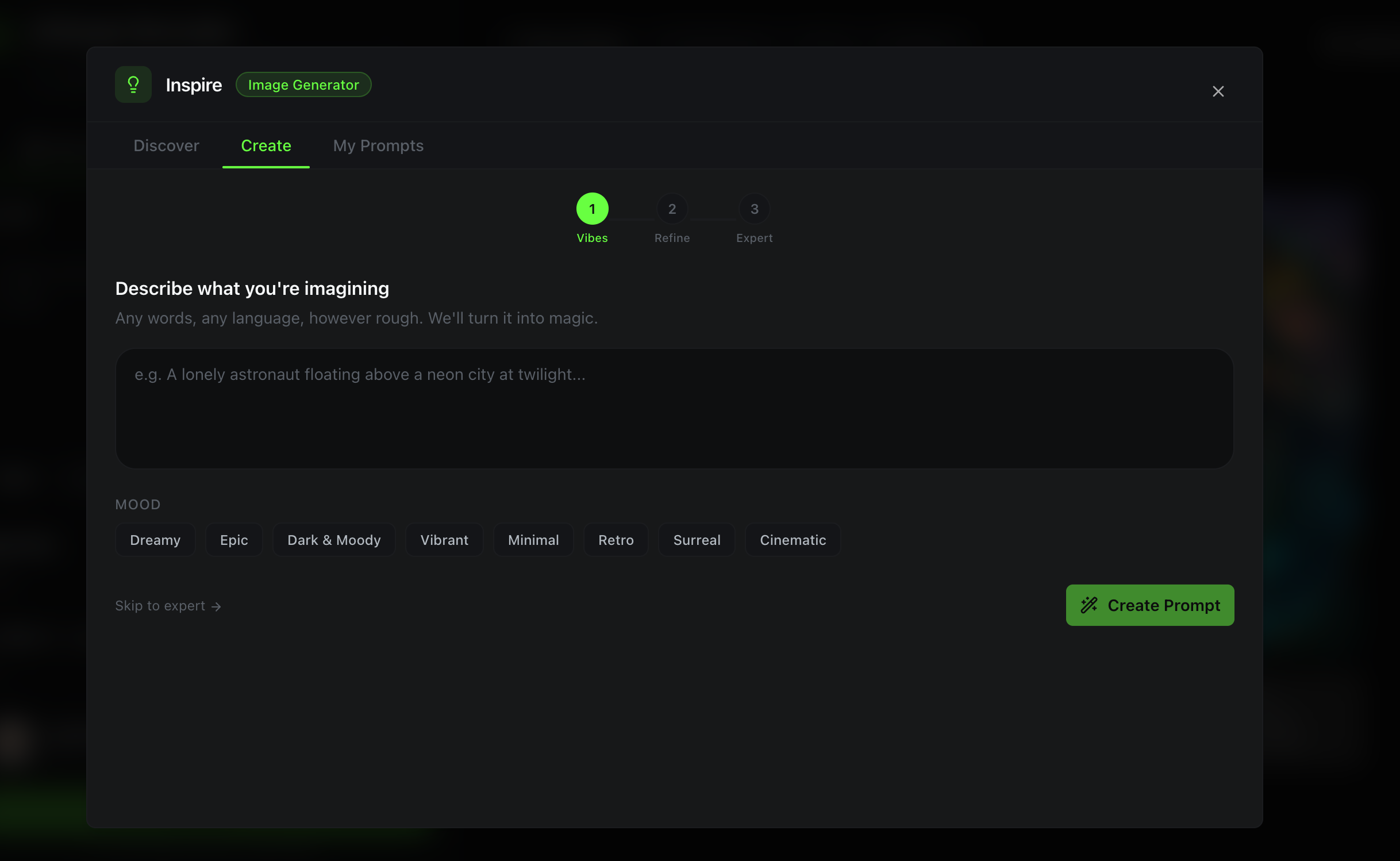
Mood chips: Below the textarea, you will see mood tags. Click one or more to guide the AI's creative direction. For image generation, options include Dreamy, Epic, Dark & Moody, Vibrant, Minimal, Retro, Surreal, and Cinematic.
Refine Current Prompt: If you already have text in your generator's textarea, click this button to pull it into the vibes field. Useful for improving an existing prompt.
Click Create Prompt to generate interpretations.
Free users get 5 AI-powered prompt creations per day. Paid plans have higher limits.
Step 2: Pick an Interpretation and Refine
The AI generates three different creative interpretations of your idea. Each one takes your vibes in a different direction.
Each interpretation shows:
- A name and emoji summarizing the creative direction
- A preview of the prompt blocks it generated
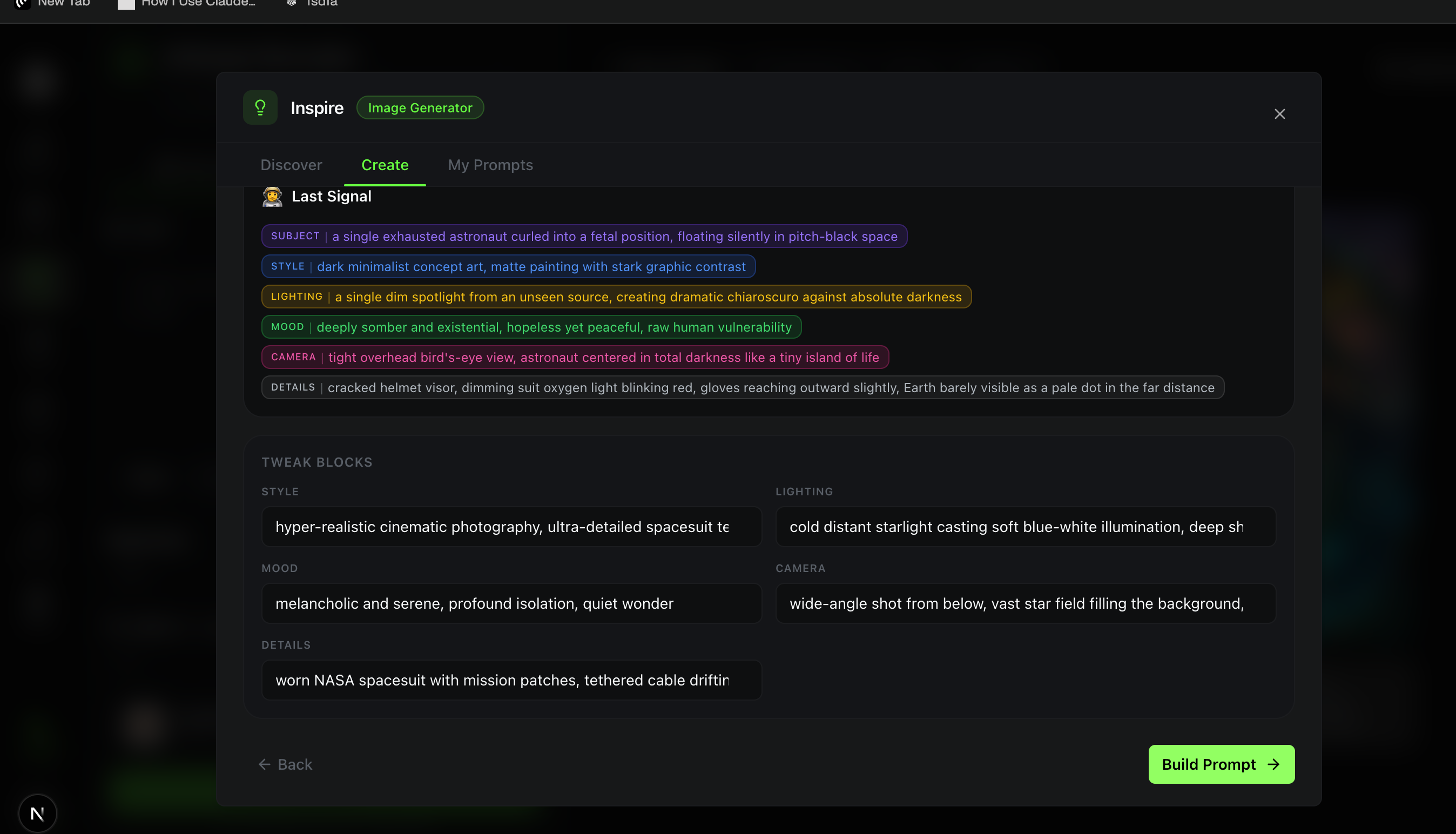
Click the interpretation that best matches your vision. Once selected, you will see the individual prompt blocks expanded for editing:
| Block | Used For | Example |
|---|---|---|
| Subject | Main subject of the prompt | "A lone astronaut on a desolate Mars landscape" |
| Style | Visual or artistic style | "Photorealistic, cinematic, 8K" |
| Lighting | Light setup and mood | "Golden hour, dramatic side lighting" |
| Mood | Emotional atmosphere | "Melancholic, contemplative" |
| Camera | Shot type and lens | "Wide-angle establishing shot, 24mm" |
| Details | Additional specifics | "Dust particles floating in air, boot prints in red soil" |
Video, music, and audio generators show different blocks relevant to their medium (e.g., Camera Movement, Duration, Genre, Tempo, Instruments).
Edit any block by clicking on it and typing. The blocks are modular -- change one without affecting the others.
Click Build Prompt when you are happy with the blocks.
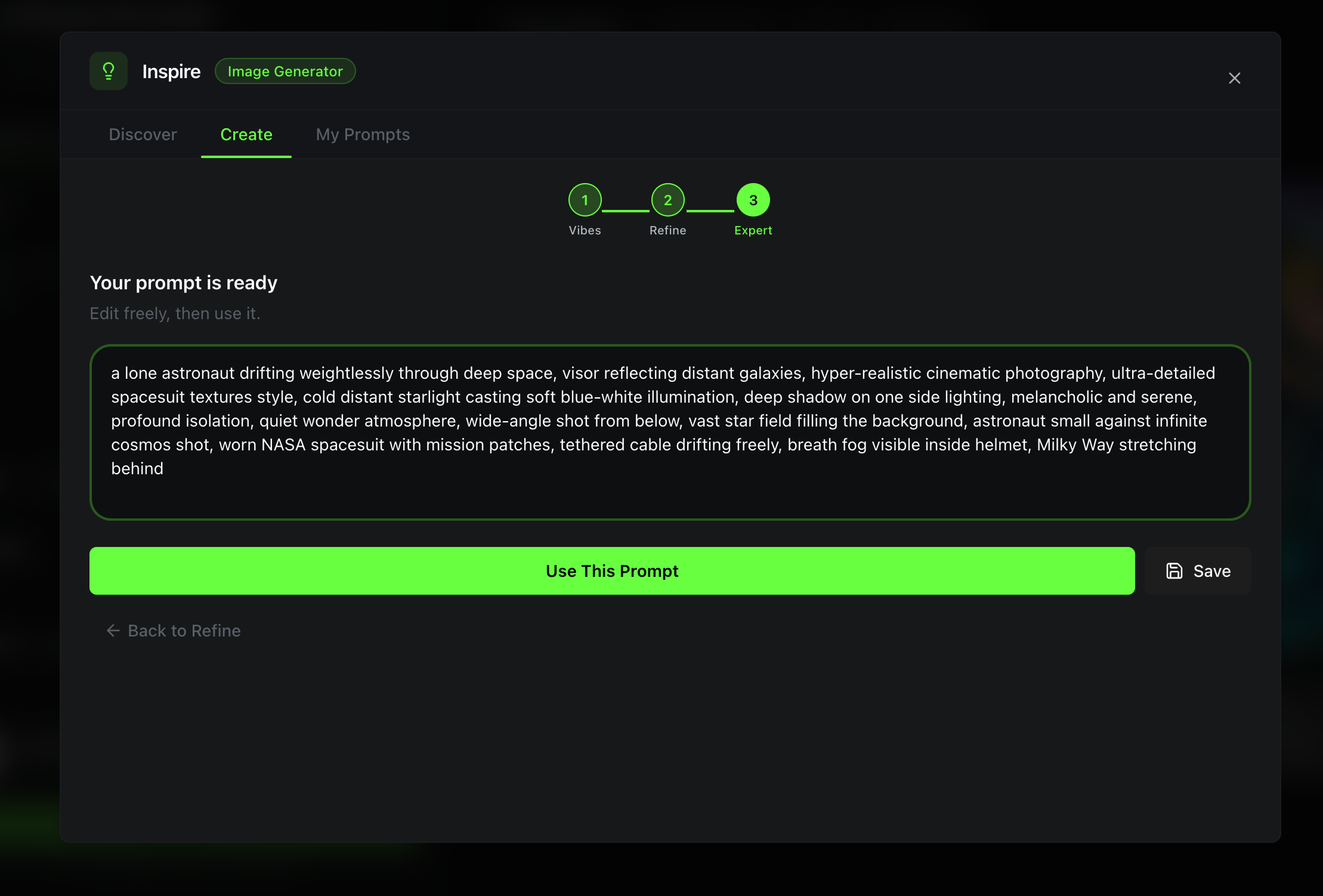
Step 3: Finalize in Expert Mode
Your blocks get assembled into a single, polished prompt in natural language.
You can:
- Edit the text directly for final tweaks
- Use This Prompt to send it to your generator
- Save to add it to My Prompts
- Back to Refine to go back and adjust blocks
Skipping Steps
If you are comfortable writing prompts and just want the block editor, click Skip to expert on Step 1 to jump straight to the final textarea.
Tab 3: My Prompts -- Your Personal Library
Everything you save from Discover or Create ends up here. My Prompts is your personal prompt vault.
Viewing and Filtering
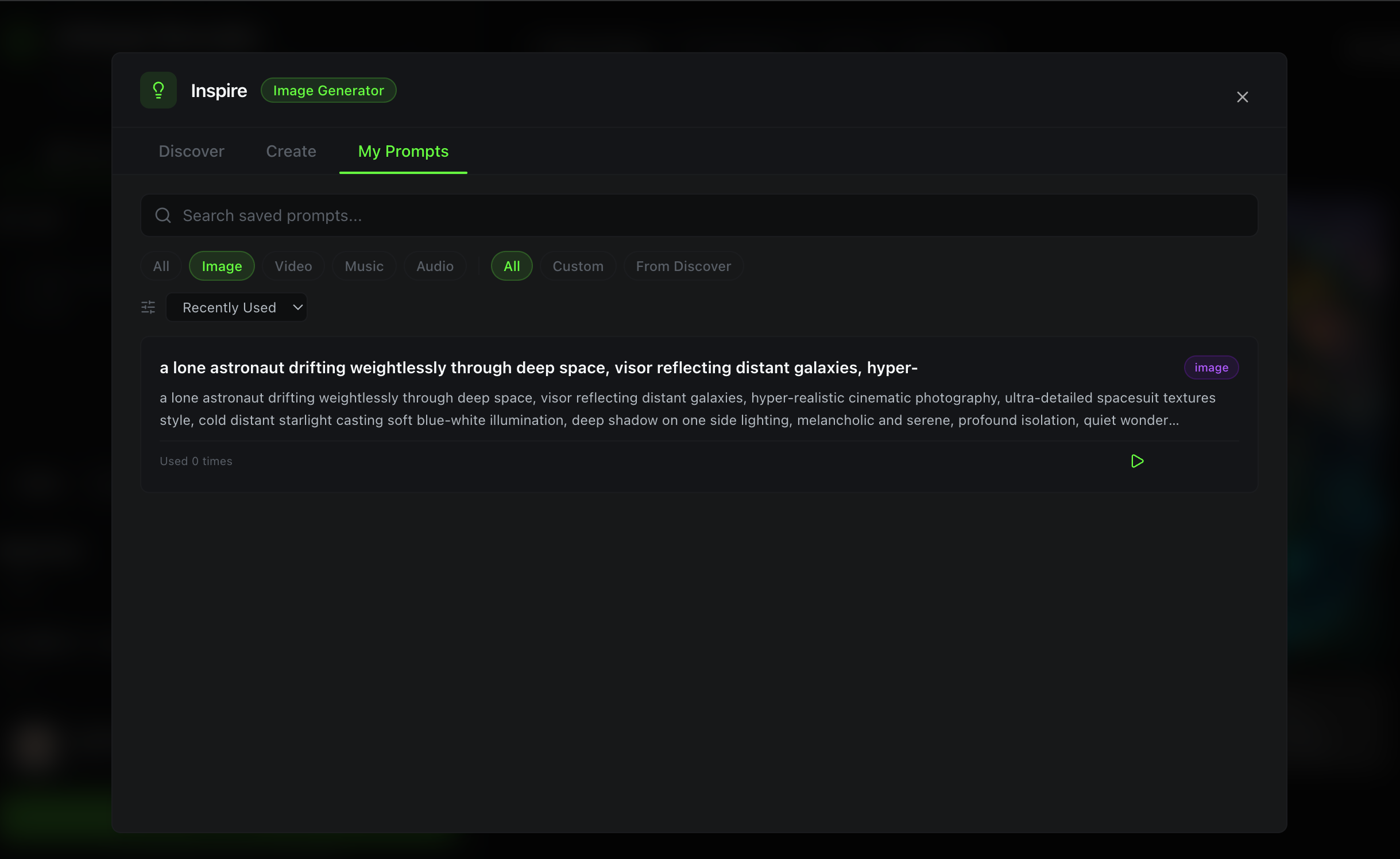
Filter your saved prompts by:
- Tool type: All, Image, Video, Music, Audio
- Source: All, Custom (created by you), From Discover (saved from the curated library)
Sort by:
- Recently Used -- prompts you used most recently appear first
- Most Used -- sorted by usage count
- Newest -- sorted by save date
- A-Z -- alphabetical
Managing Prompts
Each saved prompt has four actions:
| Action | What It Does |
|---|---|
| Use | Inserts the prompt into your generator and closes the dialog. Also tracks usage for the "Recently Used" and "Most Used" sorts. |
| Edit | Opens inline editing for the title, prompt text, and tags. |
| Duplicate | Creates a copy with "Copy of..." prefix. Great for making variations. |
| Delete | Permanently removes the prompt from your library. |
Building a Prompt Library Over Time
Here is a workflow that power users follow:
- Start with Discover -- browse curated prompts, save the ones relevant to your work
- Remix and customize -- use the Remix button to adapt curated prompts to your brand or style
- Create from scratch -- when you have a unique idea, use the Create tab to build structured prompts
- Track what works -- the "Most Used" sort shows you which prompts consistently produce great results
- Duplicate and iterate -- when a prompt works well, duplicate it and create variations for different scenes or moods
Free users can save up to 20 prompts. Upgrade your plan for higher limits.
Example Workflows
Workflow 1: Quick Image Generation
- Open the Image Generator
- Click the lightbulb icon
- Go to Discover > filter by Cinematic
- Find "Golden Hour Portrait" > click Use Prompt
- Click Generate
Total time: about 10 seconds.
Workflow 2: Custom Video Prompt From an Idea
- Open the Video Generator
- Click the lightbulb icon
- Go to Create tab
- Type: "Dramatic aerial shot of a city skyline transitioning from day to night"
- Select Cinematic mood
- Click Create Prompt
- Pick the interpretation with the best camera movement direction
- Edit the Duration block to "10 seconds"
- Click Build Prompt > Use This Prompt
- Click Generate
Total time: about 30 seconds.
Workflow 3: Building a Brand Prompt Library
- Open any generator > click the lightbulb icon
- Go to Discover > search for prompts related to your niche
- Save 5-10 that match your brand aesthetic
- Go to My Prompts > Edit each one to include your brand-specific details (colors, style, tone)
- Next time you generate, go straight to My Prompts > Use your customized prompts
Total time: 10 minutes upfront, then 5 seconds for every future generation.
Tips for Getting the Most Out of Inspire
-
Use mood chips in Create -- they significantly influence the AI's interpretation direction. "Dreamy" and "Epic" produce very different results from the same vibes text.
-
Edit blocks, not just the final prompt -- the block editor in Step 2 gives you modular control. Change just the lighting without affecting the subject.
-
Save prompts that produce great results -- after generating an image or video you love, save the prompt to My Prompts so you can reproduce that quality.
-
Use Remix to learn -- when a curated prompt produces amazing results, click Remix to see how it is structured. This teaches you prompt writing techniques.
-
Sort by Most Used -- your most-used prompts are your best prompts. Keep them accessible.
Start Using Inspire
Open any Oakgen generator and click the lightbulb icon to explore 60+ curated prompts and create your own.