

 ChatGPT
 Claude
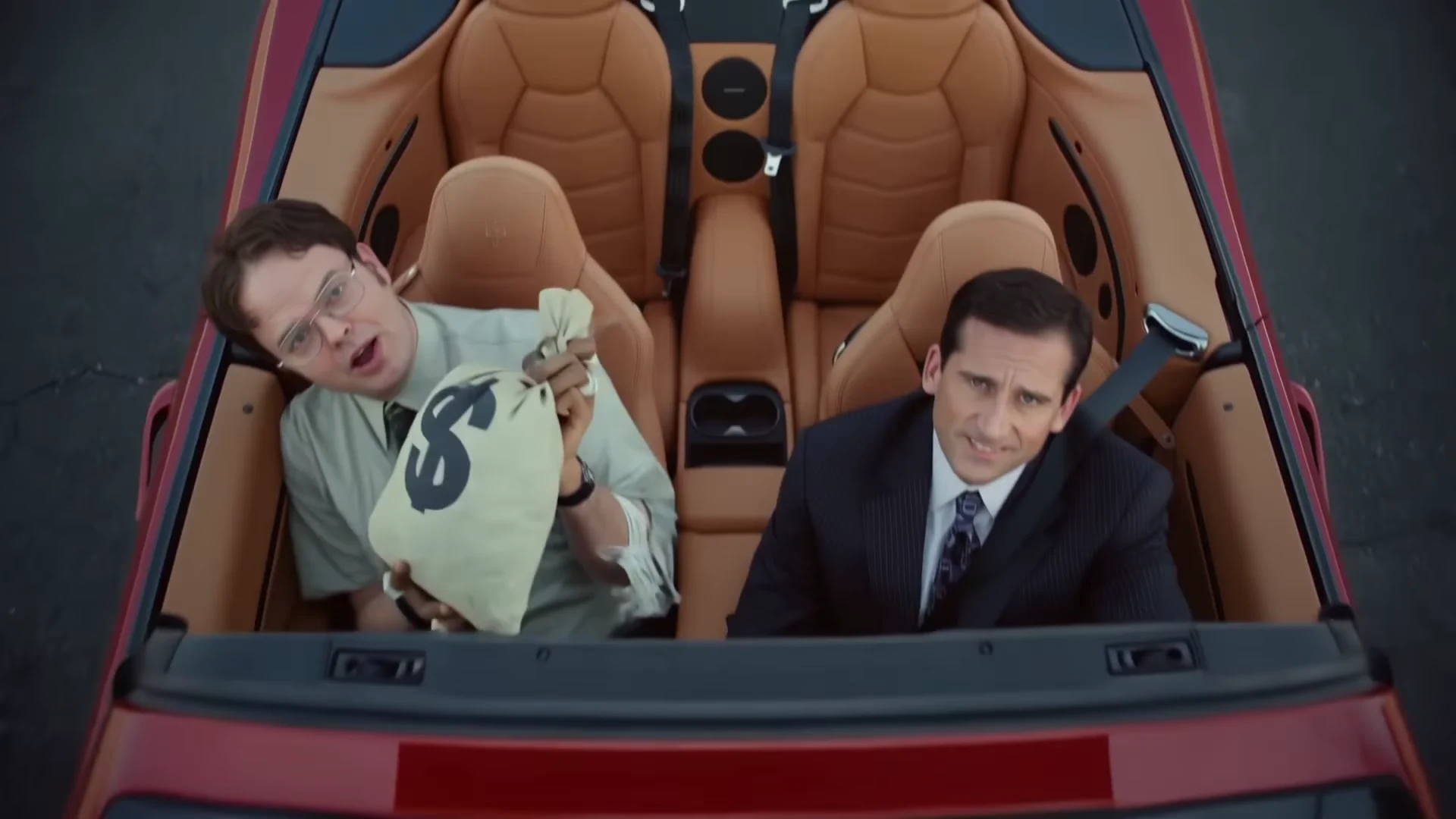
To make an Old Town Road AI video, open the Old Town Road trend on Oakgen, add one photo for the Singer and one for the Suited rider, pick 720p or 1080p, read the credit quote and generate. The result is a 15-second, 16:9 clip in four shots, with the song's soundtrack put back on the finished file. Most of the work is choosing the photos and checking each shot afterwards. This guide covers both, with a casting table and a fix list.
Two photos, four shots
Add a Singer and a Suited rider, pick 720p or 1080p and make the 15-second Old Town Road AI video.
Disclosure: Oakgen is our product. We have not published a generated result from this template yet, so this guide describes what it is set up to do and what to check, not what you will get.
What you are making
The reference is an unofficial AI-made clip set to a stretch of the song. It is not the official video, which is a different piece altogether; the versions guide covers both videos and the recordings. The template keeps the shots and cuts and replaces both men with the people in your photos. Nobody from the song appears in it. For the music first, read the song story and the Lil Nas X profile.
| Shot | Time (about) | Who is on screen | What to check |
|---|---|---|---|
| 1. Red convertible | 0 to 3.1 s | Suited rider, in the open car, money bag outside the door | Face and posture; one plain dollar symbol on the bag, no other lettering |
| 2. Novelty shop | 3.1 to 7.6 s | Singer, dancing in front of a roadside shop | Outfit from the photo, hands, mouth; blank signs |
| 3. Close-up | 7.6 to 11.8 s | Singer, handheld, to camera | Eyes, teeth, mouth shape; soft toy blur behind |
| 4. Overhead | 11.8 to 15 s | Singer on the left holding the bag, Suited rider on the right | Both faces side by side; empty asphalt for the last 1.5 s |
The Singer is on screen for about ten of the fifteen seconds; the Suited rider only in shots one and four.
Step 1: Cast the two photos
Decide who plays whom before choosing photos. The duo guide goes deeper; this table is the short version.
| Role | Give it to | Best photo | Avoid |
|---|---|---|---|
| Singer | The person with the sharpest front-facing photo and the more expressive face; this role carries shots 2, 3 and 4 | Head and shoulders, face forward, even light, mouth and both eyes clear | Hat, sunglasses, a hand near the mouth, side-on angles, heavy filters |
| Suited rider | The person who is happy to be the quieter one, seated and looking up with a small smile | Same rules; match the lighting and distance of the Singer photo | A photo with a second face in it, a scarf across the chin, a much darker or brighter exposure than the Singer's |
Some rules apply to both:
- One person per photo. If you only have yourself, use two different photos of you, with a different angle or expression. The two roles share shot four, and identical photos make the pair look like a glitch.
- No costume. Each person keeps their own outfit; nobody gets a suit or a green shirt unless they wear one in the photo.
- Hair fully visible, no hat. A hat or cropped hair gives the model less to hold.
- Glasses off if you can. Glasses can be read as part of the face, so a photo without them is safest. The Singer's close-up is where a lens problem shows first.
- Consent. Use only photos of people who agreed to appear, and tell them it will be an AI-made music-video clip. Do not upload artists or other public figures. What the template does with the photos is on the face swap page.
Step 2: Pick 720p or 1080p
The quote is 796 credits for the full 15 seconds at either quality, and there is no 480p. The price does not move, so the choice is about the screen. 720p is the default and is enough for phones. Pick 1080p for a laptop, TV or large monitor.
Step 3: Generate
The template is set up to edit the real reference clip with the Kling V4 video model. To keep faces steady across the cuts, the clip is split into three windows (0 to 3.1 s, 3.1 to 11.8 s and 11.8 to 15 s) at the shot changes and joined back together afterwards. The song is never sent to the model. After the picture is done, the original audio goes back on the finished file.
You manage none of this and receive one 15-second file. It matters only because it tells you where to look first when a face changes.
Step 4: Check the four shots
Watch the file with sound, muted, and stepping through the cuts at about 3.1 s, 7.6 s and 11.8 s. The red convertible checklist goes through each shot in detail. At minimum:
- Shot one. The person in the car should be your Suited rider, not a stranger. The bag should show one plain dollar symbol.
- Shot two. Full upper body. Hands and outfit should match the photo, and the shop signs should be blank or unreadable.
- Shot three. The eyes and mouth tell you everything.
- Shot four. Two faces next to each other. Are they distinct people? Is the Singer's outfit the same as in shots two and three?
- The ending. The last 1.5 seconds should be bare asphalt with two faint tyre marks as the car drives away.
Fix list
Fix the photo before you change anything else. Using the same photo again gives the model the same information.
Face drift after a cut. The cut at 7.6 s sits inside the middle window, while the cuts at 3.1 s and 11.8 s are window boundaries. If a face changes, check 7.6 s first (the move from shot two to the close-up) and then the 11.8 s cut into the overhead shot. The likeliest cause is a soft, tilted or unevenly lit photo. Replace it with a sharper, more frontal one.
Glasses. If lenses appear that are not in your photo, or disappear, or lose one lens in the close-up, the reference singer's wire-rim glasses may be leaking through. Use a photo without glasses; if the person always wears them, choose one with clean, unglared lenses.
Hat or odd hairline. A hat in the photo, or hair cut off at the top of the frame, can bring back the reference man's hair or leave a strange outline. Use a photo with the hair fully visible and nothing on the head.
Mouth out of sync. The mouth follows the reference singer's lip movement, not the audio, so sync is not guaranteed. Check shot three with sound on, and generate again if it is off.
Money bag. It should carry one plain dollar symbol and nothing else. Any other mark or readable text is a generation artifact; generate again.
Empty asphalt ending. The final 1.5 seconds should have no person. If a figure, a hand or a stray shape shows on the road, trim the clip at about 13.5 s, before the car clears the frame.
Step 5: Fit it to a vertical feed
The file is landscape, 1920 by 1080 on the reference. Placing it on a 9:16 canvas gives you a band about a third of the screen high (a 1080-wide vertical canvas fits a 608-pixel-tall picture). Fill the rest with a blurred copy of the clip or a solid colour, and add captions there; the template adds none.
Cropping to 9:16 is riskier. A centre crop keeps only about 32 percent of the width, and in shot four the two faces sit on opposite sides of the frame, so one is likely to be lost. If you crop, check that shot, and reposition the crop per shot.
Step 6: Song, platform and label
The song. It is a commercial recording and Oakgen does not license it for your posts. Platforms treat music differently, so check the music rules of the one you post on before you publish. The soundtrack on your file is a stretch of the song; which recording it comes from is not something we state, so avoid naming a version in the caption (see the versions guide for how to check).
The label. Say it is AI-made. YouTube asks uploaders to disclose AI content that appears realistic, including a generated realistic scene that did not occur, through the "AI use" setting in YouTube Studio (YouTube Help, read 19 November 2026). Whether a stylised clip like this crosses the platform's line is the platform's call; the cautious route is to disclose. On other platforms, look for an AI-label setting in the upload flow.
The wording. Do not call it the official video or suggest anyone from the song took part. Send the file to the people in it before you post.
Where to go next
The Old Town Road AI trend page explains the clip shot by shot, and the photo-to-post page is the shorter version of this guide.
Make your Old Town Road clip
Singer and Suited rider, 796 credits at 720p or 1080p, 15 seconds in 16:9. An unofficial AI clip, not affiliated with any artist.
FAQ
How many photos do I need for the Old Town Road AI video?
Two, and both are required: one for the Singer and one for the Suited rider. Neither man in the reference clip is kept. Each person keeps the outfit from their own photo.
Should I pick 720p or 1080p?
The quote is 796 credits for the full 15 seconds at either quality, so price is not the deciding factor. 720p is the default. Pick 1080p if the clip will be watched on a large screen. There is no 480p.
Can I post the clip with the song?
Oakgen does not license the song for your posts. The original soundtrack is put back on the finished file, but the platform's music rules still apply. Check them before you publish, and label the clip as AI-made.
Is this the official Old Town Road video?
No. The official remix video, directed by Calmatic, is a time-travelling Western. This is an unofficial AI-made clip set to the song, and Oakgen is not affiliated with or endorsed by Lil Nas X, Billy Ray Cyrus, their labels or publishers.