ChatGPT
 Claude
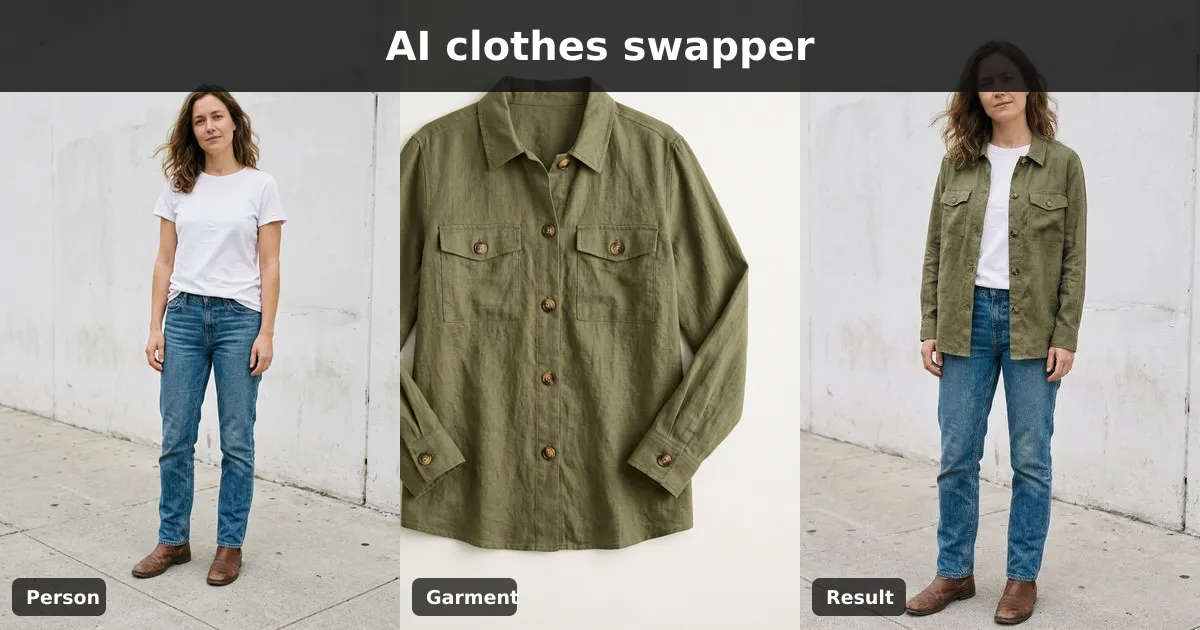
Make a three-image launch pack for each clothing drop. Photograph the actual garment for the listing. Use one approved model photo and the garment reference to make a styled campaign mockup. If that mockup passes review, adapt it into an ad variant with a different message or crop.
The same model photo can anchor the next drop if the pose still suits the garment and you have permission to reuse it. A clear garment reference and an accurate listing photo are the parts to collect again for each new item.
Which photos do you need for a clothing drop?
Plan the listing and campaign images together. Give each image one job.
| Asset | What to start with | What to check before using |
|---|---|---|
| Product listing photo | A sharp photo of the exact garment and colorway | Fabric, fastenings, logo and color match the item that ships |
| Social campaign mockup | An approved person photo and a clear outfit reference | The generated garment still looks like the actual piece |
| Optional ad variant | A reviewed campaign image | The new crop or headline adds a distinct test while product claims stay the same |
Set aside real detail photos of features that matter to buyers, such as the pocket opening or the reverse side. Keep the approved files grouped by product ID and color. A file name like JKT-042-olive-detail-zip.jpg tells your teammate which item they can use when the drop is live.
How do you make a campaign mockup with an outfit reference?
In Oakgen's Clothes Swapper, use a clear person image and a separate outfit reference. Choose a base photo with the relevant part of the body visible. For a jacket, pick an angle that shows both shoulders and the arms. For a long skirt, use a full-length photo with the hem area in view.
- Shoot the outfit reference in even light. Keep the whole garment in frame and photograph important fabric details separately.
- In Oakgen, add the person photo and outfit reference. If you have a full outfit photo but only want to change the jacket, name the exact item in the instructions.
- Review the credit quote before generating. Start with one item. Keep the same input photos when checking whether a change to the instructions helps.
- Compare the mockup and the garment at full size. Check color, pattern scale, sleeve and hem length, buttons, seams and visible branding. Examine the model image for unintended changes as well.
Read the step-by-step Clothes Swapper guide for the two-photo setup. When the actual fit is the point of the image, photograph the real garment on a model wearing the relevant size. Show the size and measurements alongside the photo when available.
What would this look like for an olive overshirt?
For an illustrative launch, imagine a shop selling an olive overshirt with snap cuffs and a patch pocket. The listing uses the actual overshirt on a hanger and a detail photo of the cuff. The campaign uses an approved model photo with enough room to show both sleeves and the hem.
Try this instruction. "Use the olive overshirt from the reference. Show it open over the shirt already in the person photo. Keep the snap cuffs, left chest pocket and straight hem visible." Check the result against the source item. If a snap cuff turns into a button or the chest pocket moves, reject the mockup. You can still launch with the product photo.
For the optional ad variant, keep the approved photo and test a different crop or headline. Use a design editor for exact offer copy and a brand mark. Oakgen's Image Editor is an option for a separate scene edit. Review the garment again after an edit that redraws any part of the image. Keep an unedited source photo on hand so you can return to it.
How we checked this
On November 19, 2026, we checked Oakgen's Clothes Swapper inputs, Image Editor, pricing and Terms of Service. The overshirt example is illustrative and was not rendered. Use photos you have permission to edit and publish. Commercial use of eligible Oakgen outputs depends on the Terms, applicable law, model provider terms and rights in the inputs.
Mock up one garment for your next drop
Bring an approved model photo and a clear outfit reference. Check the quote before making your first campaign preview.
Frequently asked questions
Can I use one model photo for every clothing drop?
You can reuse an approved photo where the pose shows the new garment clearly and your agreement allows reuse. Take a fresh base photo if the old pose hides the neckline, sleeves, hem or other details the new piece needs to show.
Can I make launch images from one photo of the garment?
Oakgen's Clothes Swapper uses one person image and one outfit reference. Keep real product detail photos for any features hidden in the outfit reference. The model may invent details it cannot see.
Do I need a separate AI image for each color?
Use a real photo of each colorway for the product listing. Make a campaign mockup for a colorway only if you have a clear reference and can verify the output against the actual garment.
How much does it cost to make a clothes swap?
On November 19, 2026, the Oakgen Clothes Swapper used credits from a paid plan. The credit quote depends on the selected model and settings. Review it before you generate, and start with one garment so you can judge the result.