A Christmas card photo usually means one stressful afternoon: everyone in matching sweaters, a dog who will not sit, a toddler who will not look up, and a photographer you booked in October. AI changes the order of things. You can start from a photo you already love, from a summer trip or a birthday, and turn it into a card-ready Christmas image afterwards.
This post is about what to make: card ideas for different households, how to lay out a card around an AI image, and how to print it so it looks sharp. For the step-by-step on adding Santa, see how to add Santa to a photo with AI. All the ideas below use Oakgen's Christmas Photo Generator, which has four scenes, optional sweaters and Santa hats, and a Christmas Card Look that leaves space for your greeting.
Start with the photo, not the idea
The right card photo is the one where everyone already looks like themselves. AI can change the room, the weather and the outfits; it cannot fix a closed eye or a face in shadow without guessing. So before you choose an idea, choose a photo where:
- every face is sharp and reasonably large in the frame;
- the light is soft and from the front;
- nobody is cut off at the edges;
- the expressions are the ones you would want on a fridge for a month.
Then pick the idea that suits that photo, rather than forcing a photo into an idea.
Ideas for families
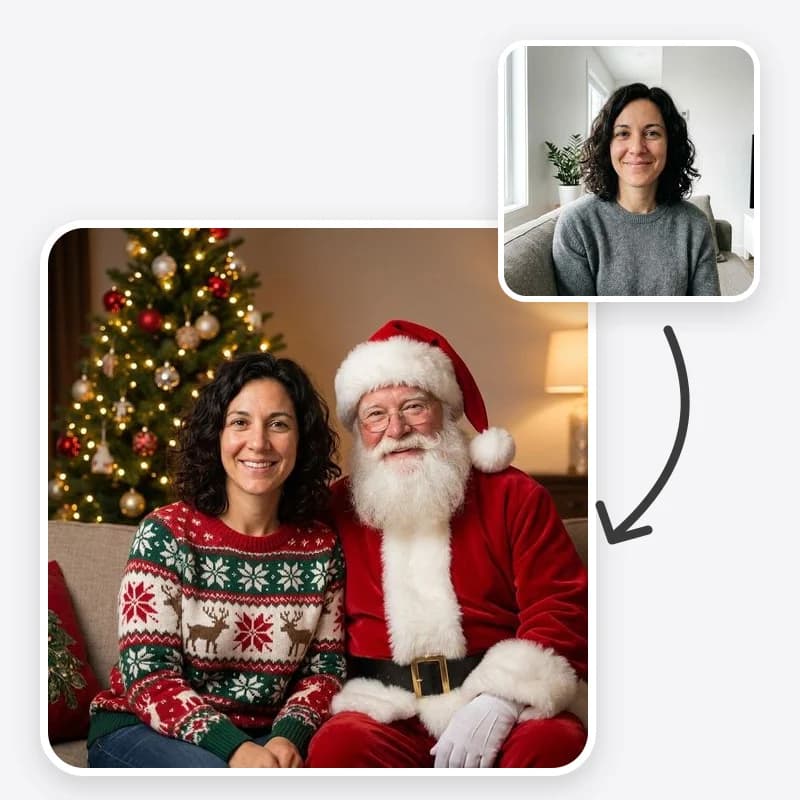
The tree-lit living room. Choose Cozy Living Room by the Tree and Keep Their Clothes. This is the quiet, classic card: your real outfits, a decorated tree and warm evening light. It suits relaxed photos where people are sitting close together.
Matching sweaters without the shopping. Use the same scene with Christmas Sweaters. This works best for waist-up photos where tops are clearly visible. For full-length photos, the sweaters are small and the effect is lost.
A snow day you did not have. Snowy Winter Outdoors puts everyone in a snowy pine landscape with a glowing cabin behind them. It suits standing, full-body photos, and it keeps whatever clothes you choose in the separate outfit setting. Summer clothes in snow can look odd, so pair it with Christmas Sweaters or describe "warm winter coats" in the instructions.
Your own home, decorated. Keep My Background leaves your actual location and adds a few string lights and some garland. It is the right choice when the place matters, for example the first Christmas in a new house.
Santa drops by. Santa Next to You adds one Santa beside the group. It is fun for families with young children, and it is worth reading the Santa guide first, because scale and contact are the parts that need checking.
Make your Christmas card photo
Turn a photo you already love into a tree-lit, snowy or Santa scene, with optional sweaters and a card layout with space for your greeting.
Ideas for couples and friends
First Christmas together. A close two-person photo with Cozy Living Room by the Tree and Santa Hats reads instantly as a holiday card. Add "candlelight and a mug of cocoa on the table" if you want more story.
Engaged or newly married. Use an engagement or wedding photo with Snowy Winter Outdoors. Keep their clothes, so the dress or suit stays recognisable, and add "keep the wedding dress exactly as it is" to the instructions.
Friendsmas. Small friend groups photograph well in Christmas Sweaters with Keep My Background: everyone's real place, with a festive knit twist. Get each friend's agreement before you use their photo.
Ideas for pets
The dog in a scarf. Most pets look better with the small knit scarf from Christmas Sweaters than with a hat. Pick a photo where your pet's face and markings are clear, and check those markings in the result.
Pet by the tree. Cozy Living Room by the Tree with Keep Their Clothes puts your cat or dog beside presents and lights with no costume at all. It is often the most natural-looking pet card.
Pet plus family. Include the pet in the family photo rather than making two separate images. One shared scene with consistent light looks more like a real moment.
A painted pet card. If you want something more formal or funny, a royal pet portrait of your dog in a crown and ermine cape makes a memorable card front. Our custom pet portrait gift guide covers which style suits which pet.
Laying out the card
Choose Christmas Card Look in the Finish setting when the image is going on a card. It does three things:
- widens the composition slightly, so faces are not jammed against the edge;
- leaves clean, empty space above or below the people for a greeting;
- adds a simple border of pine sprigs and red berries.
It does not write any words. Generated text is often misspelled, so the prompt asks the model to leave letters out. Add the greeting, your names and the year in your printer's card editor or in any design app. A few layout habits help:
- One short line. "Merry Christmas from the Okafors" reads better than a paragraph.
- Put the text where the empty space is. If the model left space at the top, do not force the greeting to the bottom over someone's legs.
- Match the colours. Pick a text colour from the image, such as the deep red of a sweater or the cream of the snow.
- Use the back. Most printers offer a back side for a longer note, the year, or a second photo.
If you prefer to design the whole card yourself, choose Photo instead. You get a full-bleed image without the border and can add your own.
Print sizing that avoids blurry cards
Most flat photo cards come in two sizes, and the usual rule for sharp prints is about 300 pixels per inch.
| Card size | Pixels needed at 300 PPI | Notes |
|---|---|---|
| 4x6 inches | about 1200 x 1800 | Postcard size; fine for most phone-quality images |
| 5x7 inches | about 1500 x 2100 | The classic card size; check faces at full size |
| 5x5 inches | about 1500 x 1500 | Square cards; crop from the centre |
Three checks before ordering:
Check the pixel size. Open the image's file information and compare it with the table. If it is smaller, enlarge it with an upscaling tool and look at faces again afterwards. Our guide to upscaling AI images for print explains what upscaling can and cannot recover.
Check the shape. A 5x7 card is taller than many phone images. If the shapes do not match, the printer will crop. Keep important faces away from the edges, and use the printer's preview to see what is cut.
Leave a safety margin. Many printers ask for a small bleed area around the edge, often an eighth of an inch, and trim it off. Keep text and faces inside the printer's safe zone shown in its template.
A last tip: print one test card at home or order a single proof if your printer allows it. Skin tones on screen and on paper can differ, especially with warm Christmas lighting.
A quick honesty checklist
- Is everyone still recognisable? Compare each face with the original before sending.
- Did everyone in the photo agree to it being used?
- Would anyone feel misled? A small "made with AI" line on the back is a kind touch for relatives who might otherwise ask where the snow came from.
Related reading
- How to add Santa to a photo with AI, the step-by-step for the Santa scene.
- Seasonal Outfit, for winter clothes without a Christmas scene.
- Background Replacer, for a scene you describe yourself.
- Oakgen image templates guide, an overview of the other photo templates.
Start your card from a photo you love
Pick a scene, add sweaters or Santa hats, and choose the Christmas Card Look for space to write your greeting.
Frequently asked questions
What size should a Christmas card photo be?
The most common flat photo cards are 5x7 inches and 4x6 inches. At 300 pixels per inch, a 5x7 card needs about 1500 by 2100 pixels and a 4x6 card about 1200 by 1800. Check your image size before ordering and upscale if it falls short.
Can the AI write my greeting on the card?
The Christmas Card Look leaves blank space for a greeting but does not write it, because generated text is often misspelled. Add your greeting, names and year in your card printer's editor or a design app.
Can I make one card with my family and our pets?
Yes, if everyone is in one photo. Keep the group small enough that each face and each pet is clearly visible, and check every one of them in the result.
Is it fine to send an AI Christmas photo as our family card?
Many people do. Keep everyone recognisable, use only photos of people who agreed, and consider a small 'made with AI' line on the back if anyone might think it was a real photo session.