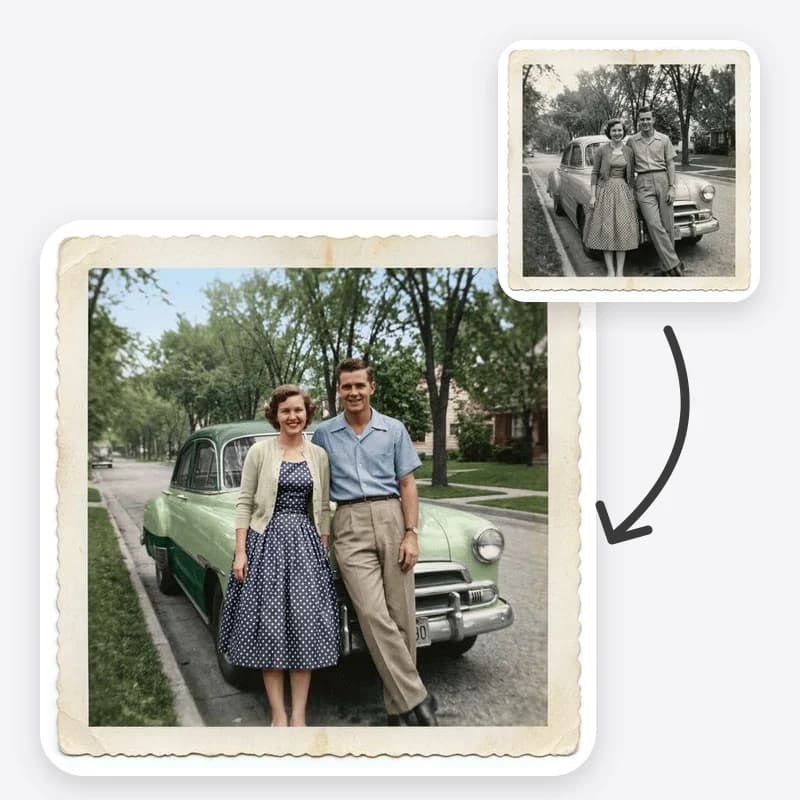
Old photos usually arrive in a box, not one at a time. Some are crisp and just happen to be black and white. Some are cracked, stained or faded to a ghost. And somebody in the family always asks, "Can you make them color?" Before you run anything through AI, it helps to sort the pile by what each photo actually needs. This guide explains the difference between restoring and colorizing, how to decide for each print, and the order that avoids extra work.
If you already know you want color and just need the steps, the companion guide how to colorize a black and white photo with AI goes option by option.
Restoring and colorizing are different jobs
Restoring repairs what time did to the print: scratches, dust, cracks, creases, stains, missing corners, fading and color shifts. The goal is a copy that looks closer to the day it was printed. On Oakgen, Old Photo Restoration has presets for full restoration, scratch and damage repair, and face enhancement.
Colorizing adds color the photo never had. The goal is a new version that shows the scene as it might have looked in color. On Oakgen, Colorize Photo lets you choose a color approach and an era hint, and can optionally clean light dust and scratches.
Both are interpretations. When AI repairs a crack through a face, it fills in pixels that are not in the scan. When AI colorizes a dress, it picks a color the grayscale cannot confirm. But colorizing invents more: every pixel gets a hue the original never recorded. That is why the two should be separate, deliberate steps.
Sort your photos into four piles
Spread out the prints, or scroll through the scans, and put each one into a pile.
Pile 1: Clean black and white photos
Sharp, no visible damage, good contrast. These do not need restoring. Colorize a copy if you want color, and keep the original as it is.
Pile 2: Lightly marked photos
A few dust specks, a hairline scratch or two, slight softness. These can usually go straight to Colorize Photo with the "Also repair light damage" option set to Yes, which asks the model to clean small marks in plain areas without smoothing faces. If you want to keep them black and white, use Scratch/Damage Repair in Old Photo Restoration instead.
Pile 3: Damaged photos
Tears, cracks across faces, missing corners, water stains, heavy creases, or fading so strong that faces are hard to read. These need restoration first. Colorizing them directly tends to color the damage too: a crack becomes a brown line, a stain becomes a patch of odd skin tone.
Pile 4: Faded color prints
Prints from the color era that have shifted toward yellow, magenta or cyan. These are not black and white, so they do not need colorizing. They need color correction or restoration. Try Full Restoration, or Color Correction when the print is otherwise in good shape.
Colorize your clean black and white prints
Pick a color approach and era hint; faces and framing stay as they were.
The right order: restore, save, then colorize
For photos that need both, the order matters.
- Scan and save the original. This file never gets edited. It is the reference you compare everything against.
- Restore the black and white image. Repair the damage in Old Photo Restoration. Check faces closely, because damaged areas are where the model invents most.
- Save the restored master. Keep it in black and white. This is the copy most likely to be printed, framed or shared with relatives who want the photo as it was.
- Colorize a copy of the restored master. Use Colorize Photo on the restored file, not on the damaged original. Set the light-repair option to No, because the repair is already done.
- Compare all three. Original, restored and colorized side by side. Make sure faces still match the original and that nothing important was lost.
Why not colorize first and repair later? Because once color is added, it is harder to see what the repair changed, and the repair pass may shift the colors you chose. Doing it in this order also means you can colorize again later, with a different approach or new family knowledge, without repeating the repair.
When to colorize, and when not to
Colorizing is a creative choice, not an upgrade. A few questions help.
Who is it for? A memorial slideshow, a birthday gift or a reunion display often benefits from color, because it makes people feel more present. A family tree record or an archive copy usually should stay black and white.
Do you know any real colors? If a relative remembers the color of a coat, a car or a front door, colorizing becomes more meaningful because you can add that knowledge in the instructions. If nobody knows anything, the whole palette is a guess. That is fine for a gift, but say so.
Does the photo work in black and white? Strong portraits with dramatic light often lose something in color. Try one colorized version and look at both before deciding.
Will people mistake it for a record? A colorized photo shared without a label can turn a guessed uniform color into "fact" within a few years. If the image might be used for history, label it.
Scanning tips that help both jobs
Good input helps restoration and colorization equally.
- Scan flat and even. A flatbed scanner gives even light and straight edges. If you use a phone, shoot near a window without direct sun and hold the phone parallel to the print.
- Avoid glare. On glossy prints, a reflection becomes a pale patch the model may treat as part of the scene.
- Scan the whole print, then crop. Keep a full scan including borders and any writing on the front, then make a cropped working copy.
- Scan the back too. Dates, names and places written on the back are often the only reliable information about the photo. They also tell you which era hint to use.
- Use the highest resolution you can manage. Small faces need detail to survive repair and colorizing. Our old photo restoration guide has more on scanning settings and keeping originals safe.
If a print has a camera date stamp burned into the corner and you want it gone, Remove Text From Image has a Date stamp option. Remove it from a working copy, not the original scan.
How to label what AI changed
Families keep photos for generations, and AI edits do not label themselves. A simple naming scheme avoids confusion later:
smith-wedding-1952-original.jpgsmith-wedding-1952-restored.jpgsmith-wedding-1952-colorized.jpg
When you share the colorized version, add a short caption such as "Restored and colorized with AI; colors are an interpretation." If you used real family knowledge, say that too: "Coat color from Aunt May's memory."
If you print a colorized photo as a gift, consider printing the original black and white beside it. People often find the pair more moving than either one alone, and it keeps the record honest.
What to check after each step
After restoring: compare faces with the original at full size. Look for changed eye shapes, missing glasses, smoothed wrinkles or invented details in previously damaged areas. If a face no longer looks like the person, try a gentler option such as Scratch/Damage Repair instead of Full Restoration, or improve the face separately with Face Restoration.
After colorizing: check skin tones for variation between people, whites that stayed white, color bleeding at edges such as collars and hairlines, and small objects like badges and jewelry where the model may have made something up. Rerun from the restored master, not from the colorized file, if something is off.
A quick decision guide
- Clean black and white photo, want color: colorize.
- Light dust or scratches, want color: colorize with light repair on.
- Light dust or scratches, want to keep black and white: restore with scratch repair.
- Torn, cracked, stained or heavily faded: restore first, then colorize a copy if you want color.
- Faded color print: restore or color-correct; do not colorize.
Colorize a restored photo
Upload your restored black and white master and add color without changing faces or framing.
Keep going
- How to colorize a black and white photo with AI explains every option and how to check the result.
- Old Photo Restoration repairs damage before you add color.
- Face Restoration helps when faces are small or soft.
- How to restore old family photos covers the full archive workflow, from scanning to storage.
Frequently asked questions
Should I restore or colorize an old photo first?
Restore first. Repair tears, scratches and fading on the black and white image, save that as your restored master, then colorize a copy. Colorizing a damaged photo tends to color the damage too, and repairing a colorized image makes it harder to see what changed.
Is colorizing the same as restoring?
No. Restoring repairs damage such as scratches, cracks, stains and fading so the photo looks closer to how it did when printed. Colorizing adds color that the original never contained. Both are AI interpretations, but colorizing adds more invented information.
Do I have to colorize a restored photo?
No. Many people keep the restored black and white version as the main copy and make a colorized copy only for a slideshow, gift or social post. A good black and white restoration often looks more natural than a colorized one.
Which photos should not be colorized?
Photos where the exact appearance matters as evidence, such as documents for a legal, medical or historical record, and photos where the family prefers the original look. Colorize a copy if you want one, and keep the original as the reference.