Most AI image tools start with a blank prompt box. That is flexible, but it is also slow when the job is obvious: remove a background, create a product mockup, change a hairstyle, upscale a blurry photo, design a YouTube thumbnail, or turn a portrait into a specific style.
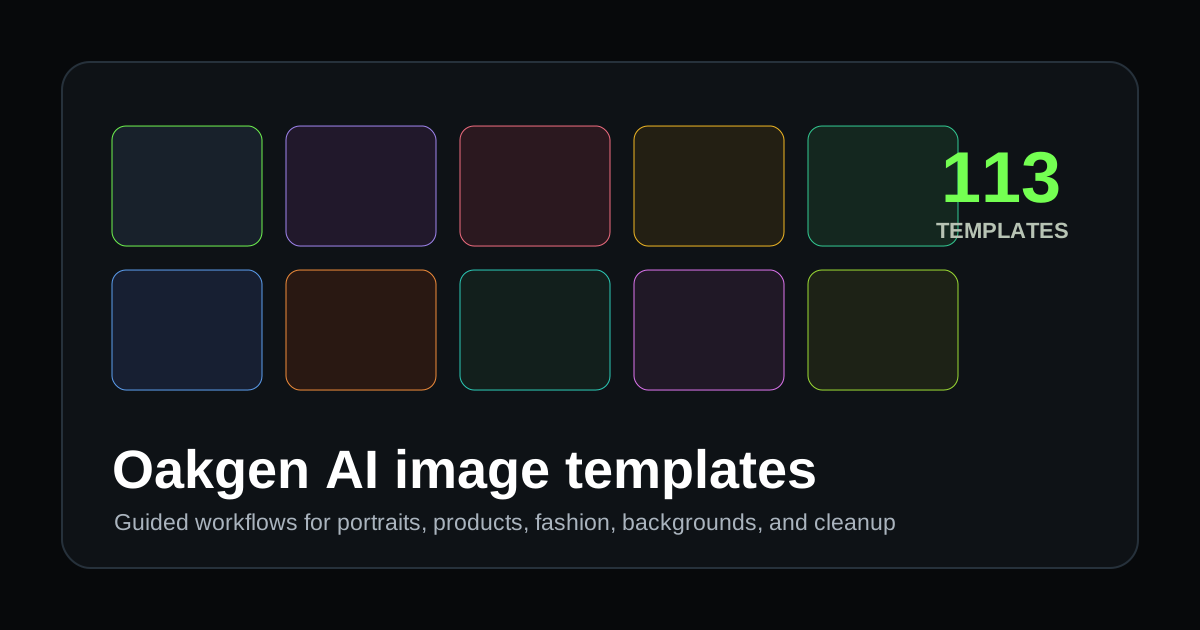
Oakgen's template tools solve that by turning common image jobs into guided workflows. The current tool catalog resolves 113 template-based image tools across style transfer, face and portrait editing, clothing and fashion, backgrounds, viral creative formats, and technical enhancement.
The point is not to replace prompting. The point is to stop writing the same prompt from scratch every time.
Template tools vs open prompting
Use the Image Generator when you want to invent something from a blank page.
Use a template when you already know the job:
| Job | Best starting point |
|---|---|
| "Make this photo look like anime" | Style-transfer template |
| "Remove the background" | Background Remover |
| "Create a product shot" | Product Photography |
| "Make a LinkedIn headshot" | Professional Headshot |
| "Change this outfit" | Clothing and fashion template |
| "Fix blur and noise" | Technical enhancement template |
| "Create a thumbnail" | YouTube Thumbnail Generator |
| "Redesign a room" | Home Redesign or Interior Design |
The template gives the model structure. You still guide the result, but you do it through fields, references, and focused instructions rather than a giant all-purpose prompt.
The template categories
Oakgen's template system is organized around what people actually need to make.
Style transfer
Use style-transfer templates when the source image is already right but the look is wrong.
Examples include:
- Ghibli-style illustration
- anime and manga
- Disney/Pixar cartoon
- oil painting
- watercolor
- pencil sketch
- comic book
- pixel art
- neon cyberpunk
- pop art
- impressionist and surrealist looks
This is the fastest path for creators who want one photo turned into a recognizable visual style without learning prompt syntax for lighting, medium, lens, and texture.
Face and portrait
Face and portrait templates are for identity-focused edits:
- professional headshots
- face swap
- age transformation
- hairstyle changes
- hair color changes
- makeup try-on
- skin retouching
- teeth whitening
- expression changes
- glasses, piercings, tattoos, freckles, and more
Use these when the person matters more than the environment. For business assets, start with Professional Headshot. For character or creator work, use fashion, expression, or cosplay templates.
Only edit real people's faces when you have permission and a legitimate use case. Templates make editing easier; they do not replace consent, likeness rights, or platform rules.
Clothing and fashion
Fashion templates are useful when the product is the outfit, not the face.
Use them for:
- virtual clothing try-on
- outfit style transformation
- seasonal looks
- historical costumes
- fantasy and gaming outfits
- clothing color changes
- pattern and print changes
- fabric simulation
- shoes and accessories
For ecommerce, these templates pair well with Photo Studio and Product Photography. Generate clean product visuals first, then build campaign variants around the same visual language.
Background and environment
Background templates handle the most common "this photo is almost usable" problems:
- remove a background
- replace a background
- blur the background
- replace the sky
- change weather
- change time of day
- convert day to night
- adjust season
- add cinematic grading
- add film grain
- change wall color
These are high-leverage because they preserve the subject while changing the context. A single product photo can become a studio shot, lifestyle shot, seasonal ad, marketplace listing, and social creative.
Viral and creative formats
Viral-trend templates are for outputs that need to be immediately legible in a feed:
- 3D collectible figure
- product mockup
- package label
- billboard ad
- magazine cover
- movie poster
- trading card
- neon text overlay
- graffiti art
- meme template
- before/after comparison
- spotlight or levitation effects
- artistic QR code
Use these when format is the hook. A movie poster prompt from scratch can work, but a movie poster template starts with the correct composition.
Technical enhancement
Technical templates are less flashy and often more useful:
- super resolution and upscaling
- sharpening and deblur
- denoise
- color correction
- exposure fix
- saturation and vibrance
- object removal
- old photo restoration
- perspective correction
- red eye removal
- outpainting
- face restoration
- JPEG artifact removal
- lighting and shadow adjustment
These templates are for production cleanup. They turn almost-there assets into usable assets.
A practical selection workflow
If you are not sure where to start, use this decision tree:
- Need a brand-new image? Use Image Generator.
- Need the same person in a better format? Use face or portrait templates.
- Need a product to look sellable? Use Product Photography or Photo Studio.
- Need to change context? Use background and environment templates.
- Need a feed-native format? Use viral-trend templates.
- Need cleanup? Use technical templates.
- Need to compare model choices? Use Image Arena.
Example: one product, five assets
Start with one clean product photo. In Oakgen, you can build a campaign set without leaving the platform:
- Use Background Remover for a transparent product cutout.
- Use Product Photography for a hero image.
- Use Billboard Advertisement for an outdoor mockup.
- Use Magazine Cover Creator for editorial positioning.
- Use Image Upscaler if the final asset needs higher resolution.
That is the practical advantage of templates: not one image, but a repeatable asset system.
Example: one creator, seven profile assets
For creators and personal brands:
- Use Professional Headshot for LinkedIn.
- Use Fashion Model Portrait for editorial style.
- Use Hairstyle Changer for look tests.
- Use Anime/Manga Style for a community avatar.
- Use Comic Book Style for channel art.
- Use Background Replacer for niche-specific settings.
- Use Image Editor for final cleanup.
Templates are especially useful when you need consistency across a batch, not just one lucky generation.
What to use first
If you are new to Oakgen's templates, start with these five:
- Product Photography if you sell anything physical
- Professional Headshot if you need trust assets
- Background Remover if you edit product or creator photos
- Super Resolution / Upscaling if you rescue low-quality images
- YouTube Thumbnail Generator if you publish video content
Then branch into style, fashion, and viral formats once your core assets are handled.
The simple rule
Use open prompting for imagination. Use templates for execution.
The Image Generator is where you explore. The template tools are where you turn common creative work into repeatable production.
Explore Oakgen's image templates
Start with a guided workflow for product shots, portraits, backgrounds, viral formats, or technical cleanup.