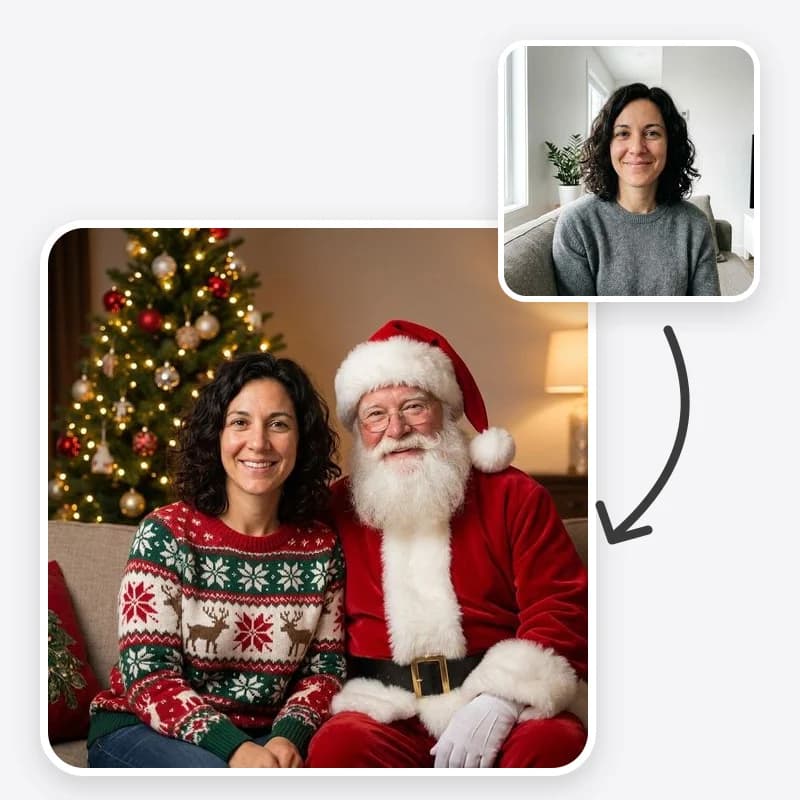
Adding Santa to a photo sounds like a one-click job, and sometimes it is. More often the first result has a Santa who is too tall, a hand that melts into someone's shoulder, or a child whose face has quietly changed. This guide walks through the choices that decide whether the result looks like your family with Santa or a stranger's Christmas card, using Oakgen's Christmas Photo Generator.
If you are still deciding what kind of Christmas photo you want to make (cards, pet photos, matching sweaters), start with our Christmas card photo ideas and come back here for the Santa how-to.
What the Santa option actually does
The tool has four scenes. Santa Next to You is the one this guide is about. It asks the model to:
- place your people and pets in a warmly lit living room next to a decorated tree;
- add one Santa in a classic red suit with white fur trim and a full white beard;
- stand or seat him right next to you, as if he were posing for the same photo, at a believable scale and lit by the same light;
- keep every face, age, skin tone, hair, body shape, expression and pose as they were;
- keep the same number of people and animals in the same positions relative to each other.
It does not keep your original room in this scene. If you want Santa in your own living room, choose Keep My Background and add "add Santa standing to the left of the group" in the additional instructions. That works, but it is less predictable than the preset, because the model now has to fit Santa into a space it did not design.
The other three scenes (cozy living room by the tree, snowy outdoors, keep my background) do not add Santa at all. Outfits and the card layout are separate choices and work with every scene.
Step 1: Pick the right photo
The source photo matters more than any setting. Before you upload, check these five things.
Faces are large and sharp. Each face should be clear enough that you could recognise the person in a thumbnail. Faces smaller than a fingernail on your phone screen are the ones that drift.
Light is even. Harsh midday sun, a strong window behind people, or one face in shadow gives the model less to work with. Overcast daylight or indoor light from the front is ideal.
Nobody is cut off. If someone's head or shoulder touches the frame edge, the model may crop them further or invent the missing part. Leave a little space around the group.
There is room for Santa. The model has to fit a full-size adult beside you. A tight crop of two faces gives it nowhere to go, so it may shrink everyone or squeeze Santa in behind. A waist-up or full-body photo with some space on one side works better.
You have permission. Only use photos of yourself or of people who agreed, and ask a parent or guardian before using a child's photo.
Group size matters too. One to four people is the comfortable range. With six or more, faces are smaller and the chance that someone changes, merges with a neighbour or disappears goes up. For a large family, it is often better to make two images than to push one.
Put Santa in your photo
Upload a clear photo of your family, child or pet and choose Santa Next to You. Keep everyone's face, pose and pet markings.
Step 2: Set the options
Scene
Choose Santa Next to You. Leave the additional instructions empty for your first attempt. The preset already describes Santa, the room and the lighting, and extra words often fight it.
Outfits
- Keep Their Clothes is the safest choice for likeness, because the model changes the least.
- Santa Hats adds a red hat to each person and keeps clothing. Hats sit on hair, so they can change hairlines slightly; check fringes and hair colour.
- Christmas Sweaters replaces tops with knit sweaters. It looks festive, but it changes more of the image, so shoulders and arms may shift.
- Sweaters and Santa Hats combines both.
If you are wearing glasses, a headscarf or a cap that matters to you, add "keep my glasses" or "keep her headscarf" to the instructions. Santa hats may otherwise replace headwear.
For pets, the outfit options only add a small hat or knit scarf when it fits naturally. Most dogs and cats look better with a scarf than a hat.
Finish
Choose Photo if this is for your phone, a frame or a social post. Choose Christmas Card Look if you plan to make a card: it widens the frame a little, adds a simple border of pine sprigs and berries, and leaves blank space for a greeting. The tool does not write the greeting, on purpose, because generated letters are often misspelled. Add the words afterwards in a card or design app.
Step 3: Read the first result like a checklist
Do not judge the first image as a whole. Go through it piece by piece.
- Count. Same number of people and pets as the original? Nobody doubled, nobody missing?
- Faces, one by one. Zoom in on each face and compare it with the original side by side. Eye shape, nose, smile and skin tone are where drift shows first.
- Santa's scale. His head should be roughly the same size as the adults' heads at the same distance from the camera. A giant or a tiny Santa is the most common error.
- Contact points. Where Santa's hand meets a shoulder or a child sits near him, look for fingers that merge into clothing or arms that come from nowhere.
- Light direction. Shadows on Santa and on your family should fall the same way. If Santa looks brighter or flatter than everyone else, he will look pasted in.
- Pets. Check markings, eye colour and ear shape against the original.
If one thing is wrong, fix that one thing. If three things are wrong, the source photo is usually the problem.
Fixing the common problems
Santa is the wrong size
Say where he should be and how he should stand: "Santa standing just behind the sofa, his head slightly above ours" or "Santa sitting on the armchair on the left at the same height as the adults". Positions anchored to something in the room scale better than "make Santa smaller".
A face changed
Try a different source photo before rewriting anything. A sharper photo where that person is larger in the frame fixes most drift. If you must use the same photo, add a plain note: "keep the girl on the right exactly as she is in the photo, including her freckles and gap tooth". Specific features help more than "keep faces the same", which the prompt already says.
Hands and touching look odd
Remove the contact. Ask for "Santa standing beside the group, hands resting on his belt" instead of Santa hugging someone. If you want a child on Santa's knee, expect several attempts and look very closely at the hands each time.
The pet lost its markings
Name them: "keep the dog's white chest patch and brown left ear". Small, half-hidden or blurry pets are hard to keep, so a closer photo helps.
It looks too perfect or plastic
Ask for "natural skin texture, slight film grain, evening living-room light". Over-smooth skin is a sign of a regenerated face; texture makes it read as a photograph again.
Santa looks the same every time
That is the preset doing its job. If you want a different Santa, describe him: "Santa with reading glasses and a short beard", "Santa in a dark red velvet suit". Keep it to one or two details.
Using your own background with Santa
When the room matters, say it is grandma's living room and that is the point of the photo, use Keep My Background and add Santa in the instructions. Three tips make this work better:
- Pick a photo with a clear empty space beside the group, such as a bit of wall, a doorway or an armchair.
- Tell the model where: "add Santa standing in the empty space to the left of the tree".
- Expect to regenerate a few times. Fitting a new person into an existing room is harder than building the room around him.
Check honestly before you share
A generated Santa photo is a fun keepsake. It becomes a problem only when someone believes something that did not happen. Two habits keep it on the right side:
- When sharing publicly, say it is AI-made. A short caption is enough.
- Do not use it to suggest that a real person, such as a neighbour or a relative who could not come, was there.
For young children, many families keep the AI image for adults' cards and frames and leave the "Santa came!" story to the real tradition. That is a family decision; the image simply should not be the only evidence of a visit that did not happen if anyone will later feel misled.
Printing it
If the photo is going on a card or in a frame, open it at full size first. Faces that look fine on a phone can look soft on a 5x7 print. Our guide on upscaling AI images for print explains how to check pixel size, and the upscaling tool can enlarge the image before you order. Card ideas and print sizes for different layouts are covered in Christmas card photo ideas.
Related tools
- Seasonal Outfit changes clothing to a winter look without adding a Christmas scene.
- Background Replacer swaps the background for any scene you describe, if you want more control than the four presets.
- For a painted keepsake of the family dog instead, see how to make a royal pet portrait from a photo.
Make your photo with Santa
One clear photo, the Santa Next to You scene, and a careful check of every face. Add your greeting afterwards.
Frequently asked questions
Can AI add Santa to a photo I already have?
Yes. Upload the photo to the Christmas Photo Generator and choose the Santa Next to You scene. It places one Santa in a classic red suit beside you in a tree-lit room. Check his scale and hands, and regenerate if they look wrong.
Why does my child's face look slightly different?
The whole image is regenerated with the new scene, so small faces drift most. Use a photo where the child's face is large, sharp and evenly lit, and compare the result with the original before you share it.
Can Santa hold my child or hand them a present?
You can ask for it in the additional instructions, but physical contact is where generated images most often go wrong. Simple poses, such as Santa standing beside or slightly behind the group, are more reliable.
Should I tell people the photo is AI-made?
Yes, when you share it publicly or with anyone who might take it as a real visit. A short note such as 'made with AI' keeps it a fun keepsake rather than a misleading one.