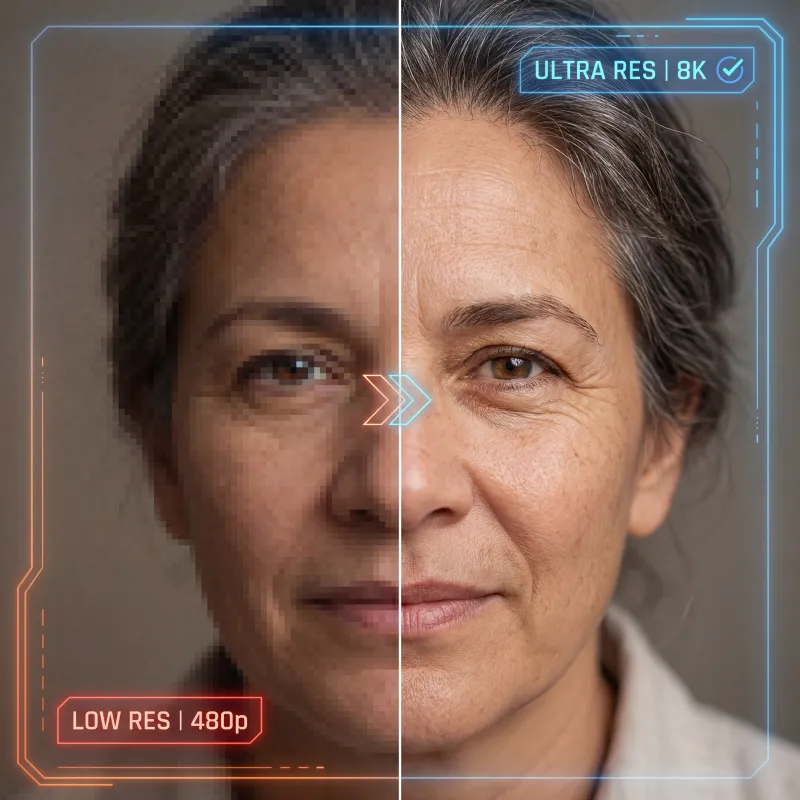
AI Image Upscaler
Enlarge images with Topaz Upscale using a 1–4x scale factor. Choose an enhancement mode, adjust face enhancement where needed, and export JPEG or PNG. Compare the result with your source before using it in a product listing, presentation, or print project.
Choose a 1–4x scale factor
Select how much to enlarge the width and height. A 1024px-wide source becomes 4096px wide at 4x; a 600px-wide source becomes 2400px wide. Your starting dimensions determine the output size.
Review the detail that matters
Try an enhancement mode suited to the source, then compare faces, text, texture, and edges at full size. AI enhancement can change detail; approve the image only when it still represents the original accurately.
Eight Topaz enhancement modes
Use Standard V2, Low Resolution V2, High Fidelity V2, CGI, Text Refine, Recovery, Recovery V2, or Redefine. Keep the source and compare results when trying a different mode.
One workspace, one balance
Use upscaling alongside Oakgen's image editing and generation tools with a shared credit balance. Check the displayed charge for your settings before each generation.
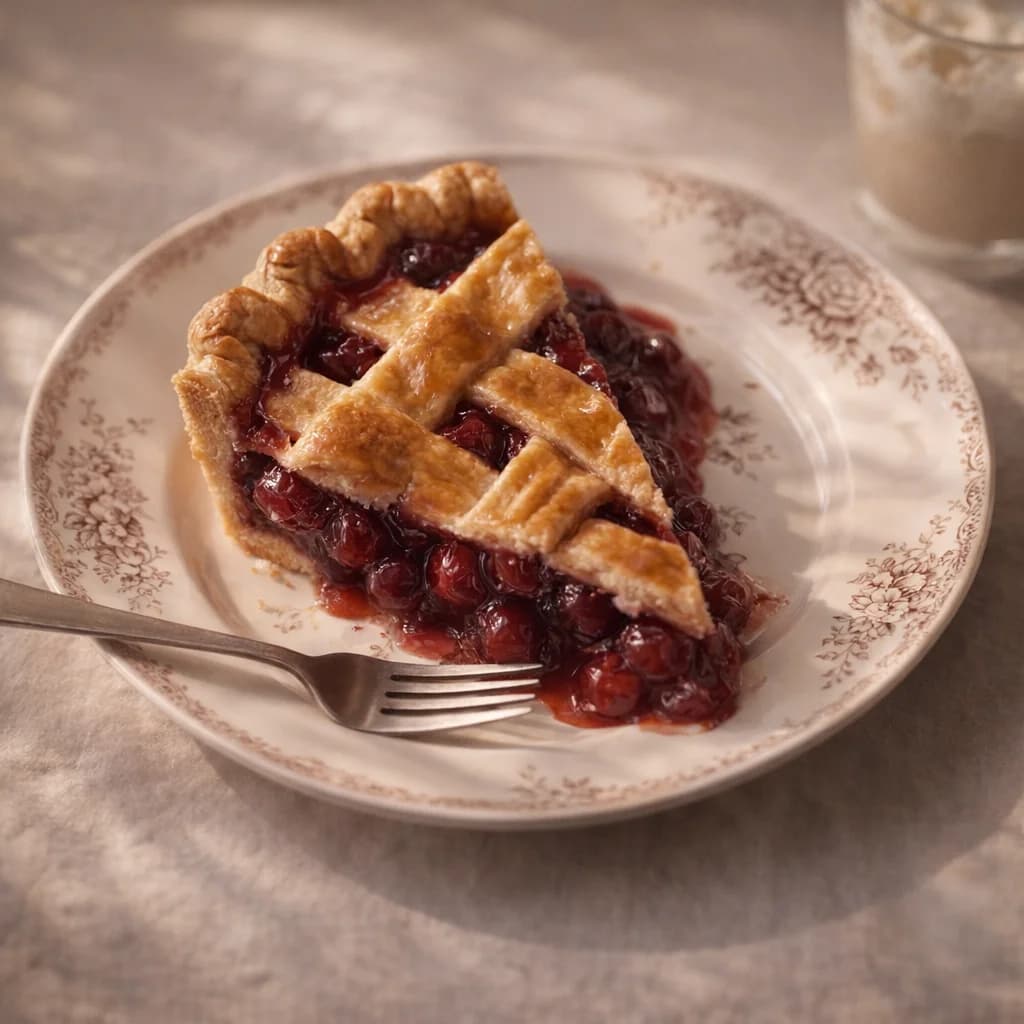
Enlarge an approved image
Start with a photo or a render made in the AI image generator. Choose the scale factor your destination needs, then compare the enlarged image with its source. Keep an untouched original for that review.
Upscale an image
Prepare for a specific destination
Choose the required dimensions before enlarging. For physical output, follow our AI image print-preparation guide to calculate the required pixels and review the result. Your printer may also require color, bleed, or file preparation in a separate editor.
Try the upscaler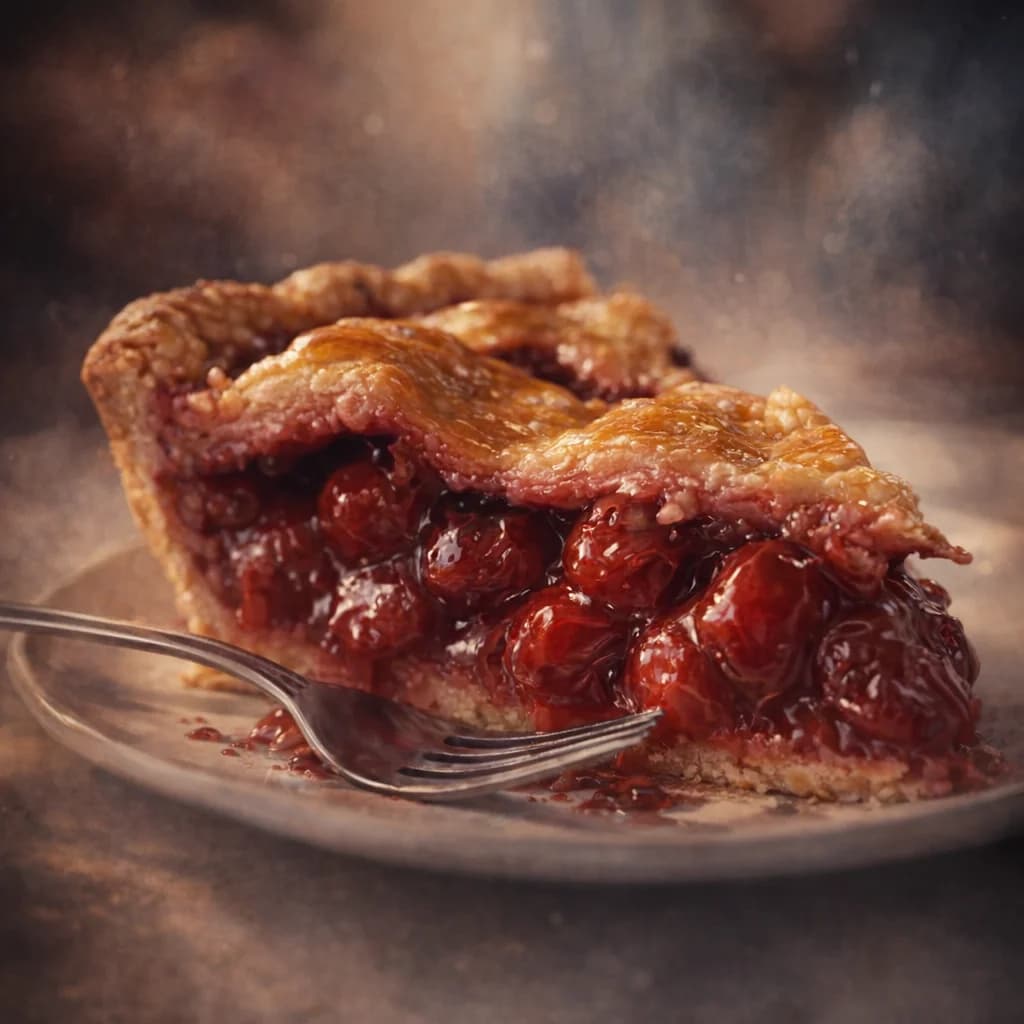
Face and output controls
Turn Face Enhancement on or off and adjust its strength for portraits. Advanced settings also offer subject detection and JPEG or PNG output. Compare facial features before approving a result, especially when likeness matters.
Start upscaling
Edit first, then review the enlargement
Make composition or background changes in the image editor, then enlarge the approved version. Recheck labels, proportions, and edges after upscaling; extra pixels do not establish that a detail is correct.
Upscale an imagePricing
One plan can run your whole AI workflow.
Start at $9/month with 2,000 credits across chat, images, video, voice, music, avatars, editing, and upscaling. Upgrade only when you need more monthly volume.
Basic
A simple plan for trying Oakgen
Fixed monthly capacity included with this plan
Billed $108 annually
No difference compared to monthly
Plan features
- Parallel generations: 1 video, 2 images
- Access to selected models only
- Limited avatar creation
- Basic voice cloning
- AI music & talking photos
- 7-day media retention
- Priority support
- Discount on extra credits
Pro
21% OFFFor students, work, and personal projects
Fixed monthly capacity included with this plan
Billed $180 annually · Save $48/year
Save $48 compared to monthly
Plan features
- Parallel generations: 3 videos, 6 images
- Access to all models
- Unlimited avatar creation
- Full voice cloning suite
- Celebrity/UGC creator tools
- AI music & talking photos
- Image upscaler
- 30-day media retention
- Priority support
- Discount on extra credits
Ultimate
14% OFFFor advanced use across the full platform
Fixed monthly capacity included with this plan
Billed $300 annually · Save $48/year
Save $48 compared to monthly
Plan features
- Parallel generations: 6 videos, 10 images
- Access to all models
- Professional UGC & avatar suite
- Advanced voice cloning + AI music
- Image upscaler
- 30-day media retention
- Priority support
- Beta feature access
- Dedicated account manager
- Discount on extra credits
Creator
20% OFFUnlock the full power of AI
Fixed monthly capacity included with this plan
Billed $948 annually · Save $240/year
Save $240 compared to monthly
Plan features
- Parallel generations: 10 videos, 20 images
- All models + beta featuresEXCLUSIVE
- Beta feature access
- Full creator suite (UGC, avatars, voices)
- Image upscaler
- Extended media retention
- Priority support
- Dedicated account manager
- Extra credit purchases available
Still have questions?
Picking a plan, custom credits, team pricing, billing — we usually reply within a few hours.
One studio, every tool
Your image generations plug straight into the rest of the Oakgen suite — all on one shared credit balance.
AI Image Generator
Create new images from a text prompt
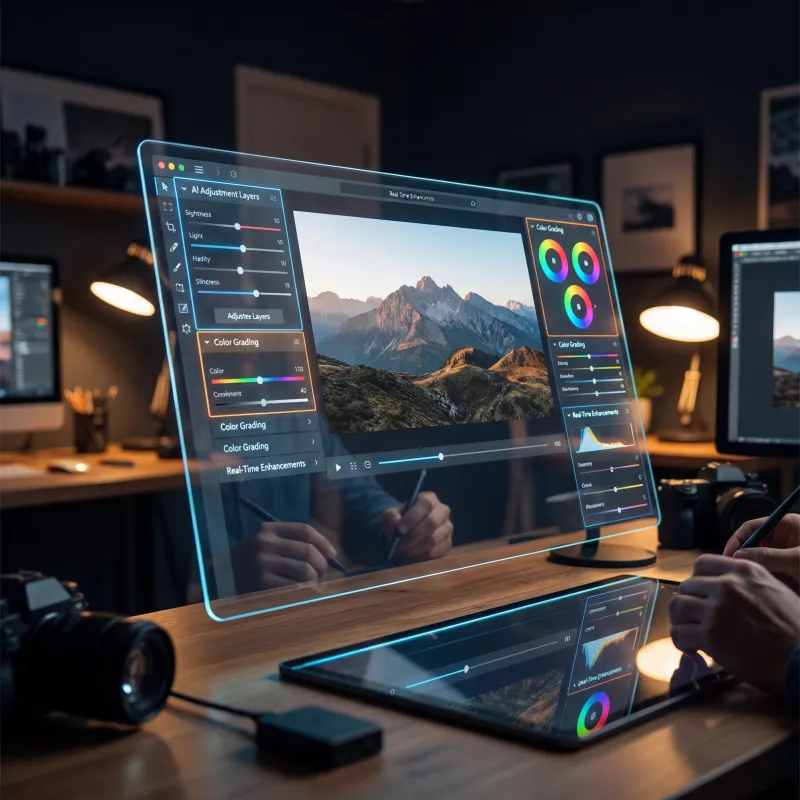
Image Editor
Edit, retouch, and transform any photo
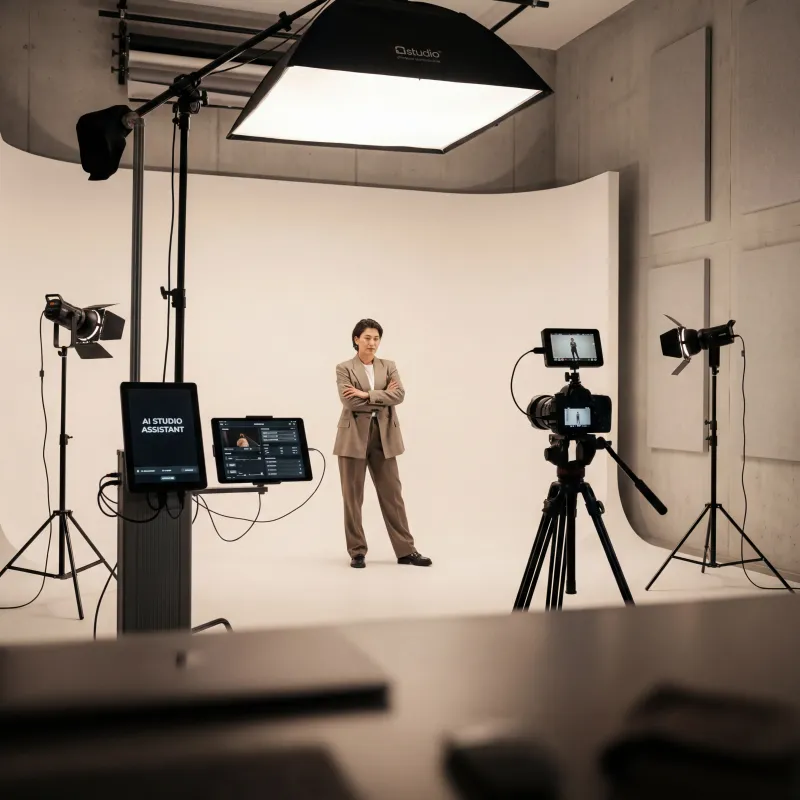
Photo Studio
Studio-quality product & portrait shots
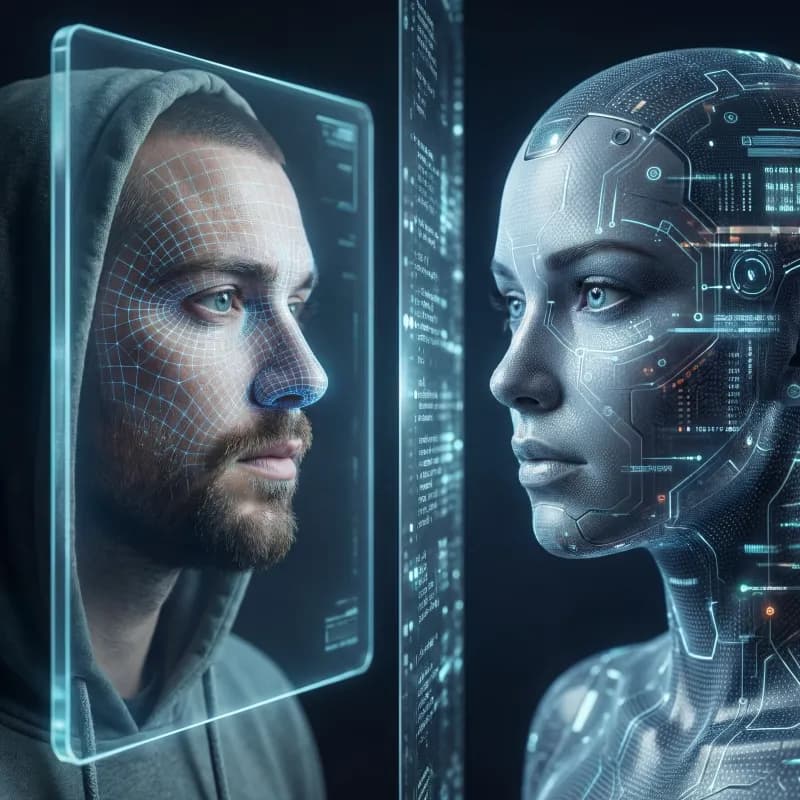
Avatar Generator
Create consistent AI avatars
Image Arena
Compare models side by side
AI Video Generator
Create stunning videos from text or images

AI Chat
Research and create with Oakgen Agent Chat
Explore more ways to create
Frequently asked questions
Everything you need to know about the ai image upscaler.